> ## Documentation Index
> Fetch the complete documentation index at: https://autoscaled.com/docs/llms.txt
> Use this file to discover all available pages before exploring further.
# How to Manage Presentations in AutoScaled
> Manage presentations in AutoScaled: filter, bulk rename, refresh Google Slides and PowerPoint, share, and export as PDF or PPTX. Read the docs.
AutoScaled has extensive options for presentation management to make it easier for you and your organization to manage, edit, refresh, export, and share presentations directly with your clients and stakeholders. This page walks you through the key presentation management options.
## Presentation Library Dashboard
The Presentations page is your central presentation library. It includes all the presentations you have generated through AutoScaled AI content workflows.
To navigate to the presentation library dashboard, select **"Presentations"** in the left-hand navigation bar:
.png?fit=max&auto=format&n=d_0tzv40og-JugEI&q=85&s=f9c4c36caa10ea9445e3d9dfd3d4a48a) ### Create new personalized presentations
From the presentation management page, you can create a new presentation automation workflow. This will launch the quick generate flow:
### Create new personalized presentations
From the presentation management page, you can create a new presentation automation workflow. This will launch the quick generate flow:
.png?fit=max&auto=format&n=d_0tzv40og-JugEI&q=85&s=53a1ffe98f5811bfacf696d084607df8) ### Most recent presentations
The top of the page shows the most recent presentations. These are the decks you've created most recently, or that were generated via triggers or scheduling while you were offline. Use the arrows to move through the panel, or hide it.
### Most recent presentations
The top of the page shows the most recent presentations. These are the decks you've created most recently, or that were generated via triggers or scheduling while you were offline. Use the arrows to move through the panel, or hide it.
.png?fit=max&auto=format&n=d_0tzv40og-JugEI&q=85&s=5c6b639b21859e2bb756c7a45aa22d12) When you click a presentation, it opens in **default presentation mode**.
### Presentation filtering
The presentation management page offers extensive filtering so you can find the right presentations. You can filter by:
1. **Search:** find a presentation by deck name
2. **Label:** filter by labels you assigned during setup
3. **Owner:** filter by presentation owner
4. **Workflow:** filter by the workflow that generated the deck
5. **Date:** filter by presentation creation date
When you click a presentation, it opens in **default presentation mode**.
### Presentation filtering
The presentation management page offers extensive filtering so you can find the right presentations. You can filter by:
1. **Search:** find a presentation by deck name
2. **Label:** filter by labels you assigned during setup
3. **Owner:** filter by presentation owner
4. **Workflow:** filter by the workflow that generated the deck
5. **Date:** filter by presentation creation date
.png?fit=max&auto=format&n=d_0tzv40og-JugEI&q=85&s=50f8719a6beabe4224e90d03e90e5f92) You can also switch between card view (a card for each presentation) and list view (a list of presentations), and sort presentations based on criteria such as *creation date, alphabetical*, or *most relevant*.
#### Stacking presentations from the same workflow
When generating hundreds of presentations, management becomes more difficult. AutoScaled automatically keeps track of which workflows generated your presentations.
In the presentation overview you can **stack** presentations by clicking the stack button:
You can also switch between card view (a card for each presentation) and list view (a list of presentations), and sort presentations based on criteria such as *creation date, alphabetical*, or *most relevant*.
#### Stacking presentations from the same workflow
When generating hundreds of presentations, management becomes more difficult. AutoScaled automatically keeps track of which workflows generated your presentations.
In the presentation overview you can **stack** presentations by clicking the stack button:
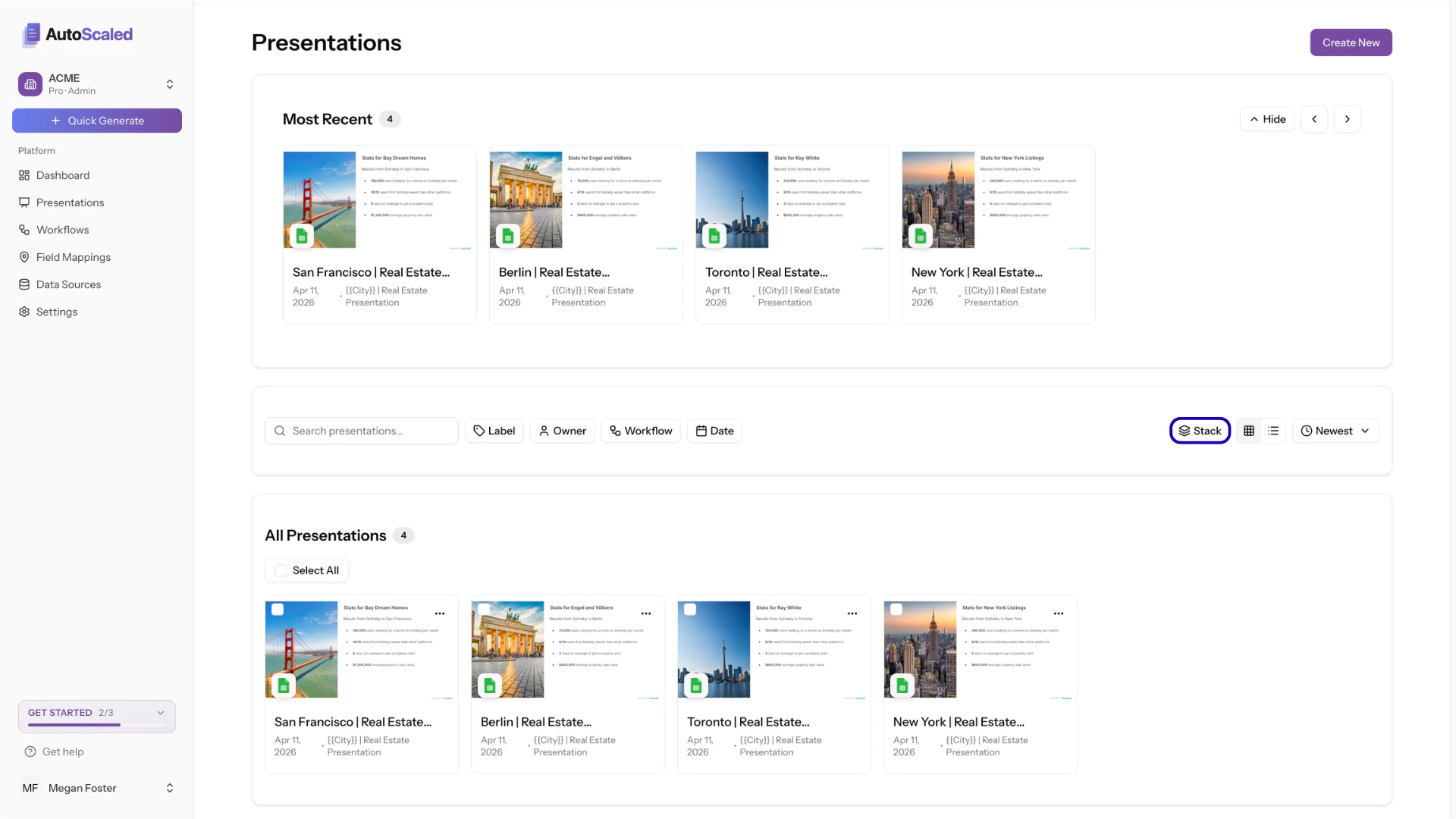 Stacking will display a single card or list item that contains **all presentations from the same workflow**.
> By default, presentations display as individual cards: 100 from batch #1 and 250 from batch #2 means 350 cards total. Enable Stack to collapse them into 2 grouped cards, one per batch.
Stacking will display a single card or list item that contains **all presentations from the same workflow**.
> By default, presentations display as individual cards: 100 from batch #1 and 250 from batch #2 means 350 cards total. Enable Stack to collapse them into 2 grouped cards, one per batch.
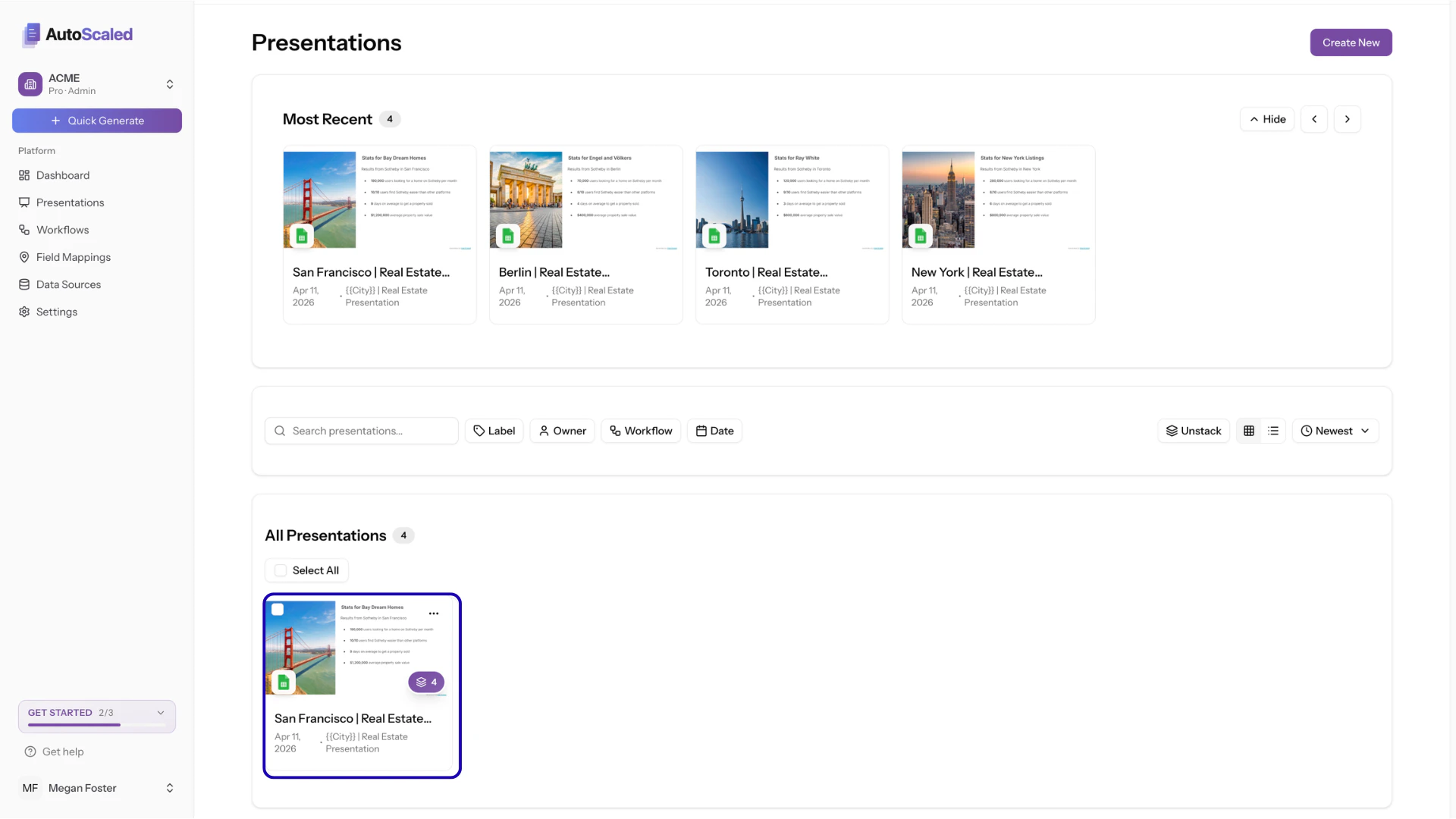 **Note 1:** When you apply actions to a stack, they are applied to each individual presentation in the stack.
**Note 2:** Presentations generated in "Append" mode (where slides are appended to the same presentation deck) are always displayed as a stack.
Filters, stacking, and sorting affect the "All Presentations" overview.
### All presentations
The "All Presentations" card shows all the presentations generated based on the sorting you set. When you apply filters, only the relevant presentations will be shown:
**Note 1:** When you apply actions to a stack, they are applied to each individual presentation in the stack.
**Note 2:** Presentations generated in "Append" mode (where slides are appended to the same presentation deck) are always displayed as a stack.
Filters, stacking, and sorting affect the "All Presentations" overview.
### All presentations
The "All Presentations" card shows all the presentations generated based on the sorting you set. When you apply filters, only the relevant presentations will be shown:
.png?fit=max&auto=format&n=d_0tzv40og-JugEI&q=85&s=443506fddd8180d99443b860a88a3a2e) ## Personalized Presentation Actions
### Actions for multiple presentations
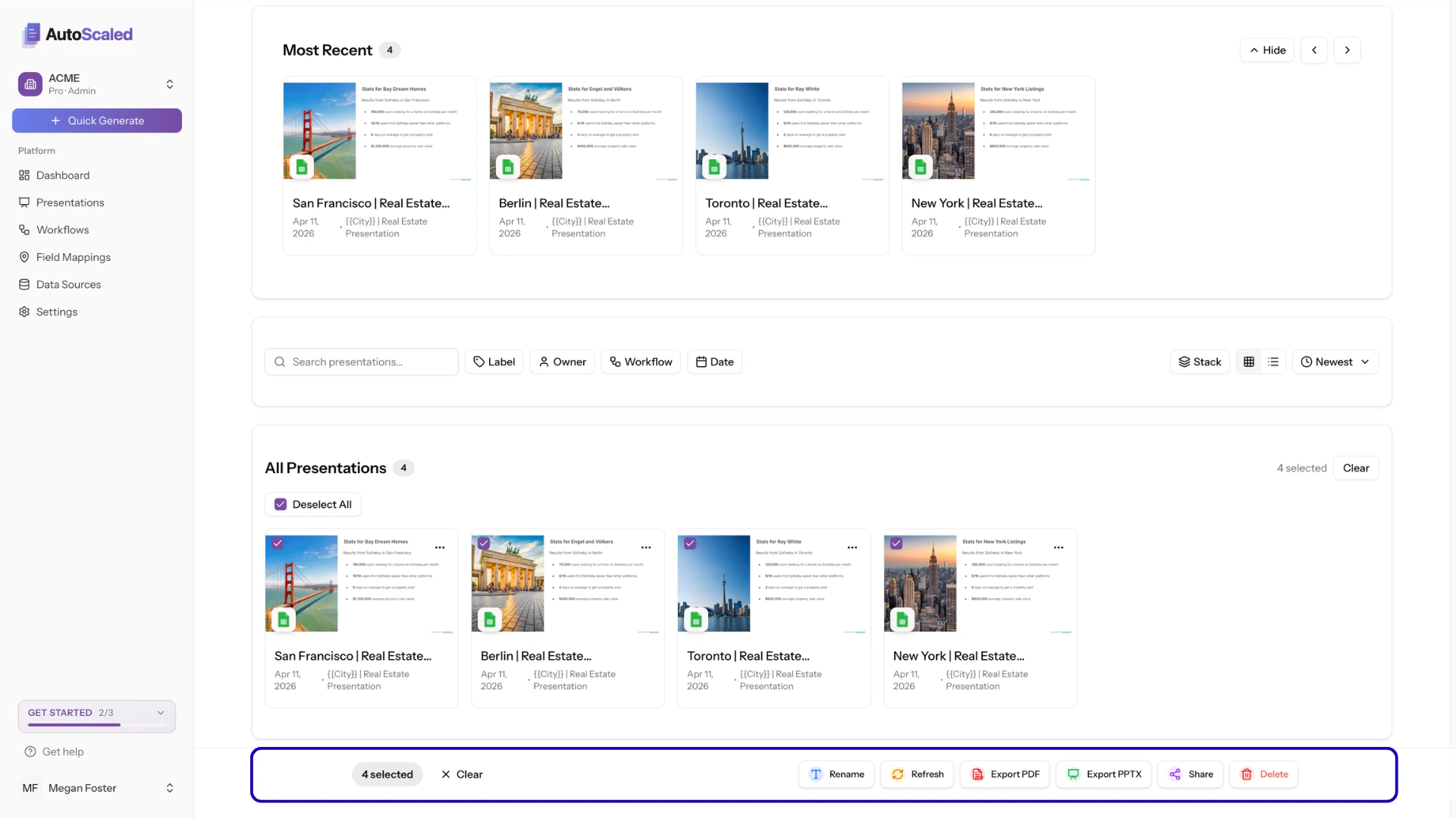
When you select **one or multiple** decks via checkboxes or through the **select all** button, an action panel appears. The action panel supports multiple actions:
1. **Rename:** Apply a naming pattern across selected presentations
2. **Refresh:** Re-generate selected presentations from their template with latest data
3. **Export PDF:** Download all selected as individual PDFs
4. **Export PPTX:** Download all selected as PowerPoint files
5. **Share:** Generate share links for all selected
6. **Delete:** Remove all selected (with confirmation)
## Personalized Presentation Actions
### Actions for multiple presentations
When you select **one or multiple** decks via checkboxes or through the **select all** button, an action panel appears. The action panel supports multiple actions:
1. **Rename:** Apply a naming pattern across selected presentations
2. **Refresh:** Re-generate selected presentations from their template with latest data
3. **Export PDF:** Download all selected as individual PDFs
4. **Export PPTX:** Download all selected as PowerPoint files
5. **Share:** Generate share links for all selected
6. **Delete:** Remove all selected (with confirmation)
 #### Renaming Google Slides presentations in bulk
AutoScaled allows bulk updates to presentation names. You can change multiple names in Google Drive directly from the presentation dashboard.
Select the presentations you want to rename, click **Rename**, and a modal will open. You can use `{{placeholder}}` syntax in the naming pattern so each deck gets a unique name.
#### Renaming Google Slides presentations in bulk
AutoScaled allows bulk updates to presentation names. You can change multiple names in Google Drive directly from the presentation dashboard.
Select the presentations you want to rename, click **Rename**, and a modal will open. You can use `{{placeholder}}` syntax in the naming pattern so each deck gets a unique name.
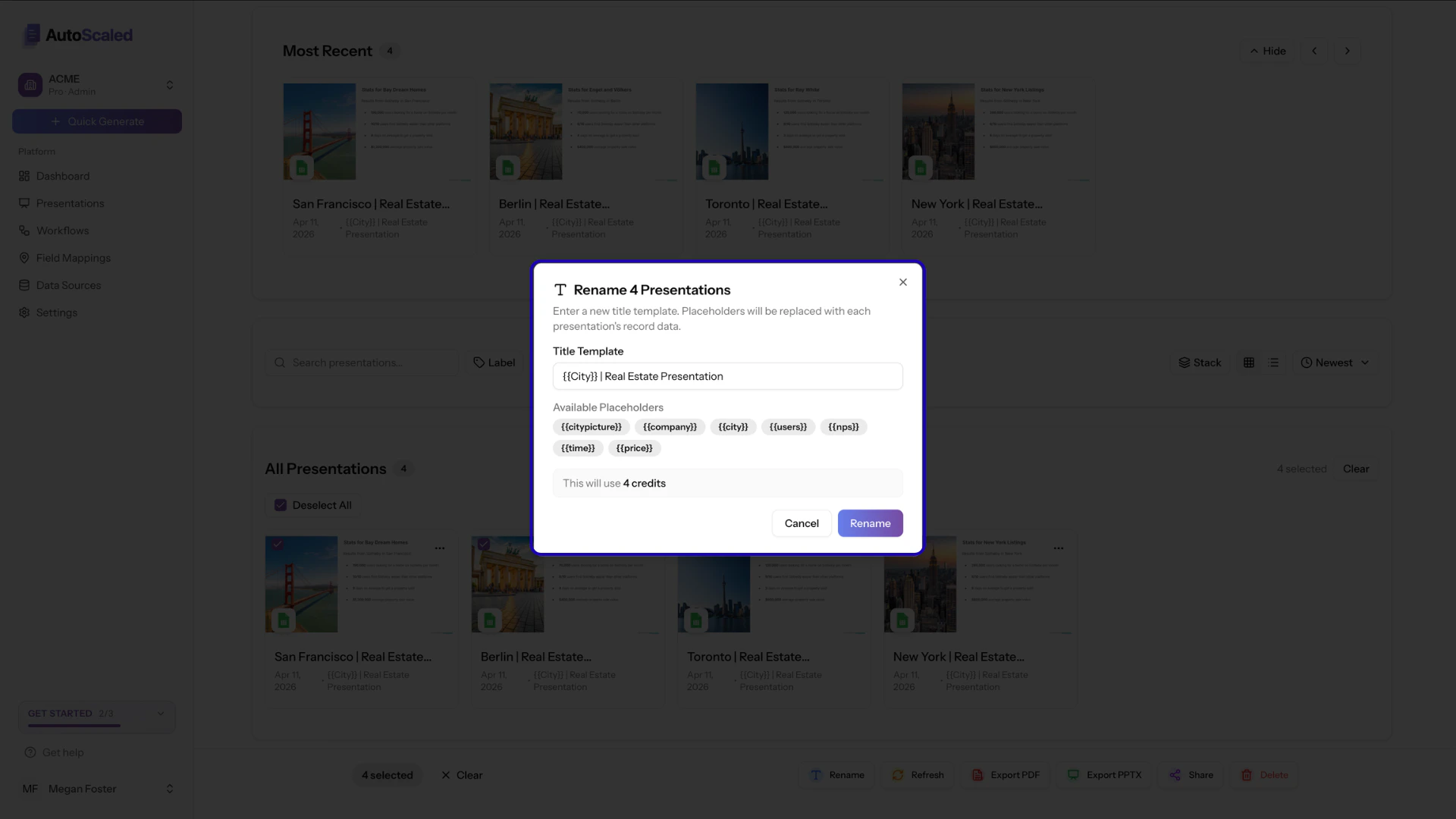 Placeholder values are drawn directly from your CRM or spreadsheet data.
> For example: three HubSpot companies in New York, Chicago, and San Francisco will each get their city name in the presentation title when you use the `{{city}}` placeholder.
Renaming a presentation will consume a credit.
#### Refreshing data in Google Slides and PowerPoint automatically
A major pain point for many organizations is keeping collateral up to date after presentations are published. In AutoScaled, you can refresh data in your presentations directly from your data source.
Select the presentations you want to refresh, click **Refresh**, and a modal will open. Confirm to re-fetch the latest data from your CRM and update all presentations in one go.
Placeholder values are drawn directly from your CRM or spreadsheet data.
> For example: three HubSpot companies in New York, Chicago, and San Francisco will each get their city name in the presentation title when you use the `{{city}}` placeholder.
Renaming a presentation will consume a credit.
#### Refreshing data in Google Slides and PowerPoint automatically
A major pain point for many organizations is keeping collateral up to date after presentations are published. In AutoScaled, you can refresh data in your presentations directly from your data source.
Select the presentations you want to refresh, click **Refresh**, and a modal will open. Confirm to re-fetch the latest data from your CRM and update all presentations in one go.
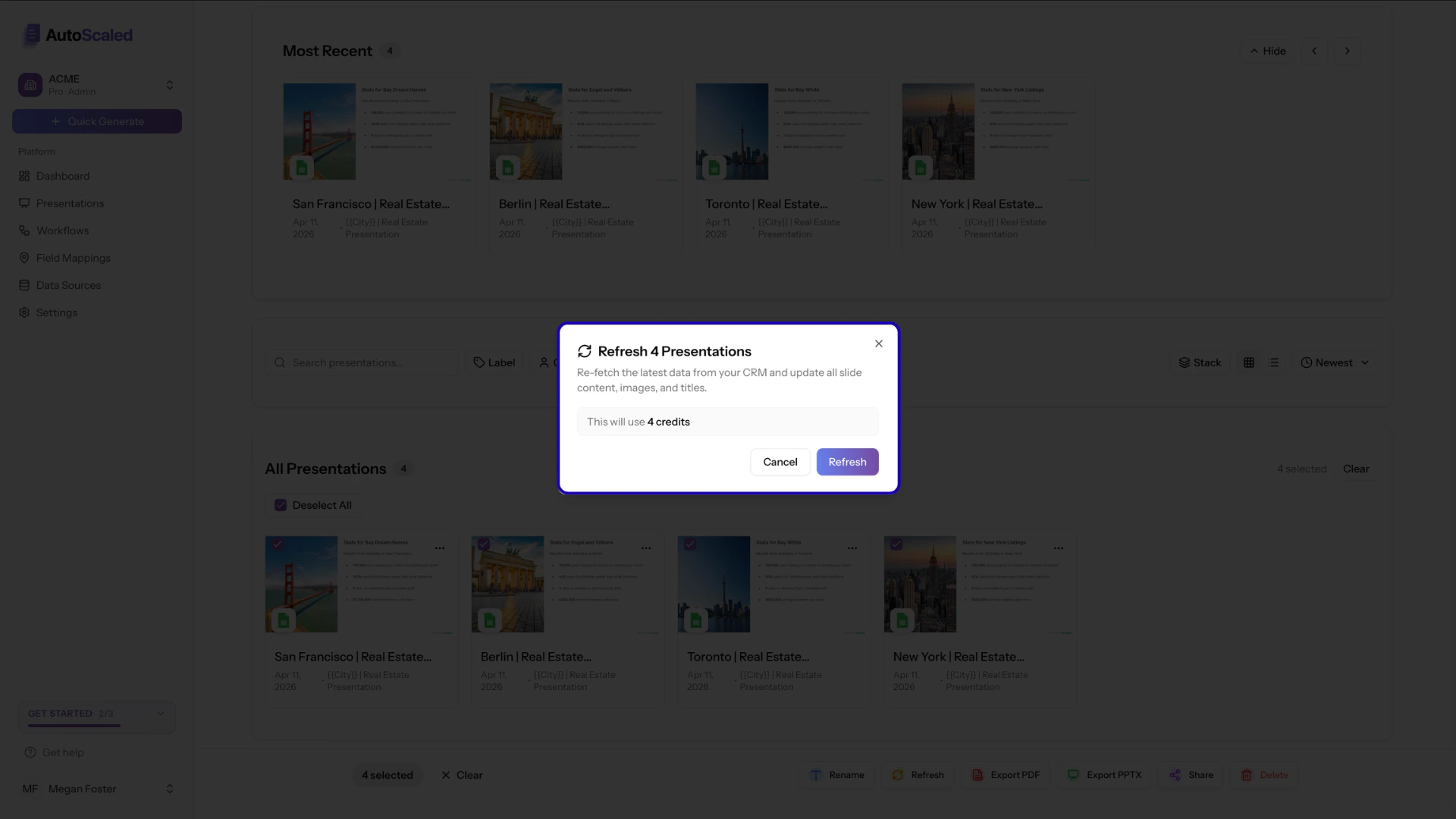 Refreshing a presentation will consume a credit.
#### Sharing presentations
Decks can be shared directly from AutoScaled via dedicated links or branded landing pages. For more detail, see:
Learn how to share presentations directly with your clients or internal stakeholders. Build branded landing pages to display multiple assets alongside your logo and colors.
#### Deleting presentations
Deleting presentations in AutoScaled requires double confirmation:
Refreshing a presentation will consume a credit.
#### Sharing presentations
Decks can be shared directly from AutoScaled via dedicated links or branded landing pages. For more detail, see:
Learn how to share presentations directly with your clients or internal stakeholders. Build branded landing pages to display multiple assets alongside your logo and colors.
#### Deleting presentations
Deleting presentations in AutoScaled requires double confirmation:
.png?fit=max&auto=format&n=gwtaNjFNOL6aOAwL&q=85&s=1e787c944dc1bd15b3d2cc515fc57270) When you delete presentations from AutoScaled, they are **automatically removed from Google Drive**. Ensure you make a local copy of the presentations before deleting them from AutoScaled. Automations, such as refreshing presentations, will no longer work for removed presentations.
There is **no option to restore your presentations**, because no presentation files are stored on AutoScaled.
### Additional actions for individual presentations
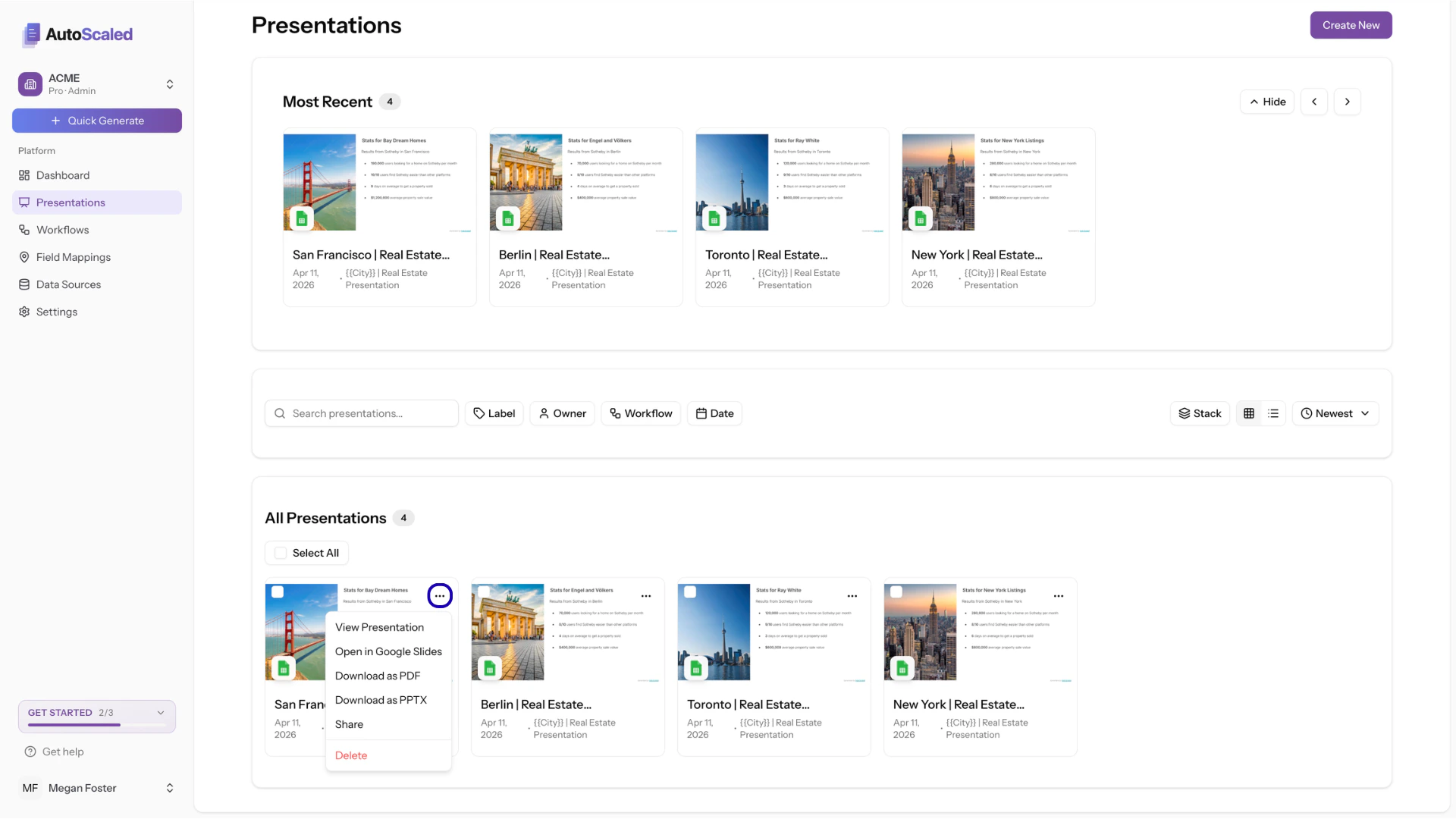
Additional actions are available for each presentation. Click the three dots on a card to open the menu:
When you delete presentations from AutoScaled, they are **automatically removed from Google Drive**. Ensure you make a local copy of the presentations before deleting them from AutoScaled. Automations, such as refreshing presentations, will no longer work for removed presentations.
There is **no option to restore your presentations**, because no presentation files are stored on AutoScaled.
### Additional actions for individual presentations
Additional actions are available for each presentation. Click the three dots on a card to open the menu:
 #### View presentation
The **View presentation** button opens the deck in **present mode**. Present mode is for running decks from AutoScaled during meetings or client calls.
#### View presentation
The **View presentation** button opens the deck in **present mode**. Present mode is for running decks from AutoScaled during meetings or client calls.
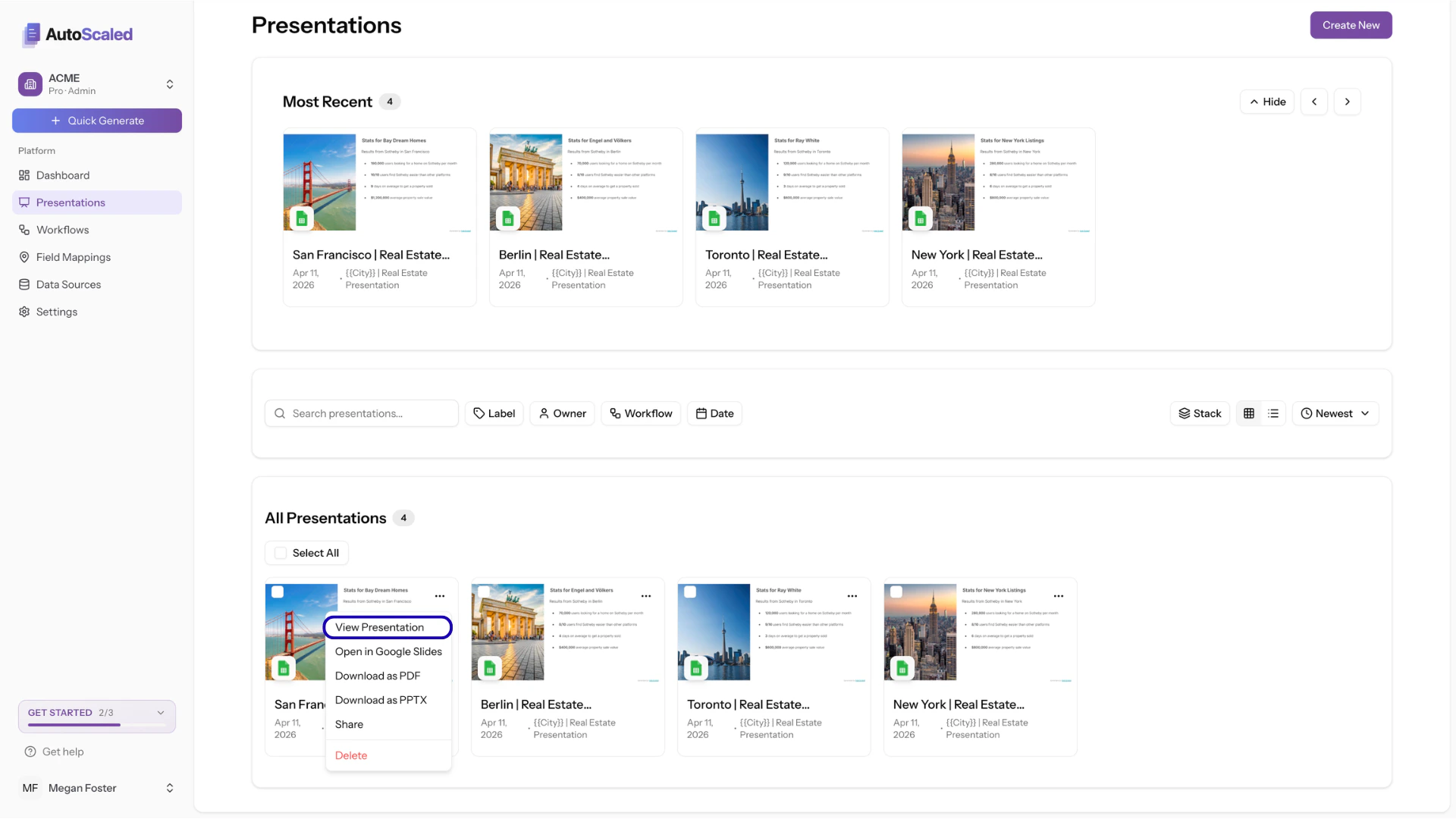 Present mode includes several options. See the dedicated guide:
Learn how to open presentations in a full-screen viewer with controls for meetings and client calls.
#### Open in Google Slides
The **Open in Google Slides** button opens the deck in Google Drive or your linked storage:
Present mode includes several options. See the dedicated guide:
Learn how to open presentations in a full-screen viewer with controls for meetings and client calls.
#### Open in Google Slides
The **Open in Google Slides** button opens the deck in Google Drive or your linked storage:
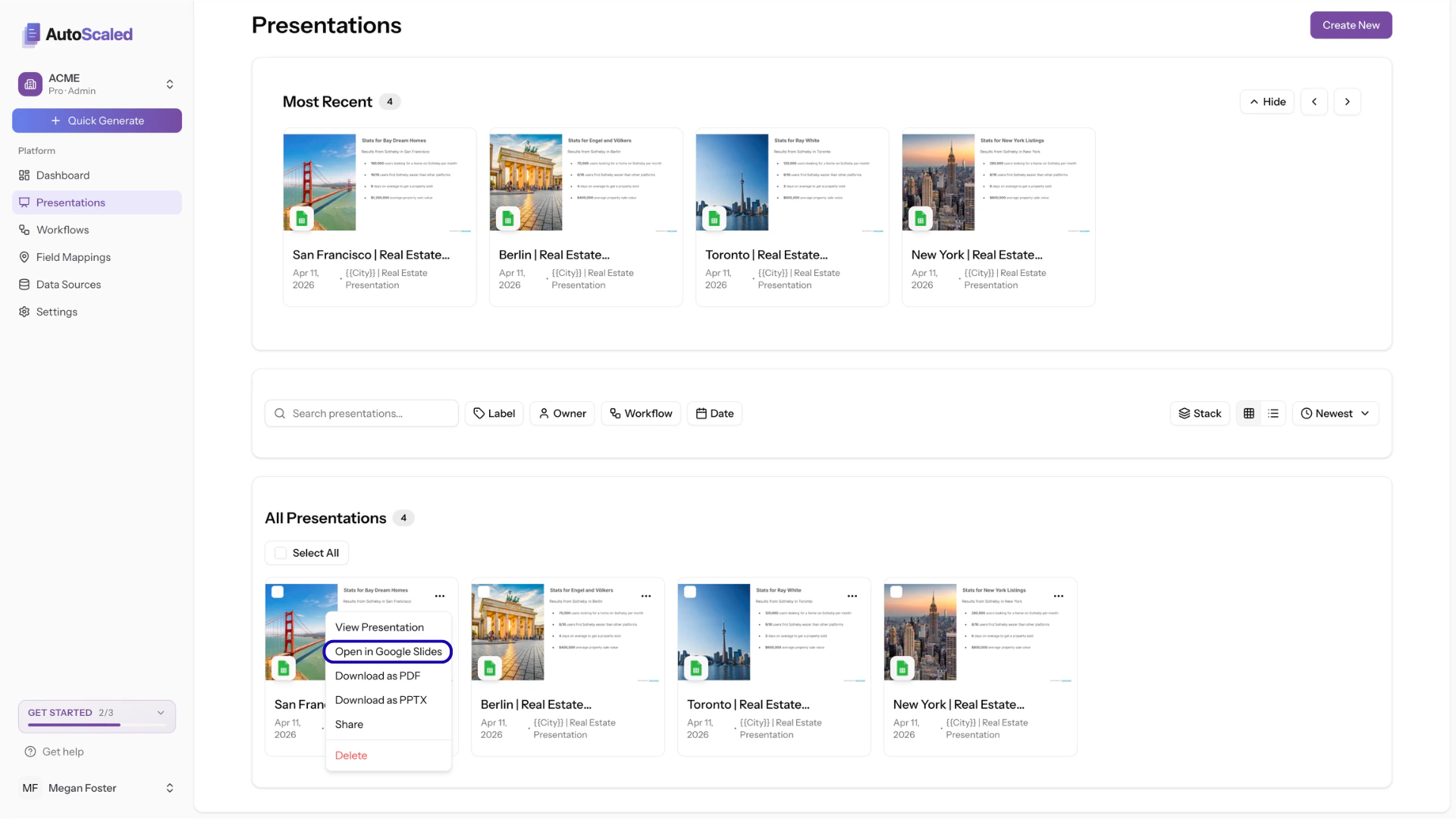 This is especially handy when you need to make small tweaks to a deck.
## Download Personalized Presentations
Export any presentation in two formats:
* **PDF**: Standard PDF export suitable for email or print
* **PPTX**: PowerPoint format for further editing in Microsoft Office
Both single and bulk downloads are supported.
***
**Anything missing?** Let us know at [**support@autoscaled.com**](mailto:support@autoscaled.com) and we'll help you out!
This is especially handy when you need to make small tweaks to a deck.
## Download Personalized Presentations
Export any presentation in two formats:
* **PDF**: Standard PDF export suitable for email or print
* **PPTX**: PowerPoint format for further editing in Microsoft Office
Both single and bulk downloads are supported.
***
**Anything missing?** Let us know at [**support@autoscaled.com**](mailto:support@autoscaled.com) and we'll help you out!