> ## Documentation Index
> Fetch the complete documentation index at: https://autoscaled.com/docs/llms.txt
> Use this file to discover all available pages before exploring further.
# How to present decks directly from AutoScaled
> Present decks documentation for AutoScaled: open present mode, navigate slides, zoom, switch display modes, and share or export. Read the full guide.
## Opening the presentation view
AutoScaled has **built-in** features that let you present decks directly from the **presentation management** page. Click the presentation you want to present to open **present mode**:
-1.png?fit=max&auto=format&n=XeLQ2QPB_z5zZMHD&q=85&s=98c59a444f930a0307e0c8222819cc54) You can launch present mode from **Most Recent** or **All Presentations**. Click the presentation directly, or select ... > View Presentation.
## Present mode in AutoScaled
The present mode comes with a set of additional options to make it easier to present your decks during client and internal meetings:
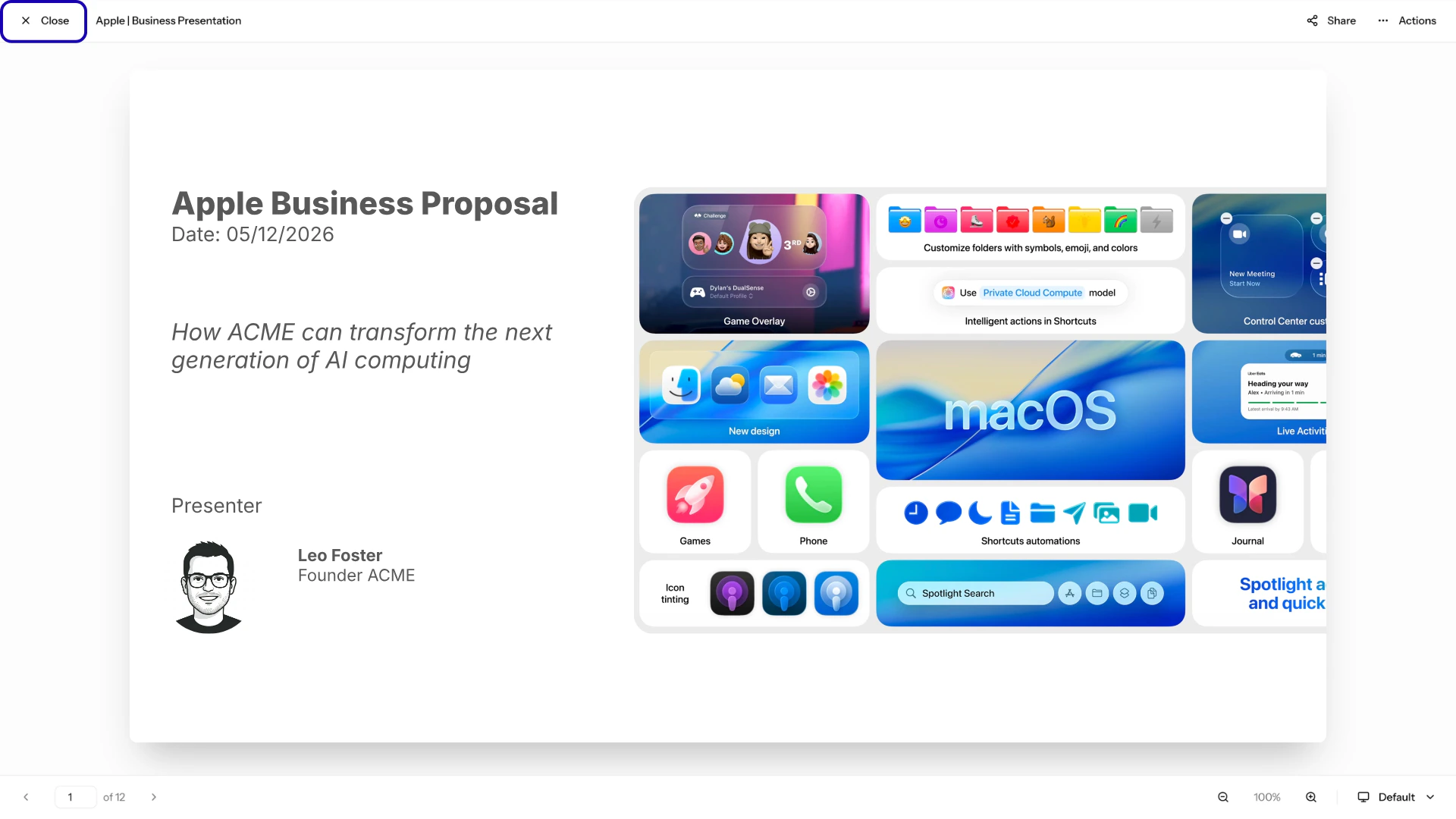
1. **Close:** closes the presentation and returns you to the presentation management tab
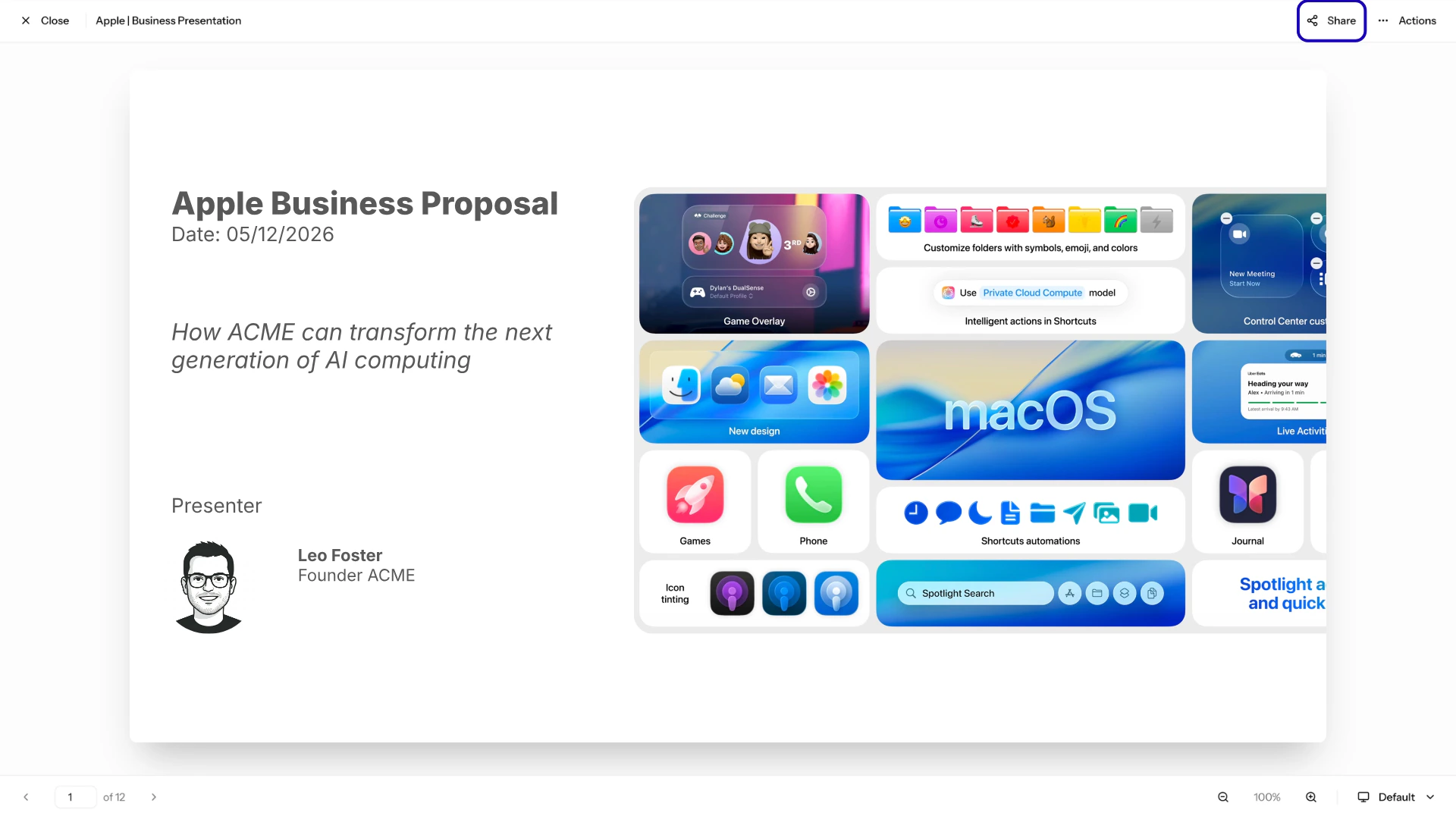
2. **Share:** shares the presentation with clients or internal stakeholders
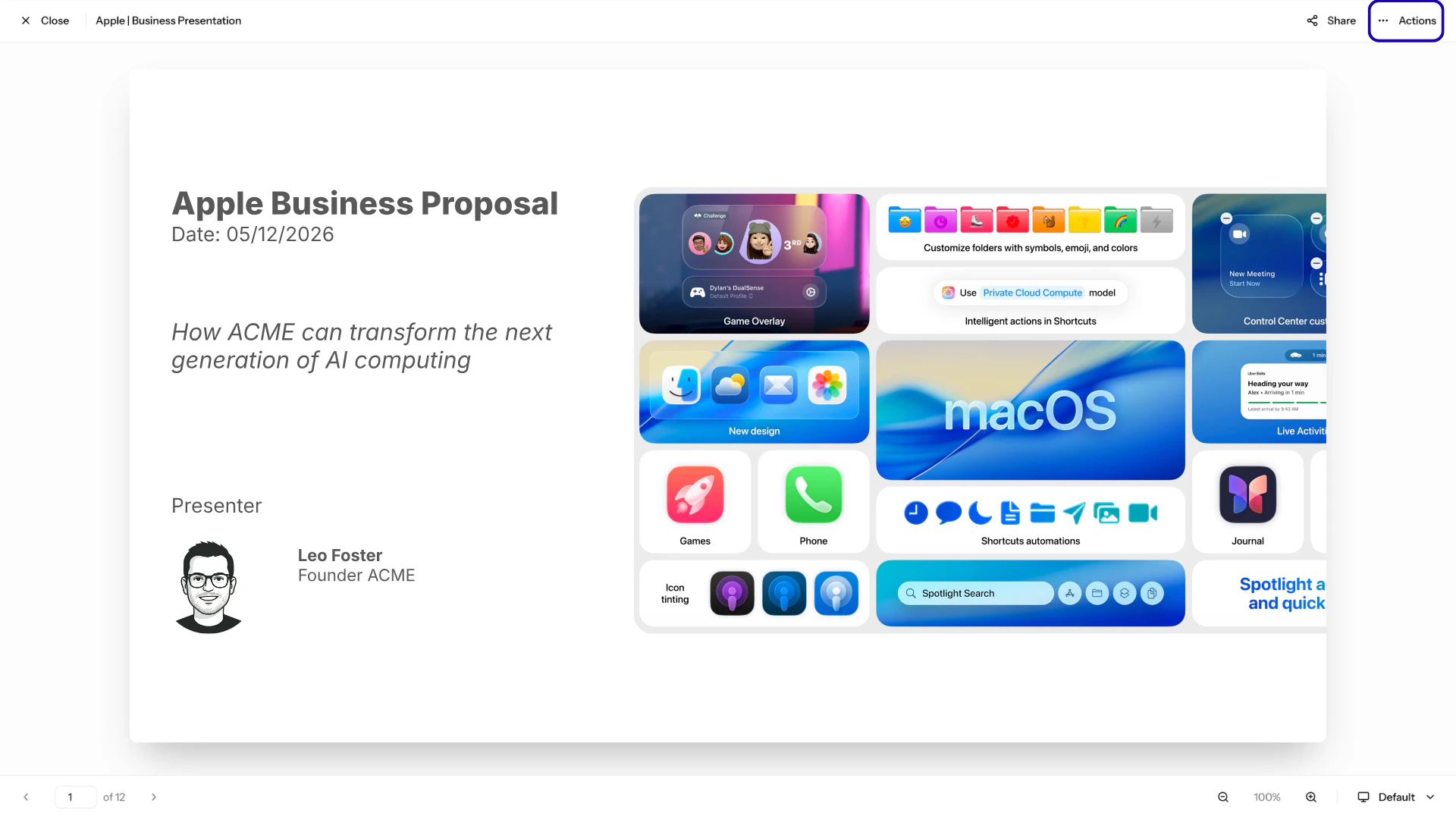
3. **Actions:** opens an action panel that includes downloading the presentation
4. **Navigation:** moves between slides via arrows or numbers
5. **Zoom:** zooms in or out of a slide to focus on certain areas
6. **Mode:** changes the mode of the presentation
You can launch present mode from **Most Recent** or **All Presentations**. Click the presentation directly, or select ... > View Presentation.
## Present mode in AutoScaled
The present mode comes with a set of additional options to make it easier to present your decks during client and internal meetings:
1. **Close:** closes the presentation and returns you to the presentation management tab
2. **Share:** shares the presentation with clients or internal stakeholders
3. **Actions:** opens an action panel that includes downloading the presentation
4. **Navigation:** moves between slides via arrows or numbers
5. **Zoom:** zooms in or out of a slide to focus on certain areas
6. **Mode:** changes the mode of the presentation
-2.png?fit=max&auto=format&n=XeLQ2QPB_z5zZMHD&q=85&s=4b3dcadc399030899d4d340d1218b695) ### Closing presentation view in AutoScaled
The **Close** button exits presentation view:
### Closing presentation view in AutoScaled
The **Close** button exits presentation view:
 ### Sharing decks from the presentation view
The **Share** button lets you share the presentation directly with a client or internal stakeholder:
### Sharing decks from the presentation view
The **Share** button lets you share the presentation directly with a client or internal stakeholder:
 To learn more about sharing presentations in AutoScaled via direct links or a branded content hub, open the **Share content** documentation using this card.
### Downloading, exporting, and removing decks in presentation view
The **Actions** button opens the action menu for the current presentation:
To learn more about sharing presentations in AutoScaled via direct links or a branded content hub, open the **Share content** documentation using this card.
### Downloading, exporting, and removing decks in presentation view
The **Actions** button opens the action menu for the current presentation:
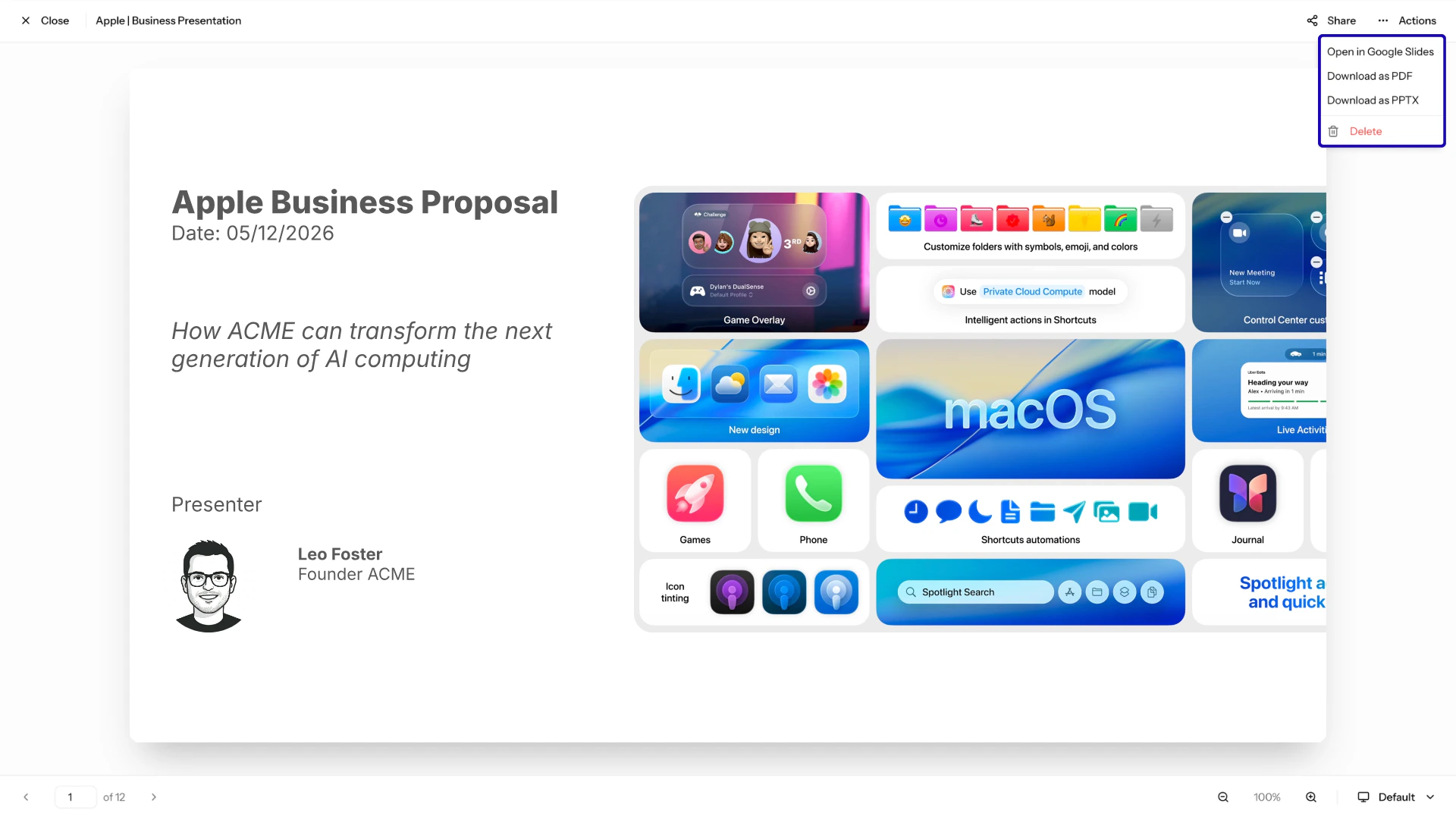
 You can take the following actions directly from the presentation view:
1. **Open in Google Slides:** launches the presentation in Google Slides
2. **Download as PDF:** downloads a PDF to your personal device
3. **Download as PPTX:** downloads a Microsoft PowerPoint to your personal device
You can take the following actions directly from the presentation view:
1. **Open in Google Slides:** launches the presentation in Google Slides
2. **Download as PDF:** downloads a PDF to your personal device
3. **Download as PPTX:** downloads a Microsoft PowerPoint to your personal device
 ### Navigating slides in the presentation view
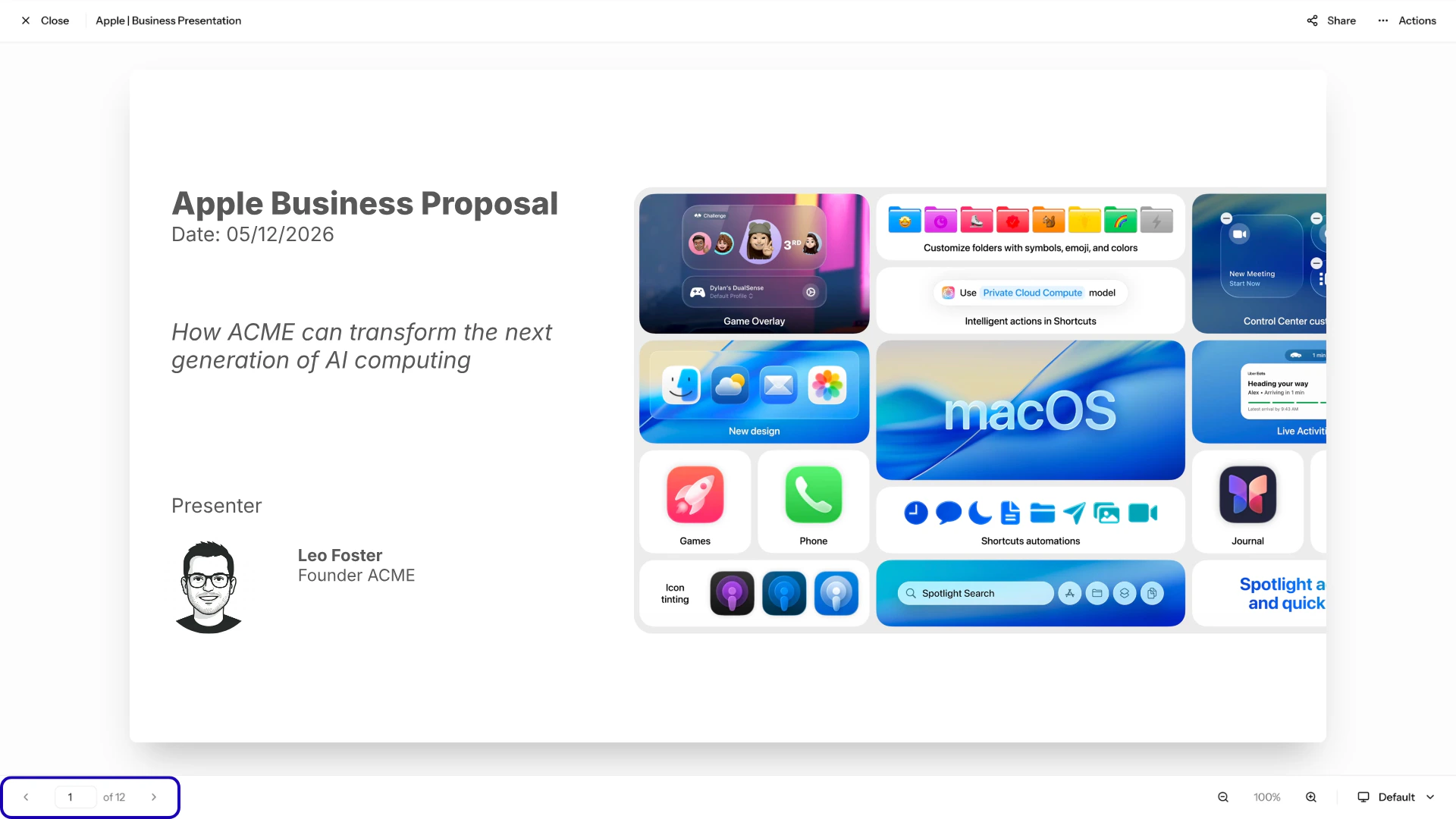
The **navigation buttons** at the bottom of the page allow you to navigate through slides. You can also enter the slide number to go to a specific slide:
### Navigating slides in the presentation view
The **navigation buttons** at the bottom of the page allow you to navigate through slides. You can also enter the slide number to go to a specific slide:
 ### Zooming in and out in presentation view
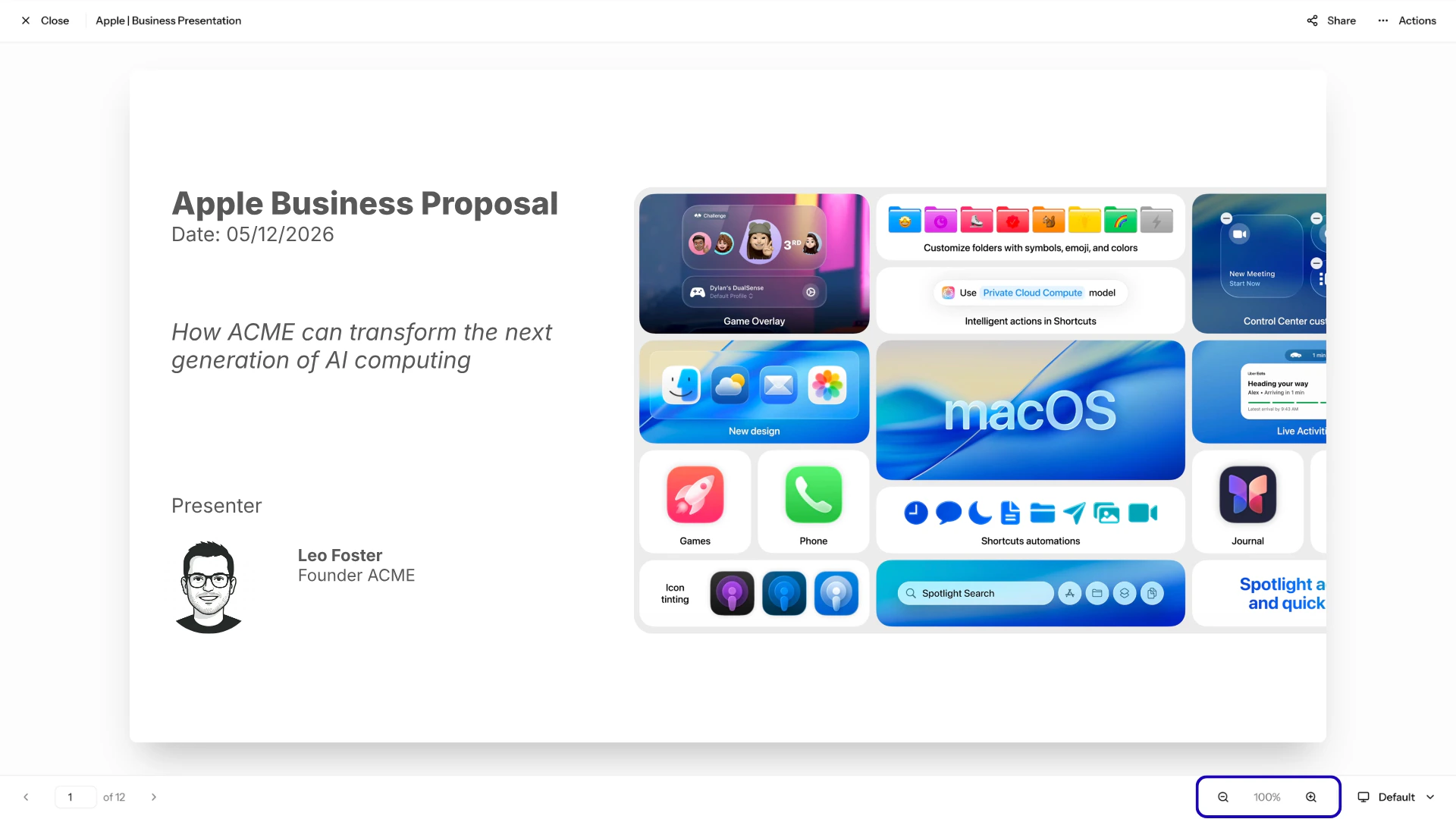
The **zoom buttons** at the bottom of the page let you zoom in or out on your presentation. You can set a specific zoom level between 50% and 200%. When zoomed, reset to 100% with the reset button:
### Zooming in and out in presentation view
The **zoom buttons** at the bottom of the page let you zoom in or out on your presentation. You can set a specific zoom level between 50% and 200%. When zoomed, reset to 100% with the reset button:
 ### Changing the present mode of the presentation view
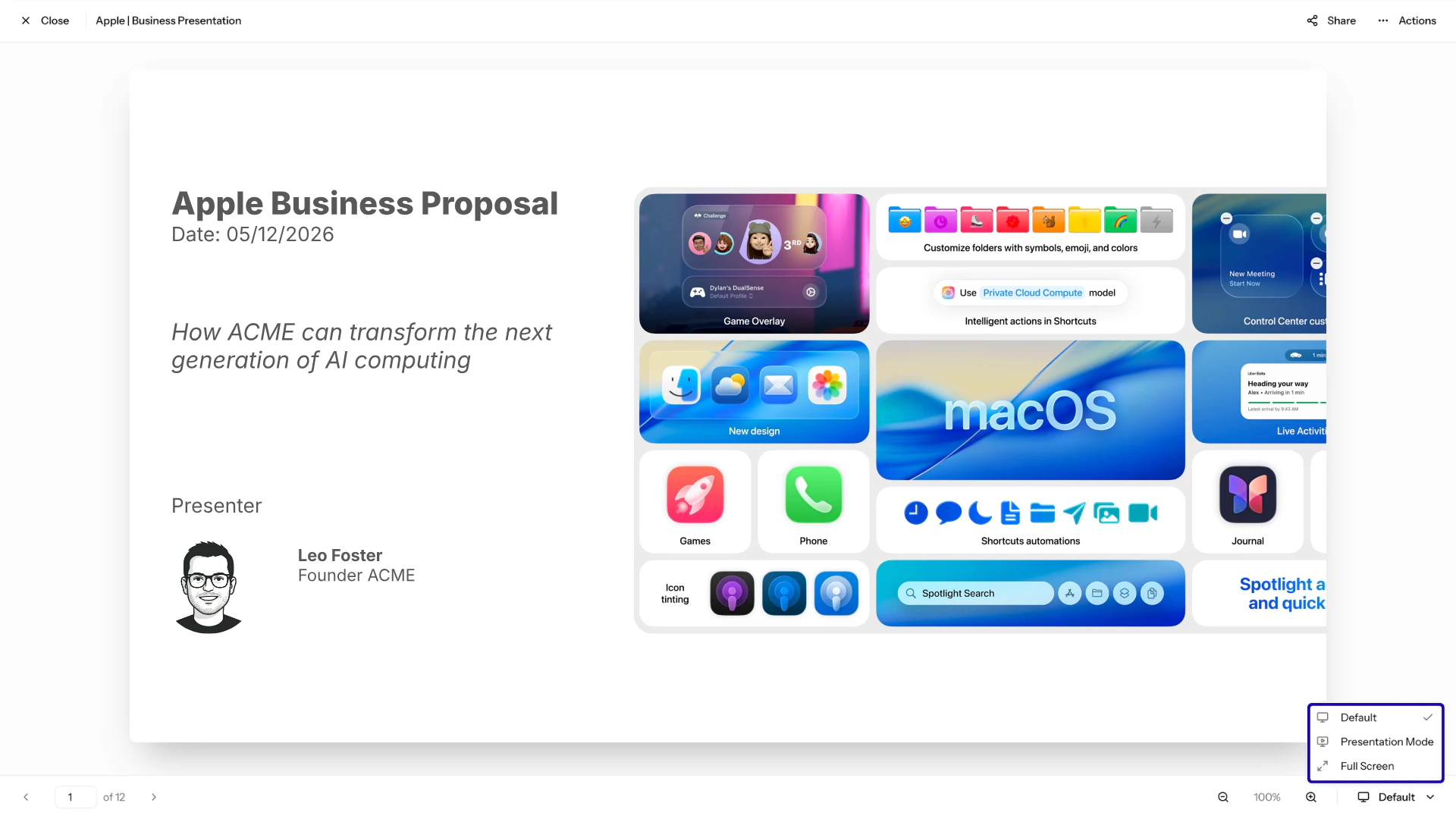
There are three presentation modes:
1. **Default:** showcases the presentation and all controls including sharing and actions. Default present mode is displayed in the visuals above.
2. **Presentation mode:** shows the presentation with minimal controls focused on presenting. Sharing and actions are hidden.
3. **Full screen:** showcases only the presentation with no controls, ideal for external presentations. All controls are hidden.
### Changing the present mode of the presentation view
There are three presentation modes:
1. **Default:** showcases the presentation and all controls including sharing and actions. Default present mode is displayed in the visuals above.
2. **Presentation mode:** shows the presentation with minimal controls focused on presenting. Sharing and actions are hidden.
3. **Full screen:** showcases only the presentation with no controls, ideal for external presentations. All controls are hidden.
 For the best results in **full screen** present mode, put your browser in full screen as well. On Windows, press **F11**; on Mac, press **Control + Command + F**.
#### Keyboard shortcuts in presentation and full screen mode
Use the following keyboard shortcuts to navigate in presentation or full screen mode:
1. **Arrow keys (left/right):** move between slides
2. **Arrow keys (up/down):** zoom in and out on the current slide
3. **Space:** advance to the next slide
4. **Escape:** exit presentation or full screen mode
***
**Anything missing?** Let us know at [**support@autoscaled.com**](mailto:support@autoscaled.com) and we'll help you out!
For the best results in **full screen** present mode, put your browser in full screen as well. On Windows, press **F11**; on Mac, press **Control + Command + F**.
#### Keyboard shortcuts in presentation and full screen mode
Use the following keyboard shortcuts to navigate in presentation or full screen mode:
1. **Arrow keys (left/right):** move between slides
2. **Arrow keys (up/down):** zoom in and out on the current slide
3. **Space:** advance to the next slide
4. **Escape:** exit presentation or full screen mode
***
**Anything missing?** Let us know at [**support@autoscaled.com**](mailto:support@autoscaled.com) and we'll help you out!