> ## Documentation Index
> Fetch the complete documentation index at: https://autoscaled.com/docs/llms.txt
> Use this file to discover all available pages before exploring further.
# Set up Salesforce to Generate Sales Decks Automatically
> Salesforce integration setup for AutoScaled: connect your account, configure scopes, and auto-generate sales decks from live CRM data. Start automating today.
To use data from [Salesforce](https://salesforce.com), authenticate your Salesforce instance in **Data Sources**.
## Connect Salesforce
1. Go to **Data Sources** in AutoScaled.
2. Click **Connect** next to Salesforce.
3. Complete the Salesforce login and authorization flow.
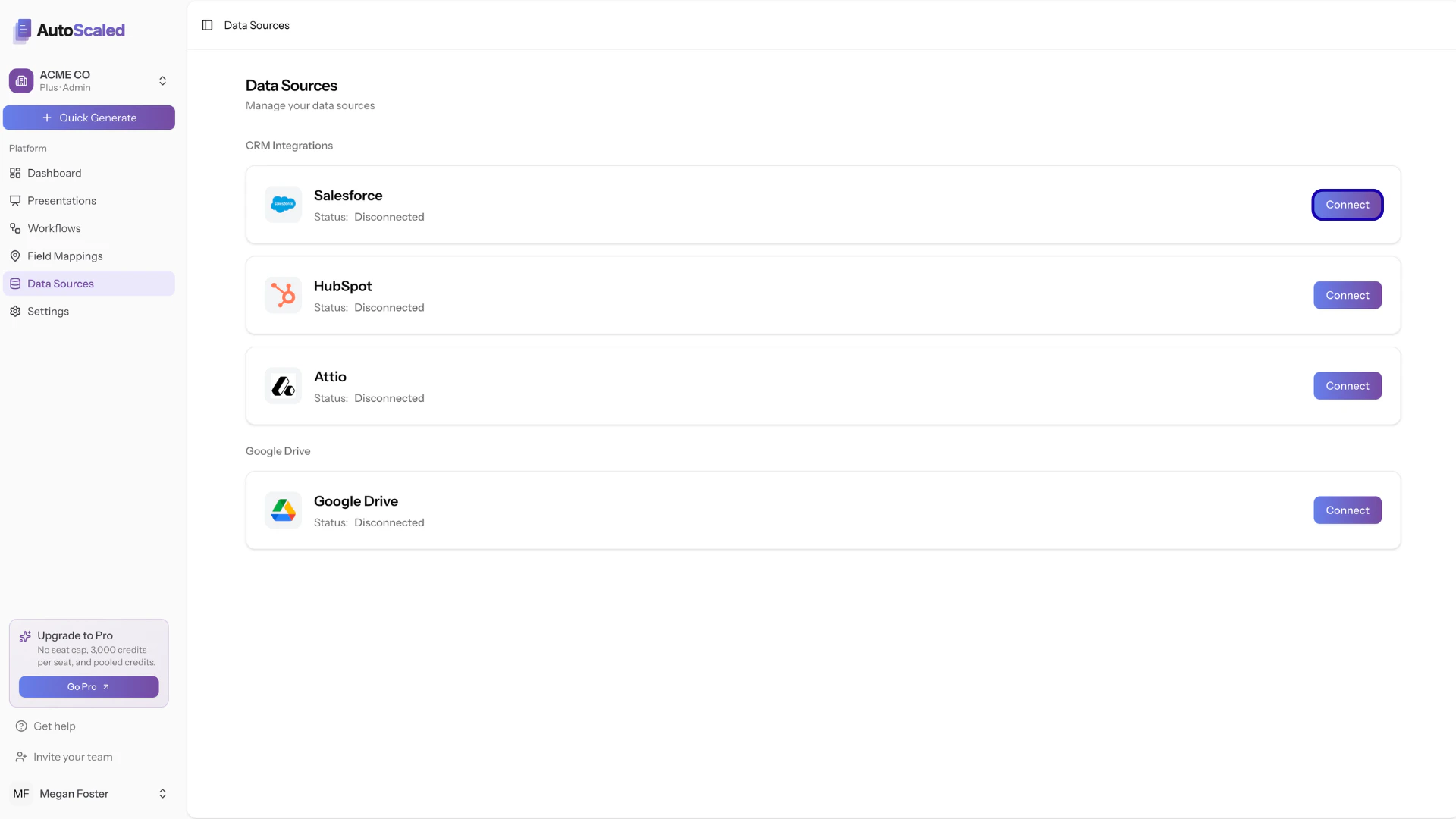 This opens a Salesforce dialog where you sign in and grant AutoScaled access to your Salesforce data. AutoScaled does not store this data; see our [data management](https://autoscaled.com/data-management/) page.
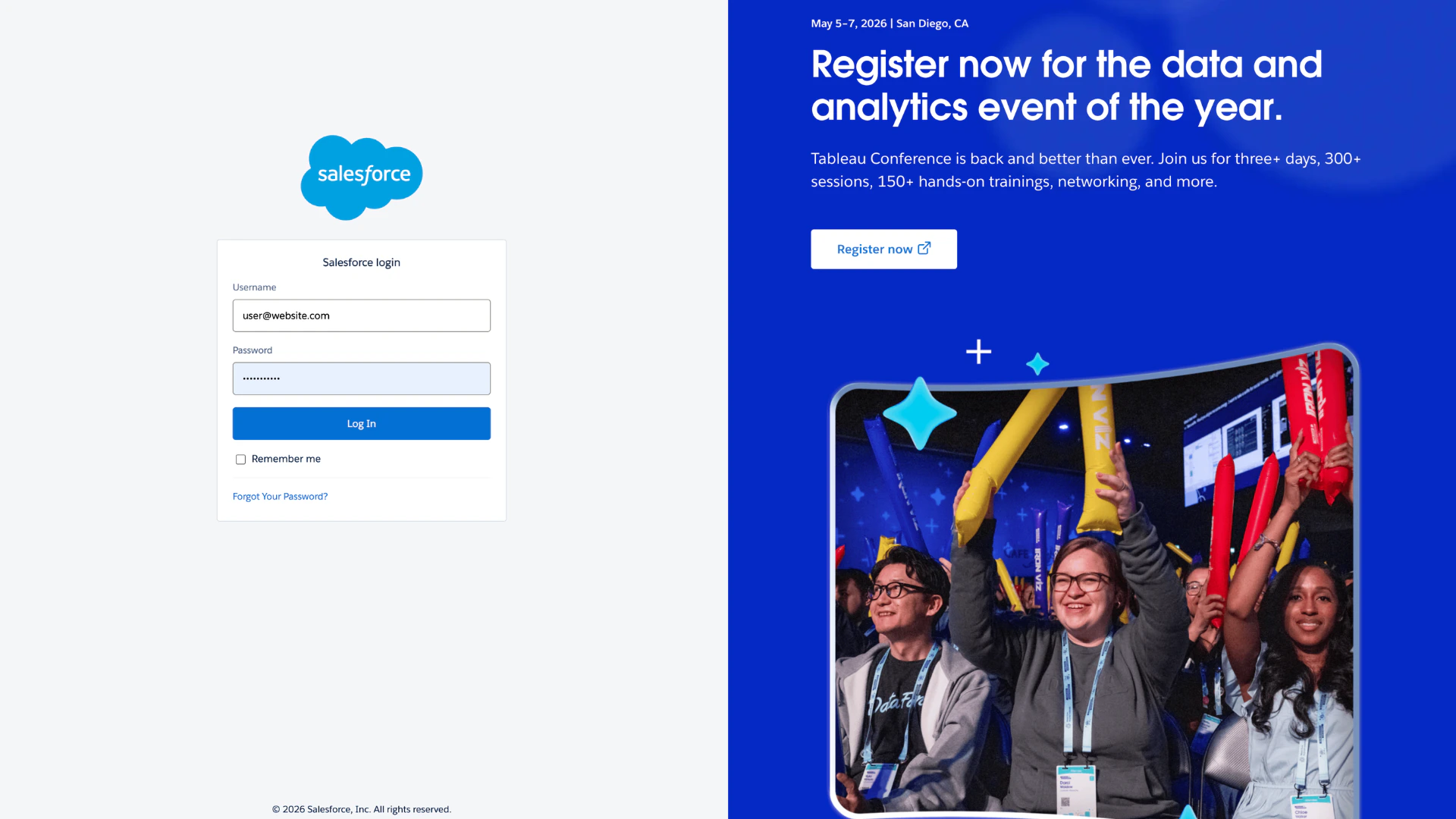 On the Salesforce login page, follow the instructions provided by Salesforce. This usually includes providing your credentials followed by selecting your instance.
Salesforce might show a warning as you're connecting a third-party tool to Salesforce. This is standard and default behavior. You can continue connecting AutoScaled and revoke access at any time.
Once connected, you will see the status update to **Connected**. You can use Salesforce for *running manual presentation generation*, *triggering deck creation*, and *content scheduling*.
## Why connect Salesforce to AutoScaled
Connecting Salesforce helps you automate and scale presentation workflows:
* **Generate presentations from CRM events:** Trigger deck generation when records are created or updated.
* **Use live customer data:** Populate templates with Salesforce opportunity, contact, account, and custom object data.
* **Schedule recurring updates:** Run scheduled workflows for forecast, deal, and account review meetings.
* **Keep messaging consistent:** Use reusable templates and mappings so teams present aligned, up-to-date information.
## Required scopes and access model
AutoScaled requests scopes for:
* **Read-only access** to default Salesforce objects (opportunities/deals, contacts, accounts/companies)
* **Event listening access** for trigger-based CRM change events
* **Equivalent access on custom objects** used in your workflows
AutoScaled does not expand your Salesforce permissions. It respects object and field visibility already configured in your Salesforce org. AutoScaled has no write access to Salesforce and cannot edit records, objects, or fields.
## Uninstall or disconnect Salesforce
To remove Salesforce access:
1. In AutoScaled, open **Data Sources** and disconnect Salesforce.
2. In Salesforce, revoke AutoScaled from connected apps.
After disconnecting, workflows that use Salesforce scheduling and triggers will stop working until the integration is reconnected.
View all integrations and platform-level data source guidance.
***
**Anything missing?** Let us know at [**support@autoscaled.com**](mailto:support@autoscaled.com) and we'll help you out!
On the Salesforce login page, follow the instructions provided by Salesforce. This usually includes providing your credentials followed by selecting your instance.
Salesforce might show a warning as you're connecting a third-party tool to Salesforce. This is standard and default behavior. You can continue connecting AutoScaled and revoke access at any time.
Once connected, you will see the status update to **Connected**. You can use Salesforce for *running manual presentation generation*, *triggering deck creation*, and *content scheduling*.
## Why connect Salesforce to AutoScaled
Connecting Salesforce helps you automate and scale presentation workflows:
* **Generate presentations from CRM events:** Trigger deck generation when records are created or updated.
* **Use live customer data:** Populate templates with Salesforce opportunity, contact, account, and custom object data.
* **Schedule recurring updates:** Run scheduled workflows for forecast, deal, and account review meetings.
* **Keep messaging consistent:** Use reusable templates and mappings so teams present aligned, up-to-date information.
## Required scopes and access model
AutoScaled requests scopes for:
* **Read-only access** to default Salesforce objects (opportunities/deals, contacts, accounts/companies)
* **Event listening access** for trigger-based CRM change events
* **Equivalent access on custom objects** used in your workflows
AutoScaled does not expand your Salesforce permissions. It respects object and field visibility already configured in your Salesforce org. AutoScaled has no write access to Salesforce and cannot edit records, objects, or fields.
## Uninstall or disconnect Salesforce
To remove Salesforce access:
1. In AutoScaled, open **Data Sources** and disconnect Salesforce.
2. In Salesforce, revoke AutoScaled from connected apps.
After disconnecting, workflows that use Salesforce scheduling and triggers will stop working until the integration is reconnected.
View all integrations and platform-level data source guidance.
***
**Anything missing?** Let us know at [**support@autoscaled.com**](mailto:support@autoscaled.com) and we'll help you out!