> ## Documentation Index
> Fetch the complete documentation index at: https://autoscaled.com/docs/llms.txt
> Use this file to discover all available pages before exploring further.
# Creating a Presentation Workflow from an AI Prompt
> Presentation workflows built through AI chat: describe your goal, connect CRM or spreadsheet data, map fields, and generate decks. Start building today.
The **Quick Generate** screen is your primary way to create workflows. It's an AI-powered conversational interface. Simply describe what you want to generate, and the assistant walks you through each step.
## Chat Interface
The screen is split into two panels:
* **Chat Panel (left)**: An interactive conversation where you describe what you want to generate, answer questions, and make selections. The AI guides you through data source selection, filtering, template picking, and field mapping.
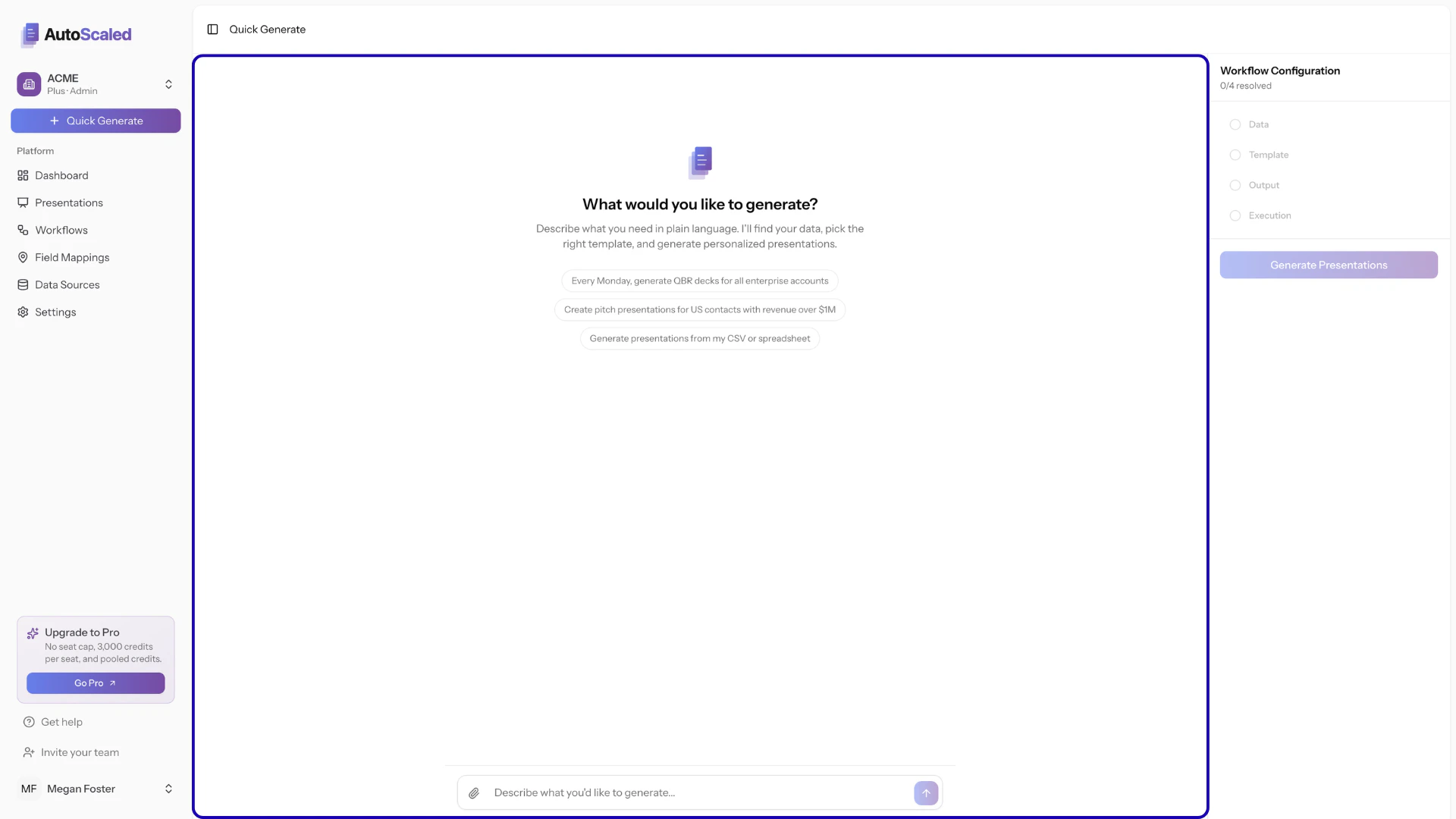 Most steps are automatically executed by our AI agent. Your main task in the chat interface is to provide the initial prompt and validate information shown. There is no technical knowledge required to interact with AutoScaled AI.
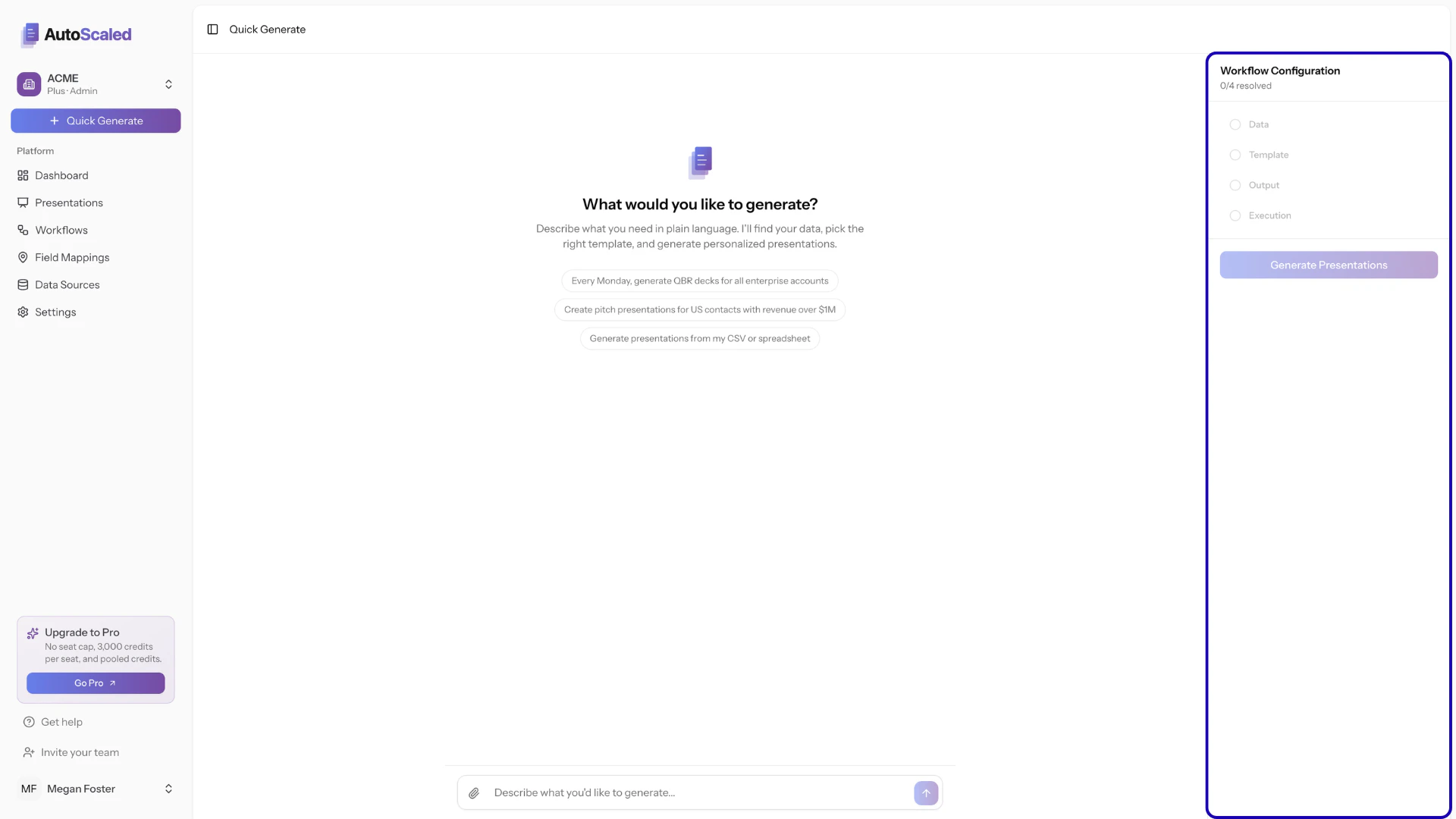
* **Configuration sidebar (right):** Shows the current state of your workflow as you build it. Each step is marked as complete or pending.
Most steps are automatically executed by our AI agent. Your main task in the chat interface is to provide the initial prompt and validate information shown. There is no technical knowledge required to interact with AutoScaled AI.
* **Configuration sidebar (right):** Shows the current state of your workflow as you build it. Each step is marked as complete or pending.
 ### Chat Interface Start Prompt
To kick off the chat interface, you need to provide a prompt. Use natural human language in the prompt input box:
### Chat Interface Start Prompt
To kick off the chat interface, you need to provide a prompt. Use natural human language in the prompt input box:
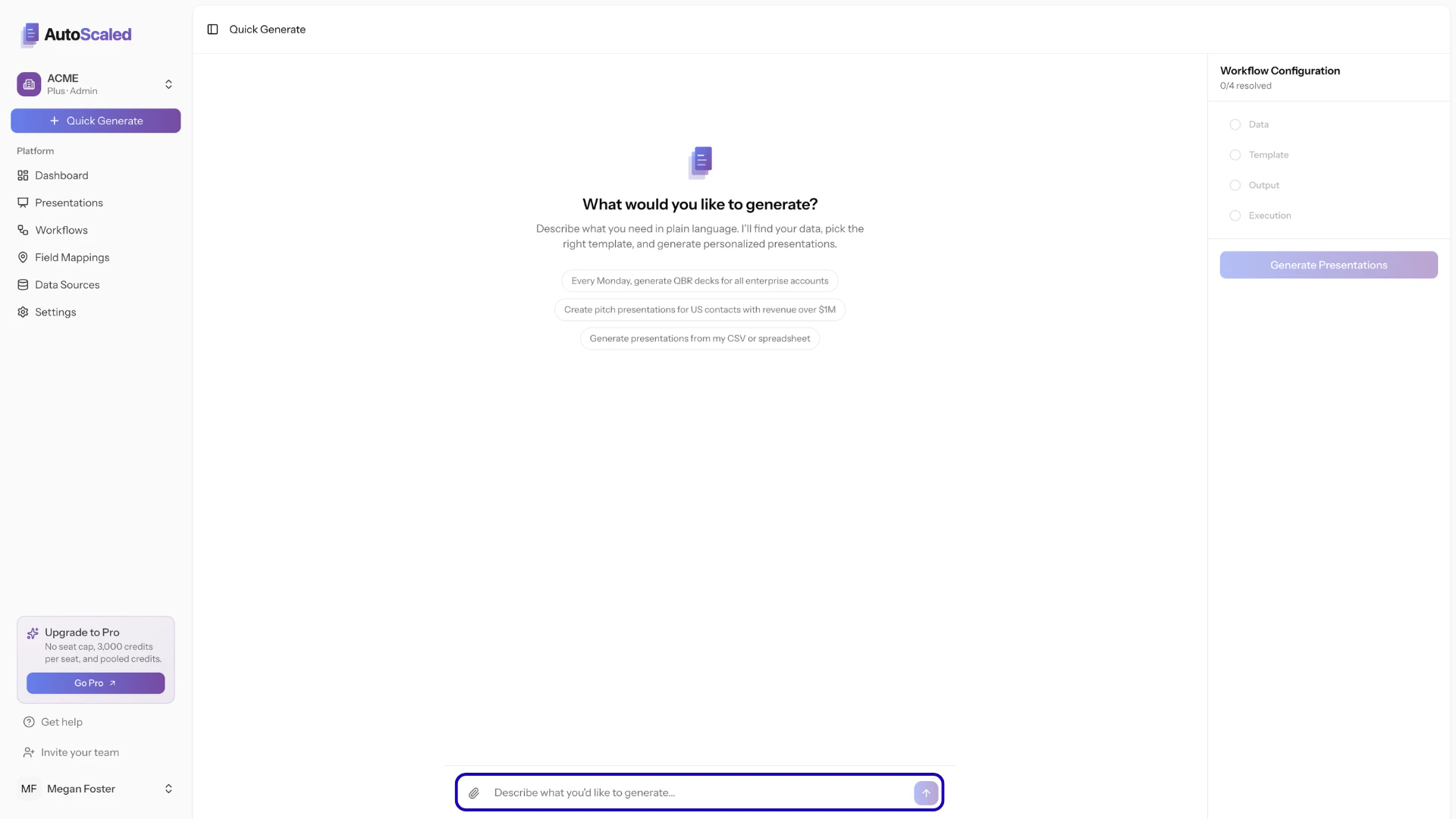 It's recommended to make your prompt as exhaustive as possible including the data source, records you want to use, and when you want to run the workflow. Good examples are:
#### Example prompt: manual bulk presentation generation
> *For all US company records in Salesforce that have more than >\$1 million in annual revenue and an opportunity in the **Pitched** stage, create a follow-up deck using the "Opportunity Pitched" deck*
This prompt contains all information our agent needs to generate now:
**Data Source:** Salesforce\
**Record Type:** Company\
**Filters:** \
1. Location = "US"\
2\. Annual Revenue >1,000,000\
3\. Associated opportunity = "Pitched"\
**Template:** Opportunity Pitched Deck\
**Output mode:** Not provided (*default: "New Presentation"*)\
**Run mode:** Not provided (*default: "Run Now"*)
#### Example prompt: generating recurring or scheduled content
> *Every Monday at 9AM, generate a deck that contains information about our users in Attio including how many calls they did in the last 7 days, the number of leads they worked and how many opportunities they have won. Ensure to append the presentation to the existing "Weekly Business Review" deck.*
This prompt contains all information our agent needs for scheduling presentations:
**Data Source:** Attio\
**Record Type:** User\
**Filters:** None provided (*default: "All"*)\
**Template:** Weekly Business Review\
**Output mode:** Append\
**Run mode:** Scheduled (Weekly - Monday - 9 AM)
#### Example prompt: generating presentations from triggers
> *Generate a personalized pitch deck using the "English Lead Template" when a new lead located in the USA, CA or UK submits a lead form in HubSpot. Instantly create the content when the lead submits the form.*
This prompt contains all information our agent needs:
**Data Source:** HubSpot\
**Record Type:** Lead\
**Filters:**\
Location = "USA", "CA" or "UK"\
Lead Status = "New"\
**Template:** English Lead Template\
**Output mode:** Not provided (*default: "New Presentation"*)\
**Run mode:** Trigger (once a record meets the criteria)
When writing prompts, use natural human language. If information is not included in your prompt, our agent will ask clarifying questions and help you through the process.
***
**Anything missing?** Let us know at [**support@autoscaled.com**](mailto:support@autoscaled.com) and we'll help you out!
It's recommended to make your prompt as exhaustive as possible including the data source, records you want to use, and when you want to run the workflow. Good examples are:
#### Example prompt: manual bulk presentation generation
> *For all US company records in Salesforce that have more than >\$1 million in annual revenue and an opportunity in the **Pitched** stage, create a follow-up deck using the "Opportunity Pitched" deck*
This prompt contains all information our agent needs to generate now:
**Data Source:** Salesforce\
**Record Type:** Company\
**Filters:** \
1. Location = "US"\
2\. Annual Revenue >1,000,000\
3\. Associated opportunity = "Pitched"\
**Template:** Opportunity Pitched Deck\
**Output mode:** Not provided (*default: "New Presentation"*)\
**Run mode:** Not provided (*default: "Run Now"*)
#### Example prompt: generating recurring or scheduled content
> *Every Monday at 9AM, generate a deck that contains information about our users in Attio including how many calls they did in the last 7 days, the number of leads they worked and how many opportunities they have won. Ensure to append the presentation to the existing "Weekly Business Review" deck.*
This prompt contains all information our agent needs for scheduling presentations:
**Data Source:** Attio\
**Record Type:** User\
**Filters:** None provided (*default: "All"*)\
**Template:** Weekly Business Review\
**Output mode:** Append\
**Run mode:** Scheduled (Weekly - Monday - 9 AM)
#### Example prompt: generating presentations from triggers
> *Generate a personalized pitch deck using the "English Lead Template" when a new lead located in the USA, CA or UK submits a lead form in HubSpot. Instantly create the content when the lead submits the form.*
This prompt contains all information our agent needs:
**Data Source:** HubSpot\
**Record Type:** Lead\
**Filters:**\
Location = "USA", "CA" or "UK"\
Lead Status = "New"\
**Template:** English Lead Template\
**Output mode:** Not provided (*default: "New Presentation"*)\
**Run mode:** Trigger (once a record meets the criteria)
When writing prompts, use natural human language. If information is not included in your prompt, our agent will ask clarifying questions and help you through the process.
***
**Anything missing?** Let us know at [**support@autoscaled.com**](mailto:support@autoscaled.com) and we'll help you out!