> ## Documentation Index
> Fetch the complete documentation index at: https://autoscaled.com/docs/llms.txt
> Use this file to discover all available pages before exploring further.
# Reusing Workflows: Record Handling Options Explained
> Reusing workflows in AutoScaled lets you control how records are handled: create & update, new records only, or always create new. Pick the right mode.
Workflows can be managed, shared with team members, and changed or reused. Additional **Workflow Management** documentation is available:
Learn more about managing workflows, sharing workflows with team members, and reusing or editing workflows.
When reusing or editing workflows, an additional step appears in the workflow setup. This step lets you define what to do with records for which a presentation was already generated.
## Record Handling When Reusing Workflows
These are the options for how to handle records when reusing a workflow:
1. **Create & Update:** generates a new presentation for new records and updates data in existing presentations when data has changed.
2. **New Records Only:** ignores existing presentations and only generates a presentation for new records.
3. **Always Create New:** creates a new presentation for both new and existing records.
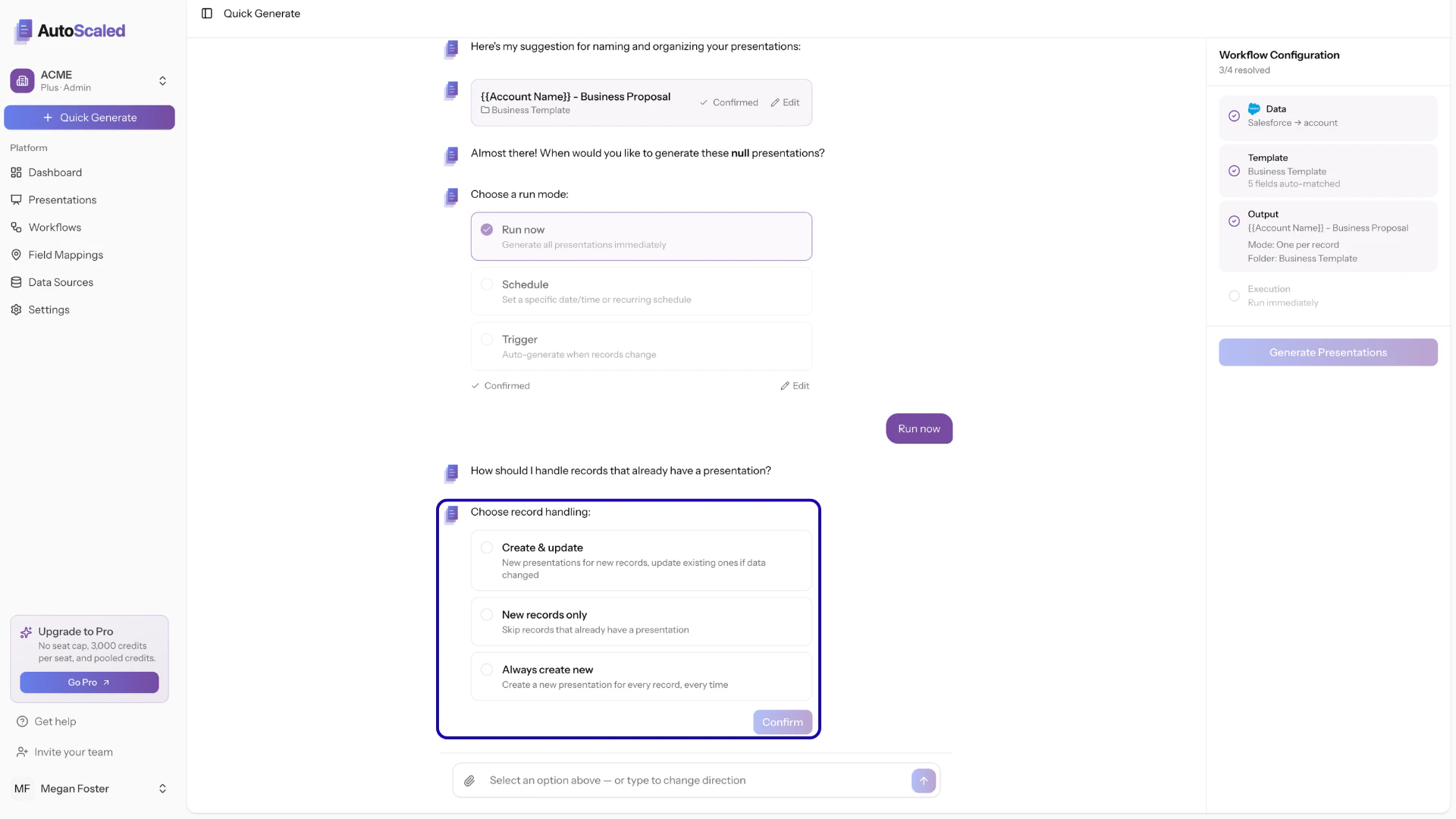 ### Create & Update
**Create & Update** is the right choice when you want to:
1. Keep data up to date across all presentations
2. Avoid duplicating presentations
Create & Update generates new presentations for new records and updates data in your existing presentations based on your CRM.
### Create & Update
**Create & Update** is the right choice when you want to:
1. Keep data up to date across all presentations
2. Avoid duplicating presentations
Create & Update generates new presentations for new records and updates data in your existing presentations based on your CRM.
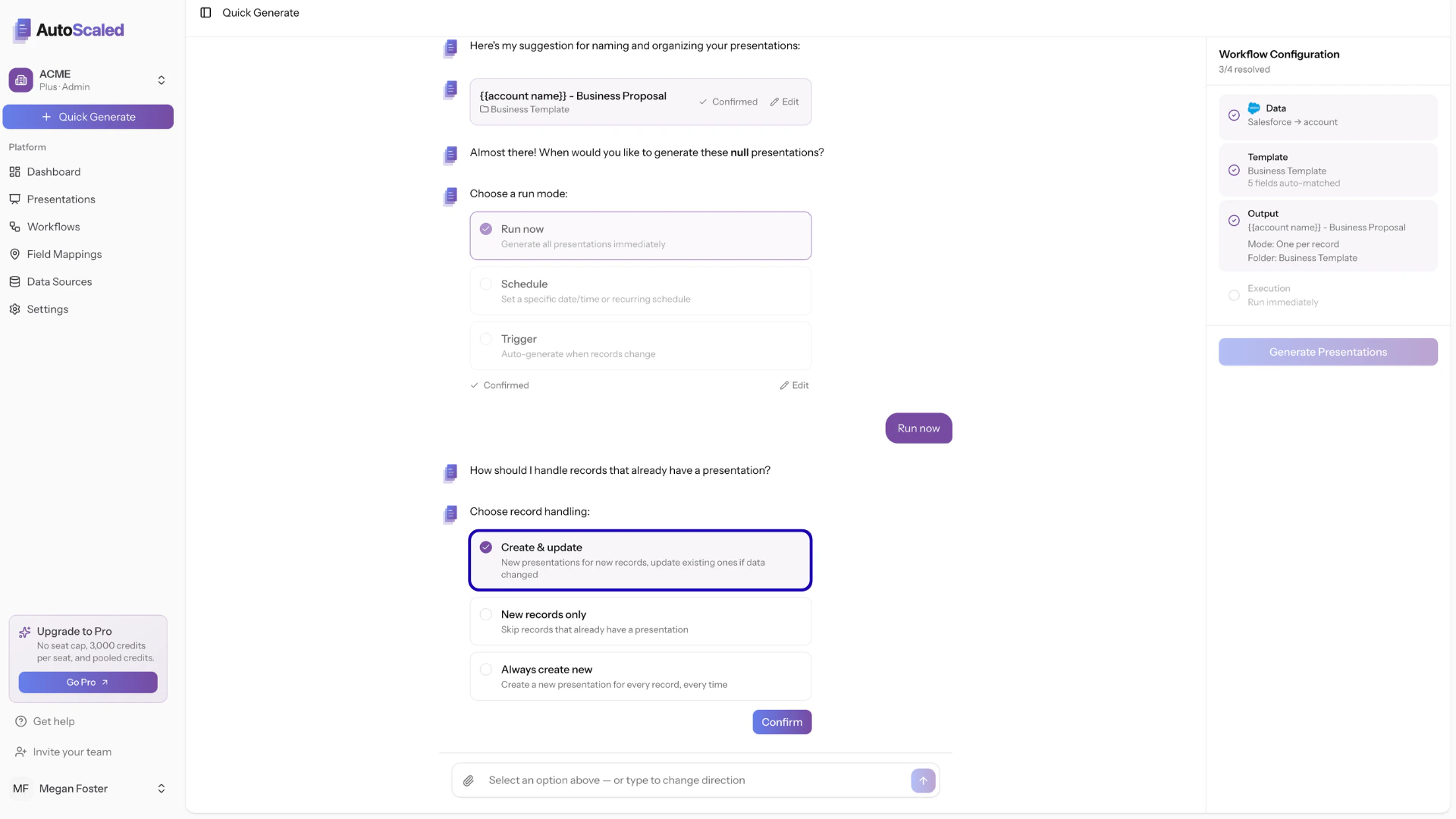 Typical use cases are live decks with clients, usage reports, etc.
### New Records Only
**New Records Only** is the right choice when you want to:
1. Create presentations using triggers
2. Avoid duplicating presentations
New Records Only generates presentations only for records that have not had a presentation generated before. It does not change existing decks.
Typical use cases are live decks with clients, usage reports, etc.
### New Records Only
**New Records Only** is the right choice when you want to:
1. Create presentations using triggers
2. Avoid duplicating presentations
New Records Only generates presentations only for records that have not had a presentation generated before. It does not change existing decks.
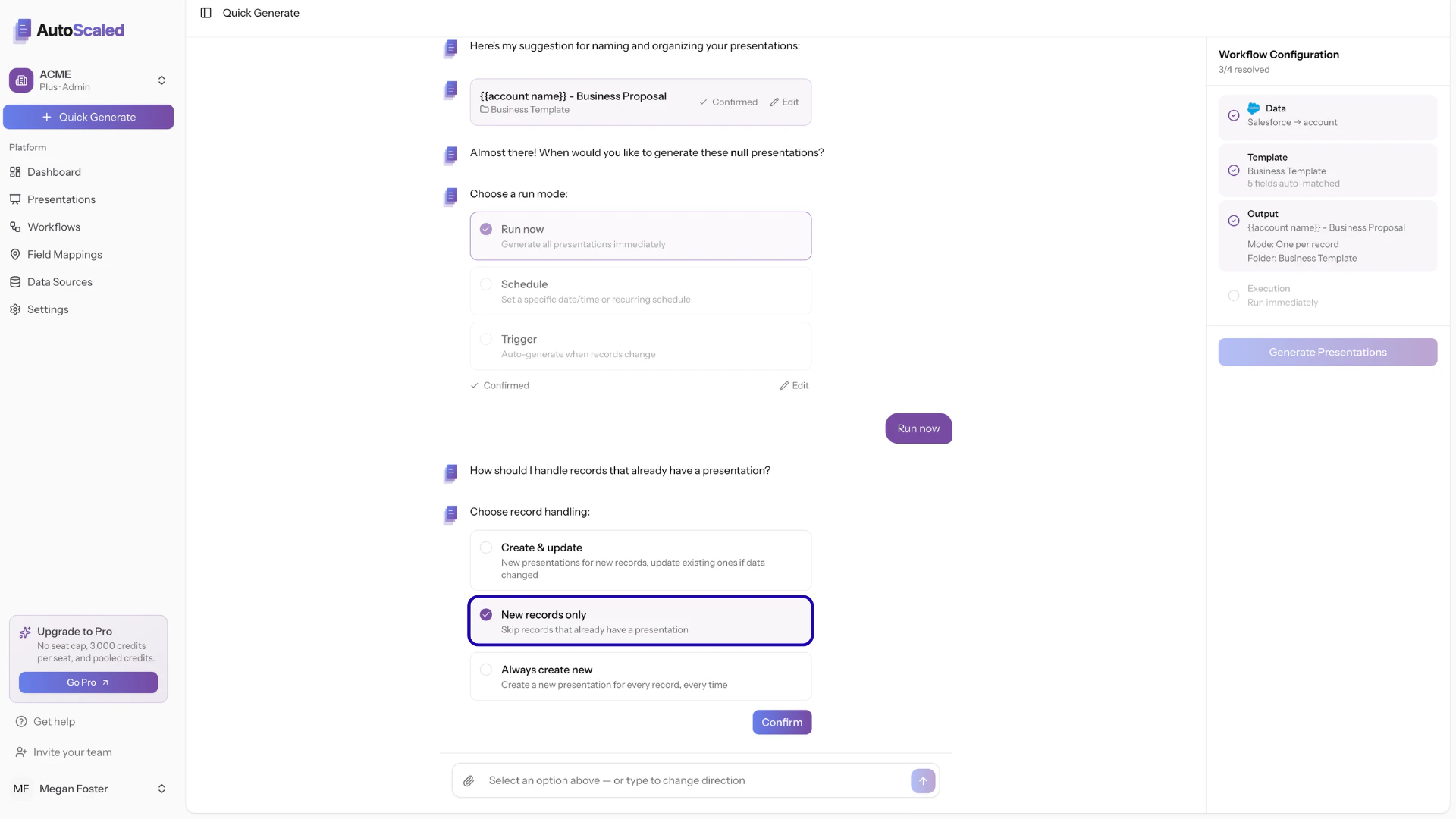 Typical use cases include one-off presentations for new leads or when an opportunity is updated.
### Always Create New
**Always Create New** is the right choice when you want version control for presentations or reports.
Always Create New ignores all historical generations. It generates a presentation for every record that matches the criteria at that moment in time, including records that already had a presentation generated in the past.
Typical use cases include one-off presentations for new leads or when an opportunity is updated.
### Always Create New
**Always Create New** is the right choice when you want version control for presentations or reports.
Always Create New ignores all historical generations. It generates a presentation for every record that matches the criteria at that moment in time, including records that already had a presentation generated in the past.
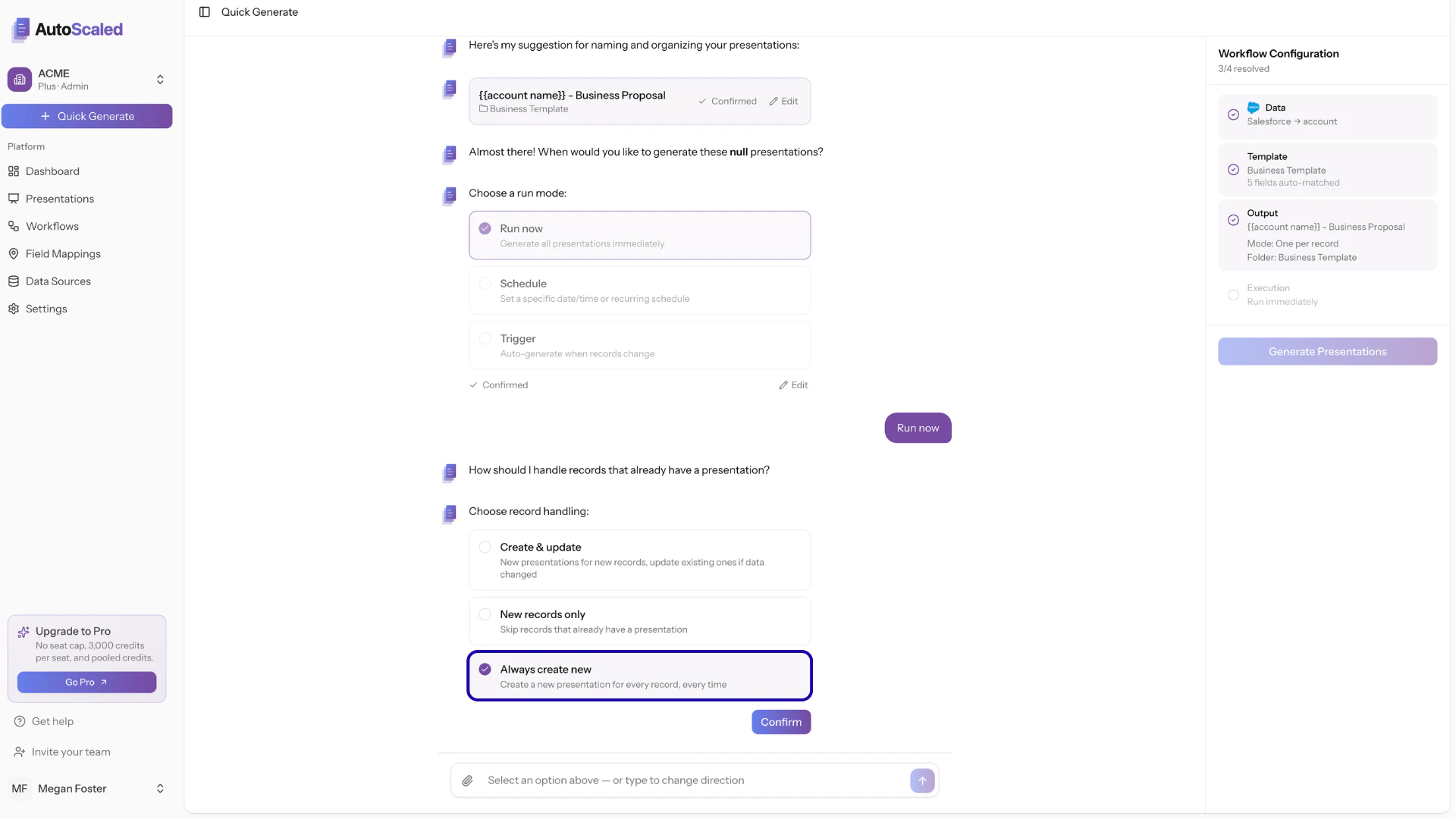 Typical use cases are weekly business reviews, reporting, etc.
***
**Anything missing?** Let us know at [**support@autoscaled.com**](mailto:support@autoscaled.com) and we'll help you out!
Typical use cases are weekly business reviews, reporting, etc.
***
**Anything missing?** Let us know at [**support@autoscaled.com**](mailto:support@autoscaled.com) and we'll help you out!