> ## Documentation Index
> Fetch the complete documentation index at: https://autoscaled.com/docs/llms.txt
> Use this file to discover all available pages before exploring further.
# Selecting Your CRM or Spreadsheet Data Source
> Data source setup: connect HubSpot, Salesforce, or upload CSV or Excel. Filter records by any field and preview before generating presentations. Start now.
## Choosing Your Data Source
If you provide a prompt without a data source, the assistant asks which data source to use. You can select from your connected CRMs (HubSpot, Salesforce, Attio) or upload a file (CSV, Excel, Google Sheets).
.png?fit=max&auto=format&n=dFA11SPxwk5AAFjz&q=85&s=c6615024a79815d5d196eb0cef91897f) If you haven't connected a CRM yet, you'll be guided to the Data Sources page to set one up. CRMs are not required; you can run AutoScaled with spreadsheets.
The conversational AI supports smart decisions and helpful guidance. Along the way you can explain in natural language what you want to do. The AI will help you take the right actions.
If you haven't connected a CRM yet, you'll be guided to the Data Sources page to set one up. CRMs are not required; you can run AutoScaled with spreadsheets.
The conversational AI supports smart decisions and helpful guidance. Along the way you can explain in natural language what you want to do. The AI will help you take the right actions.
.png?fit=max&auto=format&n=dFA11SPxwk5AAFjz&q=85&s=fe2a9db9829eb11200bf185756d31c6a) ### Uploading a Spreadsheet
If you're not pulling from a CRM, you can upload data directly:
* **CSV**: Drag and drop or browse for a `.csv` file
* **Excel**: Upload `.xlsx` or `.xls` files. You'll be asked to confirm the sheet and header row.
* **Google Sheets**: Paste a Google Sheets URL. Select the sheet and confirm the data range.
Uploaded data is treated just like CRM records.
## Selecting an Object Type
Selecting an object type is only necessary for CRMs. For Spreadsheets, AutoScaled processes every row as a standalone record.
Once a CRM is selected, choose which object type to pull records from:
* **Standard objects**: Contacts, Companies, Deals (or Opportunities in Salesforce)
* **Custom objects**: Custom objects defined in your CRM are discovered automatically
### Uploading a Spreadsheet
If you're not pulling from a CRM, you can upload data directly:
* **CSV**: Drag and drop or browse for a `.csv` file
* **Excel**: Upload `.xlsx` or `.xls` files. You'll be asked to confirm the sheet and header row.
* **Google Sheets**: Paste a Google Sheets URL. Select the sheet and confirm the data range.
Uploaded data is treated just like CRM records.
## Selecting an Object Type
Selecting an object type is only necessary for CRMs. For Spreadsheets, AutoScaled processes every row as a standalone record.
Once a CRM is selected, choose which object type to pull records from:
* **Standard objects**: Contacts, Companies, Deals (or Opportunities in Salesforce)
* **Custom objects**: Custom objects defined in your CRM are discovered automatically
.png?fit=max&auto=format&n=3WRqbvvSUS_DomBg&q=85&s=62ce3058482687fdb533966dedc753c8 "Auto Scaled Product Documents 1920x1080 (5)") The assistant loads available fields and schema information for the selected object.
## Filtering Records
Use natural language to apply filters to target the right records. The filter system is field-type-aware and automatically applies different operators:
* **Text fields**: equals, contains, starts with, ends with, is empty
* **Number fields**: equals, greater than, less than, between
* **Date fields**: before, after, between, relative (last 7 days, this month, etc.)
* **Select/Enum fields**: is, is not, is any of
* **Boolean fields**: is true, is false
The assistant loads available fields and schema information for the selected object.
## Filtering Records
Use natural language to apply filters to target the right records. The filter system is field-type-aware and automatically applies different operators:
* **Text fields**: equals, contains, starts with, ends with, is empty
* **Number fields**: equals, greater than, less than, between
* **Date fields**: before, after, between, relative (last 7 days, this month, etc.)
* **Select/Enum fields**: is, is not, is any of
* **Boolean fields**: is true, is false
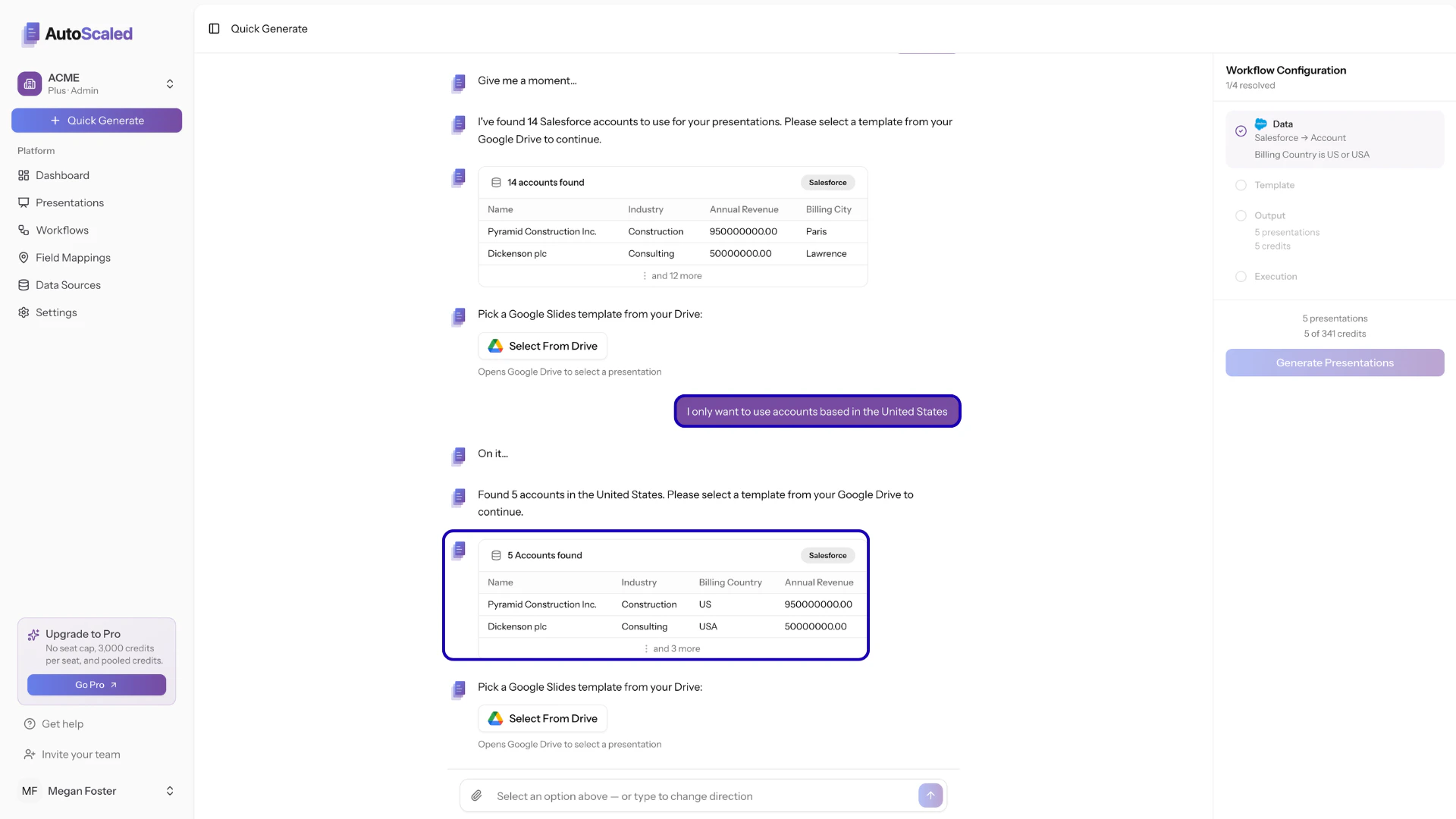 You can also filter records based on related fields of associated records (e.g., *filter deals by company industry* or *contact owner name*).
Describing filters in plain language is the easiest approach, and the assistant will build them for you.
## Previewing Records
Before proceeding, you see a paginated table of the records that match your filters. This lets you verify you're targeting the right data. The preview shows the fields you've selected, with proper formatting.
***
**Anything missing?** Let us know at [**support@autoscaled.com**](mailto:support@autoscaled.com) and we'll help you out!
You can also filter records based on related fields of associated records (e.g., *filter deals by company industry* or *contact owner name*).
Describing filters in plain language is the easiest approach, and the assistant will build them for you.
## Previewing Records
Before proceeding, you see a paginated table of the records that match your filters. This lets you verify you're targeting the right data. The preview shows the fields you've selected, with proper formatting.
***
**Anything missing?** Let us know at [**support@autoscaled.com**](mailto:support@autoscaled.com) and we'll help you out!