> ## Documentation Index
> Fetch the complete documentation index at: https://autoscaled.com/docs/llms.txt
> Use this file to discover all available pages before exploring further.
# Field Mapping & Placeholder Validation
> Field mapping connects your CRM or spreadsheet columns to template placeholders. Review auto-mapped fields, adjust where needed, and confirm.
## Preparing your template
AutoScaled doesn't generate generic slides. Every presentation is built from a template you provide. You can use your existing branded deck, complete with your fonts, colors, layouts, and logo placements.
AutoScaled automates in your presentation software, maintaining your designs.
Templates use placeholders like `{{company}}` or `{{deal amount}}` that get replaced with your CRM data during generation. There is a dedicated product page on how to prepare your template.
Before moving forward, it's highly recommended to read how to prepare your template. Bringing your own templates prevents generic AI slop in your presentations.
Turn existing PowerPoint and Google Slides into templates. See best practices for building your own templates.
The assistant opens a Google Drive picker where you browse and select a Google Slides or Microsoft PowerPoint template. You'll see a thumbnail preview of the selected template.
.png?fit=max&auto=format&n=5rOpVvmHsRqoifKF&q=85&s=6bc1017bf5447b2d36e13ae556a5b2a8) ## Mapping your data to your template
This is where you connect your data to your template. The assistant:
1. Scans your template for all `{{placeholder}}` tags across text elements, tables, image alt descriptions, themes, etc.
2. Lists each CRM or Spreadsheet field mapped to the placeholder
## Mapping your data to your template
This is where you connect your data to your template. The assistant:
1. Scans your template for all `{{placeholder}}` tags across text elements, tables, image alt descriptions, themes, etc.
2. Lists each CRM or Spreadsheet field mapped to the placeholder
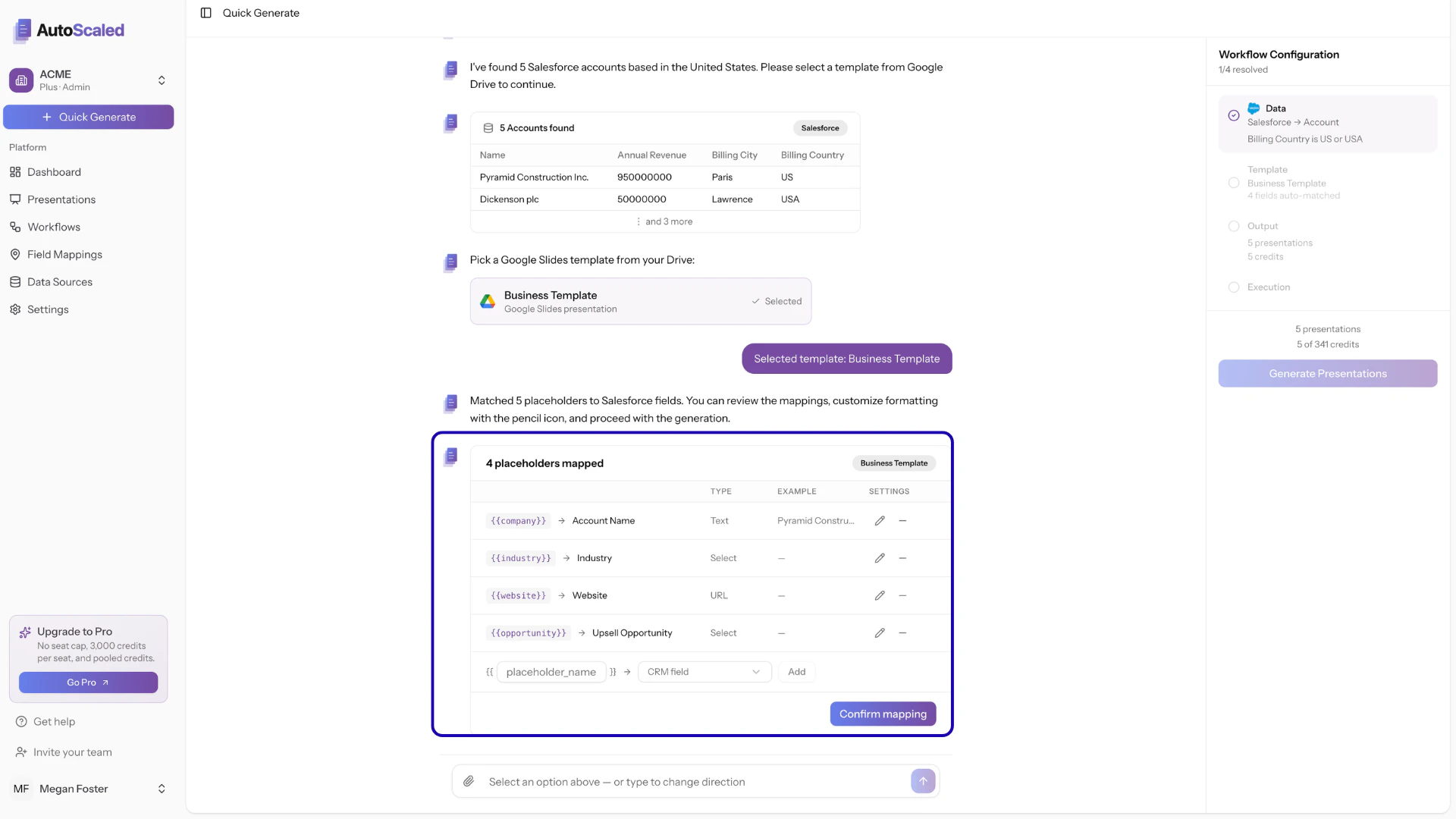 You stay in full control. Mappings can be removed, added, or edited.
### Removing mappings between your data and template
AutoScaled uses artificial intelligence to map CRM and spreadsheet fields to your template placeholders.
Mappings may not always align perfectly with your intent. For example, a placeholder like `{{country}}` could match multiple CRM fields such as "Billing Country" or "Company Country". Review auto-mapped fields carefully and adjust where needed.
You stay in full control. Mappings can be removed, added, or edited.
### Removing mappings between your data and template
AutoScaled uses artificial intelligence to map CRM and spreadsheet fields to your template placeholders.
Mappings may not always align perfectly with your intent. For example, a placeholder like `{{country}}` could match multiple CRM fields such as "Billing Country" or "Company Country". Review auto-mapped fields carefully and adjust where needed.
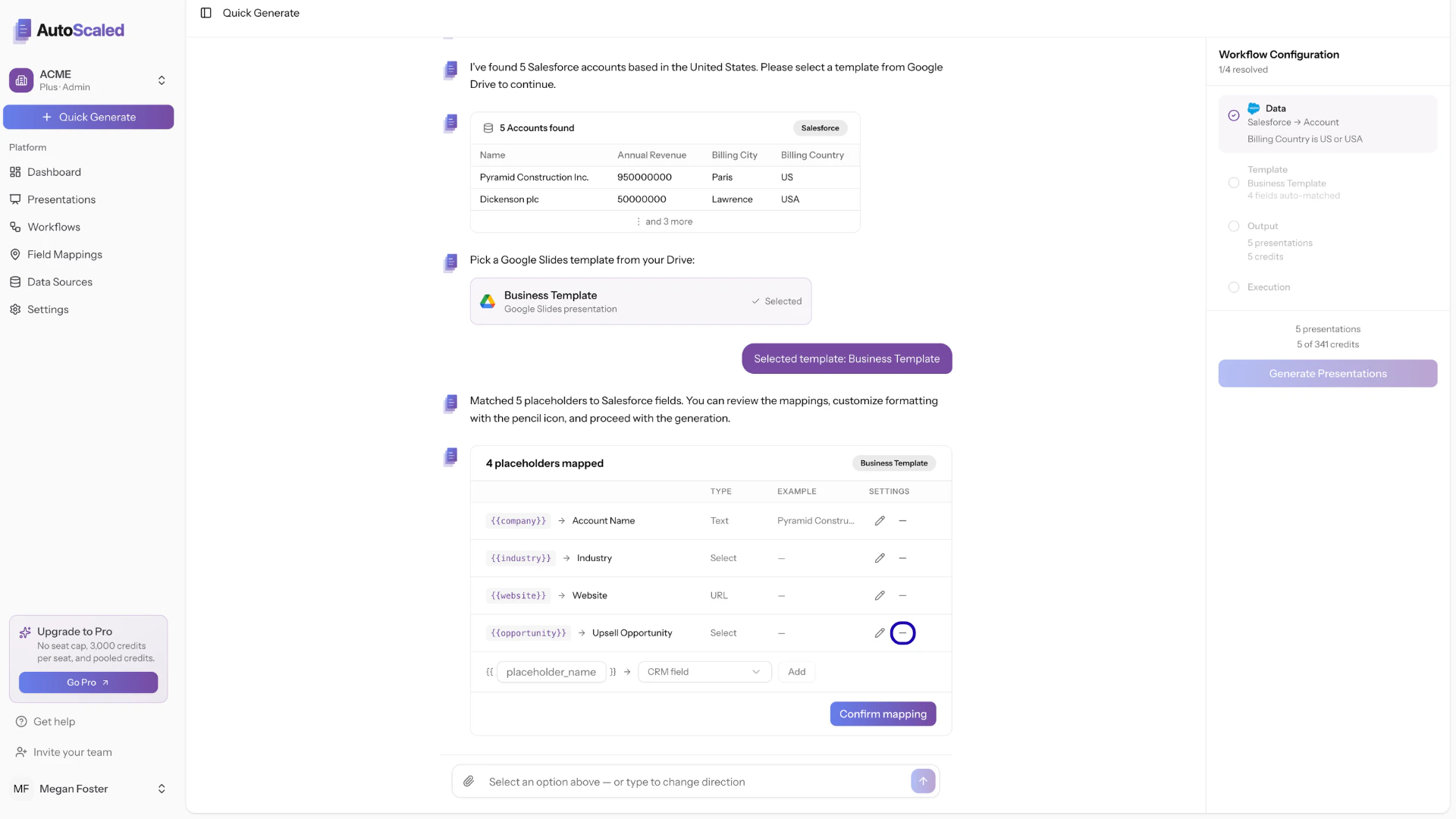 You can easily remove any mappings by clicking the "-" icon.
### Adding additional mappings between your data and template
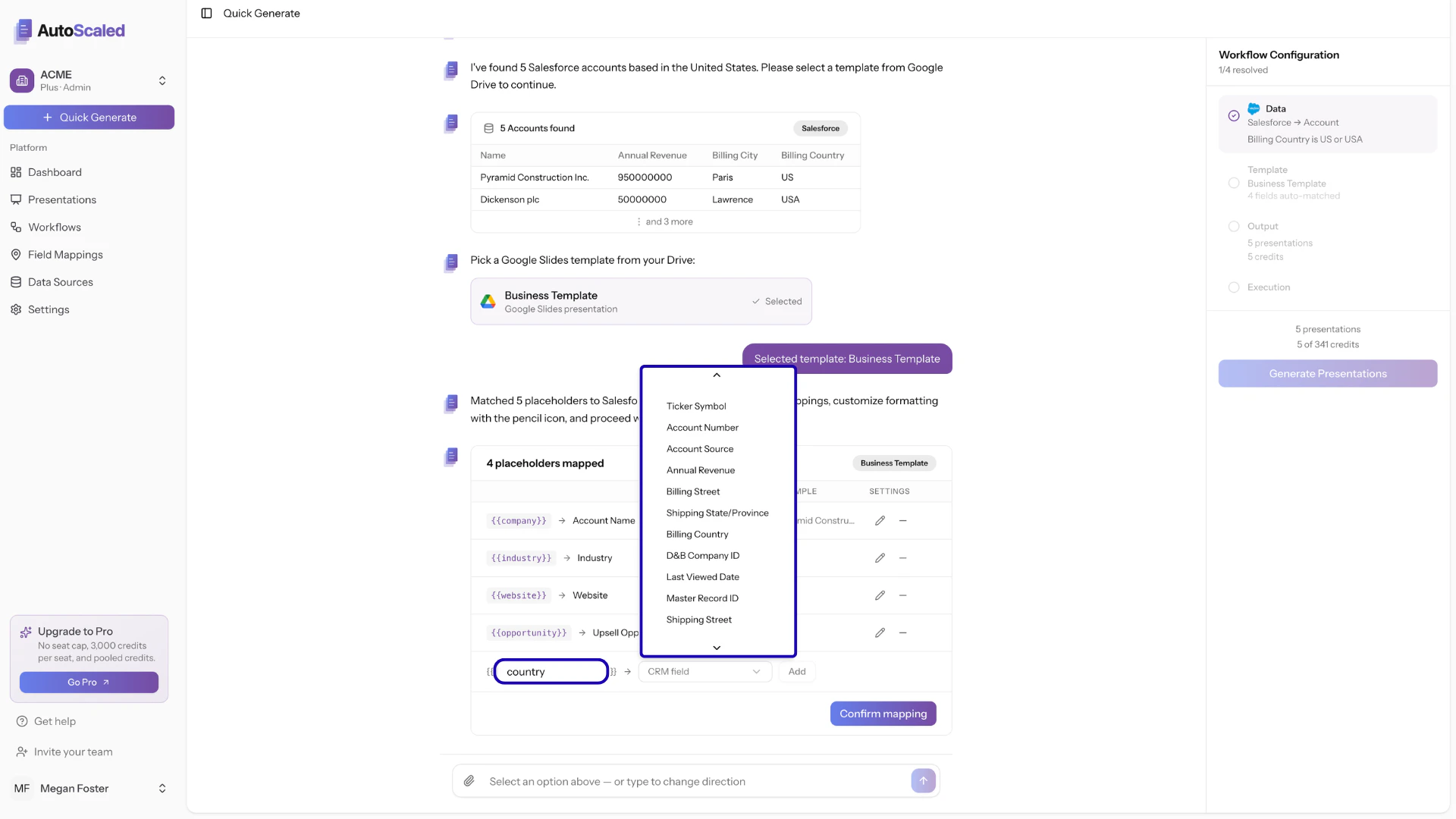
If you want to add additional mappings, provide the placeholder name and select the CRM or spreadsheet field (column) from the dropdown.
You can easily remove any mappings by clicking the "-" icon.
### Adding additional mappings between your data and template
If you want to add additional mappings, provide the placeholder name and select the CRM or spreadsheet field (column) from the dropdown.
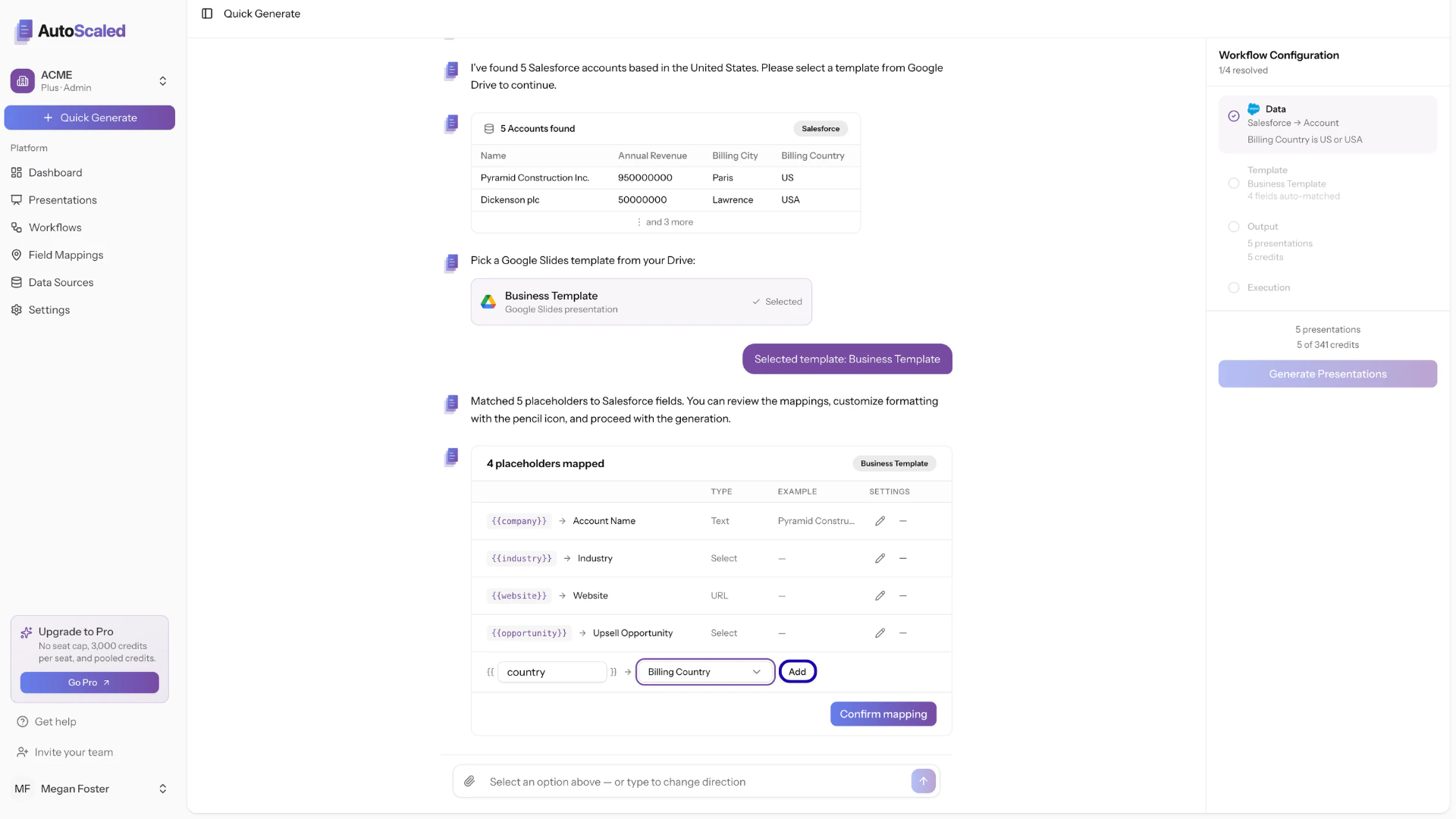
 To save your extra mapping, click the "add" button:
 ### Editing mappings between your data and template
AutoScaled offers organization-wide default formatting of data which can be set in the "Field Mappings". Users can customize formatting for each individual workflow. This will overwrite default settings.
Formatting is different across CRMs and Spreadsheets:
* **CRMs:** formatting adheres to organization-wide default or custom overwrites directly in AutoScaled
* **Spreadsheets:** formatting adheres to how data is formatted in your CSV, Google Sheet or Microsoft Excel document
Typical default and custom formatting is related to three top categories:
* **Data Types**: how to handle *percentages, currencies, dates, booleans, numbers etc.*
* **Media**: how to handle images such as *contain* and *cover*
* **Links**: how to handle links and their targets
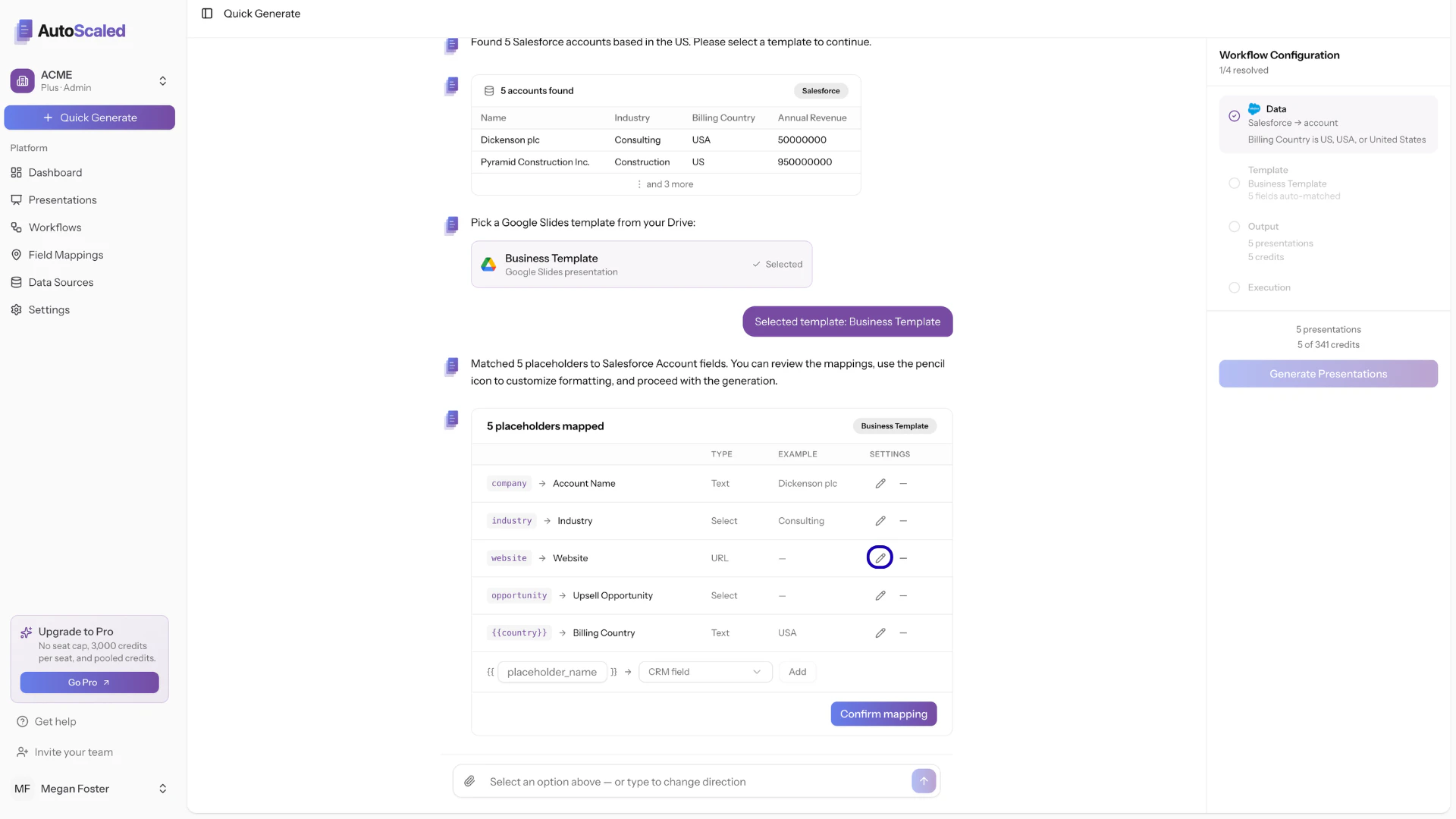
To customize the settings of a field, click on the "pencil" icon:
### Editing mappings between your data and template
AutoScaled offers organization-wide default formatting of data which can be set in the "Field Mappings". Users can customize formatting for each individual workflow. This will overwrite default settings.
Formatting is different across CRMs and Spreadsheets:
* **CRMs:** formatting adheres to organization-wide default or custom overwrites directly in AutoScaled
* **Spreadsheets:** formatting adheres to how data is formatted in your CSV, Google Sheet or Microsoft Excel document
Typical default and custom formatting is related to three top categories:
* **Data Types**: how to handle *percentages, currencies, dates, booleans, numbers etc.*
* **Media**: how to handle images such as *contain* and *cover*
* **Links**: how to handle links and their targets
To customize the settings of a field, click on the "pencil" icon:
 Then select how to handle the field or make it clickable:
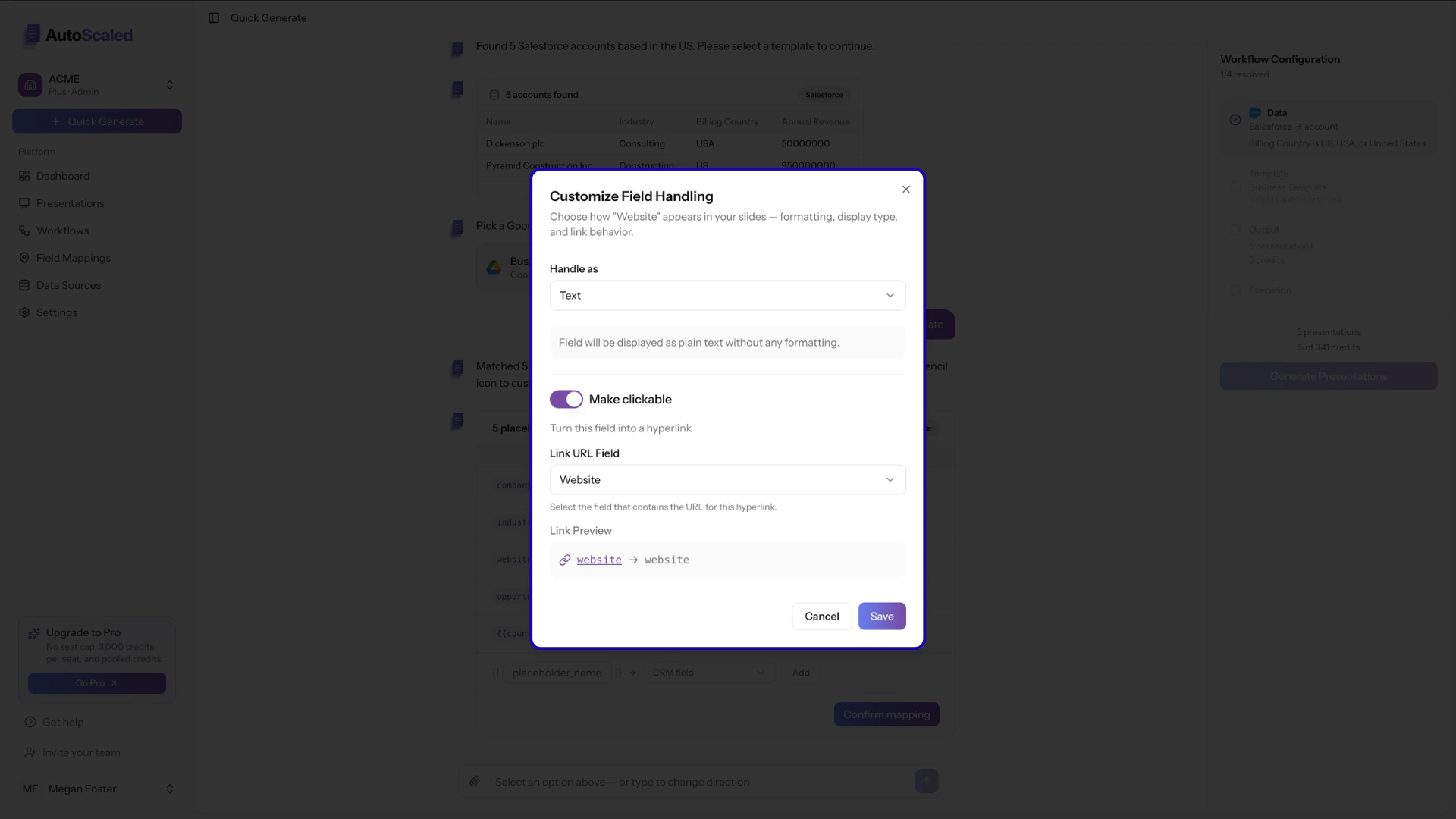 Pro tip: use dynamic link targets to enrich your placeholders. For example, pair a `{{company}}` placeholder with a "Website" target field. The placeholder renders the company name in your presentation while automatically linking to their site. This unlocks dynamic deep linking to any relevant resource, such as follow-up material, case studies, or product pages.
Different CRMs and integrations store data in different formats.
*For example: a currency in Salesforce might be displayed as "\$100,000 USD" while the actual field stored is "100000".*
To ensure you have maximum flexibility, we highly recommend setting up organization-wide data handling. This setup takes less than 5 minutes.
For a full list of all possible placeholders, mappings, and default data handling, refer to the "Field Mappings" page in the product documentation.
Discover how placeholders are dynamically replaced with your CRM or spreadsheet data, for example, swapping `{{first_name}}` for "Sarah" or `{{value}}` for "\$12,500". See how to configure default data handling for common formats such as dates (*e.g. April 5, 2026 vs 05/04/26*) and currencies (*e.g. USD, SGD, or EUR*)
### Confirming mappings between your data and template
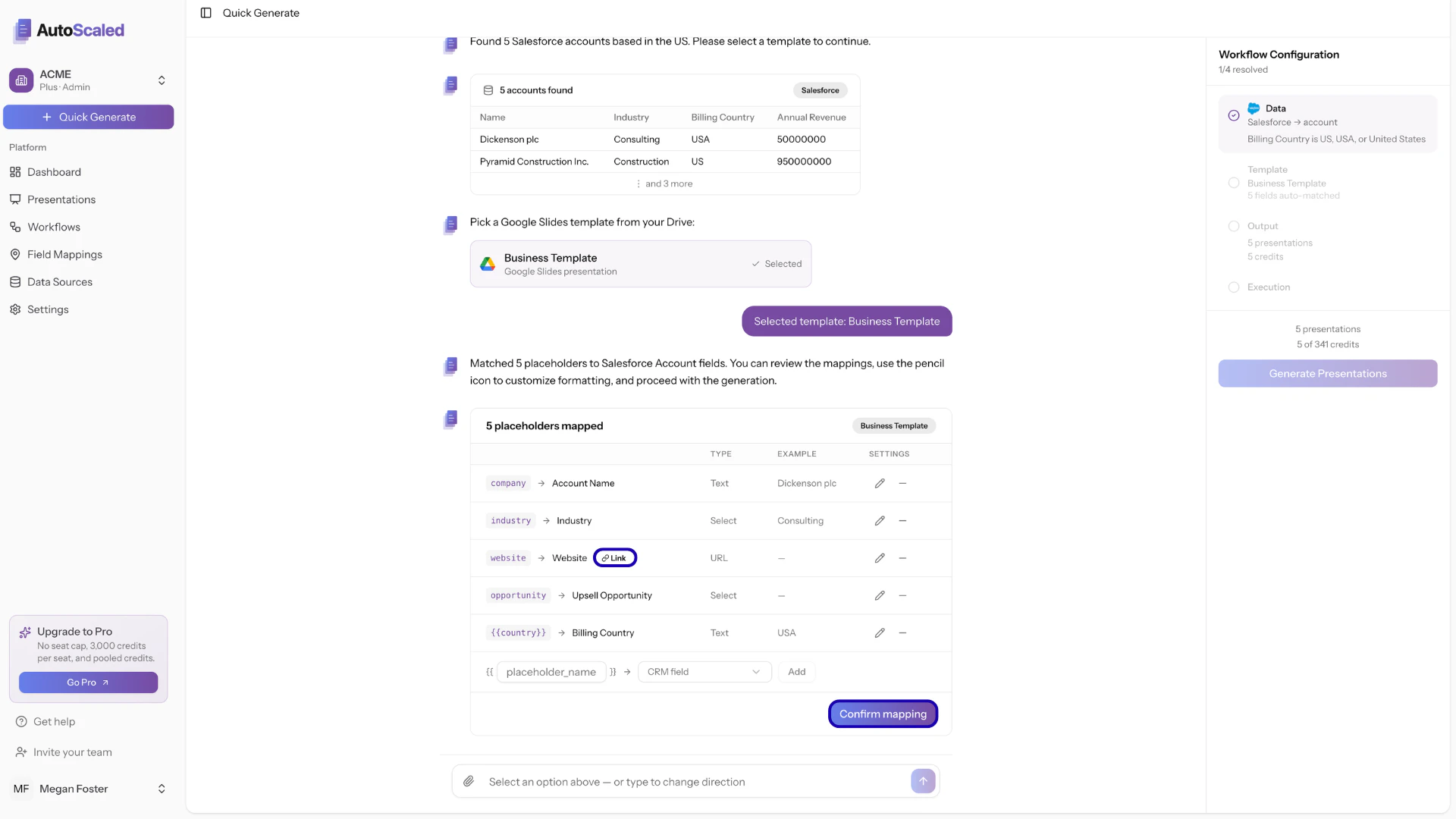
Once all is set up according to your preferences, confirm the mappings:
Pro tip: use dynamic link targets to enrich your placeholders. For example, pair a `{{company}}` placeholder with a "Website" target field. The placeholder renders the company name in your presentation while automatically linking to their site. This unlocks dynamic deep linking to any relevant resource, such as follow-up material, case studies, or product pages.
Different CRMs and integrations store data in different formats.
*For example: a currency in Salesforce might be displayed as "\$100,000 USD" while the actual field stored is "100000".*
To ensure you have maximum flexibility, we highly recommend setting up organization-wide data handling. This setup takes less than 5 minutes.
For a full list of all possible placeholders, mappings, and default data handling, refer to the "Field Mappings" page in the product documentation.
Discover how placeholders are dynamically replaced with your CRM or spreadsheet data, for example, swapping `{{first_name}}` for "Sarah" or `{{value}}` for "\$12,500". See how to configure default data handling for common formats such as dates (*e.g. April 5, 2026 vs 05/04/26*) and currencies (*e.g. USD, SGD, or EUR*)
### Confirming mappings between your data and template
Once all is set up according to your preferences, confirm the mappings:
 ***
**Anything missing?** Let us know at [**support@autoscaled.com**](mailto:support@autoscaled.com) and we'll help you out!
***
**Anything missing?** Let us know at [**support@autoscaled.com**](mailto:support@autoscaled.com) and we'll help you out!