> ## Documentation Index
> Fetch the complete documentation index at: https://autoscaled.com/docs/llms.txt
> Use this file to discover all available pages before exploring further.
# How to Manage AI Content Workflows in AutoScaled
> Workflow management in AutoScaled documentation: schedule, filter, share, and edit presentation workflows using AI. Read the docs to get started.
AutoScaled has extensive options for workflow management to make it easier for you and your organization to manage, schedule, edit, and share workflows directly in AutoScaled. This page walks you through the key workflow management options.
## Workflow Management Dashboard
To navigate to the workflow management dashboard, select **"Workflows"** in the left-hand navigation bar.
-1.png?fit=max&auto=format&n=HAcG3mycFVyOvS2A&q=85&s=026be69dd612d411119d405704df5516 "Auto Scaled Product Documents 1920x1080 (7) 1") ### Create a new AI content workflow
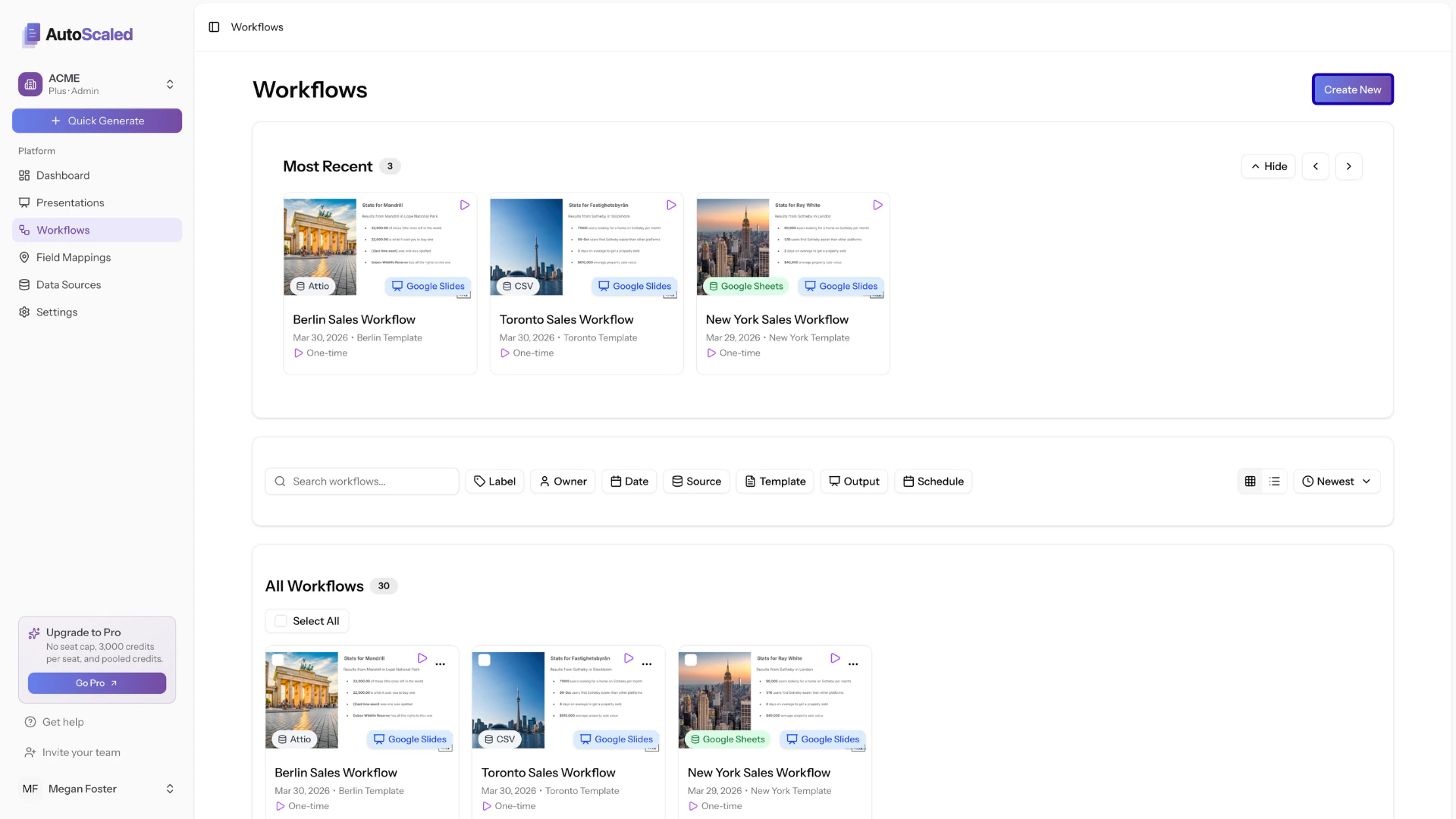
From the workflow management page, you can create a new workflow. This will launch the quick generate flow:
### Create a new AI content workflow
From the workflow management page, you can create a new workflow. This will launch the quick generate flow:
 ### Most recent presentation workflows
The top of the page shows the most recent workflows. These are the most recent workflows you've created or that ran while you were offline. You can navigate this panel using the arrows or hide the panel.
### Most recent presentation workflows
The top of the page shows the most recent workflows. These are the most recent workflows you've created or that ran while you were offline. You can navigate this panel using the arrows or hide the panel.
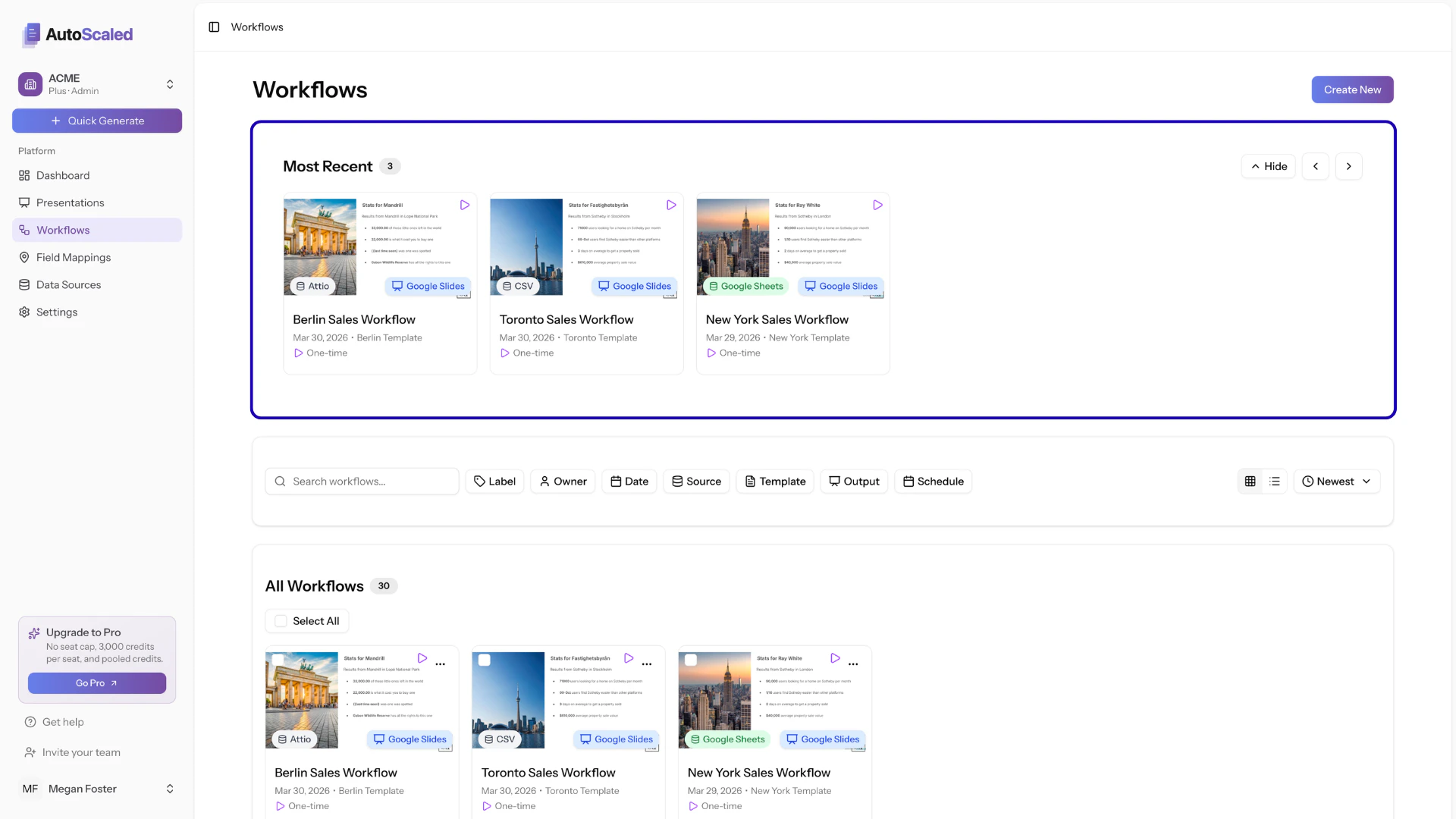 When you click on a workflow, you'll be taken to the workflow summary.
### Workflow filtering
The workflow management page offers extensive filtering so you can find the right workflow. You can filter by:
1. **Search:** search directly for a workflow based on the workflow name
2. **Label:** filter by labels you've assigned to workflows during setup
3. **Date:** filter by the creation date of the workflow
4. **Source:** filter by data integration source of the workflow
5. **Template:** filter by the presentation template that was used in the workflow
6. **Output:** filter by the output format of the workflow
7. **Schedule:** filter by how the workflow is triggered: *run now, trigger, schedule*
When you click on a workflow, you'll be taken to the workflow summary.
### Workflow filtering
The workflow management page offers extensive filtering so you can find the right workflow. You can filter by:
1. **Search:** search directly for a workflow based on the workflow name
2. **Label:** filter by labels you've assigned to workflows during setup
3. **Date:** filter by the creation date of the workflow
4. **Source:** filter by data integration source of the workflow
5. **Template:** filter by the presentation template that was used in the workflow
6. **Output:** filter by the output format of the workflow
7. **Schedule:** filter by how the workflow is triggered: *run now, trigger, schedule*
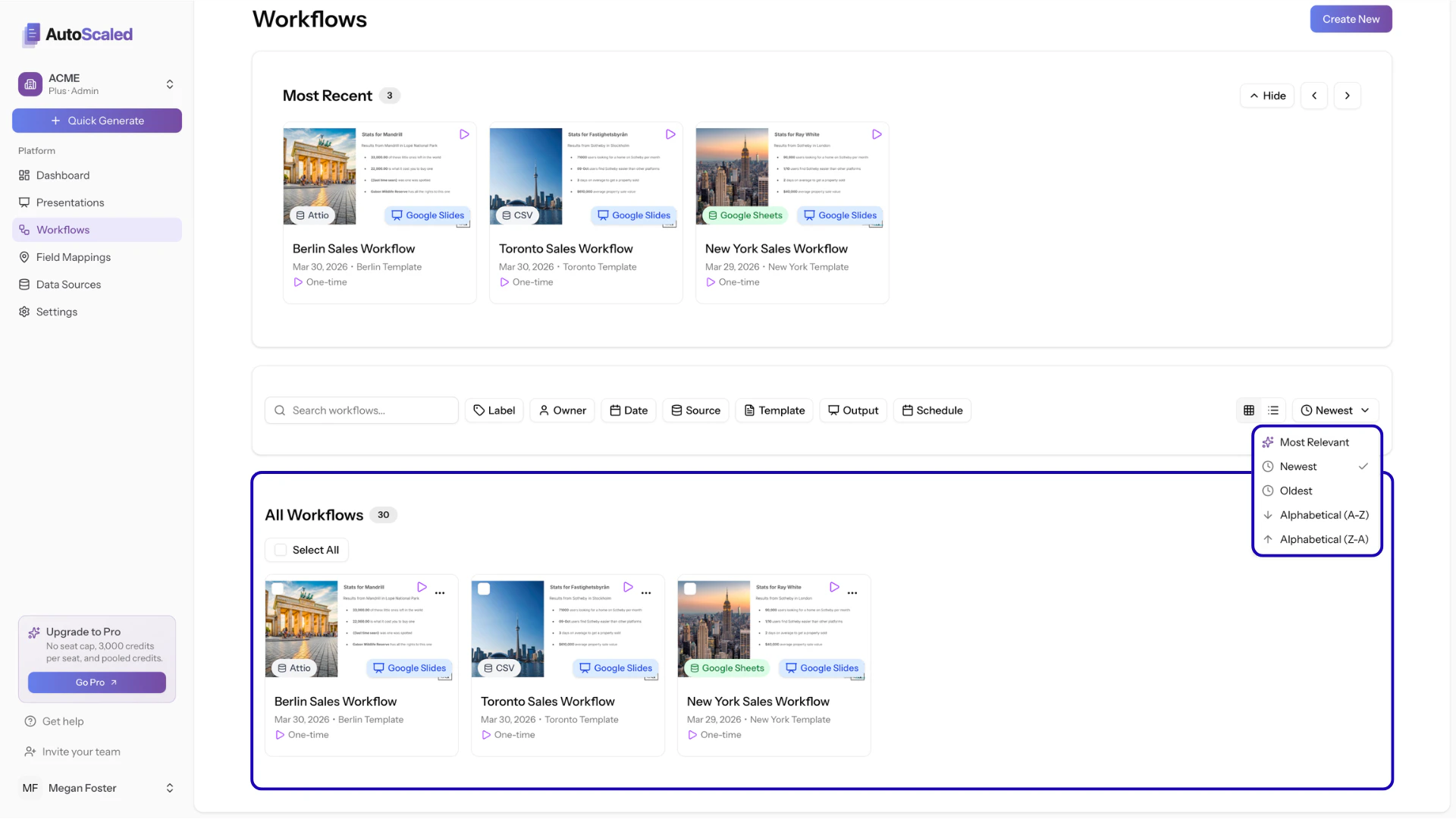
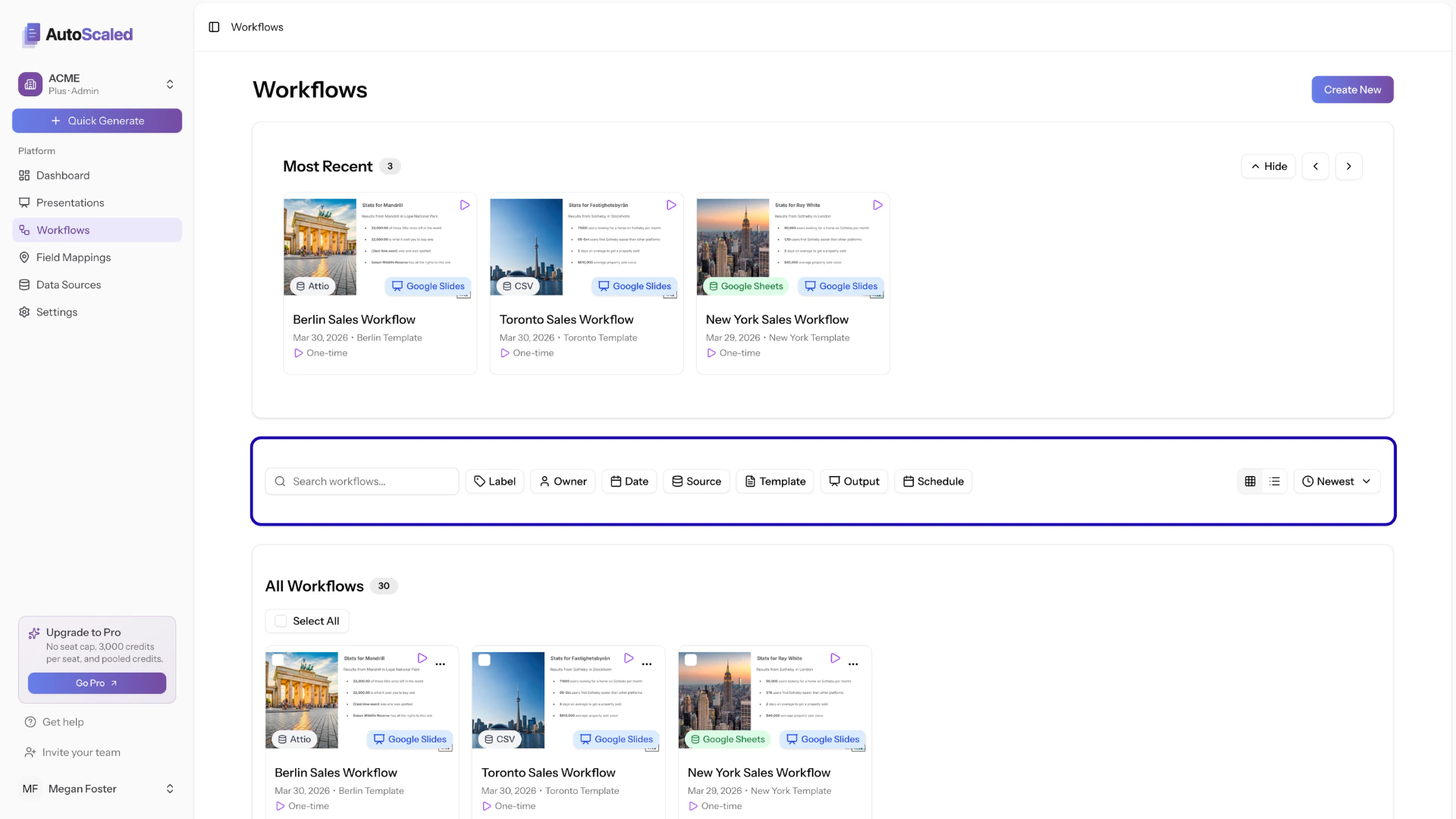 You can also switch between card view (a card for each workflow) and list view (a list of workflows), and sort workflows based on criteria such as *creation date*, *alphabetical*, or *most relevant*.
Filters and sorting affect the "All Workflows" overview.
### All workflows
The "All Workflows" card shows all the workflows based on the sorting you set. When you apply filters, only the relevant workflows will be shown.
You can also switch between card view (a card for each workflow) and list view (a list of workflows), and sort workflows based on criteria such as *creation date*, *alphabetical*, or *most relevant*.
Filters and sorting affect the "All Workflows" overview.
### All workflows
The "All Workflows" card shows all the workflows based on the sorting you set. When you apply filters, only the relevant workflows will be shown.
 ## Workflow Actions
When you select workflows individually via the checkboxes or through the **select all** button, an action panel appears. The action panel differs when you select a single workflow versus multiple workflows.
### Single workflow actions
For single workflows you can:
1. **Run now**: instantly run the workflow even when it normally requires a trigger or schedule
2. **Edit workflow:** launch the AI panel to edit a workflow. You can edit all steps within a workflow, including source, template, run mode, output mode, naming, etc.
3. **Duplicate:** make a duplicate of a workflow that you can later edit
4. **Share:** share a workflow with team members in your organization
5. **Delete:** remove a workflow from your own workspace
## Workflow Actions
When you select workflows individually via the checkboxes or through the **select all** button, an action panel appears. The action panel differs when you select a single workflow versus multiple workflows.
### Single workflow actions
For single workflows you can:
1. **Run now**: instantly run the workflow even when it normally requires a trigger or schedule
2. **Edit workflow:** launch the AI panel to edit a workflow. You can edit all steps within a workflow, including source, template, run mode, output mode, naming, etc.
3. **Duplicate:** make a duplicate of a workflow that you can later edit
4. **Share:** share a workflow with team members in your organization
5. **Delete:** remove a workflow from your own workspace
-1.png?fit=max&auto=format&n=r92vsJqqL1wkbgnH&q=85&s=d97731fe7c1e15ba29e7fa74fd771761) **Duplicating a workflow** is highly recommended when you want to create different versions of a workflow without having to start from scratch.
For example, if you have a workflow for leads in the United States using "USD" as currency and you want to create one for Canada using "CAD" as currency, duplicate the US lead workflow and change the currency formatting in the new workflow from USD to CAD.
### Actions for multiple workflows
When multiple workflows are selected, **Run now** and **Edit workflow** are disabled (hidden). Actions for multiple workflows are currently limited to:
1. **Duplicate:** make a duplicate of each selected workflow that you can later edit
2. **Share:** share workflows with team members in your organization
3. **Delete:** remove workflows from your own workspace
## Editing content workflows with AI
When you choose **Edit workflow** as an action, the workflow summary opens in the AI workflow setup agent.
There are two ways to edit an existing workflow:
1. **Click Edit for the relevant step:** Scroll to the setup section you want to change, click **Edit**, and choose different settings.
2. **Write changes in plain language:** Describe what you want to change in plain language in the chat; the assistant applies your edits.
**Duplicating a workflow** is highly recommended when you want to create different versions of a workflow without having to start from scratch.
For example, if you have a workflow for leads in the United States using "USD" as currency and you want to create one for Canada using "CAD" as currency, duplicate the US lead workflow and change the currency formatting in the new workflow from USD to CAD.
### Actions for multiple workflows
When multiple workflows are selected, **Run now** and **Edit workflow** are disabled (hidden). Actions for multiple workflows are currently limited to:
1. **Duplicate:** make a duplicate of each selected workflow that you can later edit
2. **Share:** share workflows with team members in your organization
3. **Delete:** remove workflows from your own workspace
## Editing content workflows with AI
When you choose **Edit workflow** as an action, the workflow summary opens in the AI workflow setup agent.
There are two ways to edit an existing workflow:
1. **Click Edit for the relevant step:** Scroll to the setup section you want to change, click **Edit**, and choose different settings.
2. **Write changes in plain language:** Describe what you want to change in plain language in the chat; the assistant applies your edits.
-1.png?fit=max&auto=format&n=VY6XYNsWlxWjn2os&q=85&s=6b86126ee0adc7e3462ba75b20e71fe6) ## Sharing workflows with team members
When you select **Share** in the action panel, a modal opens so you can enter details for the team member you want to share the workflow with:
## Sharing workflows with team members
When you select **Share** in the action panel, a modal opens so you can enter details for the team member you want to share the workflow with:
-1.png?fit=max&auto=format&n=niUhe-IqPjRdLDLg&q=85&s=cab746b8ca9c933604596f0d509f55e7) You can only share workflows with other team members in AutoScaled. The person you share with needs an active seat before they can receive the shared workflow.
Sharing a workflow creates an **exact duplicate** of your workflow in your team member's account. They can access, edit, and manage the duplicate from their own workflow dashboard.
***
**Anything missing?** Let us know at [**support@autoscaled.com**](mailto:support@autoscaled.com) and we'll help you out!
You can only share workflows with other team members in AutoScaled. The person you share with needs an active seat before they can receive the shared workflow.
Sharing a workflow creates an **exact duplicate** of your workflow in your team member's account. They can access, edit, and manage the duplicate from their own workflow dashboard.
***
**Anything missing?** Let us know at [**support@autoscaled.com**](mailto:support@autoscaled.com) and we'll help you out!