> ## Documentation Index
> Fetch the complete documentation index at: https://autoscaled.com/docs/llms.txt
> Use this file to discover all available pages before exploring further.
# AutoScaled Personal Settings
> Manage your AutoScaled account in one place. Update your profile, reset your password, and switch Light, Dark, or System themes. Start customizing now.
## Account Settings
Users can manage their own account settings. These settings only affect their own account. Open **Settings → Account** to manage them. There are three tabs:
1. **Profile**: your basic profile information
2. **Password**: options to change your current password and login information
3. **Theme**: change the appearance of AutoScaled
## Profile
Under **Settings → Profile**, you can edit your name and email address. Changing your email requires re-verification.
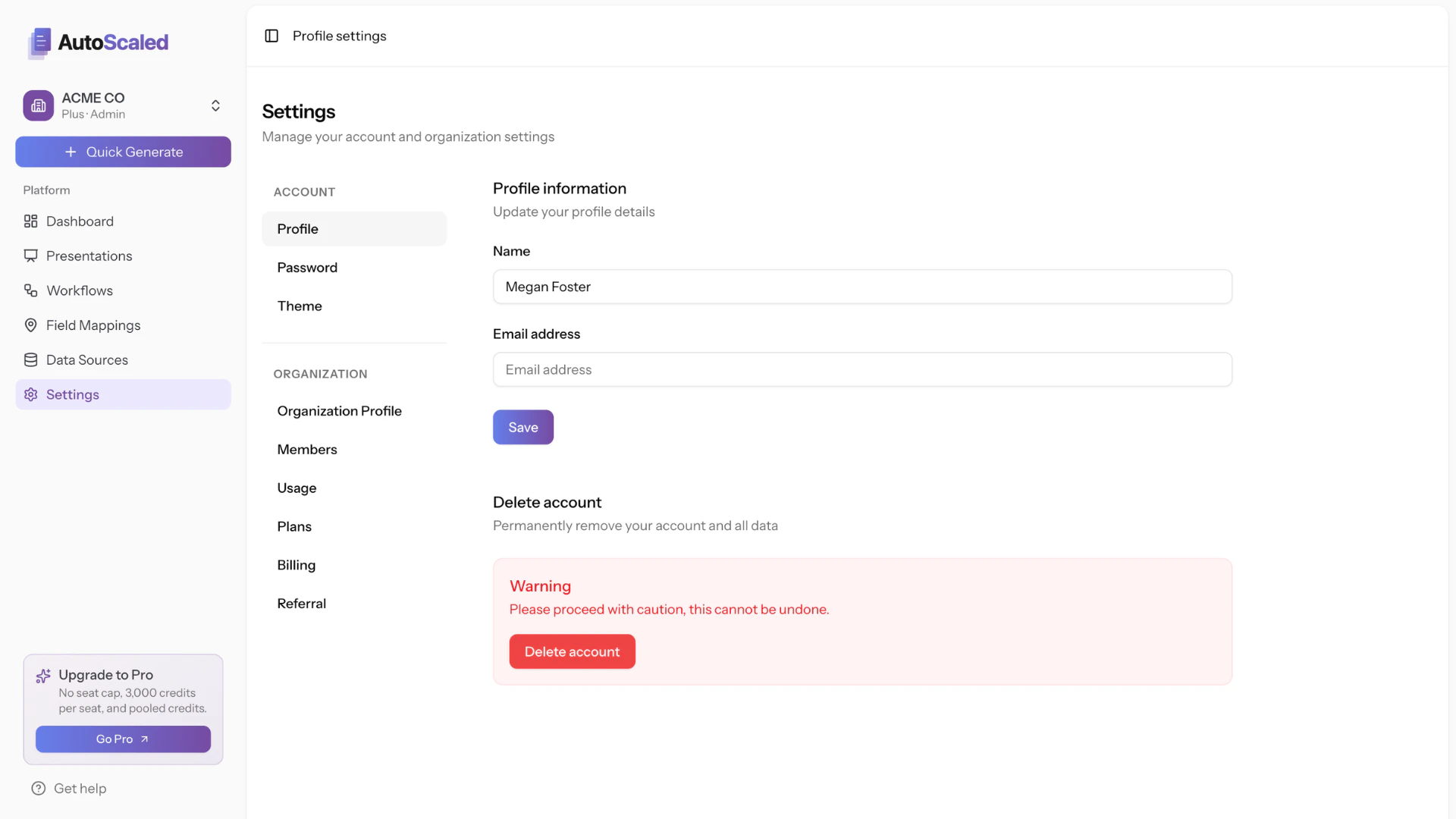 You can also delete your account from this page, which requires double confirmation.
Account removal is permanent and cannot be undone. You will lose access to your presentations, workflows, credits, and account. There is no way to restore your account after deletion. A copy of your presentations remains in your Google Drive.
## Password
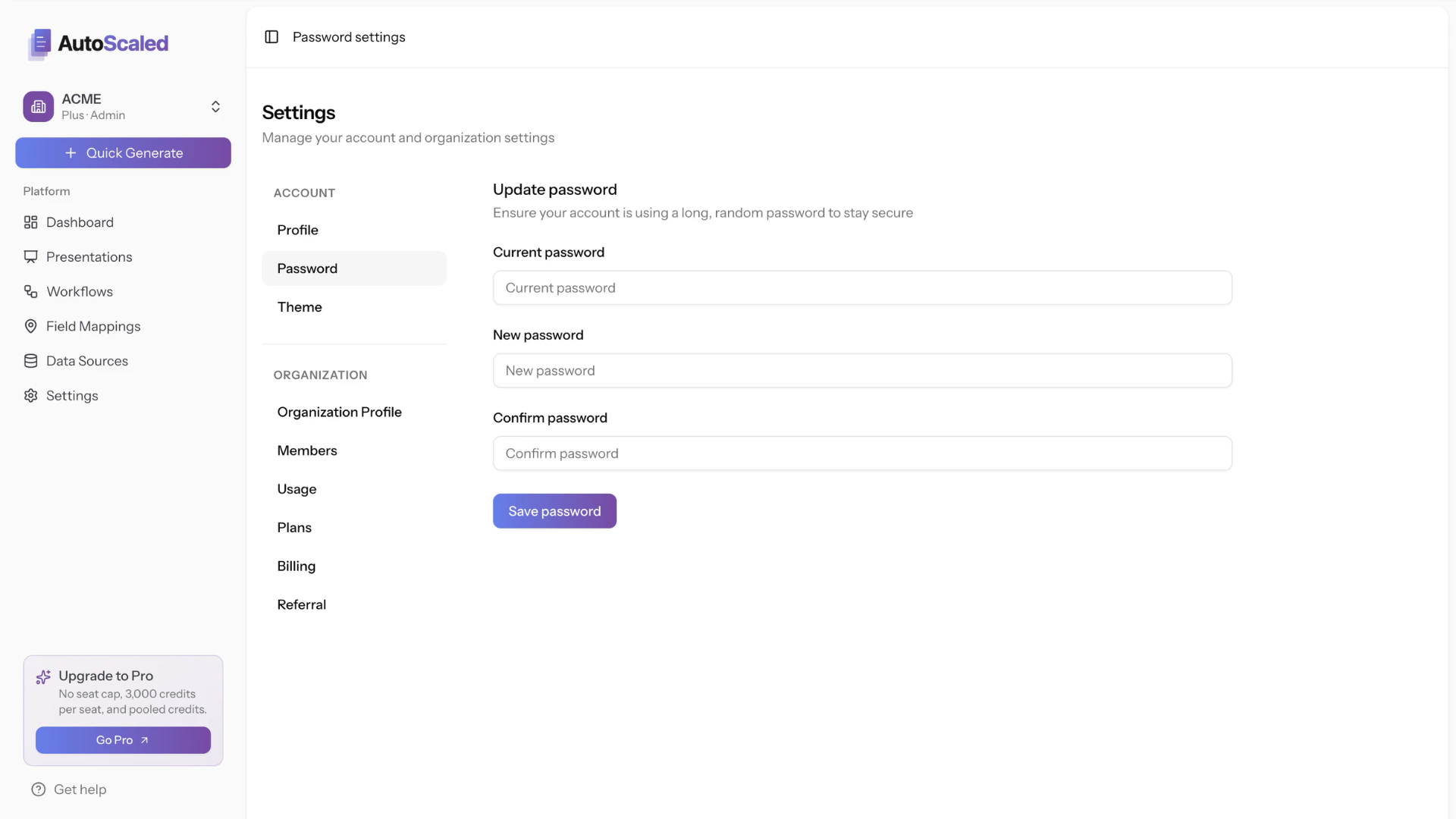
Under **Settings → Password**, update your password by entering your current password and choosing a new one.
You can also delete your account from this page, which requires double confirmation.
Account removal is permanent and cannot be undone. You will lose access to your presentations, workflows, credits, and account. There is no way to restore your account after deletion. A copy of your presentations remains in your Google Drive.
## Password
Under **Settings → Password**, update your password by entering your current password and choosing a new one.
 ## Appearance
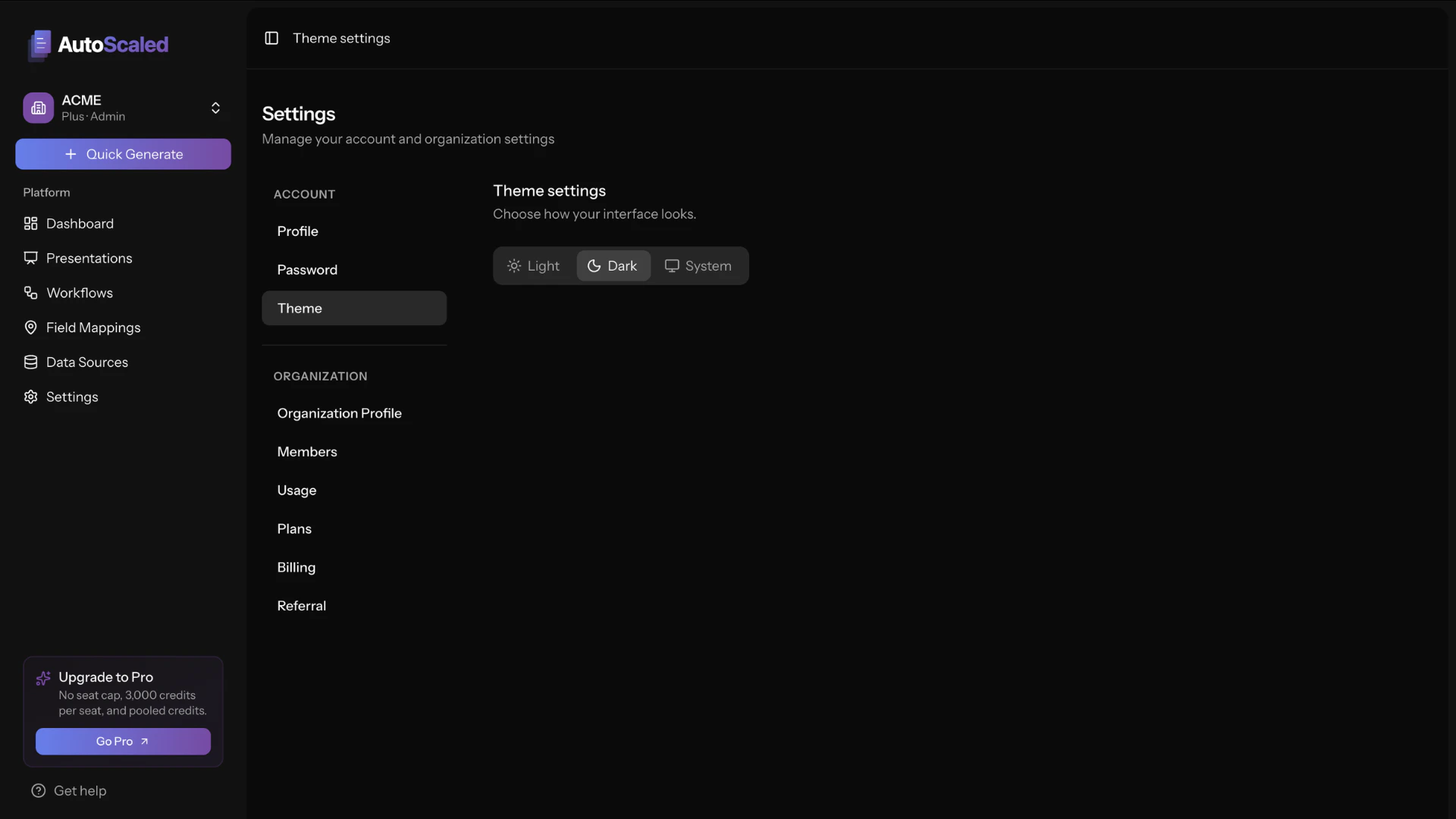
Under **Settings → Appearance**, choose **Light**, **Dark**, or **System**. The setting applies immediately across the app. **System** follows your browser’s light/dark preference so AutoScaled matches Light or Dark mode automatically.
## Appearance
Under **Settings → Appearance**, choose **Light**, **Dark**, or **System**. The setting applies immediately across the app. **System** follows your browser’s light/dark preference so AutoScaled matches Light or Dark mode automatically.
 ***
**Anything missing?** Let us know at [**support@autoscaled.com**](mailto:support@autoscaled.com) and we'll help you out!
***
**Anything missing?** Let us know at [**support@autoscaled.com**](mailto:support@autoscaled.com) and we'll help you out!