
Summary: How to Auto-Populate Google Slides From HubSpot
How do you populate a Google Slides template from HubSpot without copying fields by hand?
HubSpot already has the facts your reps paste into decks: company, amount, contacts, stage, owner, plus whatever custom properties you've defined. Your Google Slides template already has the layout and the story. What's missing is the bridge between them. AutoScaled adds that bridge with a HubSpot OAuth connection, an upload of your existing Slides template (no prep unless you want explicit {{field_name}} placeholders), and AI-assisted field mapping with confidence scores so obvious matches ship fast and edge cases get a human check.
This guide walks through connecting HubSpot, uploading the template, choosing how runs fire (manual, scheduled, or on a HubSpot event), validating a few records, then sharing finished decks with trackable links. For placeholder syntax versus AI mapping, see What Are Presentation Templates With Variables; for the wider automation pattern, start with What Is Presentation Automation for Sales.
Decks that used to take 20 to 40 minutes of tabbing between HubSpot and Slides can generate in minutes per record, so reps respond while the opportunity is still warm. Fifty HubSpot records can become fifty finished presentations in roughly the time it used to take to build one manually.
Human-written articles. AI-powered summaries.
How to Auto-Populate Google Slides From HubSpot: Step-by-Step Setup Guide
If you've ever copied a company name out of HubSpot, pasted it into a title slide, gone back for the deal amount, and wondered why you're still doing this in 2026, you're not alone. The CRM has the facts. Your Google Slides template has the layout and the brand story. Nothing ties them together unless someone does it by hand, account after account.
That's the part worth killing. LinkedIn Sales Solutions research puts sellers in the US and Canada at over a third of their week on admin work, including CRM updates and manual data entry. Auto-populating Slides from HubSpot won't fix all of that, but it removes one of the worst repeat offenders. Salesforce teams can follow the same pattern in How to Automate Personalized Google Slides from Salesforce Presentation and Sales Deck Automation.
Here's how to wire it up.
What You Need Before Auto-Populating Google Slides From HubSpot CRM
You need a HubSpot account where the fields you care about actually exist as named properties: company name, deal value, contact, owner, pricing tier, whatever your deck uses. Garbage in still means garbage out. If half your deals are missing an amount or the owner field, fix that before you automate anything.
You also need a Google Slides template your team already uses for proposals, pitch decks, QBRs, or whatever sales content you're generating. The HubSpot-to-Slides path is the same whether the output is a short pitch or a long proposal; length changes, not how CRM fields reach the template. You don't have to mark it up first. AutoScaled can scan it as-is and guess where HubSpot data should land. If you want full control, add {{field_name}} placeholders that match your HubSpot property keys before upload. When explicit markup beats AI detection, that's covered in What Are Presentation Templates With Variables.
Last piece: an AutoScaled account. HubSpot connects over OAuth 2.0, so you're not handing over passwords. Most teams are connected in under five minutes, no code.
Step 1: Connect HubSpot CRM to AutoScaled for Google Slides Automation
Open AutoScaled and go to Data Sources. Pick HubSpot, authenticate, and you're done on the integration side. AutoScaled can read Contacts, Companies, Deals, and Products, including custom properties you've added.
From there you can narrow scope: only deals in a given pipeline stage, only contacts above a certain company size, and so on. You're not forced to generate a deck for every row in the CRM.
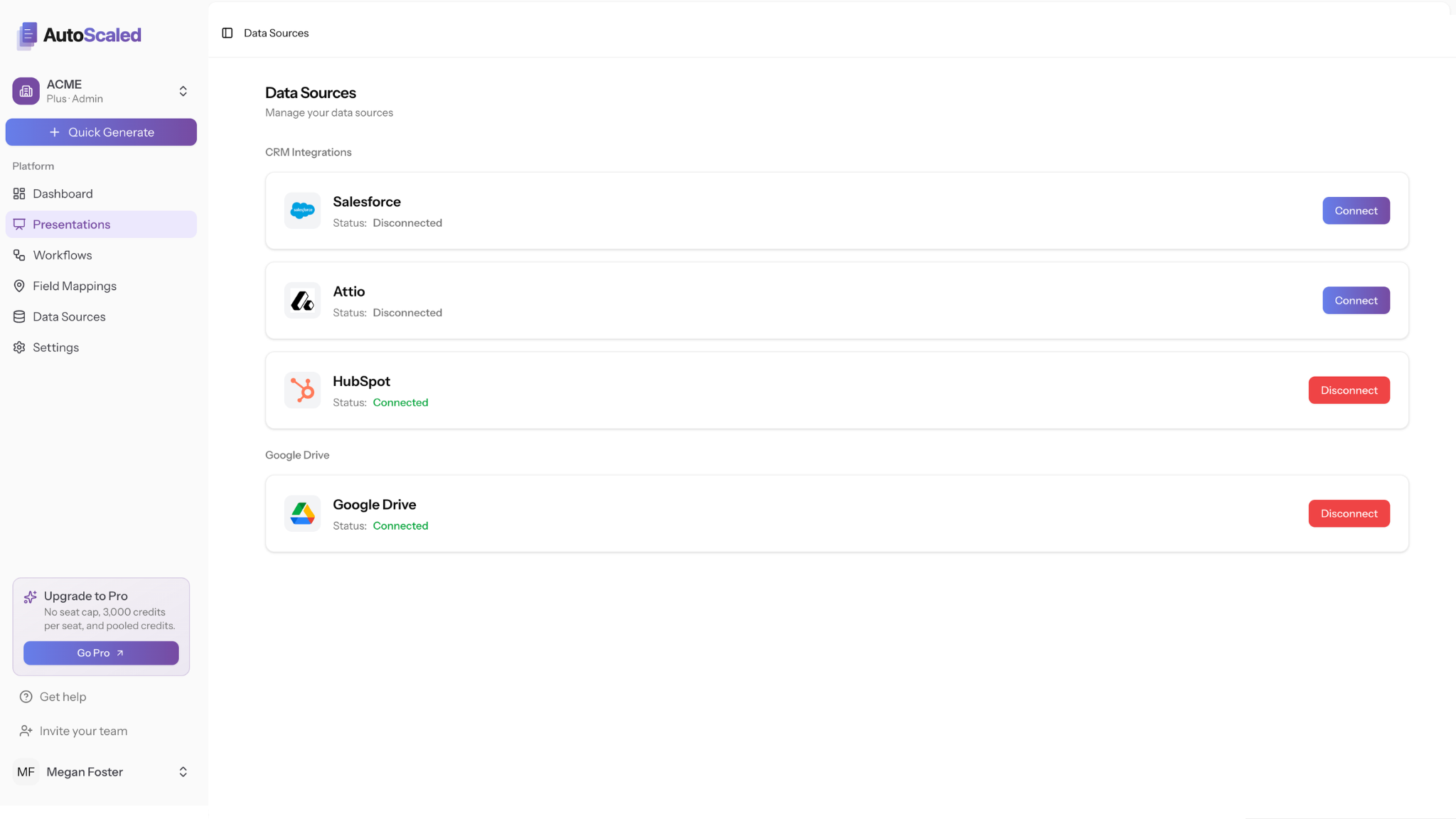
Connect HubSpot as the CRM source and Google Drive so finished decks land where your team already works.
Step 2: Upload Your Google Slides Template and Set Up AI Field Mapping
Upload the template. That's it for prep.
AutoScaled's AI reads each slide and proposes HubSpot field matches. A title that looks like a company name maps to Company Name. A number in a chart region might map to Deal Amount. Each match gets a confidence score.
High-confidence mappings you can accept and move on. Low-confidence ones sit in review until you confirm or point them at the right property. You only need to do that cleanup once per template, not on every run.
Prefer to skip the guessing? Mark the deck with {{field_name}} using exact HubSpot internal names. Same finished output either way.
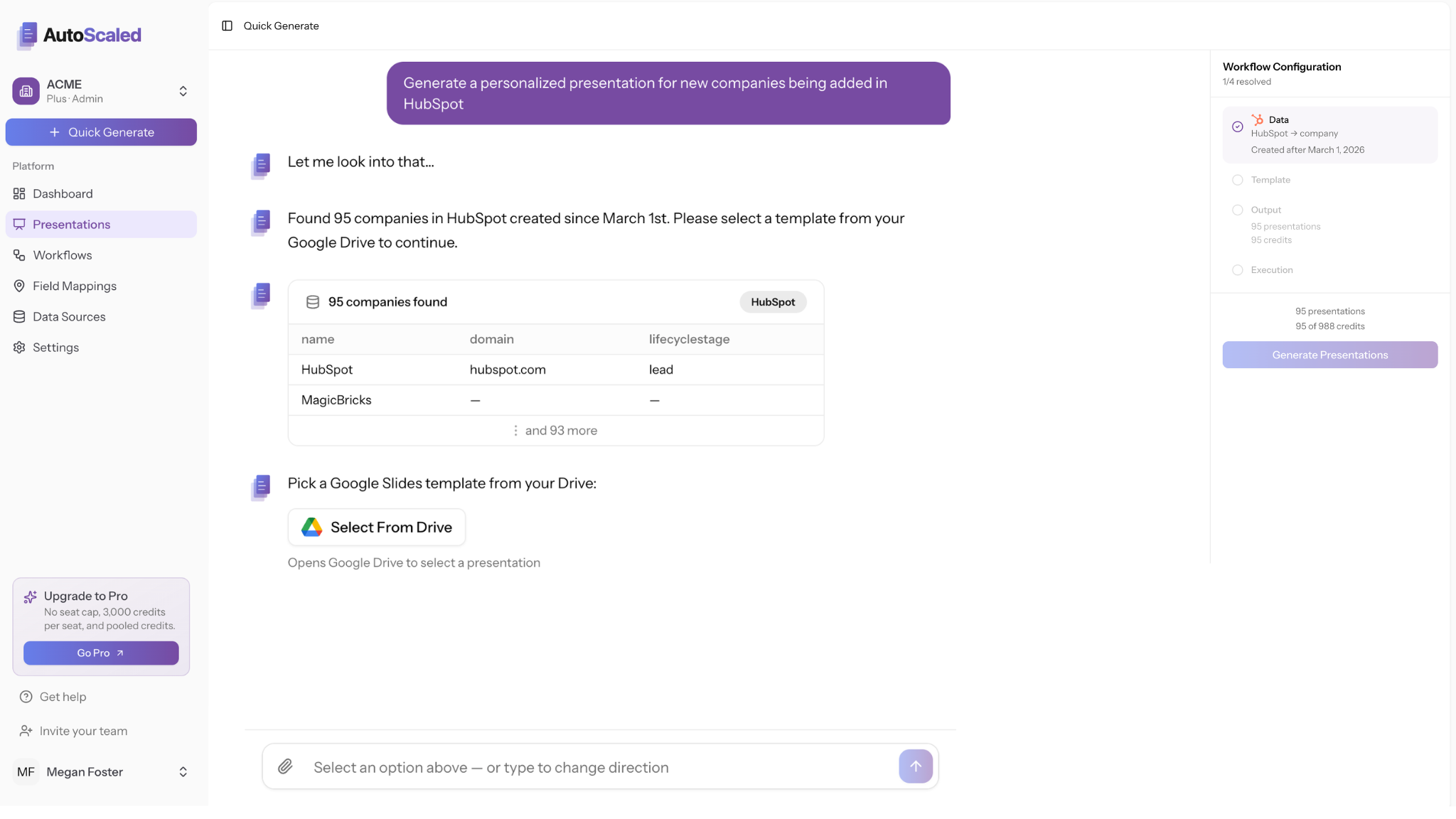
Quick Generate pulls live HubSpot records, then you pick the Slides template from Google Drive before mapping runs.
Step 3: Configure the HubSpot Trigger for Automated Google Slides Generation
How the run starts is up to you. Most teams start on demand: pick the records, hit generate, eyeball a few outputs before they trust automation. That covers one-off decks and any "show me this before we flip the switch" moment.
When the mapping is stable, you can run on a schedule (Monday account review decks for the week, for example) or fire when something changes in HubSpot: stage move, new contact, renewal date in a window. The deck can exist before the rep opens their laptop. For the platform-agnostic trigger checklist (deal stage, new record, renewal windows), see How to Set Up a Triggered Sales Content Workflow Without Code. For the common case where a deal enters proposal stage, see How to Automate Proposal Generation When a Deal Moves Stages in HubSpot. Agentic AI for Sales Enablement goes deeper on that trigger-and-approval pattern without repeating it here.
If this is your first workflow, stay on demand until mapping and formatting look right. Turning on scheduled or event triggers on day one is how you get Slack messages about bad decks.
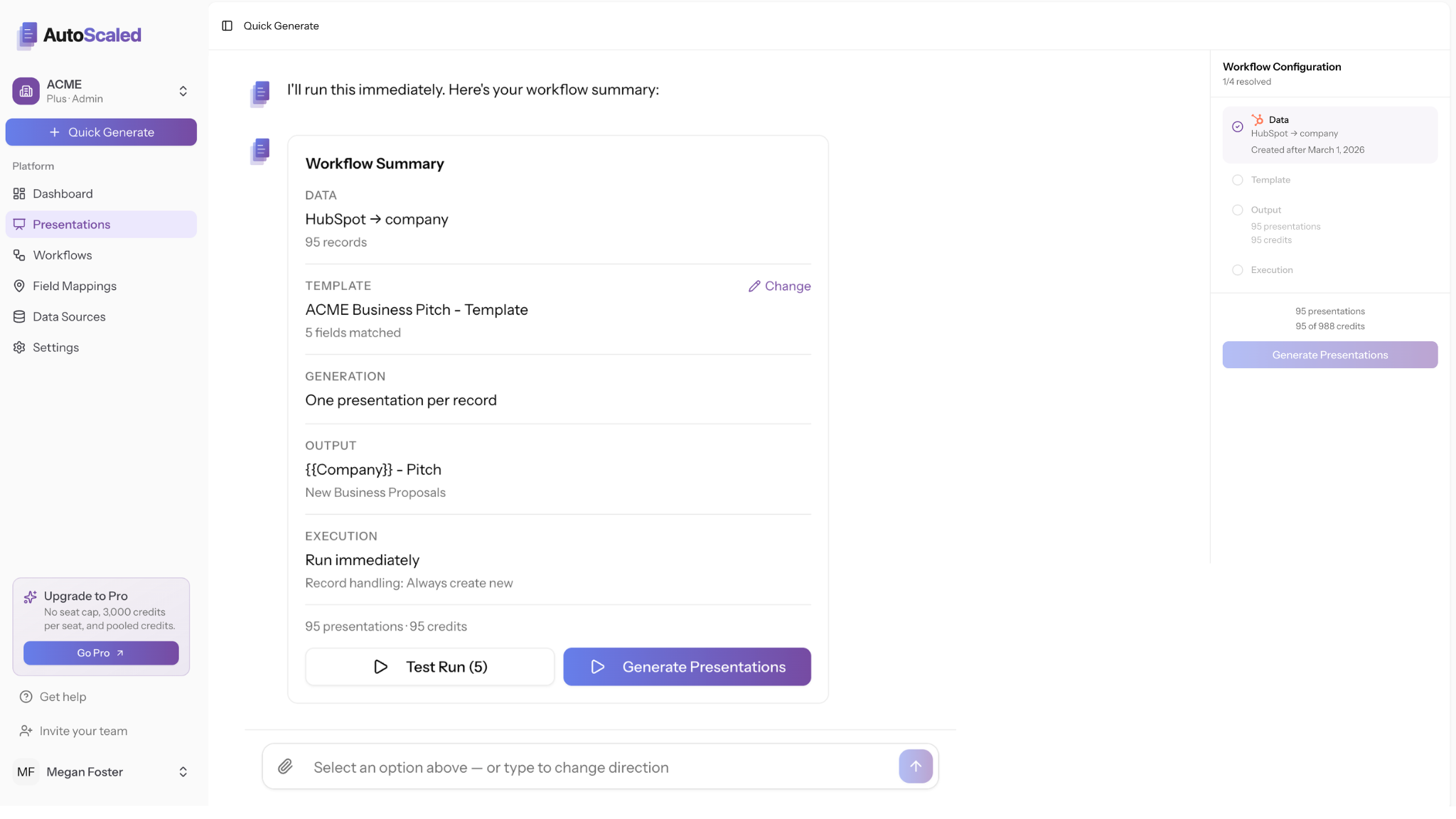
Before you run, the summary shows data source, template mapping, output naming, and how many presentations the batch will create.
Step 4: Review the HubSpot Field Mapping and Run Your First Google Slides Batch
Run two or three test records before you batch the whole pipeline. Check variable fields, fonts, logos, anything that usually breaks when data swaps in.
Wrong value on a slide? Usually the property key in a {{placeholder}} doesn't match HubSpot, the field was empty on that record, or you left a low-confidence AI match unchecked. All three are fixable in mapping before you scale.
When the samples look right, run the batch. One finished Google Slides file per HubSpot record, each filled with live data. Fifty deals, fifty decks, in roughly the time it used to take to build one by hand.
Walkthrough: HubSpot to Google Slides with AutoScaled, from connection and template upload through mapping and a finished deck. Watch on YouTube for fullscreen, captions, or if the embed does not load.
Step 5: Share Auto-Populated Google Slides via Trackable Links and Monitor Engagement
Generated presentations can be downloaded as Google Slides files, exported as PDFs, used as editable PowerPoint presentations, or shared via AutoScaled's branded trackable links. Trackable links show when a prospect opens the presentation, which slides they spent time on, and whether they forwarded it internally.
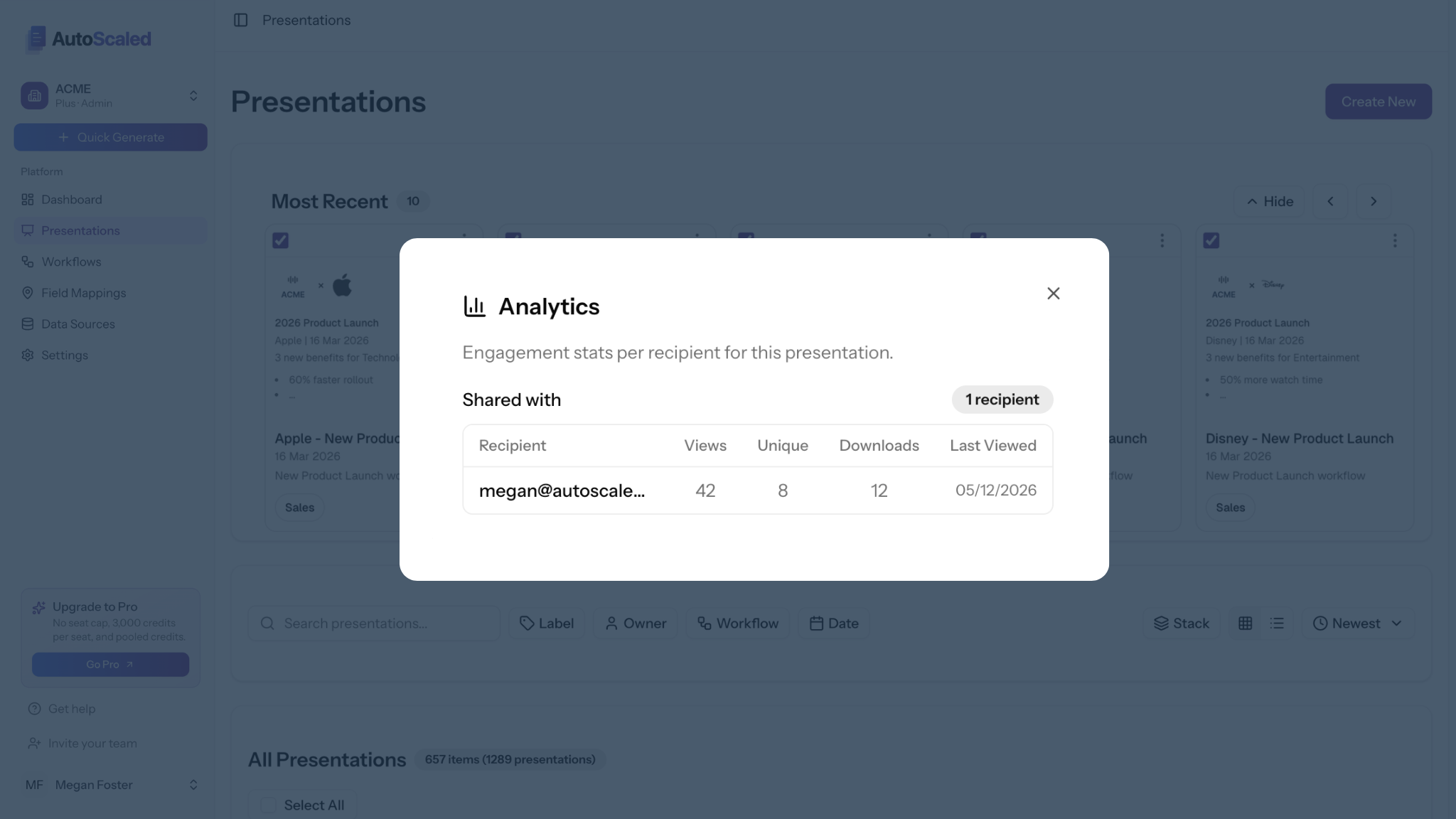
Trackable links surface recipient-level engagement so reps know who opened the deck and when before the follow-up call.
That beats guessing. A prospect who sits on your pricing slide for four minutes and shares the file with two colleagues is telling you something. Walk into the follow-up knowing that, not hoping they read page six. For a broader playbook on commercial slides, dynamic case studies, and follow-up that references slide-level engagement, see 7 ways to personalize a sales deck without rebuilding it every time.
Finished runs also land in AutoScaled's presentation library, versioned and searchable, instead of buried in email threads.
What Auto-Populating Google Slides From HubSpot Replaces in Your Sales Workflow
The manual version: open the template, tab to HubSpot, copy company name, tab back, paste, repeat for deal value, owner, product line, every slide. One deck often eats 20 to 40 minutes, and that's when the CRM record was tidy.
HubSpot's B2B sales AI research found 81% of sales leaders see AI cutting manual work. Populating decks from CRM data is a boring, high-frequency example of that, which is exactly why it's worth automating.
Setup under five minutes. The payoff shows up on the second deck, not the two hundredth.
Ready to connect HubSpot to your Slides templates? Try AutoScaled free for 14 days. No credit card required. Setup takes three minutes.
If signals, triggers, and what actually works when CRM data drives sales content is your lane, The Scale by AutoScaled covers it without the hype. Subscribe here.


