
Summary: How to Generate Personalized Google Slides From Salesforce Data Automatically
How do you generate personalized Google Slides from Salesforce without copying fields by hand?
Salesforce already holds account name, opportunity value, contacts, product configuration, close date, industry, and owner on the records your team maintains every day. Google Slides already holds the pitch layout your reps trust. What's missing is a direct bridge between them.
This guide walks through connecting Salesforce to AutoScaled over OAuth, uploading your existing Slides template (with optional {{Salesforce_Company_Name}} placeholders), reviewing AI field mapping once, choosing how runs fire (on demand, scheduled, or on a Salesforce event), and generating one finished deck per record in minutes.
What used to eat the better part of an hour per deck can drop to under five minutes, so reps can answer a hot lead with a personalized send instead of tabbing between Salesforce and Slides. A batch of 40 accounts becomes 40 finished presentations in roughly the time it used to take to build one manually.
For placeholder syntax and confidence mapping mechanics, see What Are Presentation Templates With Variables; for the wider automation model, see What Is Presentation Automation for Sales.
Human-written articles. AI-powered summaries.
How to Generate Personalized Google Slides From Salesforce Data Automatically
Salesforce holds everything a good sales presentation needs. Account name, opportunity value, contact details, product configuration, close date, industry, account rep. That data is already structured, already maintained, and already accurate because your team treats it that way.
And yet, when a rep needs Salesforce to Google Slides output—a personalized pitch deck or proposal—they open Google Slides, find a template, switch to Salesforce, start copying fields across, switch back, paste them in, and repeat the process until the deck looks right. That workflow can take the better part of an hour for a single presentation, as laid out in Why Sales Reps Spend 4 Hours Per Proposal.
This guide walks through how to connect Salesforce to Google Slides through AutoScaled and generate a fully personalized presentation in under five minutes. If your stack is HubSpot-first, the same pattern is documented in How to Auto-Populate a Google Slides Template from HubSpot CRM Data.
What You Need Before Generating Personalized Google Slides From Salesforce
Three things need to be in place.
A Salesforce account with clean, populated records. The fields you want to pull into the presentation (account name, opportunity amount, contact name, account rep, product tier, industry, close date) need to exist as named fields in Salesforce and be consistently filled in on the records you plan to automate. Incomplete CRM records produce incomplete presentations. Treat CRM hygiene as a prerequisite before you automate, not something the platform papers over after the fact.
A Google Slides template. This is the pitch deck, proposal, or whatever presentation type your team sends most regularly. It does not need to be modified before you start. AutoScaled can scan it as-is and identify where Salesforce data should be inserted. If you prefer explicit control over which fields get replaced and where, you can mark up the template with {{field_name}} placeholders using Salesforce field API names before uploading. Both approaches work. When explicit markup beats AI detection, see What Are Presentation Templates With Variables.
An AutoScaled account. AutoScaled connects to Salesforce via OAuth 2.0. The connection is secure, does not store your credentials, and takes under five minutes to set up. No code required.
Step 1: Connect Salesforce CRM to AutoScaled for Google Slides Automation
Open AutoScaled and navigate to data sources. Select Salesforce from the available integrations and authenticate via OAuth 2.0. Once connected, AutoScaled can read from any Salesforce object: Accounts, Contacts, Opportunities, Products, and any custom objects or fields your team has configured.
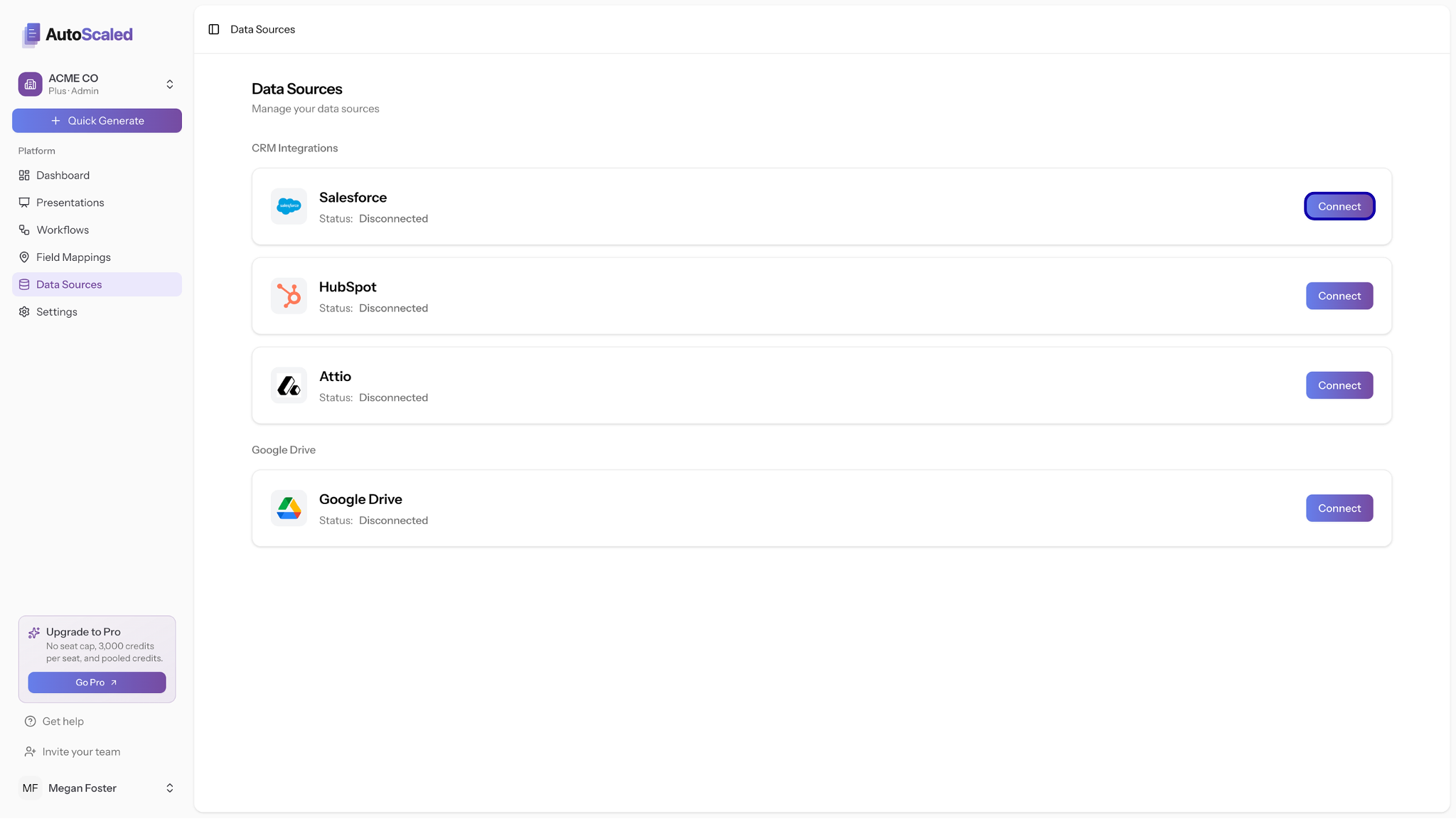
Connect Salesforce as the CRM source and Google Drive so finished decks land where your team already works.
If you want to restrict which records are in scope for a given workflow (for example, only Opportunities above a certain value, only Accounts in a specific region, or only records assigned to a particular team), those filters are set at this stage. You are not committing to generating presentations for every record in your Salesforce instance.
Step 2: Upload Your Google Slides Template and Map Salesforce Fields Automatically
Upload your Google Slides file to AutoScaled. No preparation needed.
AutoScaled's AI scans every slide and identifies which fields are candidates for replacement with live Salesforce data. A field showing a company name gets matched to the Account Name field. A contact's job title gets matched to the Contact Title field. An opportunity value gets matched to the Amount field. A rep's name gets matched to the Owner field.
Each match receives a confidence level. High-confidence matches, where the connection between the slide content and the Salesforce field is clear, are ready to use immediately. Lower-confidence matches are flagged for your review before any presentations generate. You confirm or adjust those mappings, and the configuration is saved. This setup step happens once.
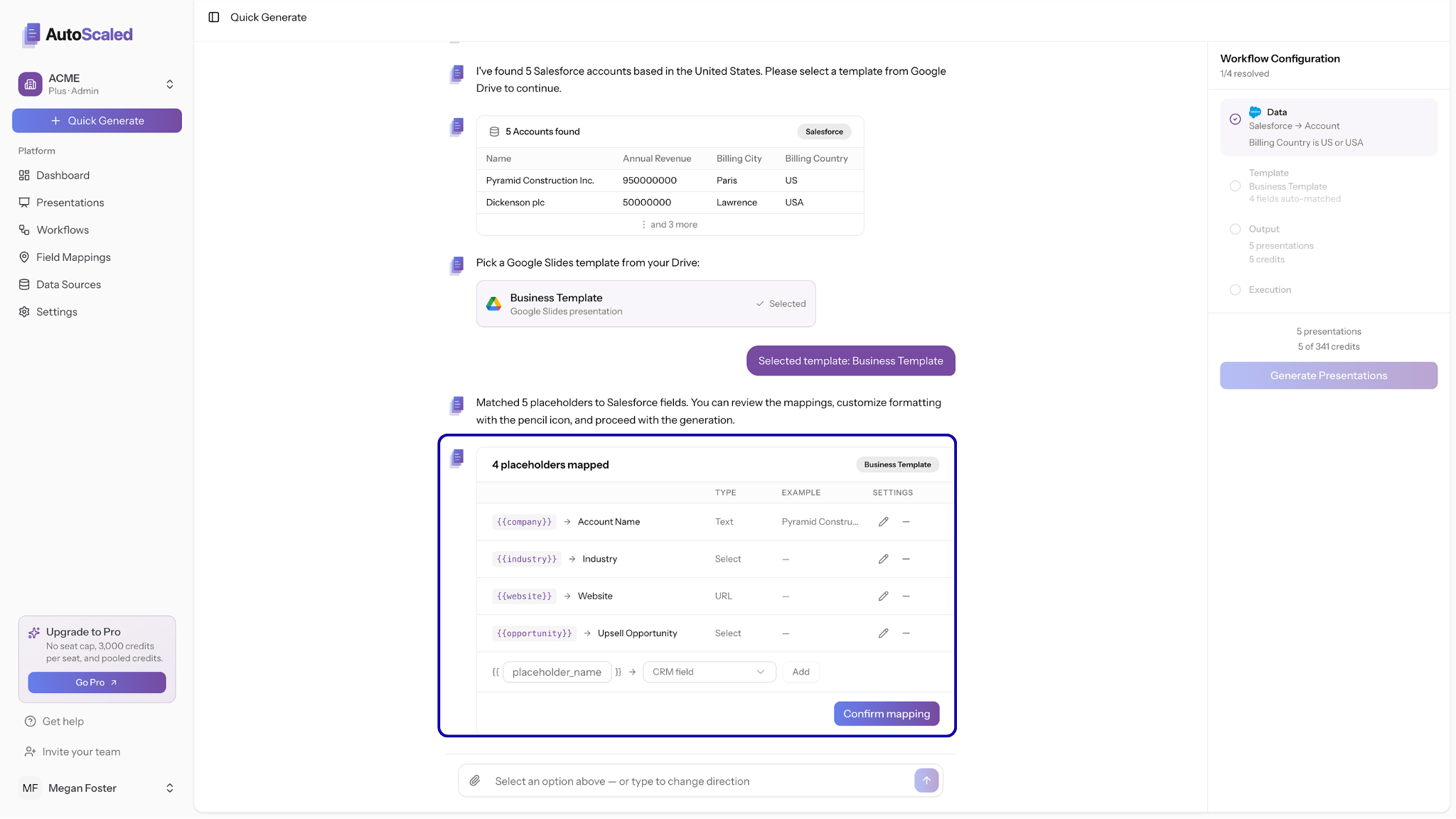
Review AI-proposed Salesforce field mappings once per template; confirm flagged rows before you run at scale.
If you have marked up your template with explicit {{SalesforceFieldAPIName}} placeholders, the mapping is direct. The platform replaces each placeholder with the corresponding value from the connected Salesforce record.
Step 3: Choose How the Salesforce to Google Slides Workflow Triggers
AutoScaled gives you three ways to trigger the generation workflow, and the right one depends on how your team operates.
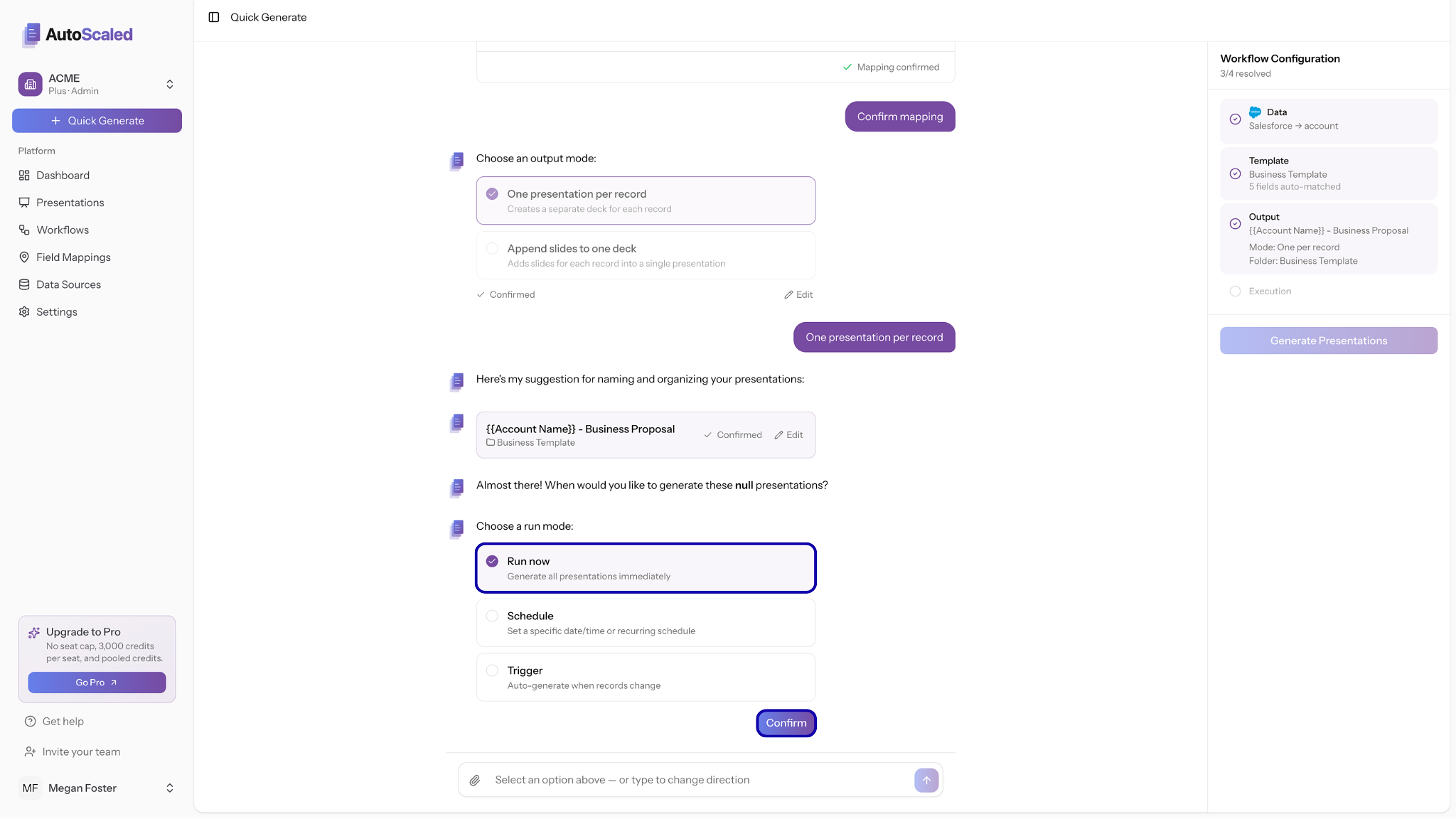
Choose on demand, a schedule, or a Salesforce event trigger depending on how your team wants decks to generate.
On demand. You select the Salesforce records you want to generate presentations for and run the batch manually. This is the right starting point for most teams: it gives you full control over when presentations generate and lets you review output quality before committing to automated triggers.
On a schedule. The workflow runs automatically at a defined interval. A team that sends weekly account review decks every Monday, or produces QBR presentations at the start of each quarter, can set the schedule once and receive the output automatically without initiating it manually each time.
Triggered by a Salesforce event. The workflow fires when something changes in Salesforce: an opportunity moves to a specific stage, a new account is created, a contract renewal date enters a defined window. This is the agentic configuration. The presentation generates automatically before the rep has had time to add it to their task list. For how that trigger-and-approval pattern fits enablement, see Agentic AI for Sales Enablement.
For teams setting up their first Salesforce-to-Google Slides workflow, starting with on-demand runs and reviewing output quality before enabling automatic triggers is the recommended approach.
Step 4: Review the Salesforce Field Mapping and Generate Your First Google Slides Batch
Before running at scale, test the workflow against two or three live Salesforce records. Open the generated Google Slides outputs and check that each variable field has populated correctly, that the formatting of the original template is preserved, and that the output is at the standard your team would apply to a manually built presentation.
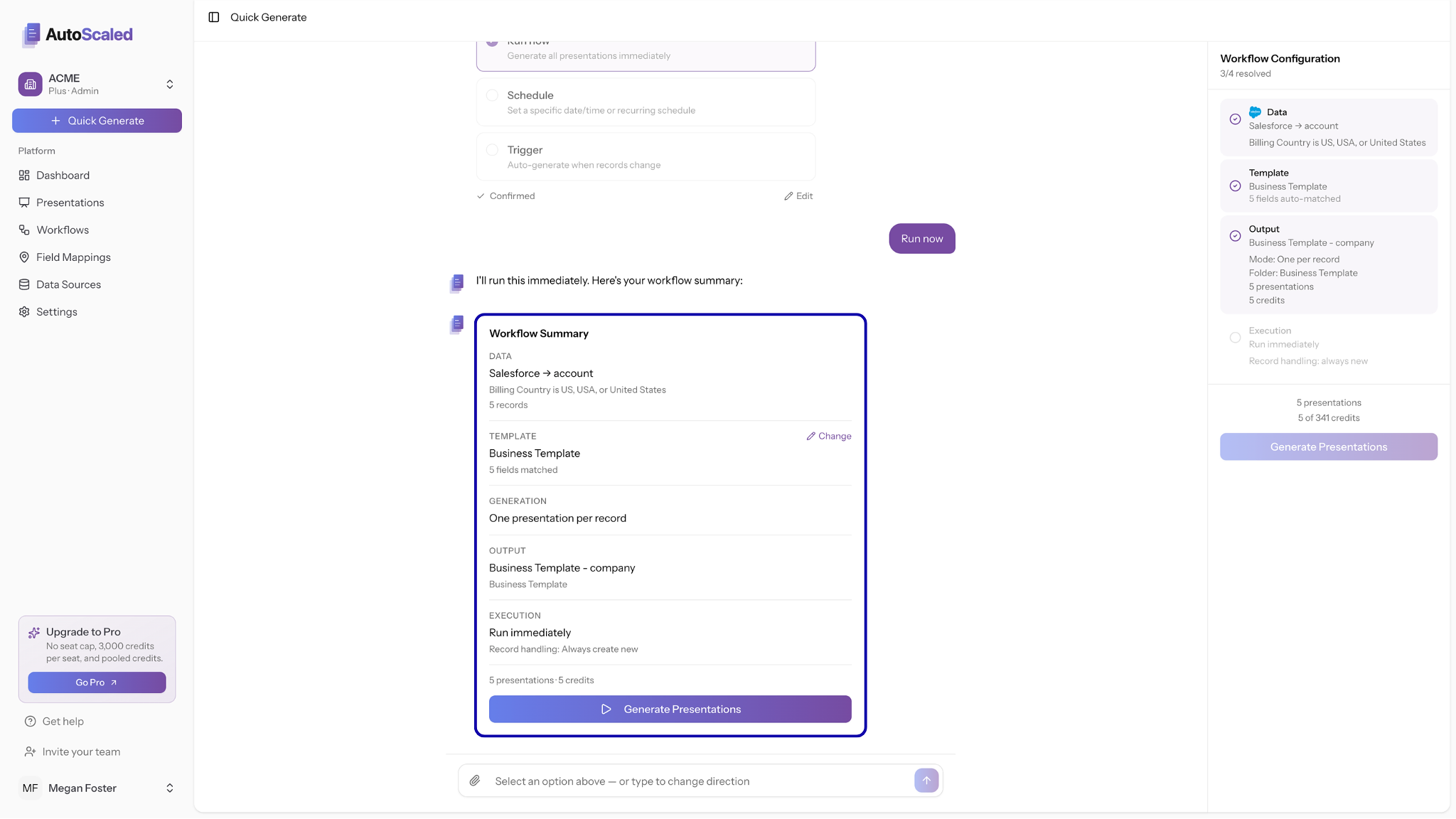
Check all settings are correct and run a test to see how presentations will be generated
If a field has not populated correctly, the most common causes are a blank Salesforce field on the test record, a placeholder name that does not exactly match the Salesforce field API name, or a lower-confidence AI mapping that needed a manual adjustment. Each is resolvable in the mapping configuration.
Once the test output is clean, run the full batch. AutoScaled generates one finished Google Slides file per Salesforce record, each populated with that record's live data. A batch of 40 accounts produces 40 individually personalized presentations in the time it would take a rep to build one manually.
Step 5: Share Salesforce-Populated Google Slides via Trackable Links and Store Output
Generated presentations can be shared as Google Slides files, exported as PDFs, or distributed via AutoScaled's branded trackable links. Trackable links show when a prospect opens the presentation, which slides they spent time on, and whether the deck was shared internally.
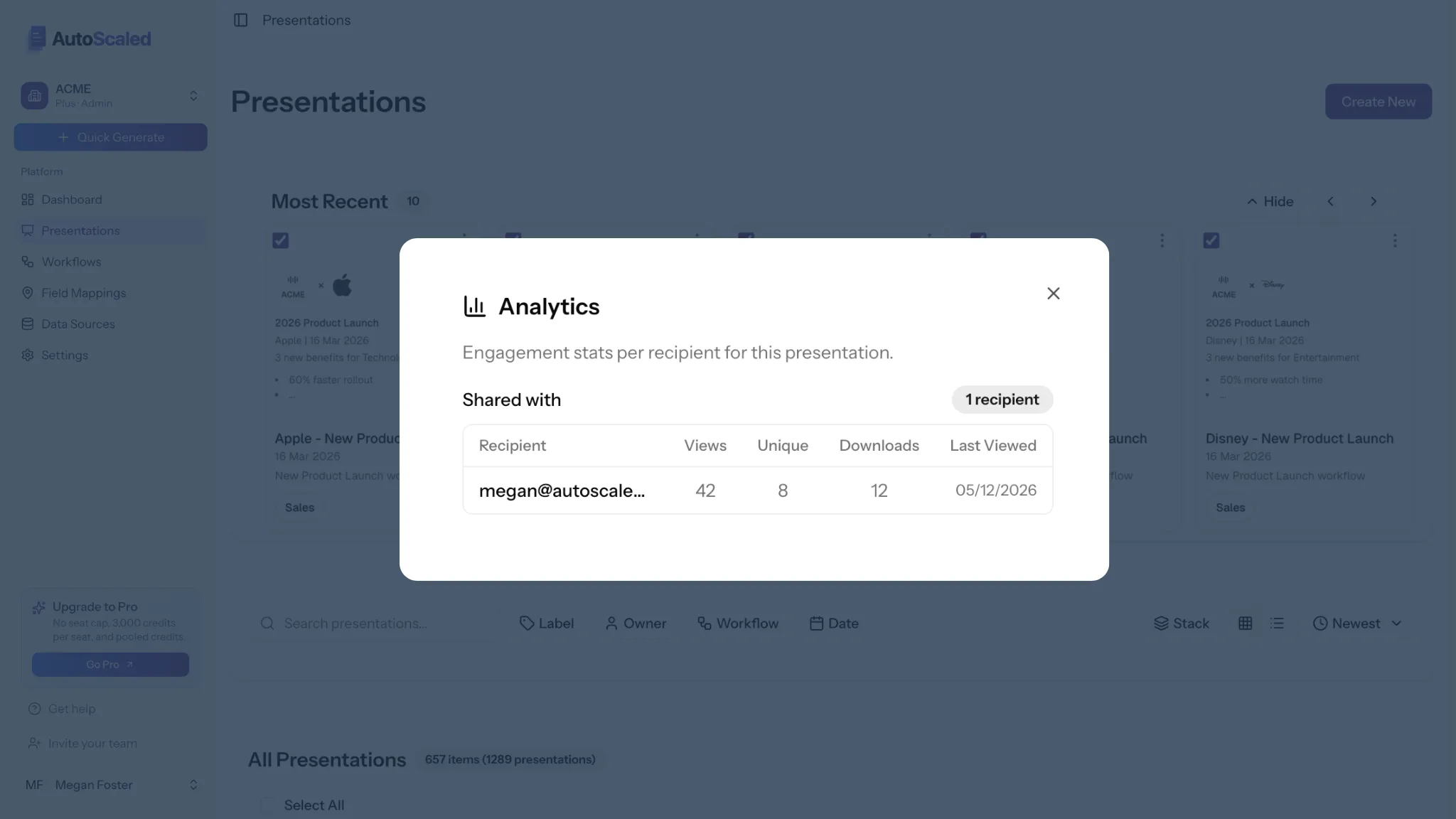
Trackable links surface recipient-level engagement so reps know who opened the deck and when before the follow-up call.
That engagement data changes how follow-up works. A rep who knows a prospect spent seven minutes on the pricing slide and forwarded the deck to their CFO has a specific, actionable signal before making their next call. That is meaningfully different from following up blind after sending a static PDF attachment.
Finished presentations are stored in AutoScaled's presentation management system, organized and versioned so output from every run is accessible without searching email threads or shared drives.
Why Salesforce Teams Are Best Positioned to Benefit From Automated Presentation Generation
Salesforce users tend to have the most complete and consistently maintained CRM data of any team in a sales organization. The investment in Salesforce hygiene, the custom fields, the enforced stage entry criteria, the populated opportunity records, is exactly what makes the automation valuable. The quality of the output is a direct function of the quality of the input, and Salesforce teams have already done the work to make that input reliable.
The gap AutoScaled closes is a connection problem: the data your team has spent time maintaining in Salesforce has never had a direct path into the presentations you send to prospects. Every field that gets populated manually into a Google Slides deck represents a workflow failure: accurate data being copied by hand from one system to another because no connection exists between them.
80 percent of B2B buyers now expect a buying experience similar to B2C, including personalized content and seamless interactions, according to Salesforce's State of Sales report. The expectation for personalization exists independent of whether the seller has a system to deliver it. The teams that build that system get the engagement lift. The teams that do not rely on rep time that is finite and inconsistently applied. When generic decks are the default, the cost shows up in pipeline; see Why Generic Pitch Decks Lose Deals for how that plays out in buyer engagement.
Connecting Salesforce to Google Slides through AutoScaled takes under five minutes to set up. The time it saves compounds across every presentation your team generates from that point forward. If manual deck time and version drift show up across the team, 7 Signs Your Sales Team Needs Presentation Automation is a quick diagnostic before you scale Salesforce event triggers.
Ready to connect Salesforce to your Google Slides templates and start generating personalized presentations automatically? Try AutoScaled free for 14 days. No credit card required. Setup takes three minutes.
If you are working through how to get more value from your Salesforce data across the full sales workflow, not just the CRM itself, The Scale newsletter by AutoScaled covers what's working across GTM teams right now. No fluff. No hype. Subscribe here and we'll send it straight to your inbox.


