
Summary: How to Automatically Generate a Sales Proposal When a HubSpot Deal Changes Stage
How do you generate a proposal automatically when a HubSpot deal moves to the proposal stage?
The gap between a deal moving to proposal stage and a proposal reaching the buyer is where pipeline velocity quietly dies. This guide wires HubSpot to AutoScaled so a stage change fires a finished, personalized deck from your approved template and live CRM fields.
You will connect HubSpot over OAuth, upload the proposal template (AI field mapping or explicit {{hubspot_property_name}} placeholders), set the deal stage trigger with optional filters, choose output (library, tracked link on the deal, or phased auto-send), and validate on live records before you scale.
Example: "A deal moves to Proposal Stage in HubSpot, and a personalized proposal deck is ready for the rep to review and send."
When the trigger fires, reps can review and send in about fifteen minutes instead of spending three to four hours building from scratch. A ten-rep team moving five deals per month into proposal stage can reclaim on the order of 150 to 200 hours monthly for discovery and follow-up.
Human-written articles. AI-powered summaries.
How to Automatically Generate a Sales Proposal When a HubSpot Deal Changes Stage
The gap between a deal moving to the proposal stage and a proposal actually reaching a prospect is where a surprising amount of pipeline velocity gets lost. A rep updates the stage in HubSpot, intends to build the deck, gets pulled into another call, and the proposal sits in a mental queue for two days. By then, the prospect's attention has moved on.
Research on lead response time consistently shows that 35 to 50 percent of sales go to the first vendor to respond. In a competitive process, the team that sends a personalized, accurate proposal within hours of a discovery call closing will outperform a team that sends a better proposal three days later. Speed and quality are not a trade-off when the generation is automated.
This guide walks through exactly how to set up a workflow in HubSpot and AutoScaled that generates a personalized proposal deck automatically the moment a deal moves to the proposal stage, without any manual work from the rep. For the broader HubSpot-to-slides setup (OAuth, template upload, and batch runs), start with How to Auto-Populate a Google Slides Template from HubSpot CRM Data. For the same trigger pattern across HubSpot, Salesforce, and Attio (not only proposal stage), see How to Set Up a Triggered Sales Content Workflow Without Code.
What the HubSpot Proposal Automation Workflow Produces
The end state is a triggered workflow. When a deal in HubSpot moves from any upstream stage into your defined proposal stage, AutoScaled detects that event, pulls the relevant CRM data for that deal and its associated contact and company, maps it to your proposal template, and generates a finished, personalized presentation. The rep receives the output ready to review and send.
No tab-switching. No data copying. No template hunting. The proposal exists before the rep has had time to add it to their task list.
What You Need Before Setting Up Automated HubSpot Proposal Generation
Three things need to be confirmed before building the workflow.
Your HubSpot pipeline needs a clearly defined proposal stage with a consistent entry rule. The most reliable entry rule is a past-tense action: "Proposal Sent" or "Proposal Prepared" rather than "Send Proposal." This ensures a deal only enters the stage once the qualifying action has genuinely occurred, which keeps the trigger clean and prevents the workflow from firing on incomplete or prematurely updated records.
Your proposal template needs to exist. This can be a PowerPoint or Google Slides file your team already uses. It does not need any preparation before upload. AutoScaled's AI will scan it and identify which fields should be replaced with live HubSpot data. If you prefer explicit control, you can mark up the template with {{field_name}} placeholders using HubSpot property names before uploading. Either approach works; see What Are Presentation Templates With Variables for when explicit placeholders beat AI mapping.
Your HubSpot deal records need to have the key fields populated for the accounts you want to automate. Company name, deal value, contact name, and account rep are the minimum. Any field referenced in the template needs to exist and be filled in for the trigger to produce a clean output. Teams still copying fields from HubSpot by hand into proposal decks pay for that transfer in hours and error risk; stage-triggered generation replaces the copy-paste step entirely.
Step 1: Connect Your HubSpot Account to AutoScaled for Proposal Automation
Open AutoScaled and go to Data Sources. Pick HubSpot, authenticate over OAuth 2.0, and you are done on the integration side. The connection is authenticated securely and does not store your credentials. AutoScaled can read from your HubSpot Contacts, Companies, Deals, and Products objects, including any custom properties your team has added.
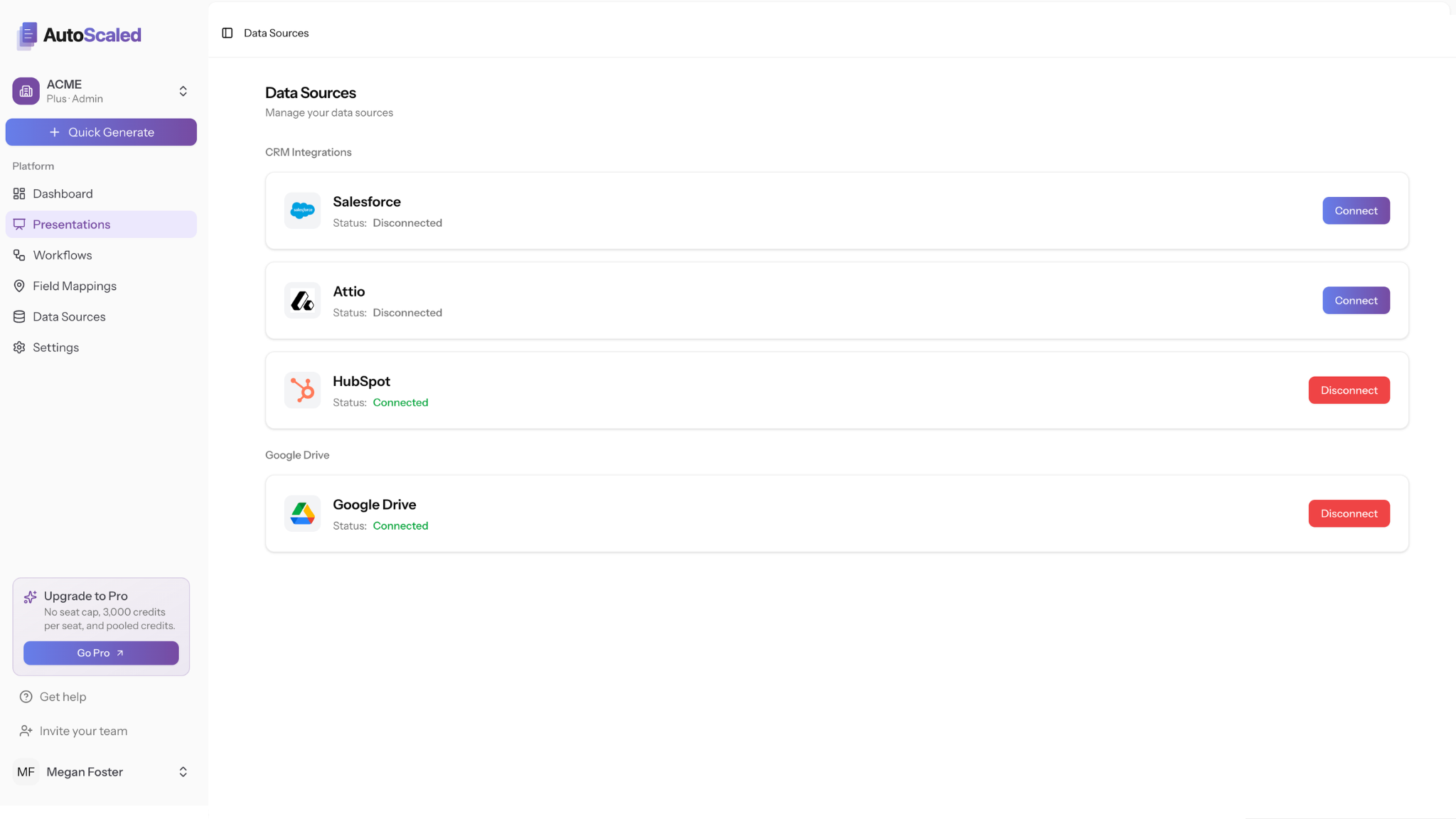
Connect HubSpot as the CRM source and Google Drive so finished decks land where your team already works.
Step 2: Upload Your Proposal Template and Configure HubSpot Field Mapping
Upload your proposal deck to AutoScaled. If it is a clean file with no modifications, AutoScaled's AI will scan every slide and map the fields it identifies as candidates for replacement to the most likely matching properties in your connected HubSpot data. Each mapping receives a confidence level.
High-confidence matches are ready to use immediately. A field showing a company name maps clearly to the Company Name property. A contact title maps to Job Title. A deal value maps to Amount. Lower-confidence matches, where the platform is less certain about the correct HubSpot property, are flagged for your review before the workflow runs.
If you have marked up your template with explicit {{hubspot_property_name}} placeholders, the mapping is direct and no AI scanning is required. The platform matches each placeholder to its named property in HubSpot.
Review the full mapping, confirm or adjust any flagged fields, and save the configuration. This is a one-time setup step.
Step 3: Set the HubSpot Deal Stage Trigger for Automated Proposal Generation
In AutoScaled, create a new workflow and set the trigger condition to a HubSpot deal stage change. Specify the pipeline and the target stage, the one your team uses to indicate that a proposal is being prepared or sent.
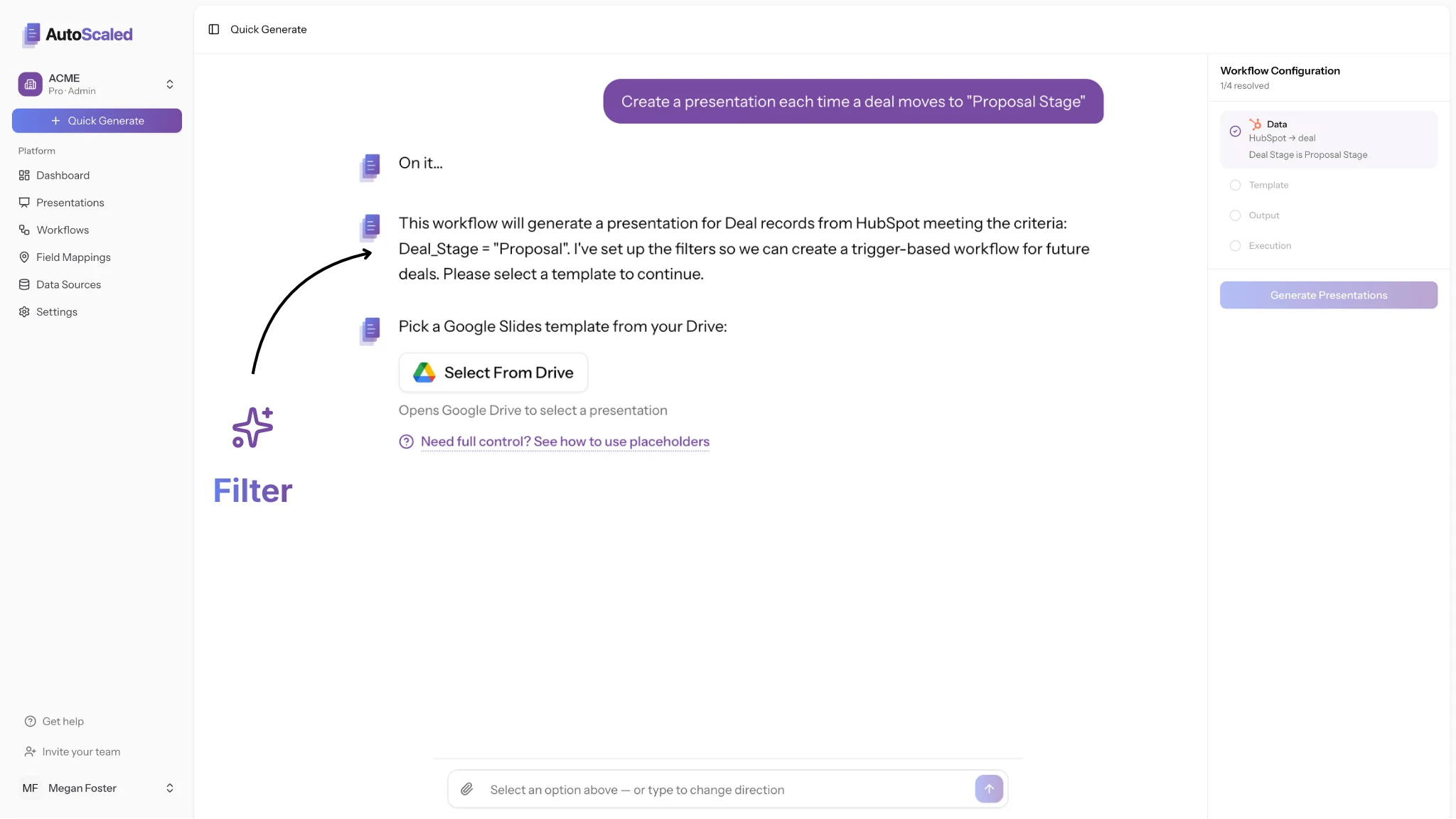
Quick Generate sets Deal Stage to Proposal Stage on HubSpot deals; the workflow configuration panel confirms the data trigger before you pick a template.
You can layer additional conditions on top of the stage trigger if needed. For example, you might want the workflow to fire only for deals above a certain value, only for deals in a specific pipeline, or only for deals assigned to particular rep. These filters ensure the automation runs on the records it should and ignores the ones where a manual approach is more appropriate.
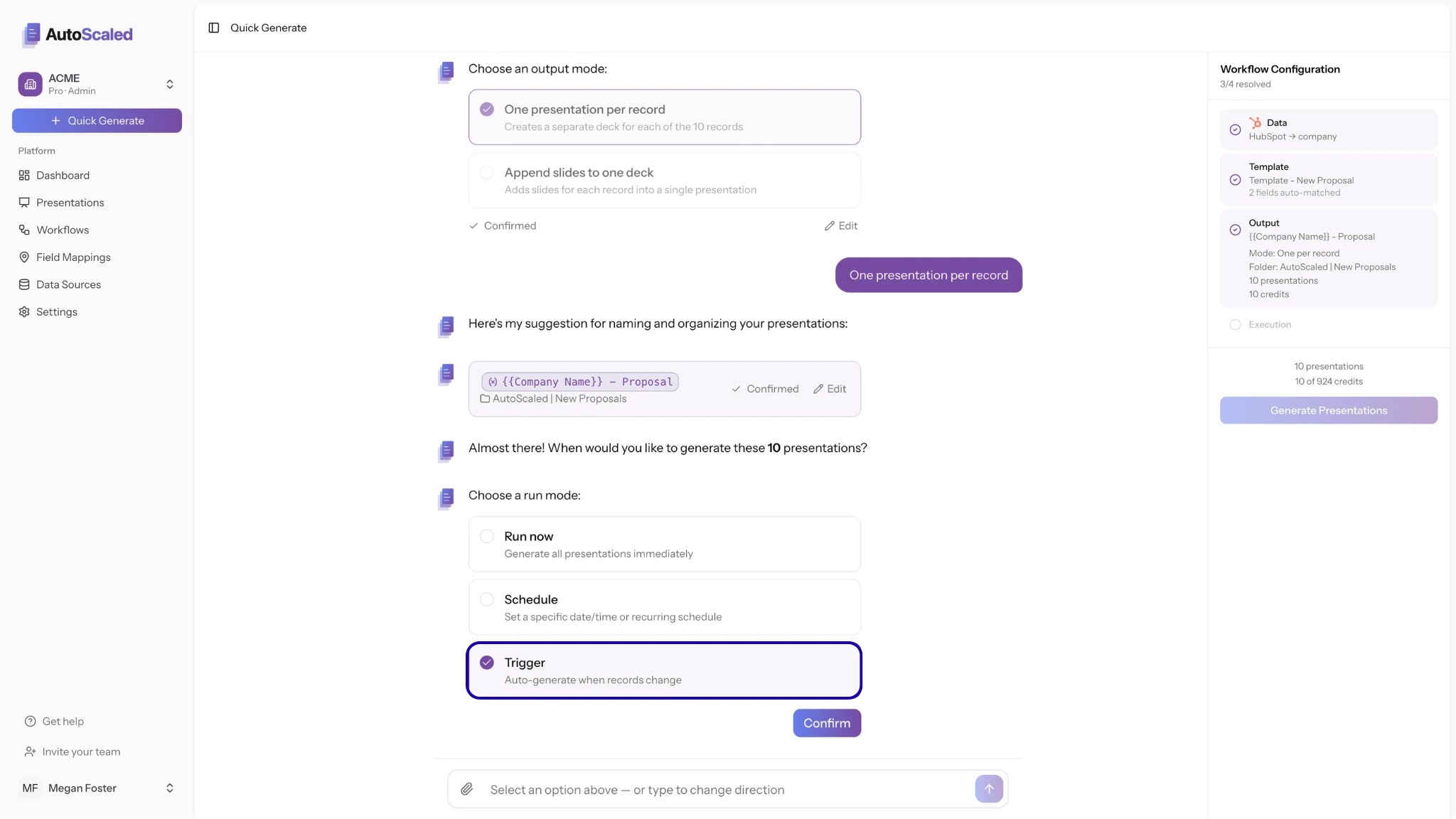
Choose Trigger as the run mode so new proposals auto-generate when matching HubSpot records change, not only on a one-off batch run.
For the wider trigger-and-approval pattern (sequences, guardrails, and when to auto-send), see Agentic AI for Sales Enablement.
Step 4: Configure Where AutoScaled Sends Generated HubSpot Proposals
Define what AutoScaled should do once the presentation is generated. The options are:
Store the finished file in AutoScaled's presentation management system, where the rep can access, review, and share it. This is the recommended starting point for teams running the workflow for the first time, as it gives reps full visibility and control before sending.
Generate a branded, trackable share link automatically and add it to the deal record in HubSpot as a note or property. The rep opens the deal, sees the link, previews the deck, and sends. The workflow handles everything up to that moment.
For teams that have validated the template quality and trust the field mapping, the workflow can be extended to send the presentation automatically via a HubSpot sequence, triggering the delivery without rep initiation. Most teams phase into this level of automation after running the earlier configuration for a few weeks.
Step 5: Test the HubSpot Proposal Workflow Against Live Deal Records
Before enabling the workflow at full scale, test it against two or three existing deals in the proposal stage. Review the output: check that each variable field has populated correctly from the HubSpot record, that the formatting is preserved, and that the output meets the standard your team would apply to a manually built proposal.
If a field has populated incorrectly, the most common causes are a blank CRM field on the test record, a placeholder name that does not match the HubSpot property key exactly, or a lower-confidence AI mapping that needed adjustment. Each is resolvable in the mapping configuration before the workflow goes live.
Once the test output looks right, activate the trigger. From that point forward, every deal that moves into the defined stage generates a personalized proposal automatically.
How Automated HubSpot Proposal Generation Changes the Sales Team's Workflow
The practical shift is in where rep time goes. Before this workflow, a rep who moved a deal to the proposal stage had three to four hours of work ahead of them before anything left the outbox, as laid out in Why Sales Reps Spend 4 Hours Per Proposal. After this workflow, they have fifteen minutes of review before hitting send.
Post-proposal win rates sit at 31 to 50 percent for half of B2B companies, according to Norwest's 2024 Sales and Marketing Benchmark report. That range reflects significant variance in proposal quality, personalization, and delivery speed. Automating the generation removes two of the three variables from the equation. Quality is enforced by the approved template. Delivery speed is handled by the trigger. What remains is the rep's judgment on when and how to follow up, which is where their time should be going.
A team of ten reps each moving five deals per month to the proposal stage is collectively saving 150 to 200 hours monthly by running this workflow rather than building proposals manually. That time goes back into discovery calls, follow-ups, and relationship work that actually moves deals forward. If proposal-stage delays and version drift show up across the team, 7 Signs Your Sales Team Needs Presentation Automation is a quick diagnostic before you scale triggers further. For the operating model behind connected templates and CRM-driven decks, see What Is Presentation Automation for Sales.
If you are ready to set up your first triggered proposal workflow from HubSpot, try AutoScaled free for 14 days. No credit card required. Setup takes three minutes.
If triggered workflows, CRM-connected automation, and what actually moves pipeline velocity are topics your team is working through, The Scale newsletter by AutoScaled covers what's working across GTM teams right now. No fluff. No hype. Subscribe here and we'll send it straight to your inbox.


