
Presentation Library Dashboard
The Presentations page is your central presentation library. It includes all the presentations you have generated through AutoScaled AI content workflows. To navigate to the presentation library dashboard, select “Presentations” in the left-hand navigation bar:.png?fit=max&auto=format&n=d_0tzv40og-JugEI&q=85&s=f9c4c36caa10ea9445e3d9dfd3d4a48a)
Presentation management dashboard on AutoScaled
Create new personalized presentations
From the presentation management page, you can create a new presentation automation workflow. This will launch the quick generate flow:.png?fit=max&auto=format&n=d_0tzv40og-JugEI&q=85&s=53a1ffe98f5811bfacf696d084607df8)
Create new presentations from the presentations page
Most recent presentations
The top of the page shows the most recent presentations. These are the decks you’ve created most recently, or that were generated via triggers or scheduling while you were offline. Use the arrows to move through the panel, or hide it..png?fit=max&auto=format&n=d_0tzv40og-JugEI&q=85&s=5c6b639b21859e2bb756c7a45aa22d12)
Most recent presentations view in the AutoScaled presentation dashboard
Presentation filtering
The presentation management page offers extensive filtering so you can find the right presentations. You can filter by:- Search: find a presentation by deck name
- Label: filter by labels you assigned during setup
- Owner: filter by presentation owner
- Workflow: filter by the workflow that generated the deck
- Date: filter by presentation creation date
.png?fit=max&auto=format&n=d_0tzv40og-JugEI&q=85&s=50f8719a6beabe4224e90d03e90e5f92)
Filtering presentations in the AutoScaled presentation dashboard
Stacking presentations from the same workflow
When generating hundreds of presentations, management becomes more difficult. AutoScaled automatically keeps track of which workflows generated your presentations. In the presentation overview you can stack presentations by clicking the stack button: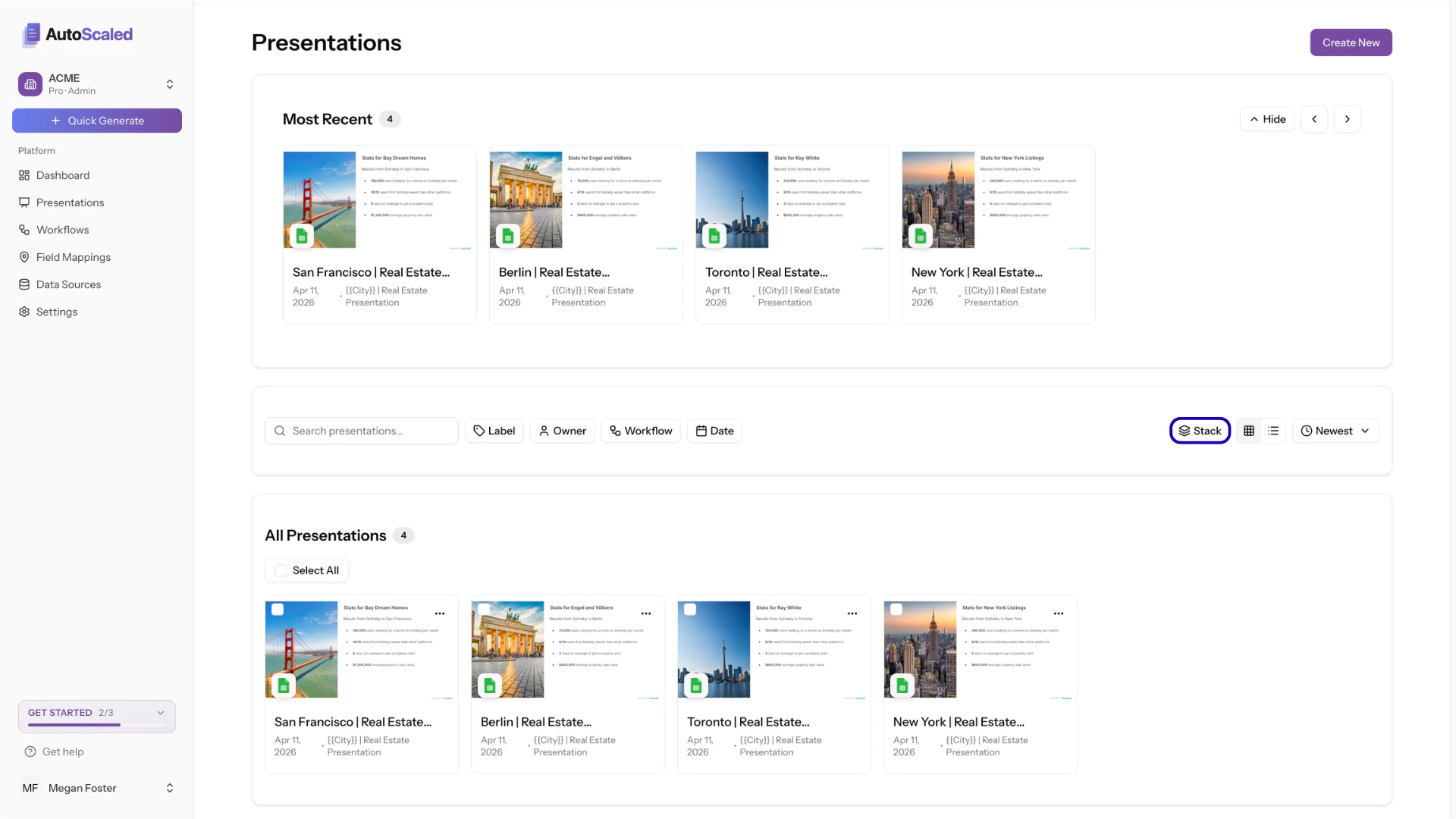
Stacking presentations in the AutoScaled presentation library
By default, presentations display as individual cards: 100 from batch #1 and 250 from batch #2 means 350 cards total. Enable Stack to collapse them into 2 grouped cards, one per batch.
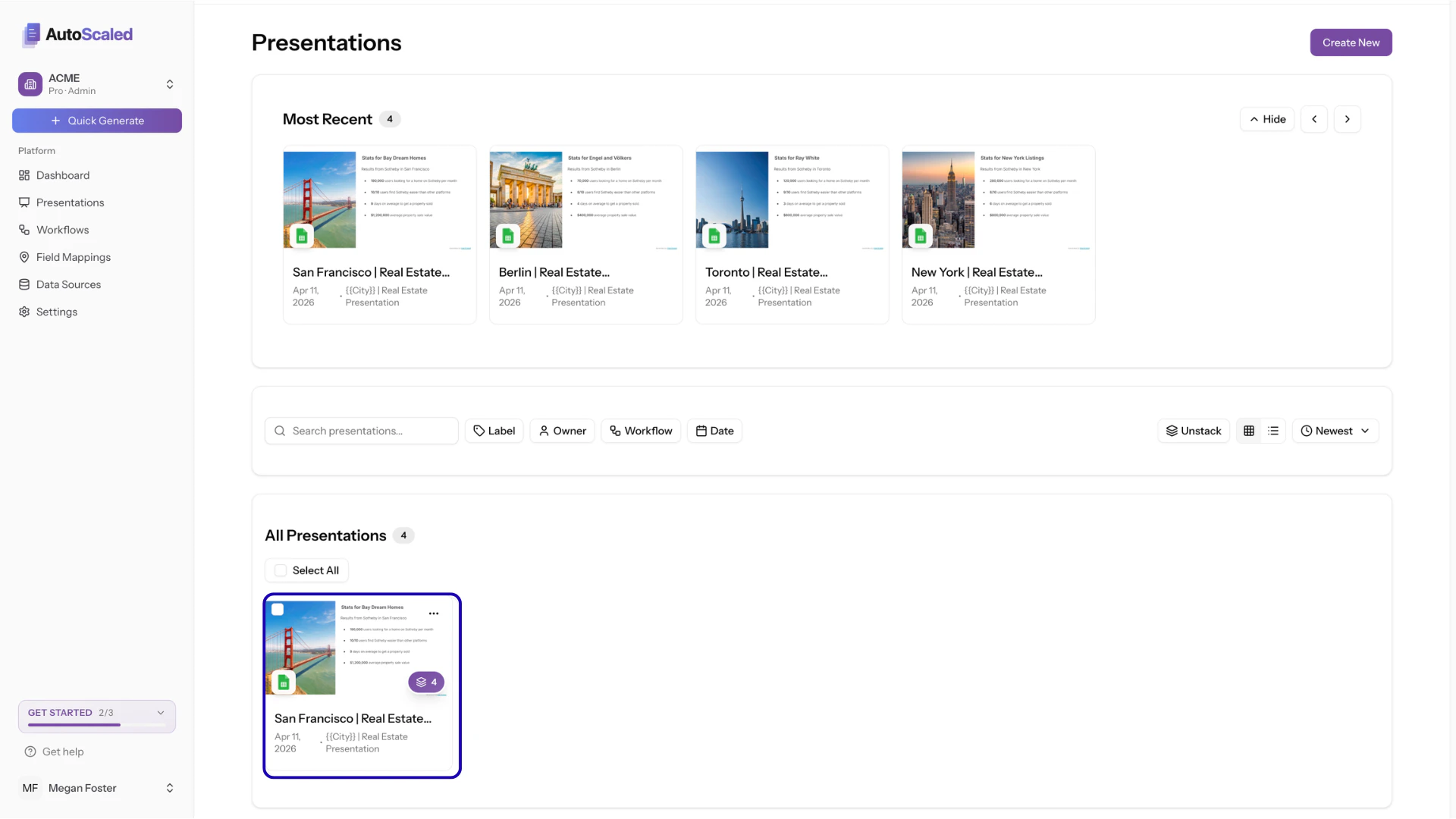
Stacked view of presentations on AutoScaled
Note 1: When you apply actions to a stack, they are applied to each individual presentation in the stack.Note 2: Presentations generated in “Append” mode (where slides are appended to the same presentation deck) are always displayed as a stack.
All presentations
The “All Presentations” card shows all the presentations generated based on the sorting you set. When you apply filters, only the relevant presentations will be shown:.png?fit=max&auto=format&n=d_0tzv40og-JugEI&q=85&s=443506fddd8180d99443b860a88a3a2e)
Showcasing all presentations in your presentation dashboard
Personalized Presentation Actions
Actions for multiple presentations
When you select one or multiple decks via checkboxes or through the select all button, an action panel appears. The action panel supports multiple actions:- Rename: Apply a naming pattern across selected presentations
- Refresh: Re-generate selected presentations from their template with latest data
- Export PDF: Download all selected as individual PDFs
- Export PPTX: Download all selected as PowerPoint files
- Share: Generate share links for all selected
- Delete: Remove all selected (with confirmation)
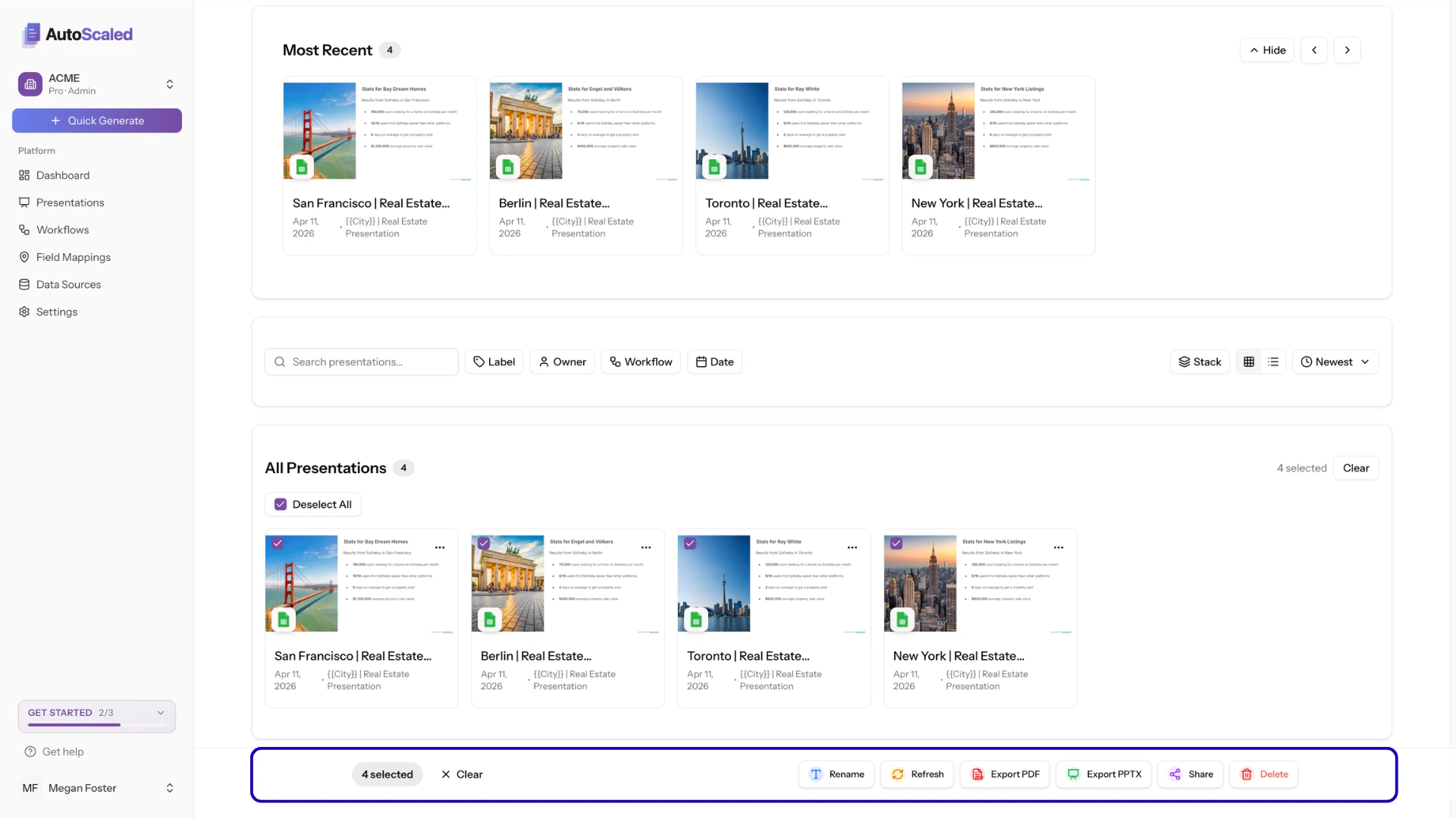
Presentation actions in AutoScaled
Renaming Google Slides presentations in bulk
AutoScaled allows bulk updates to presentation names. You can change multiple names in Google Drive directly from the presentation dashboard. Select the presentations you want to rename, click Rename, and a modal will open. You can use{{placeholder}} syntax in the naming pattern so each deck gets a unique name.
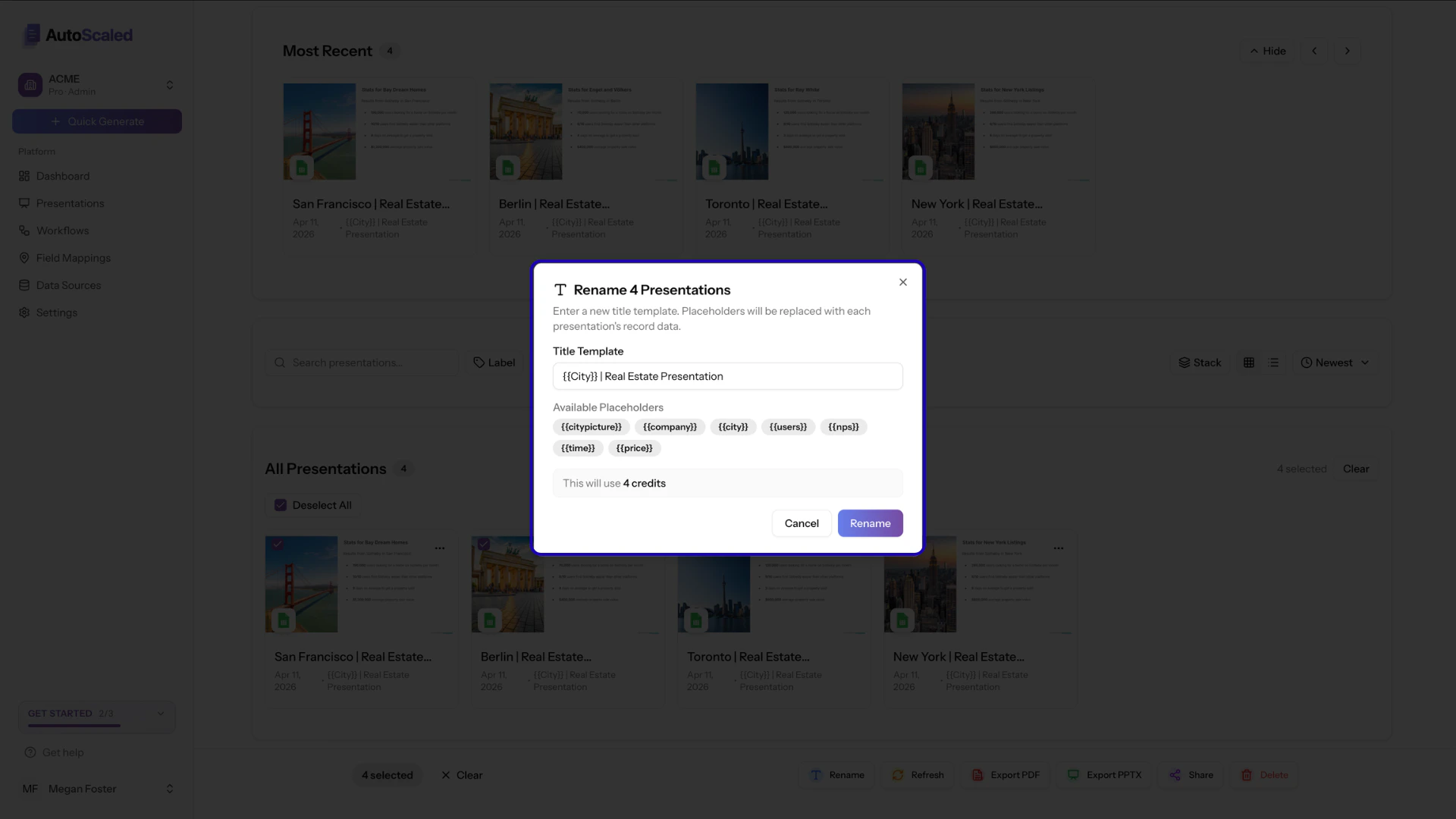
Bulk updating presentation names across Google Drive via AutoScaled
For example: three HubSpot companies in New York, Chicago, and San Francisco will each get their city name in the presentation title when you use the {{city}} placeholder.
Renaming a presentation will consume a credit.
Refreshing data in Google Slides and PowerPoint automatically
A major pain point for many organizations is keeping collateral up to date after presentations are published. In AutoScaled, you can refresh data in your presentations directly from your data source. Select the presentations you want to refresh, click Refresh, and a modal will open. Confirm to re-fetch the latest data from your CRM and update all presentations in one go.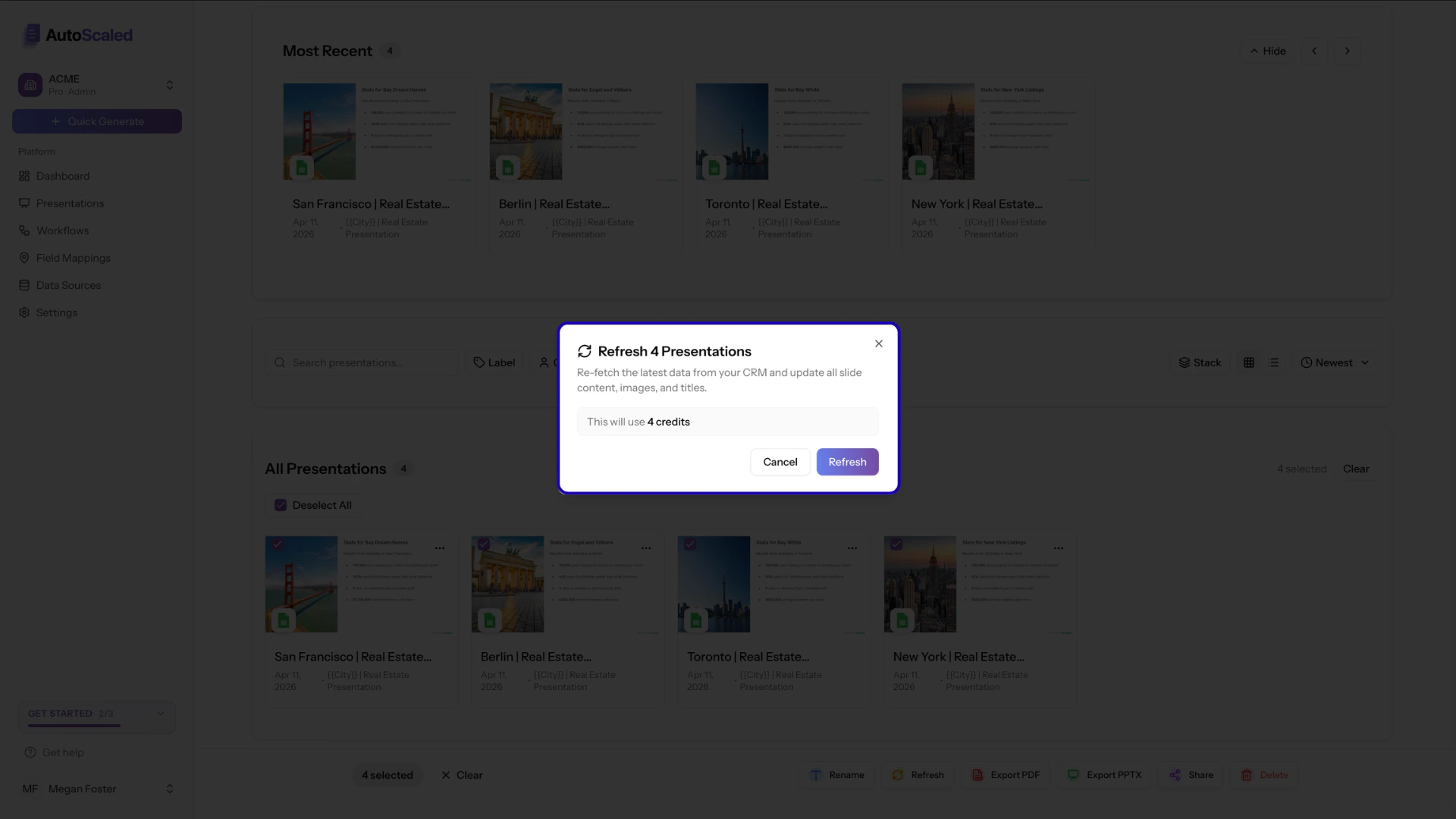
Refreshing data in presentations via AutoScaled
Sharing presentations
Decks can be shared directly from AutoScaled via dedicated links or branded landing pages. For more detail, see:Share content
Learn how to share presentations directly with your clients or internal stakeholders. Build branded landing pages to display multiple assets alongside your logo and colors.
Deleting presentations
Deleting presentations in AutoScaled requires double confirmation:.png?fit=max&auto=format&n=gwtaNjFNOL6aOAwL&q=85&s=1e787c944dc1bd15b3d2cc515fc57270)
Deleting presentations from AutoScaled
Additional actions for individual presentations
Additional actions are available for each presentation. Click the three dots on a card to open the menu: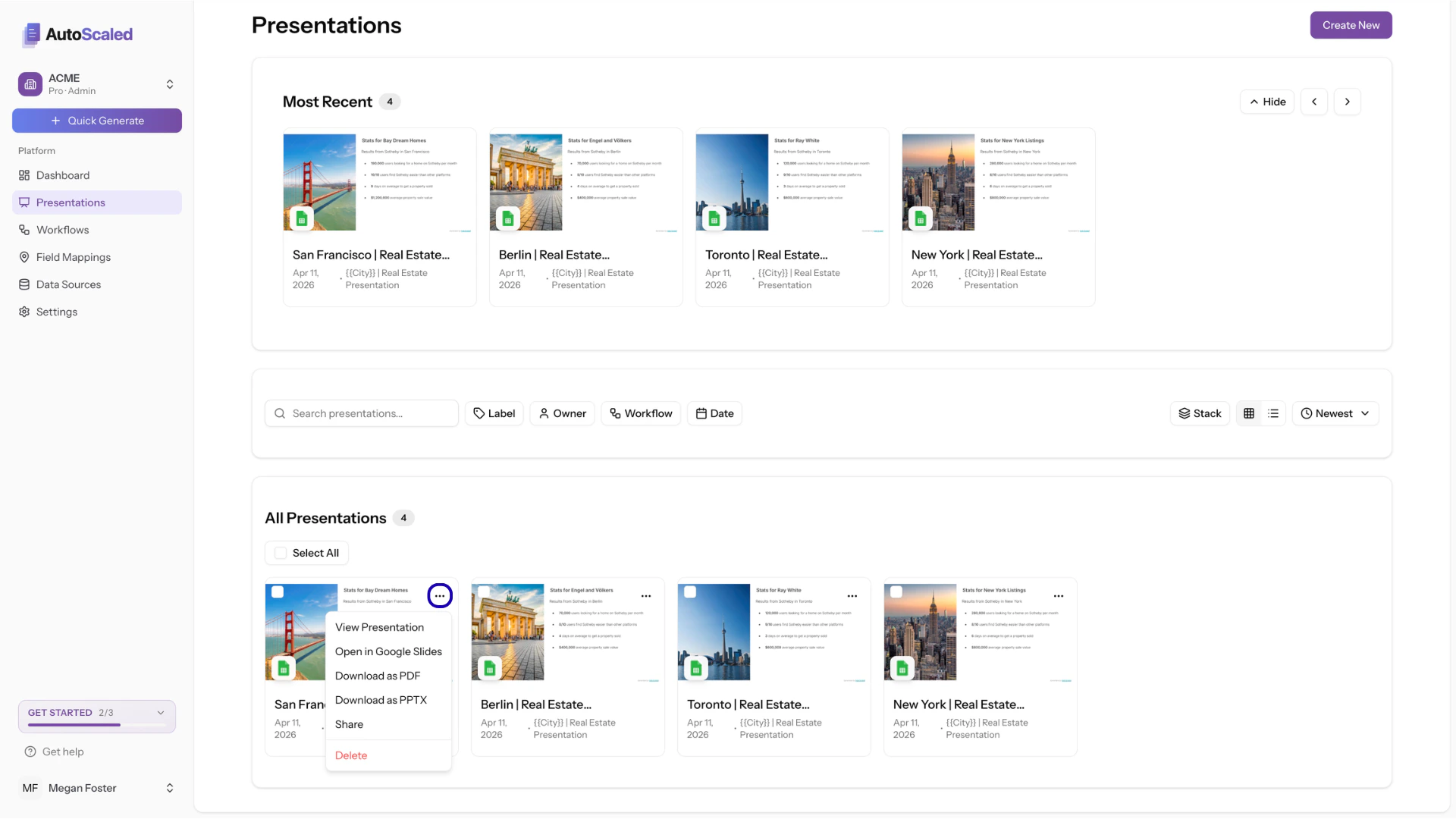
Opening the individual presentation menu on AutoScaled
View presentation
The View presentation button opens the deck in present mode. Present mode is for running decks from AutoScaled during meetings or client calls.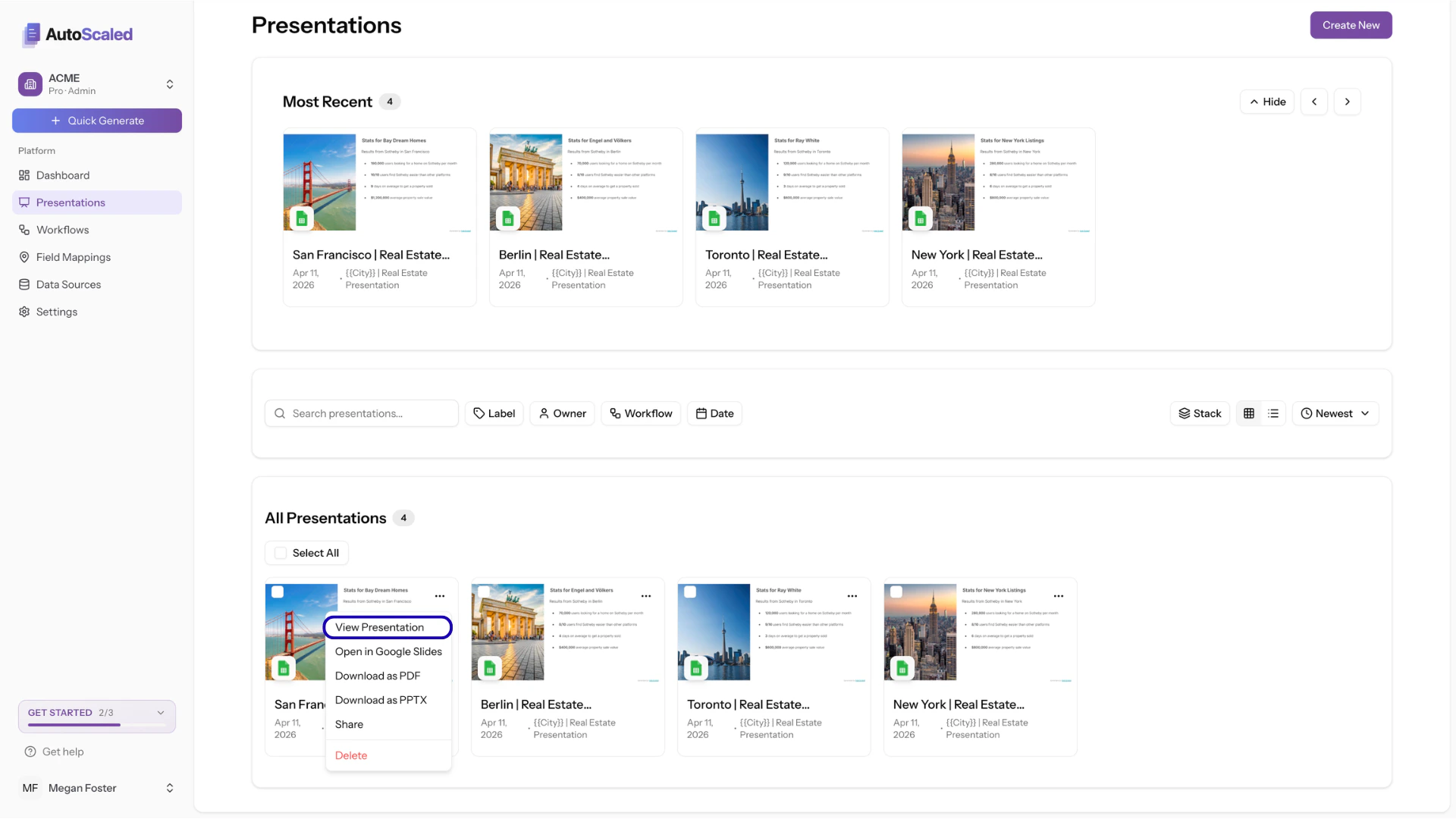
Launching present mode on AutoScaled
Present Decks
Learn how to open presentations in a full-screen viewer with controls for meetings and client calls.
Open in Google Slides
The Open in Google Slides button opens the deck in Google Drive or your linked storage: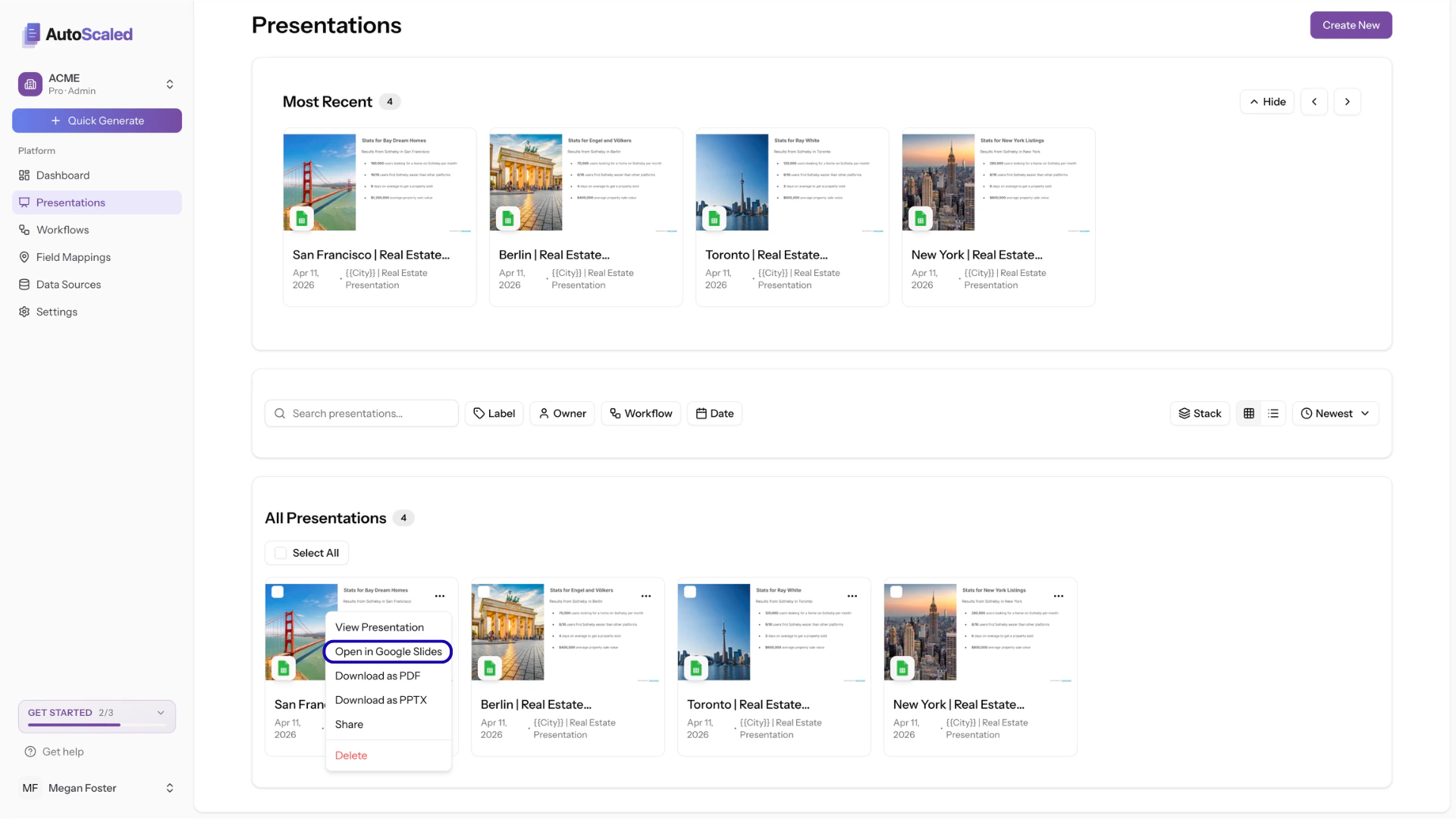
Open presentation in Google Slides via AutoScaled
Download Personalized Presentations
Export any presentation in two formats:- PDF: Standard PDF export suitable for email or print
- PPTX: PowerPoint format for further editing in Microsoft Office
Anything missing? Let us know at [email protected] and we’ll help you out!