
AutoScaled sharing options
AutoScaled allows you to share presentations via:- Direct links: send a direct link to clients or stakeholders for the presentation deck
- Branded landing page: build a branded content hub for multiple decks
Visibility protection
You can protect the presentations you share by:- Requiring a password: require a unique password for each presentation
- Disallowing downloading: disable downloading to prevent hard copies on devices
Sharing via single links
You can share a deck directly from the presentation management tab: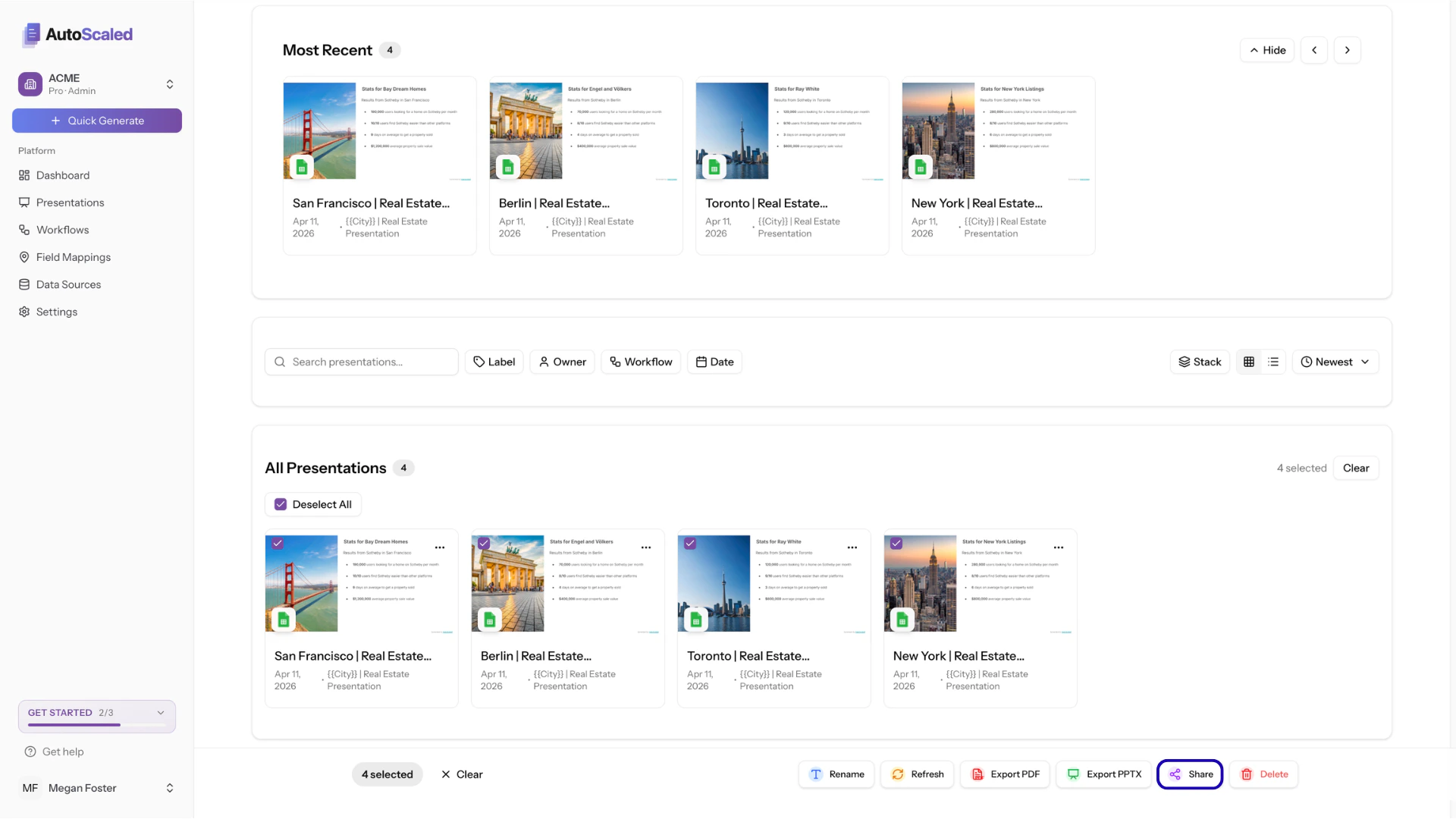
Sharing a deck from the presentation management page on AutoScaled
-2.png?fit=max&auto=format&n=YCzzlAQBhuyVUMB8&q=85&s=25da73792f9052602ae97548dd1cb198)
Adding recipients for a presentation on AutoScaled
Password protection
When you select Require Password, an input field appears. Provide the password to set for this specific presentation. Share the password directly with the recipient of the presentation: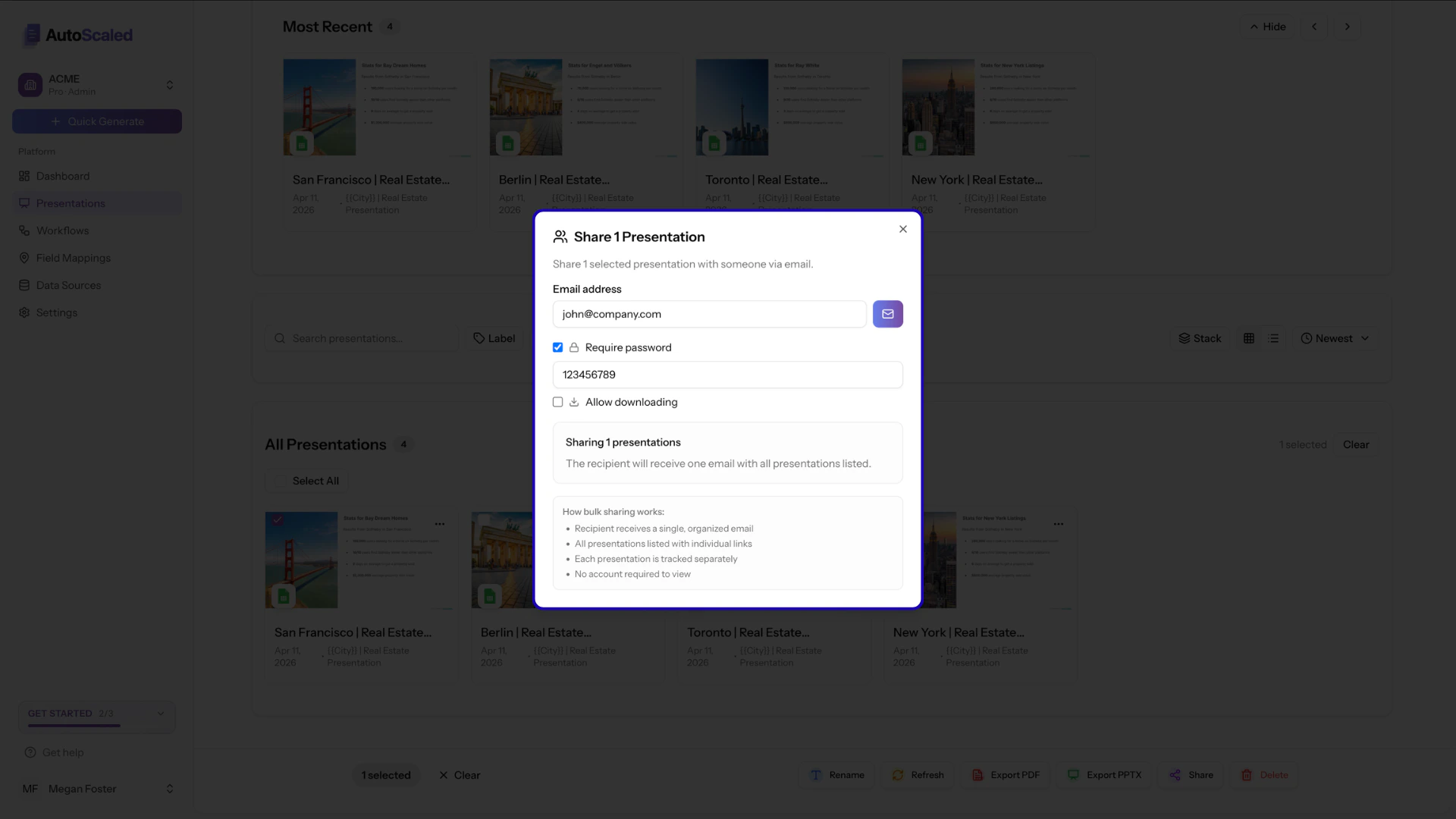
Protect sales decks with a password before sending it to clients
-2.png?fit=max&auto=format&n=YCzzlAQBhuyVUMB8&q=85&s=dcd3ecd95572ac4518540f0910dbf591)
Email with the deck the recipient will receive after sharing
We’re currently redesigning these emails; the design might differ from the one in the image above. To see the latest design, share a presentation with yourself first.
Disallow downloading
By default, downloading is enabled. Recipients can open and save the presentation to their device. To disable this, untick Allow Downloading: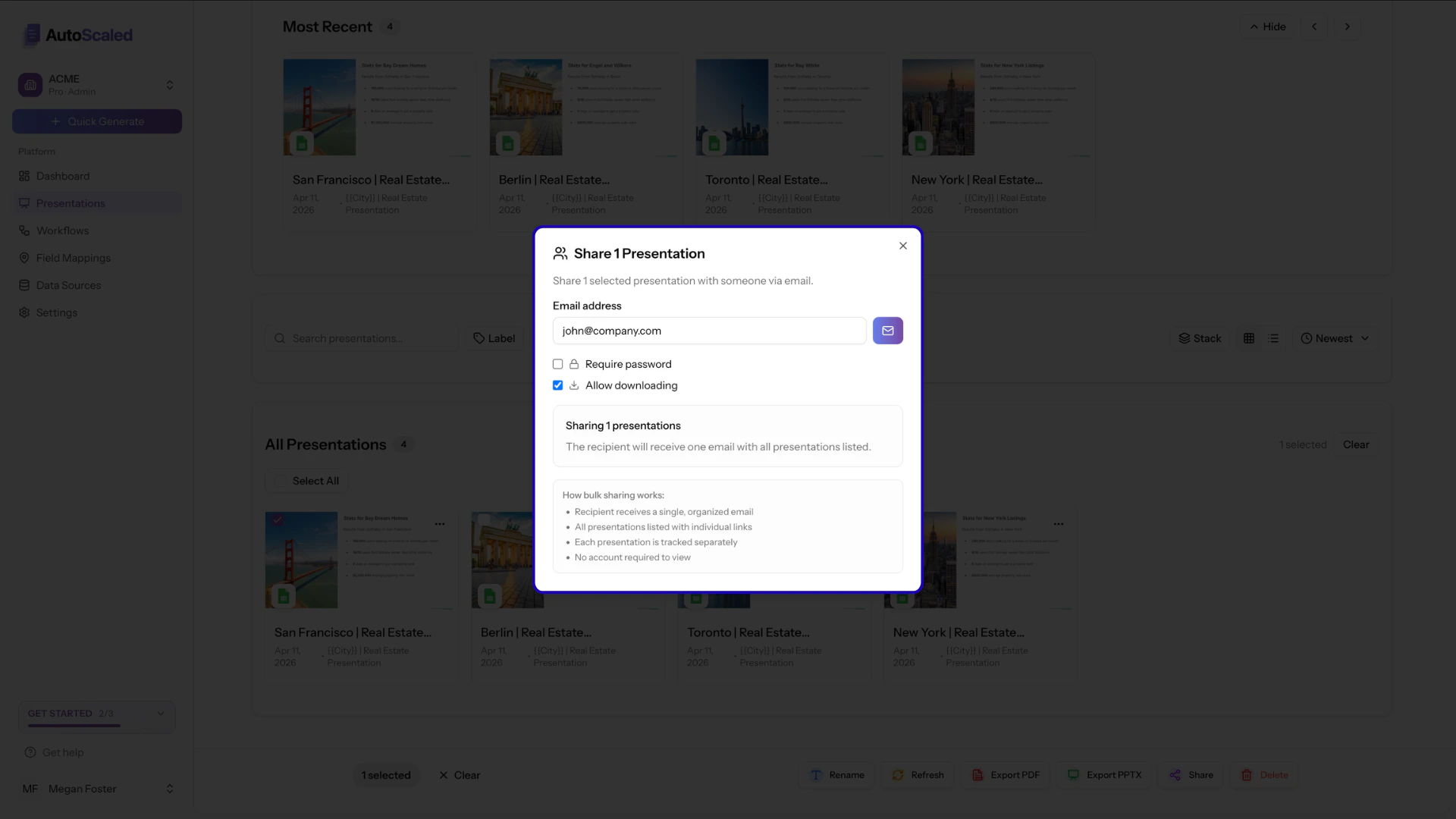
Allow or disallow downloading of presentations for recipients
Sharing via branded landing pages
You can share an entire batch of presentations through a single link. Recipients see a gallery of all presentations you shared, with the same password protection and viewing experience as individual shares:-2.png?fit=max&auto=format&n=2BReeAVRy9T0Kw0t&q=85&s=2e2da1602b8ecbc3886e46eddda94c34)
Sharing multiple presentations via AutoScaled
The branded content hub with your presentations
The content hub is a dedicated link to a page containing all the presentations you’ve shared with the recipient: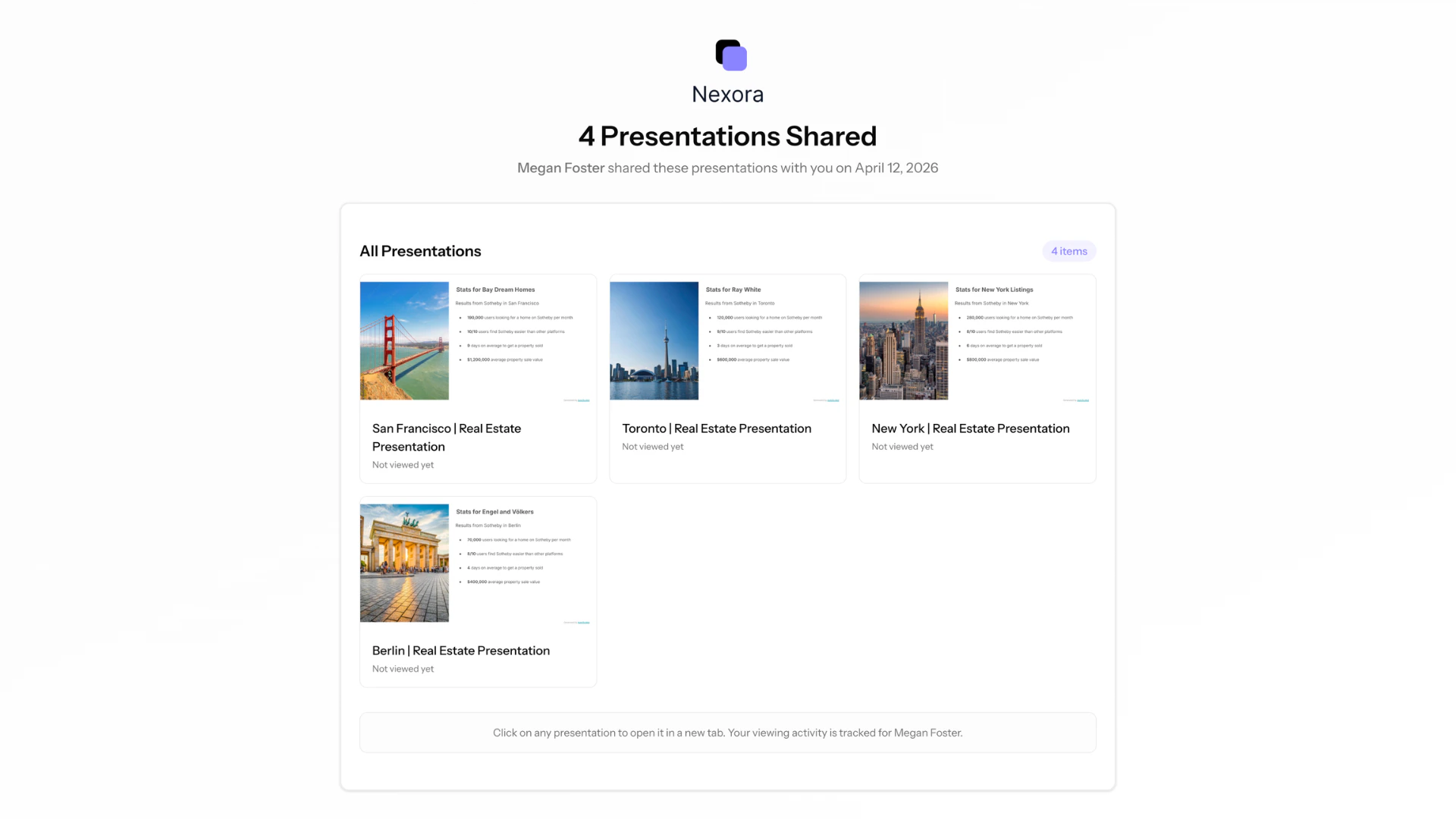
Branded content hub containing your decks on AutoScaled
Removing decks from the content hub
To remove presentations from the content hub, simply unshare or remove (delete) the presentation. You can read more about removing access for recipients.Updating decks on the content hub
Your presentations on the content hub are in sync with your presentations in AutoScaled. If you refresh data or update presentations, the latest version appears on the content hub. You do not need to reshare the presentation.Password protection of branded content hubs
The same password protection can be required to open the landing page: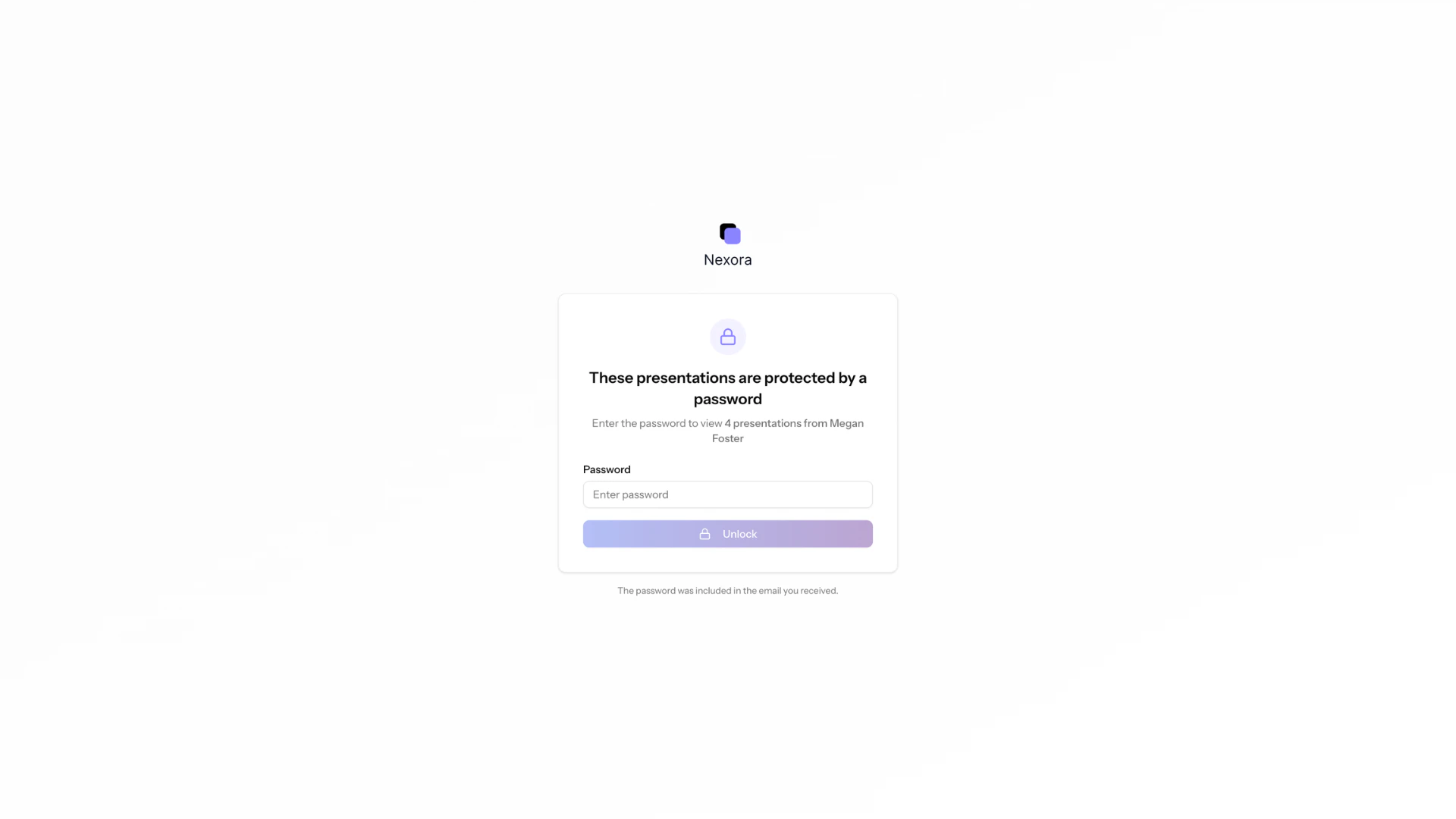
Password-protected branded content hub on AutoScaled
Branding elements
Organizations can set branding elements for their branded landing pages including:- Logo: upload a logo in your organization’s settings. It appears at the top of the emails, branded content hub, and password protection pages.
(Example above: Nexora logo) - Colors: set your brand’s main accent color to style icons, links, and UI elements in the emails, branded content hub, and password protection pages.
(Example above: #8b84ff)
Organization Management
Learn how to set up your brand identity on AutoScaled. Add your logo, colors, and other details to ensure brand consistency across communications and sharing.
Removing access for recipients
To remove access for a presentation, go to the presentation management page, open the individual presentation menu via …, and select Share: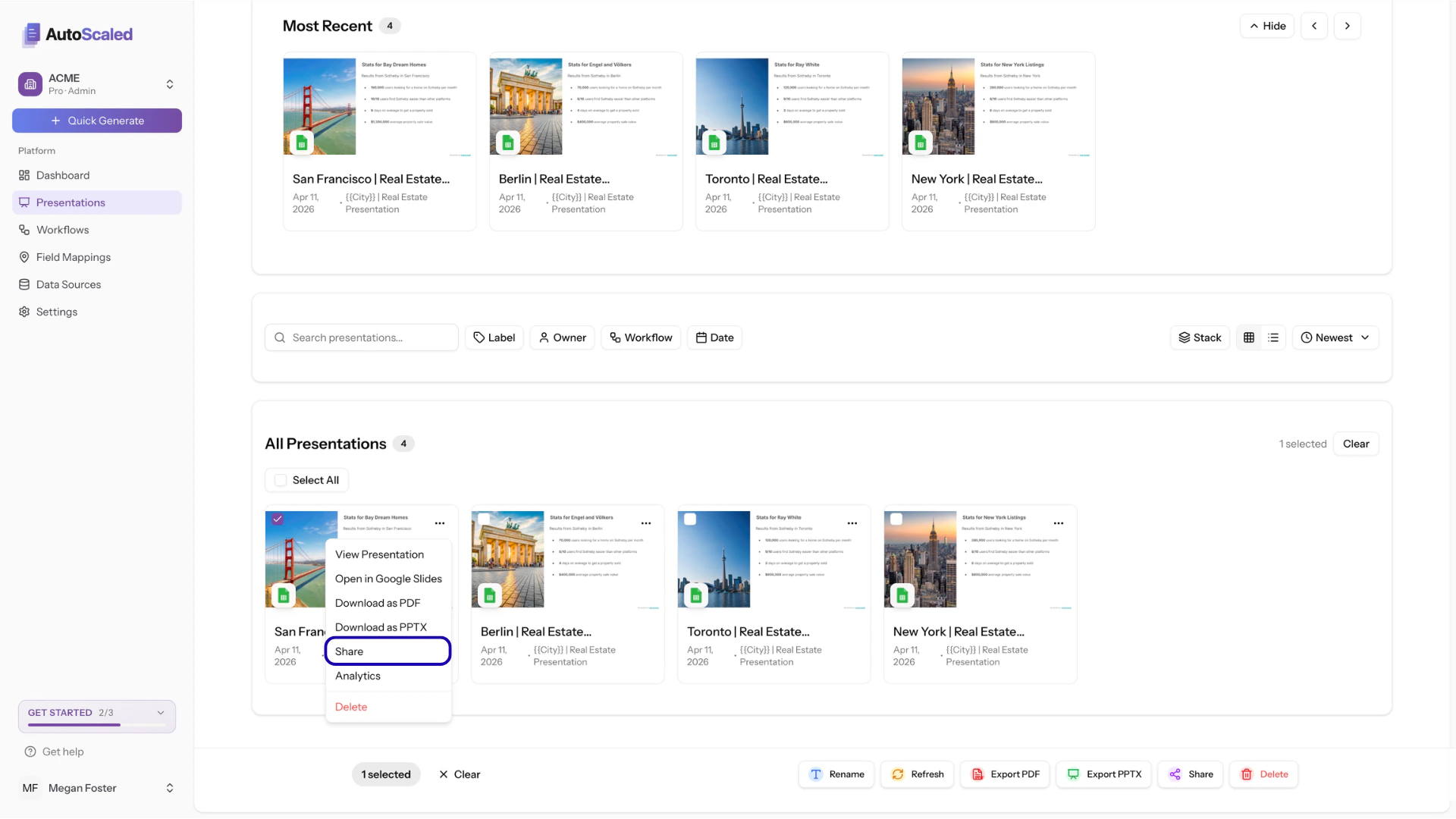
Individual presentation menu in the presentations dashboard on AutoScaled
-2.png?fit=max&auto=format&n=hE_TEqeT3wQxD0pL&q=85&s=0f95bab8111be47e492cd19110e87905)
See people with access to an individual presentation
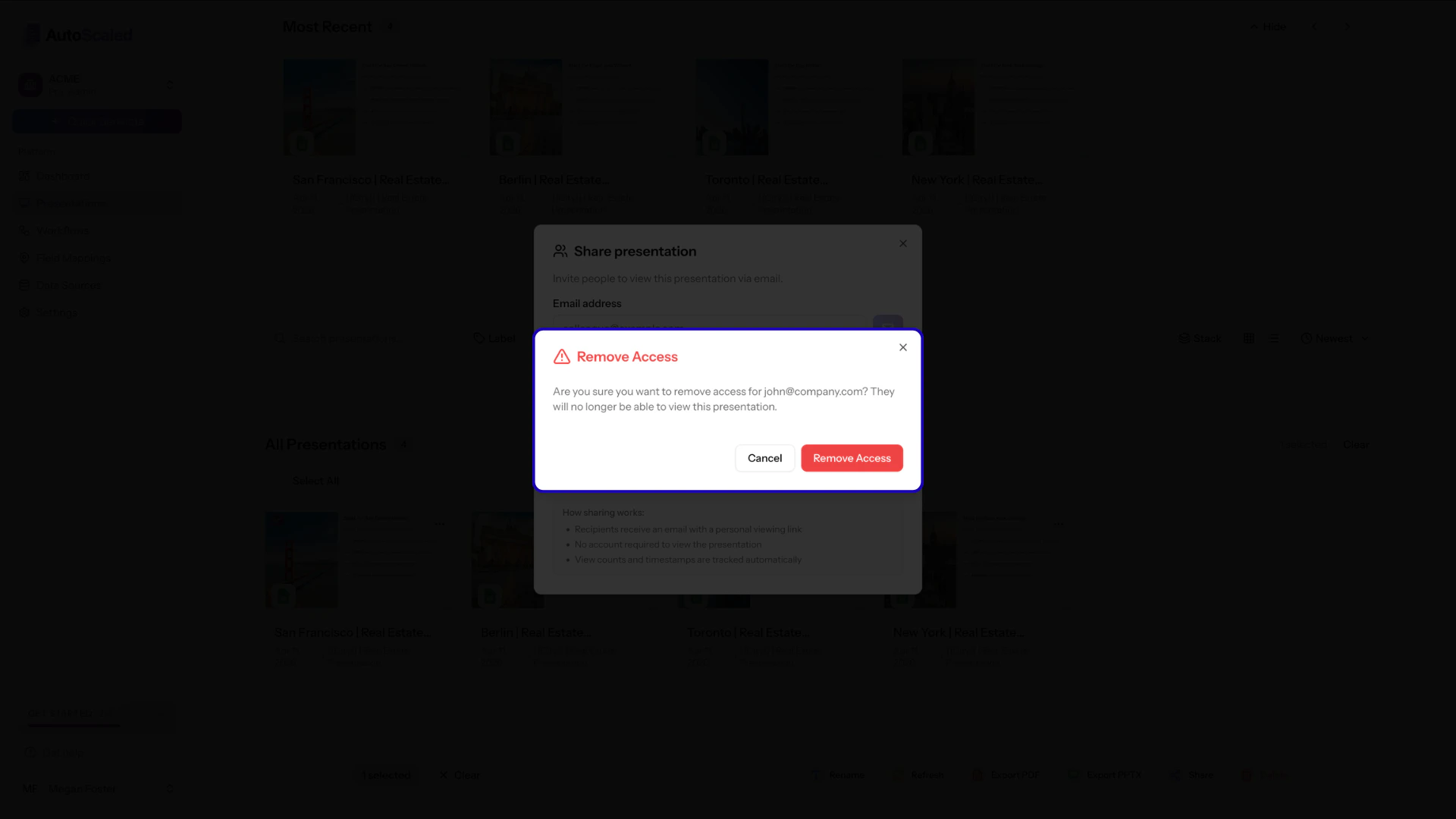
Removing access from shared presentations
When you remove a presentation from AutoScaled, access is revoked for external recipients.
Anything missing? Let us know at [email protected] and we’ll help you out!