
2-minute full walkthrough of setting up templates
Template placeholder locations
AutoScaled can dynamically find and replace placeholders with text, numbers, currencies, images, links etc. You can add placeholders in the following locations:Alphanumeric data placeholder placement
| Placement | How | Description |
|---|---|---|
| Text | Replace in-line text with data | |
| Text Boxes | Alt description placeholder | Replace entire text boxes with content |
| Speaker Notes | Insert CRM or Spreadsheet data in Speaker Notes | |
| Themes | Update theme elements via placeholders | |
| Table (Cells) | Replace individual cells with data |
Media data placeholder placement
| Placement | How | Description |
|---|---|---|
| Images | Alt description placeholder | Replace images using an image URL (Use image address ending in .jpeg, .jpg, .png or .gif) |
| Videos | Alt description placeholder | Add or replace videos via a video URL (YouTube or video file link) |
URL data placeholder placement
| Placement | How | Description |
|---|---|---|
| URL | Insert clickable links from fields | |
| URL destination | No placeholder | Set link destinations directly in AutoScaled |
How to add placeholders
Adding in text, cells, notes etc.
For non-media placeholders such as text, table cell data, speaker notes and theme elements; you simply type your placeholder where you want data to appear. Use double curly braces and a field name that matches what you will map in AutoScaled (for example{{company}} or {{deal_value}}). Each table cell should contain its own placeholder if you want different values per cell.
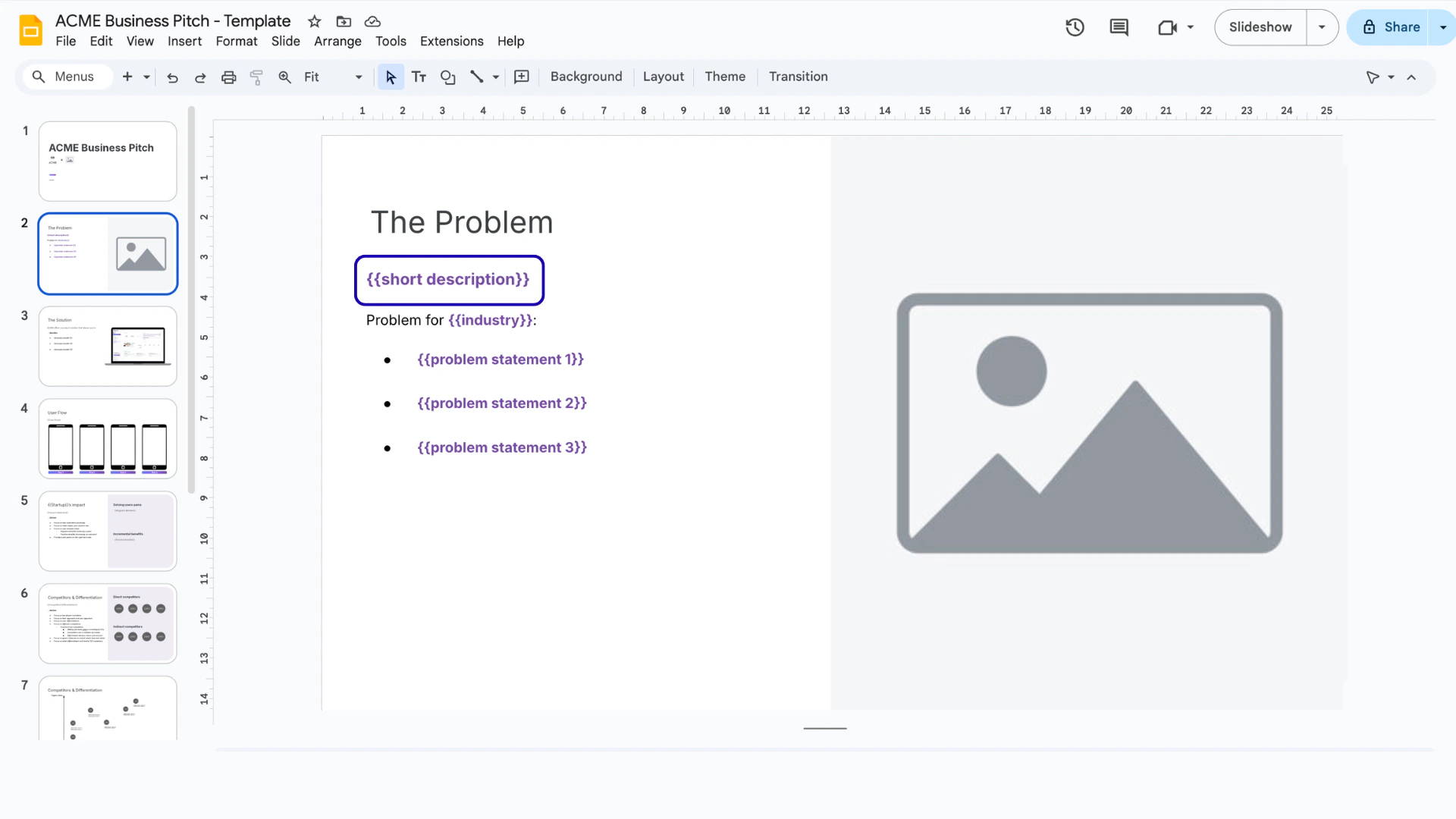
Adding placeholders to AutoScaled in Google Slides
Adding placeholders via alt attributes
For images, videos, and text boxes (shapes), set the placeholder in the element’s alt text (description) field in Google Slides or PowerPoint and not only in visible text. AutoScaled reads that alt text to know which field to fill (for example an image URL or video link). Use the same{{field_name}} style in the alt field so it lines up with your workflow mappings.
To set the alt-text follow these steps:
Step 1: Right click the target object (textbox, video or image) and select “Format Options”
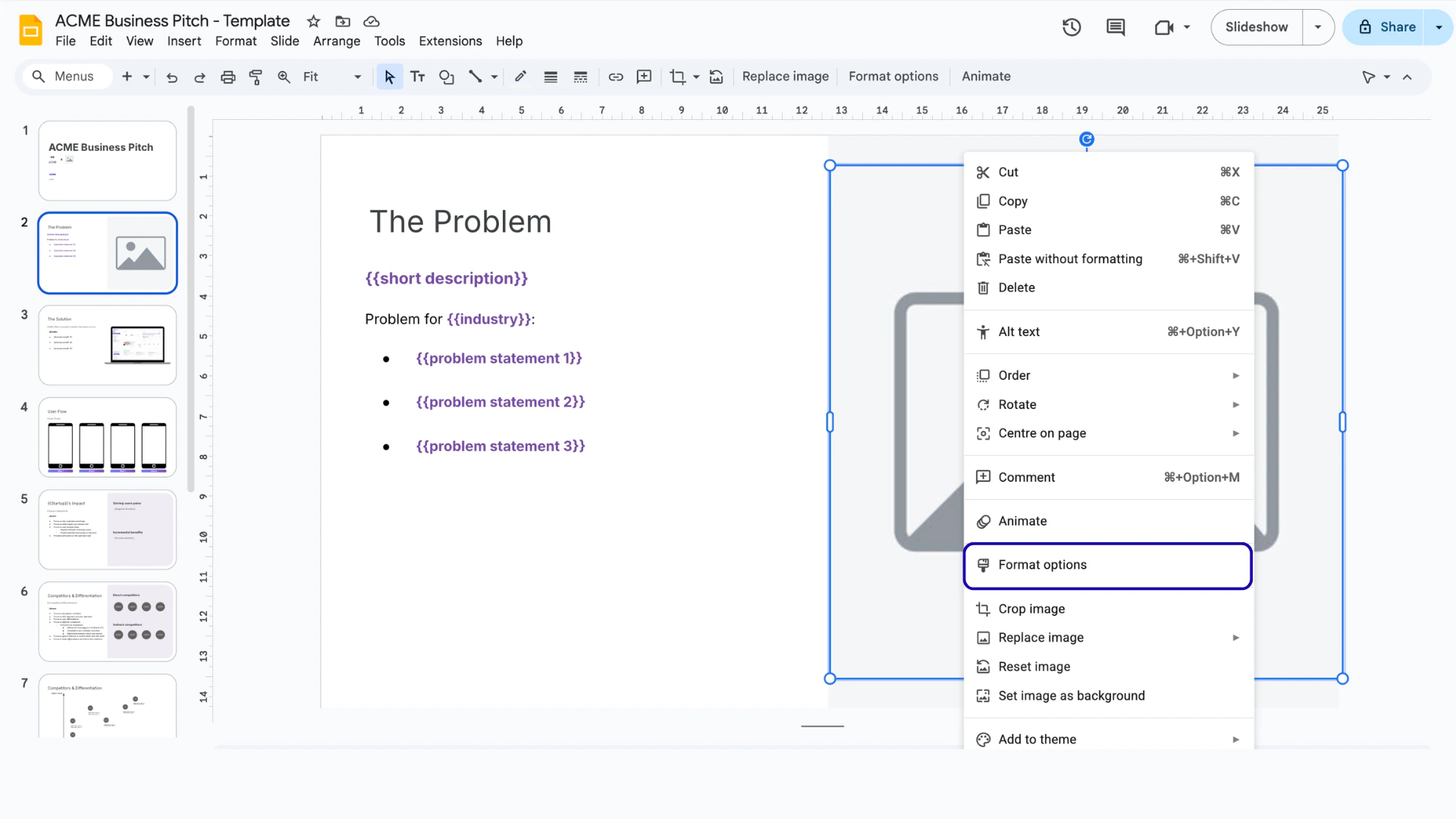
Step 1 - Right click the target and format options
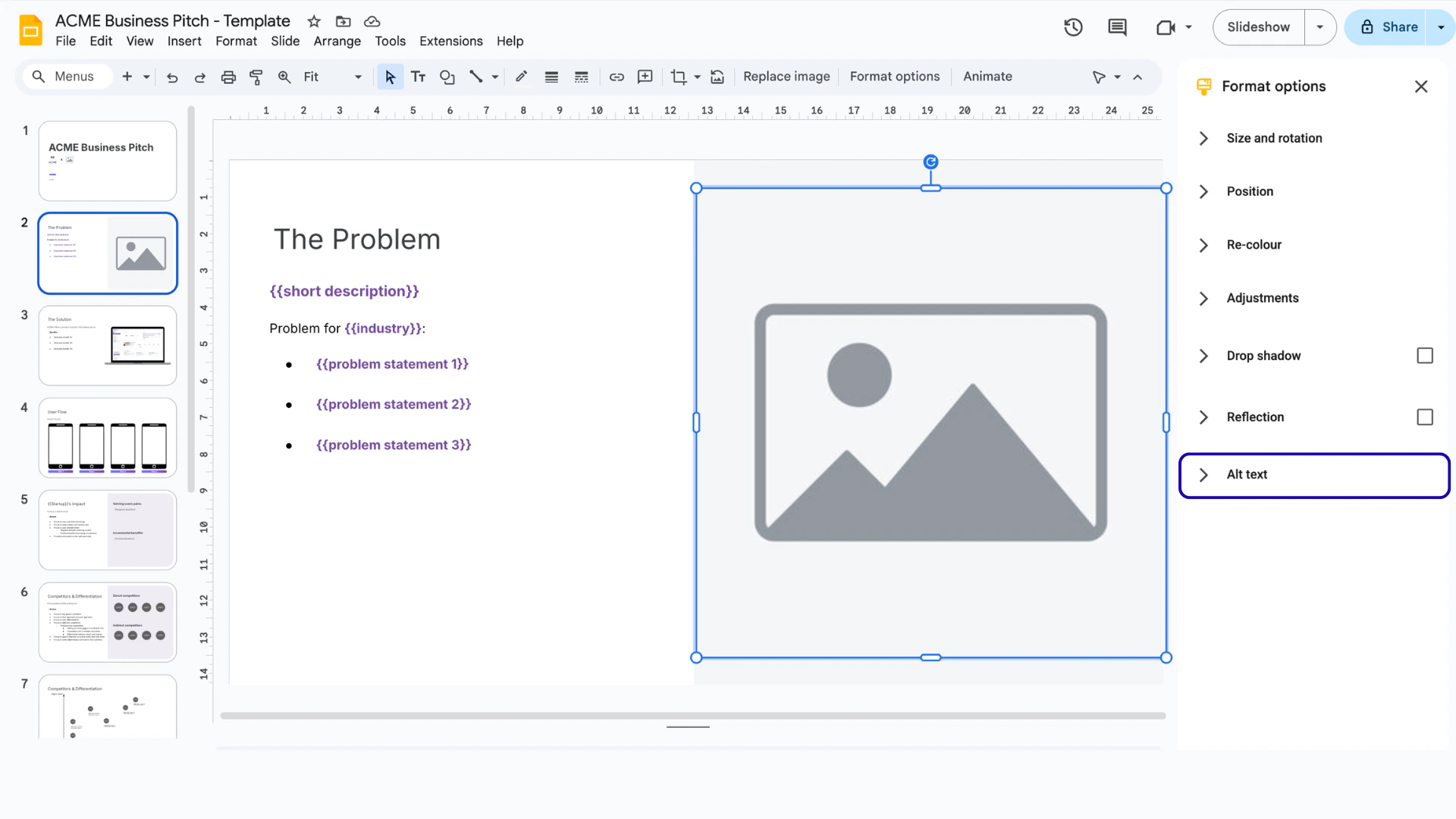
Step 2 - Click on alt text in the right hand side menu
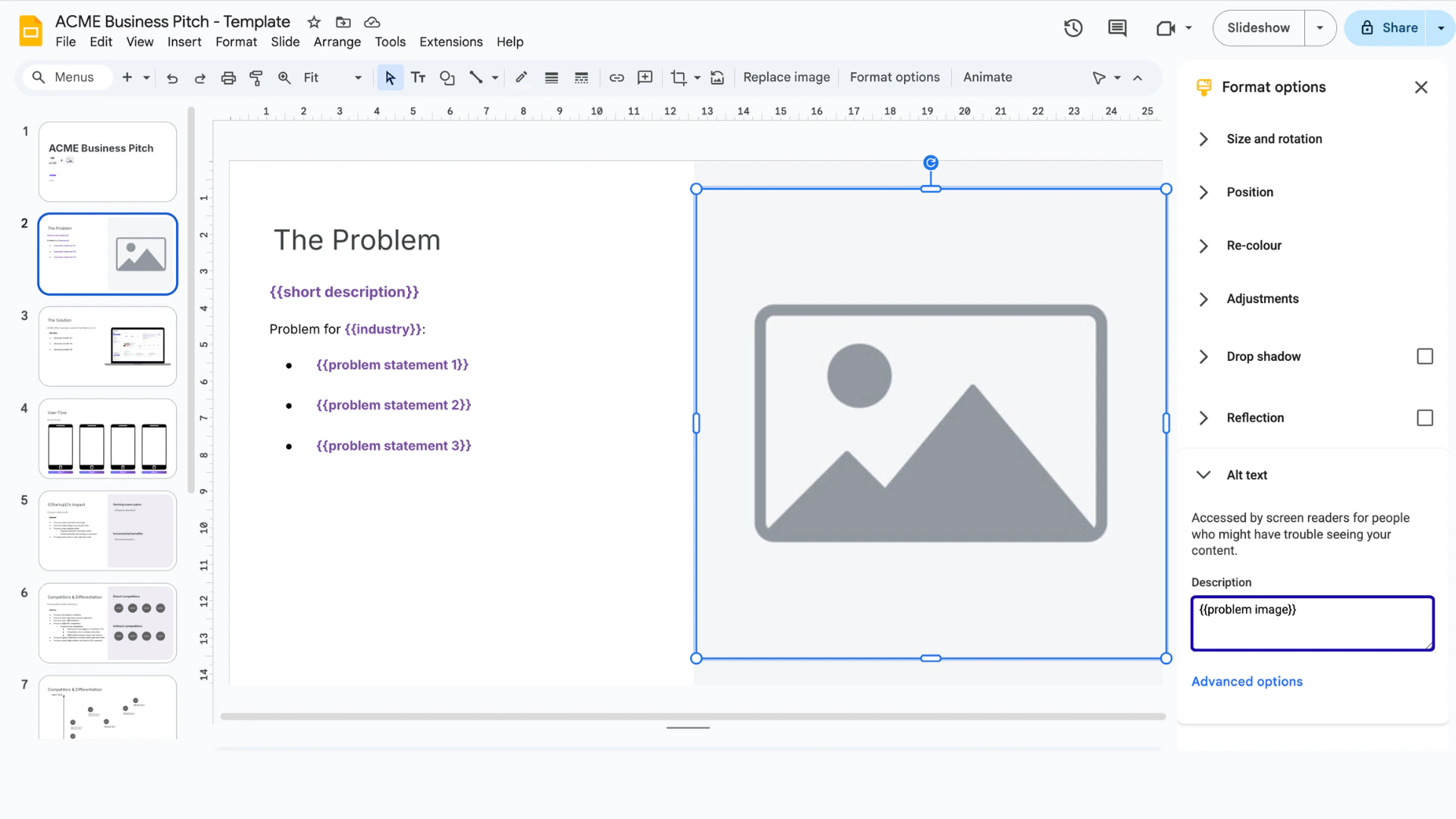
Step 3 - Adding the placeholder for media files
- Images: use a link to an image. Additional settings like ‘cover’ and ‘contain’ are available.
- Videos: use a link to a video (including YouTube and Vimeo)
Field mappings, handling and formatting
Set specific formatting for currencies, numbers, timezones and media files. Decide how data is displayed in your presentations.
Anything missing? Let us know at [email protected] and we’ll help you out!