
Workflow Management Dashboard
To navigate to the workflow management dashboard, select “Workflows” in the left-hand navigation bar.-1.png?fit=max&auto=format&n=HAcG3mycFVyOvS2A&q=85&s=026be69dd612d411119d405704df5516 "Auto Scaled Product Documents 1920x1080 (7) 1")
Workflow management dashboard on AutoScaled
Create a new AI content workflow
From the workflow management page, you can create a new workflow. This will launch the quick generate flow: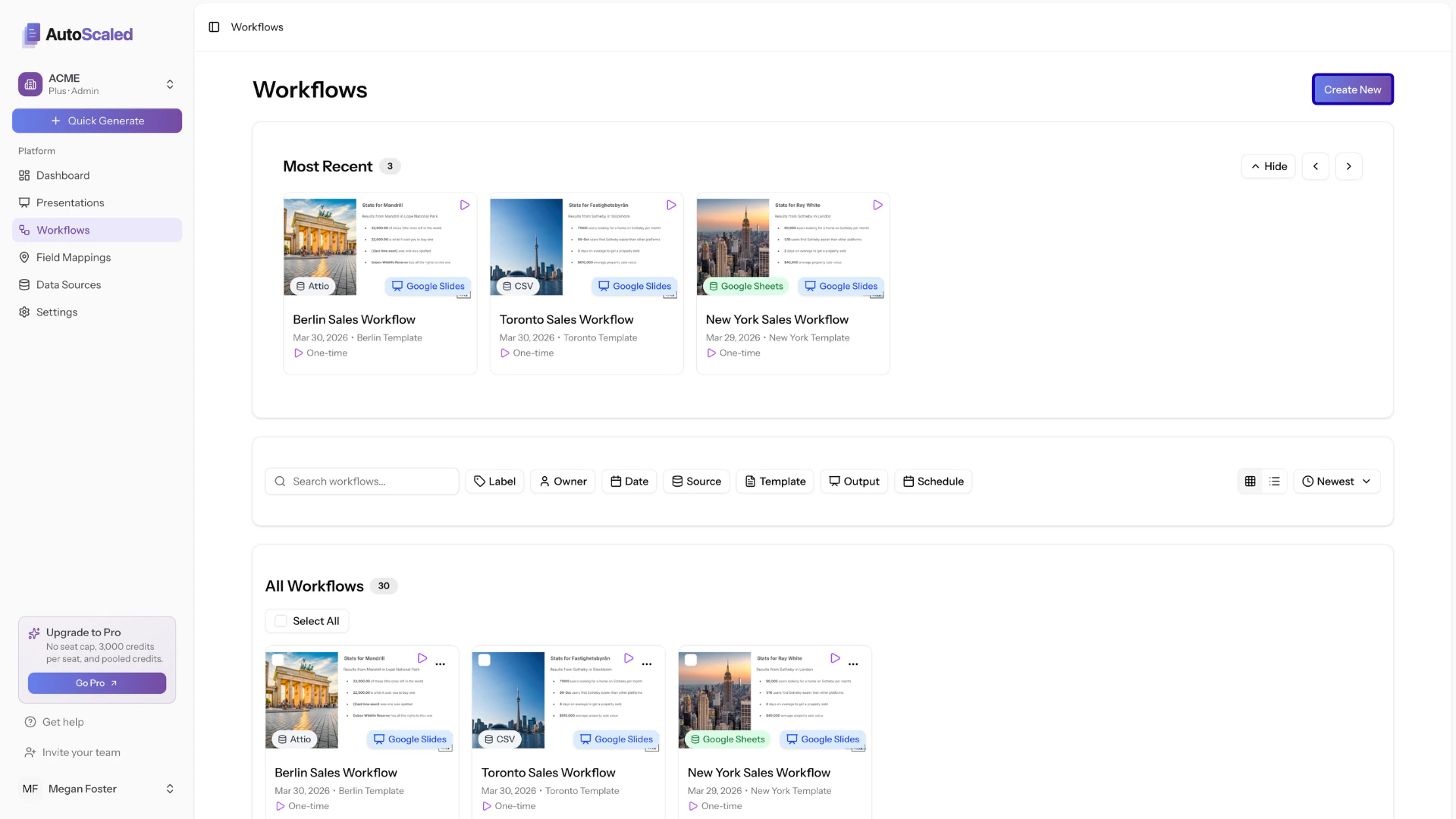
Create a new workflow from the workflow page
Most recent presentation workflows
The top of the page shows the most recent workflows. These are the most recent workflows you’ve created or that ran while you were offline. You can navigate this panel using the arrows or hide the panel.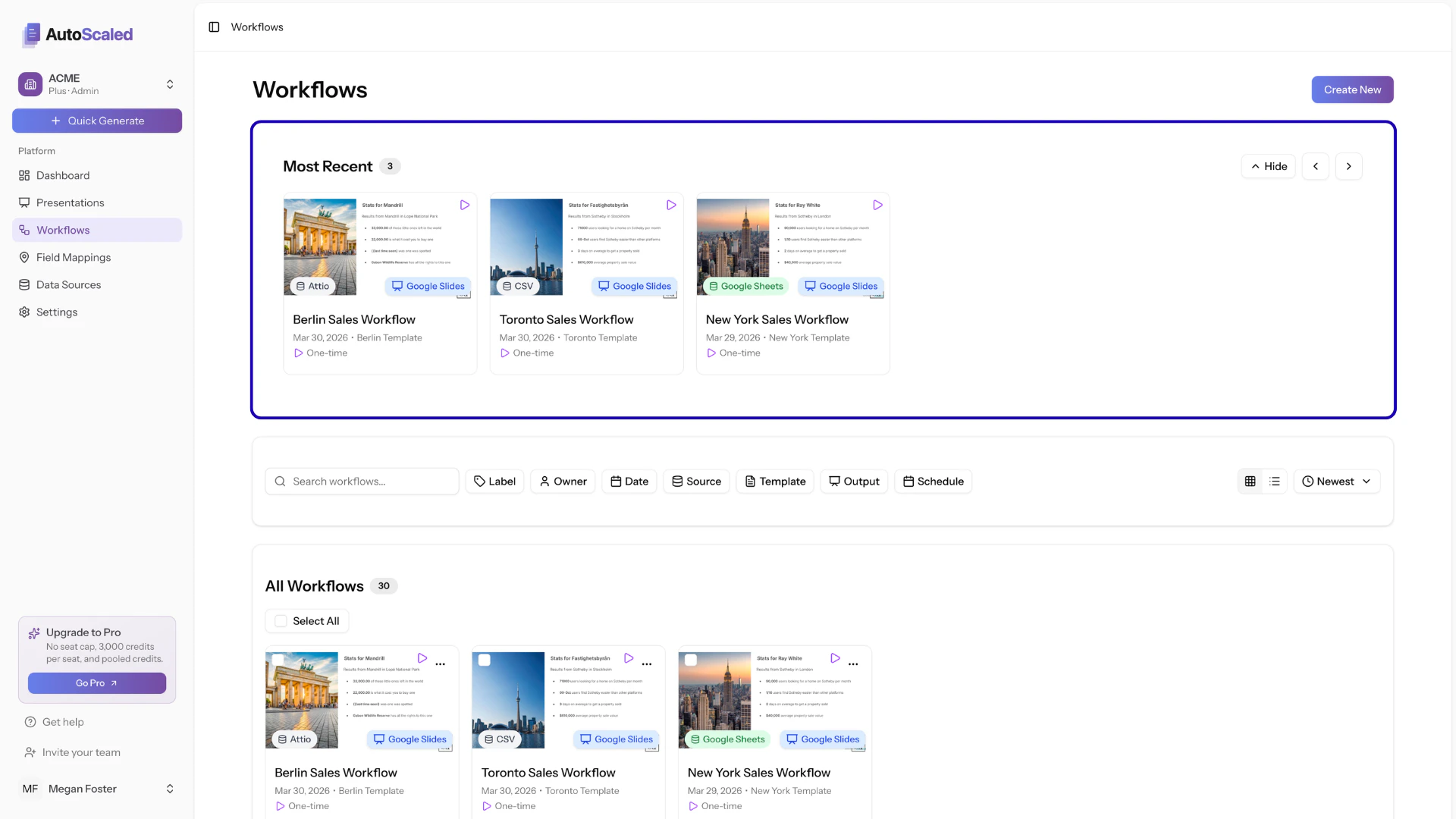
Most recent workflows view in the AutoScaled workflow dashboard
Workflow filtering
The workflow management page offers extensive filtering so you can find the right workflow. You can filter by:- Search: search directly for a workflow based on the workflow name
- Label: filter by labels you’ve assigned to workflows during setup
- Date: filter by the creation date of the workflow
- Source: filter by data integration source of the workflow
- Template: filter by the presentation template that was used in the workflow
- Output: filter by the output format of the workflow
- Schedule: filter by how the workflow is triggered: run now, trigger, schedule
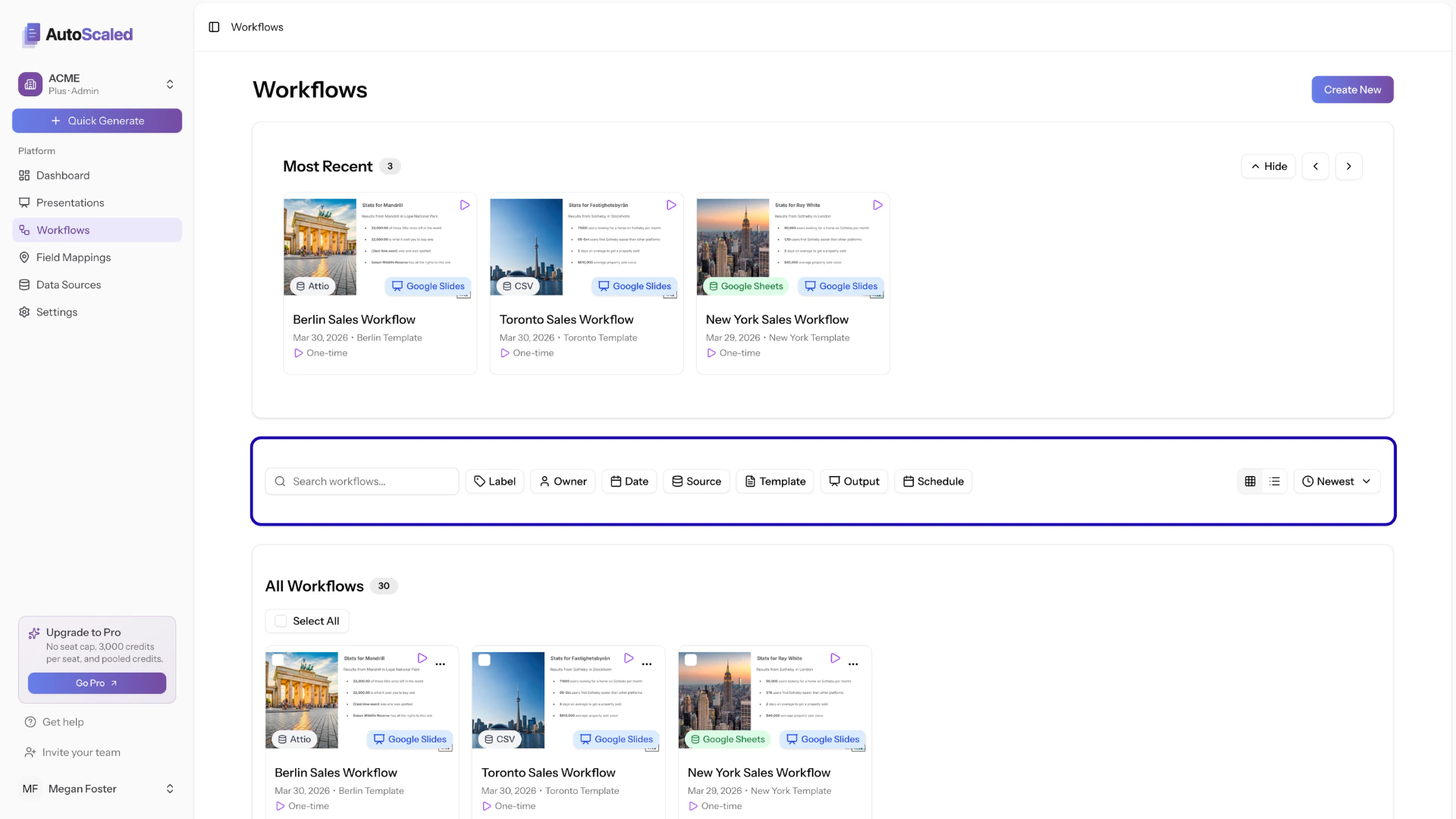
Filtering workflows in the AutoScaled workflow dashboard
All workflows
The “All Workflows” card shows all the workflows based on the sorting you set. When you apply filters, only the relevant workflows will be shown.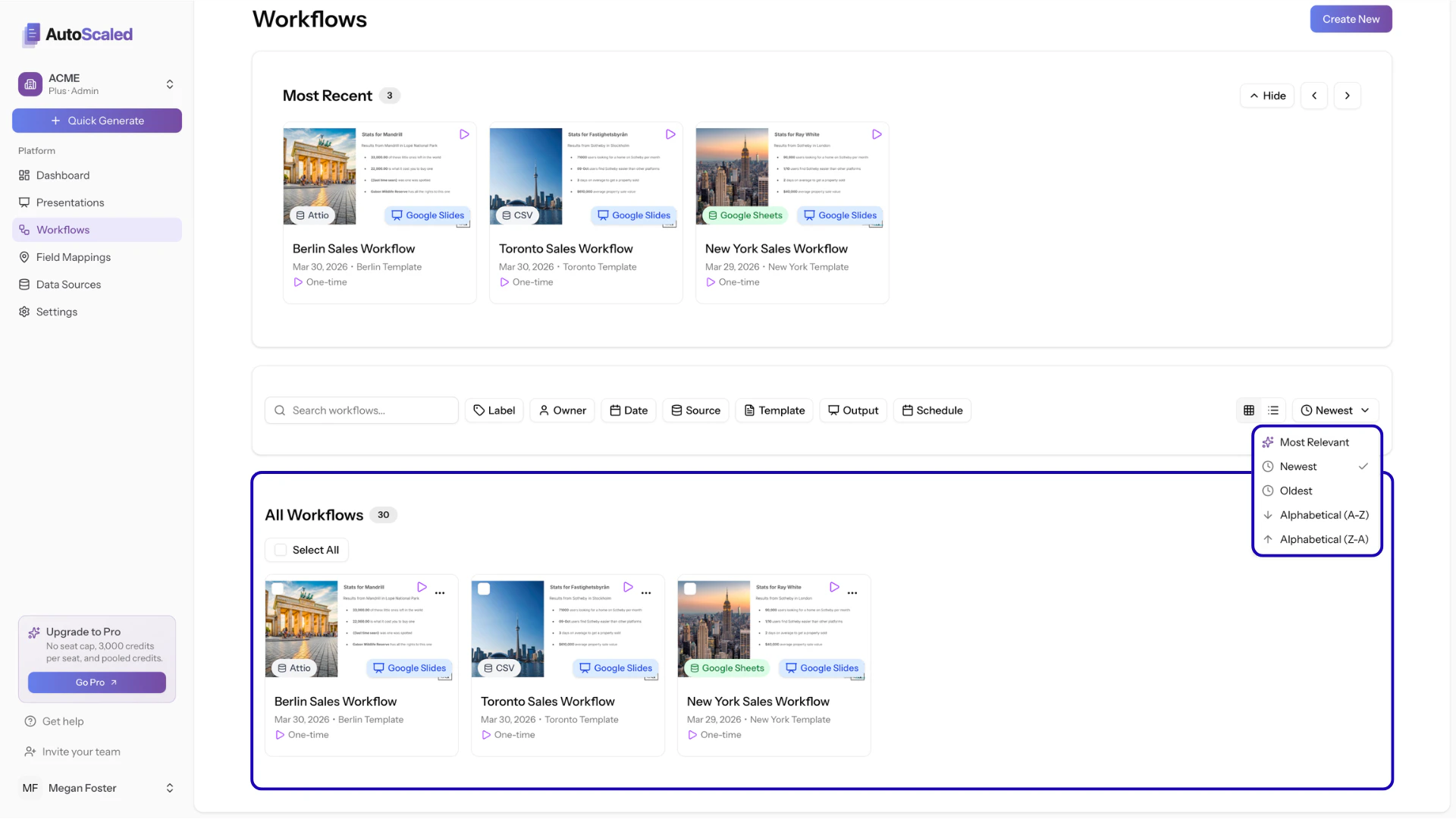
Showcasing all workflows in your workflow dashboard
Workflow Actions
When you select workflows individually via the checkboxes or through the select all button, an action panel appears. The action panel differs when you select a single workflow versus multiple workflows.Single workflow actions
For single workflows you can:- Run now: instantly run the workflow even when it normally requires a trigger or schedule
- Edit workflow: launch the AI panel to edit a workflow. You can edit all steps within a workflow, including source, template, run mode, output mode, naming, etc.
- Duplicate: make a duplicate of a workflow that you can later edit
- Share: share a workflow with team members in your organization
- Delete: remove a workflow from your own workspace
-1.png?fit=max&auto=format&n=r92vsJqqL1wkbgnH&q=85&s=d97731fe7c1e15ba29e7fa74fd771761)
Single workflow actions in AutoScaled
Actions for multiple workflows
When multiple workflows are selected, Run now and Edit workflow are disabled (hidden). Actions for multiple workflows are currently limited to:- Duplicate: make a duplicate of each selected workflow that you can later edit
- Share: share workflows with team members in your organization
- Delete: remove workflows from your own workspace
Editing content workflows with AI
When you choose Edit workflow as an action, the workflow summary opens in the AI workflow setup agent. There are two ways to edit an existing workflow:- Click Edit for the relevant step: Scroll to the setup section you want to change, click Edit, and choose different settings.
- Write changes in plain language: Describe what you want to change in plain language in the chat; the assistant applies your edits.
-1.png?fit=max&auto=format&n=VY6XYNsWlxWjn2os&q=85&s=6b86126ee0adc7e3462ba75b20e71fe6)
Editing content automation workflows in AutoScaled
Sharing workflows with team members
When you select Share in the action panel, a modal opens so you can enter details for the team member you want to share the workflow with:-1.png?fit=max&auto=format&n=niUhe-IqPjRdLDLg&q=85&s=cab746b8ca9c933604596f0d509f55e7)
Sharing workflows with team members in AutoScaled
Anything missing? Let us know at [email protected] and we’ll help you out!