
This page is meant for users working with CRM integrations. For data from Google Sheets, Microsoft Excel, or CSV, the formatting you set in the spreadsheet is preserved in the generated content. For more information, jump to the end of this page.
Formatting of CRM data
Your CRM stores data in a certain way. A currency might be shown as “USD $1,234.56” in the UI while it is stored simply as “1,234.56”. Manually adding the currency symbol would take a lot of time. AutoScaled lets you format CRM data at:- Workspace level: applies the handling of data formatting across your whole workspace and all its users.
- Workflow level: applies custom and specific handling of data formatting to a specific workflow.
An organization has 95% of their clients in the US. They want to format their currencies using US notation “USD $1,234.56”. They set up a global, workspace-wide, formatting of currencies using this format. For the 5% of their clients based in Canada, they set up specific workflows. In these workflows, they define currency handling on a workflow level. They set the formatting of the currency to “CAD $1,234.56”
Specificity of formatting
Formatting is applied with specificity in mind:- Default (CRM) formatting: data is shown as it is stored in your CRM. This is the lowest level of specificity.
- Global (workspace) formatting: custom formatting set on the workspace level across all users. If set, the global workspace formatting overwrites the default CRM formatting. Global workspace formatting has higher specificity than default CRM formatting.
- Workflow formatting: custom formatting set on the workflow level. If set, the workflow level formatting overwrites any other formatting. Workflow formatting has the highest specificity.
Global Workspace Formatting
The goal of global formatting is to standardize how text, numbers, and media appear in your slides.Alphanumeric Global Workspace Data Formatting
Global formatting can be applied to the following alphanumeric data fields:- Percentages
- Currencies
- Dates
- Numbers
- Emails
- Booleans
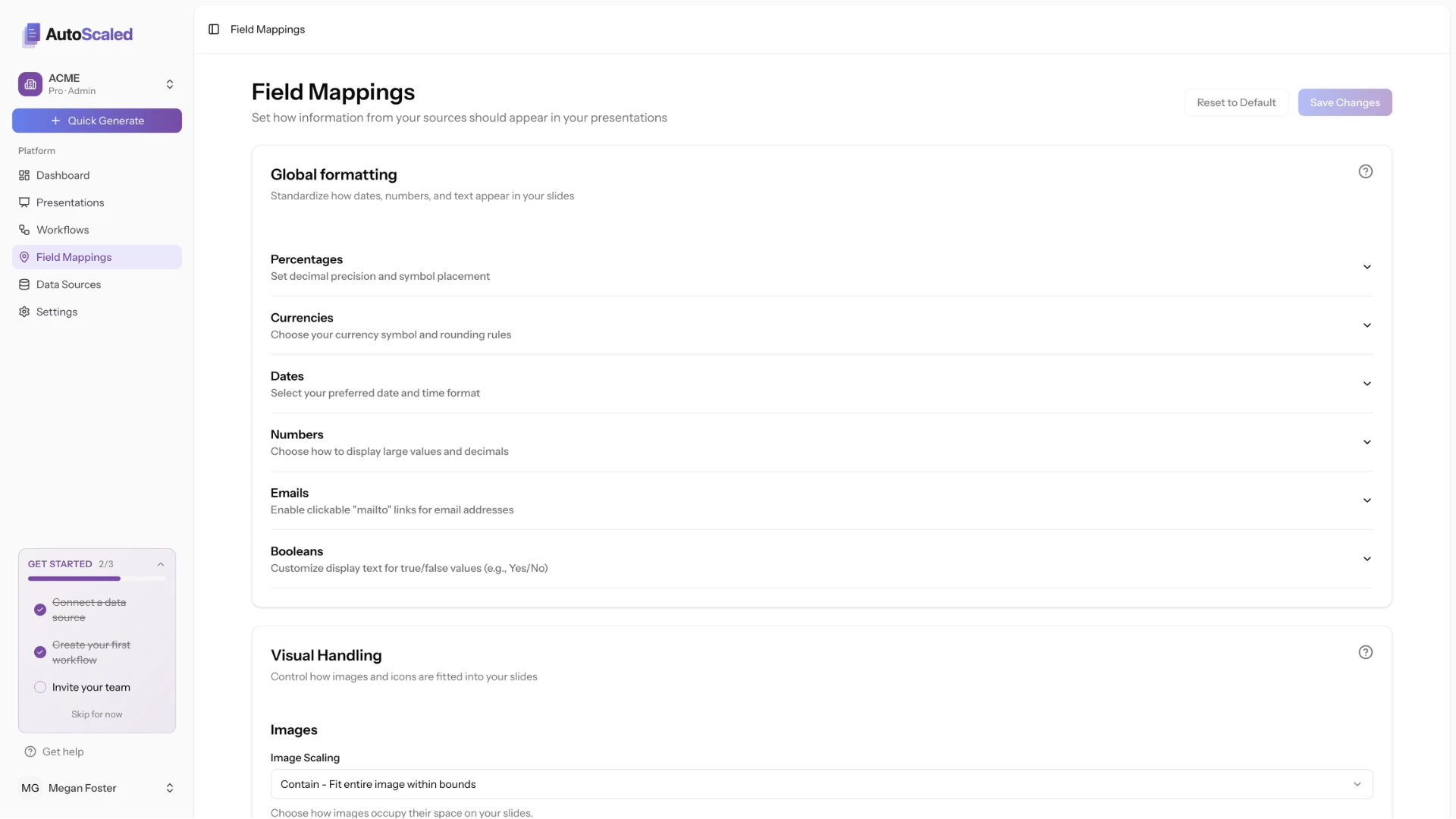
Setting up alphanumeric data formatting from your CRM in AutoScaled
Formatting percentages
To format percentages across your workspace, you can define:- Decimal places: sets how many digits appear after the decimal point. Standard rounding applies: values of 0.5 and above round up, values below 0.5 round down.
- Symbol position: places the % symbol before or after the number
- Multiply by 100: transforms decimal numbers into percentages
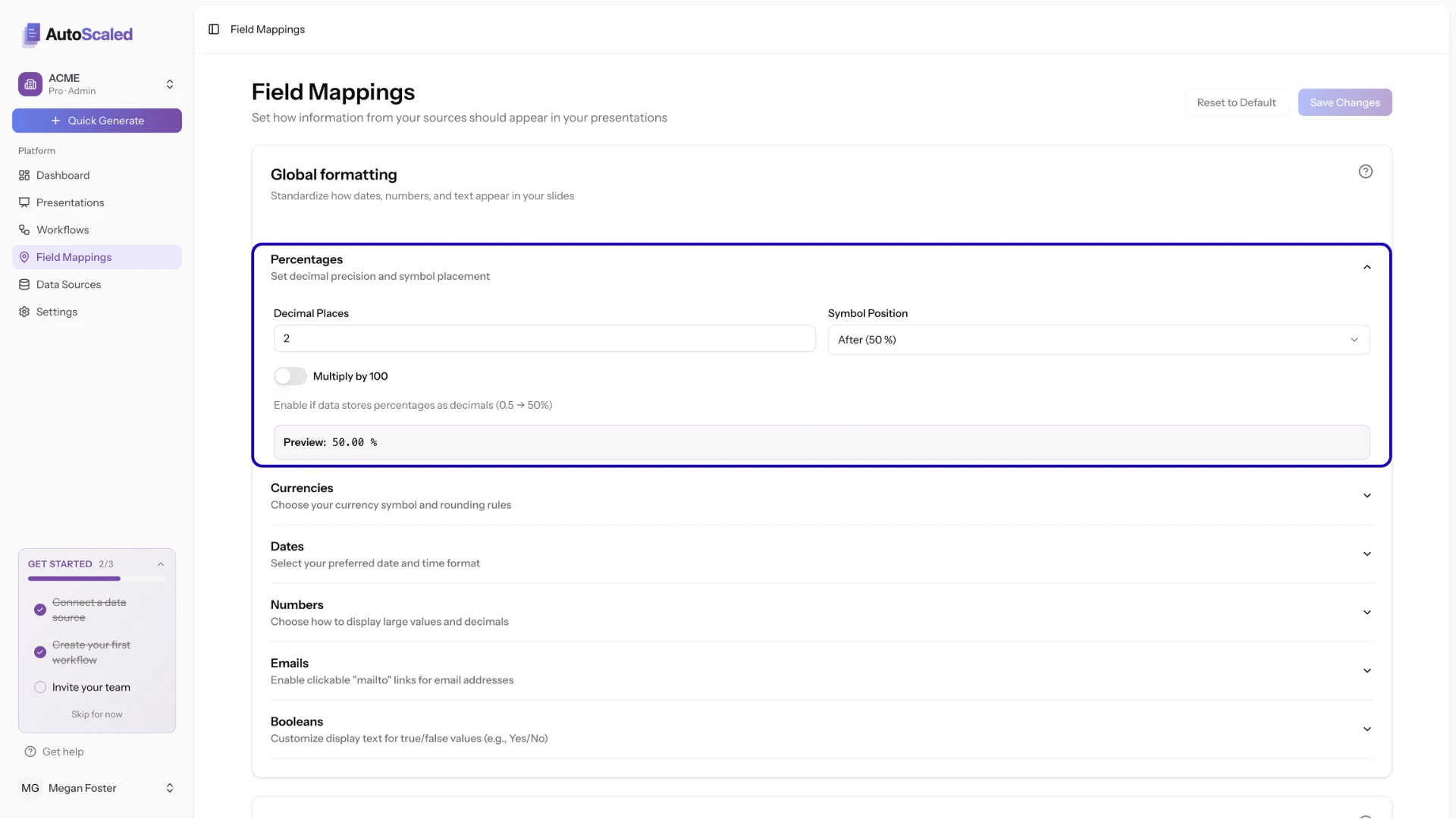
Formatting percentages from your CRM in AutoScaled
Formatting currencies
Define how you want to display default currencies in your workflows:- Currency: selects the currency symbol you want to use
- Decimal places: sets how many digits appear after the decimal point. Standard rounding applies: values of 0.5 and above round up, values below 0.5 round down.
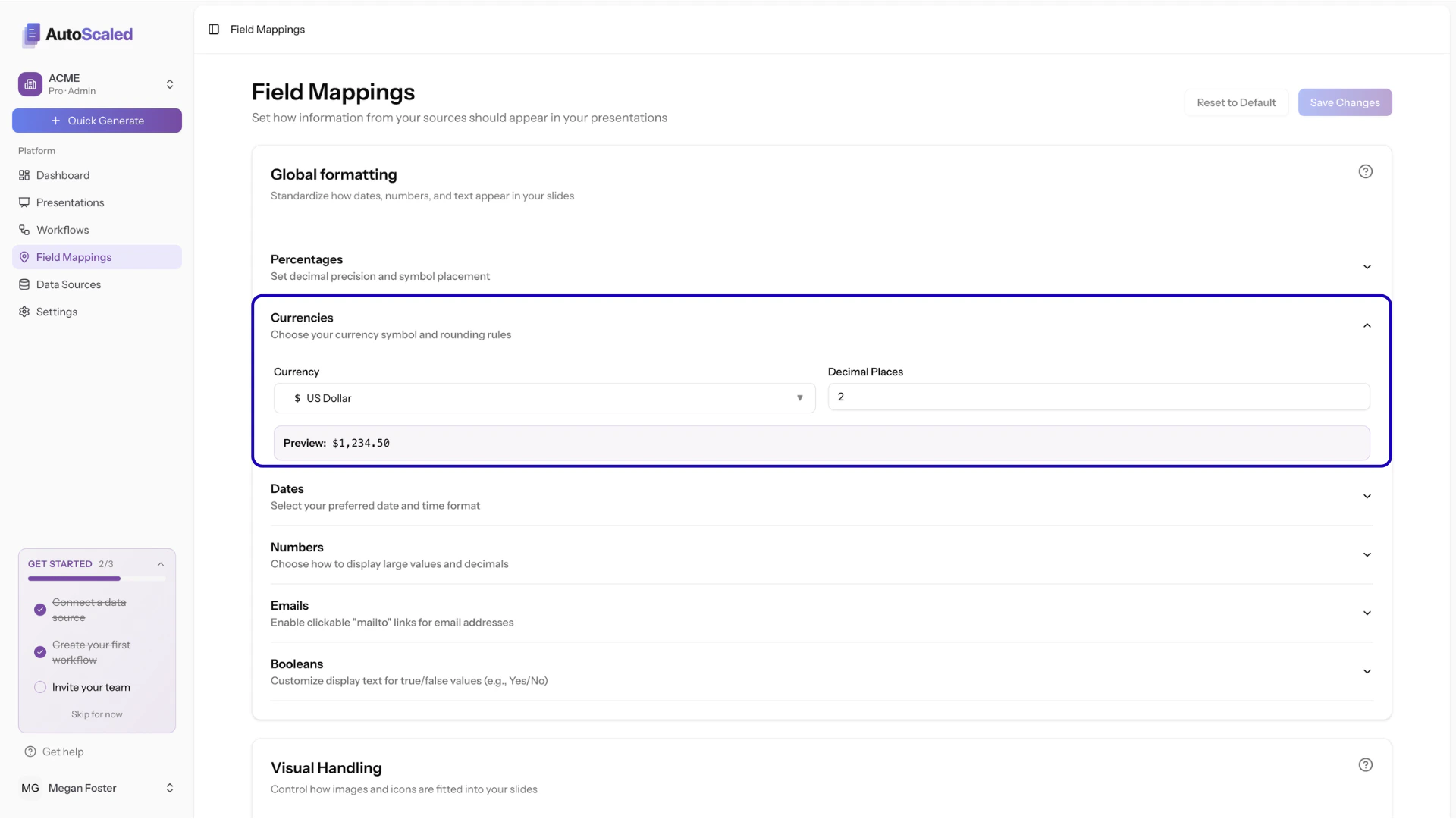
Formatting currencies from your CRM in AutoScaled
Formatting dates
Dates are automatically transformed into ISO 8601 form. You can customize how dates appear in AutoScaled by setting:- Date format: choose the layout you prefer (e.g. MM/DD/YYYY, DD/MM/YYYY, …)
- Include time: turn on Include time to show a specific time when you want it. AutoScaled adds hh:mm:ss to your date format when the CRM field includes time.
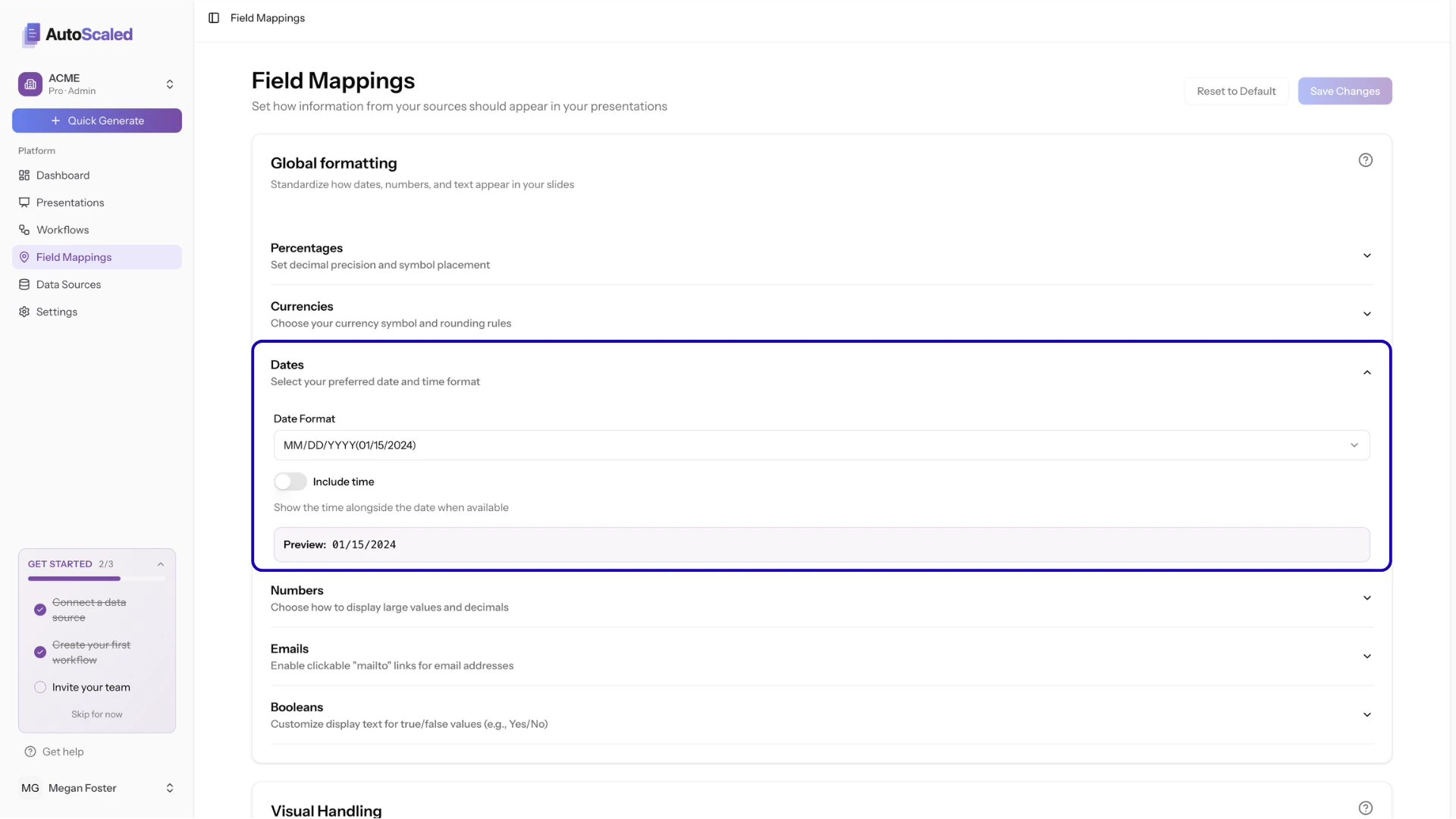
Formatting dates from your CRM in AutoScaled
Formatting numbers
Set how you want to format numbers. Number formatting is mainly related to:- Decimal places: sets how many digits appear after the decimal point. Standard rounding applies: values of 0.5 and above round up, values below 0.5 round down.
- Thousand separator: adds a separator between thousands for easier readability.
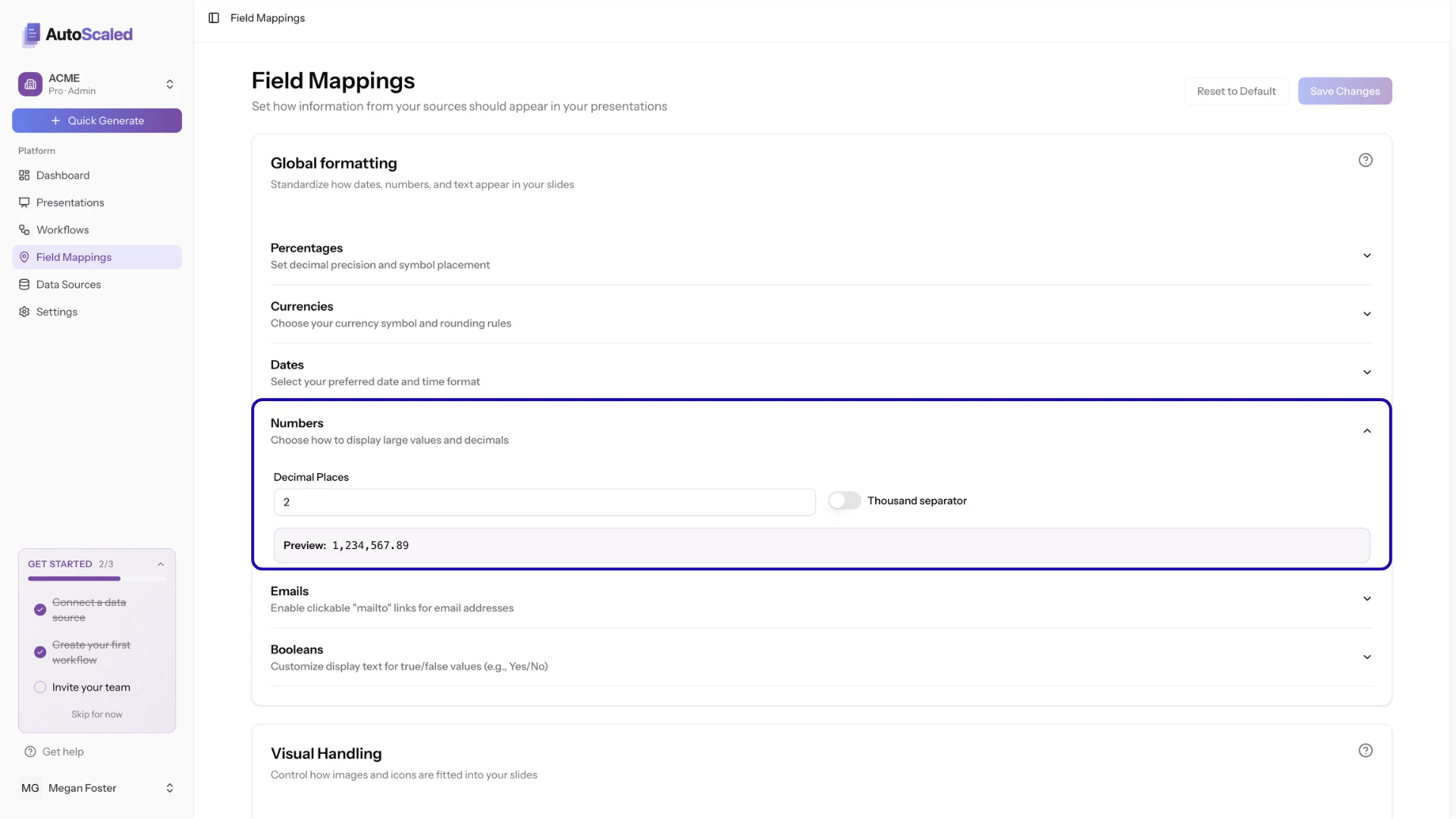
Formatting numbers from your CRM in AutoScaled
Formatting emails
Make email addresses clickable in your presentation content by enabling clickable “mailto” links for email addresses.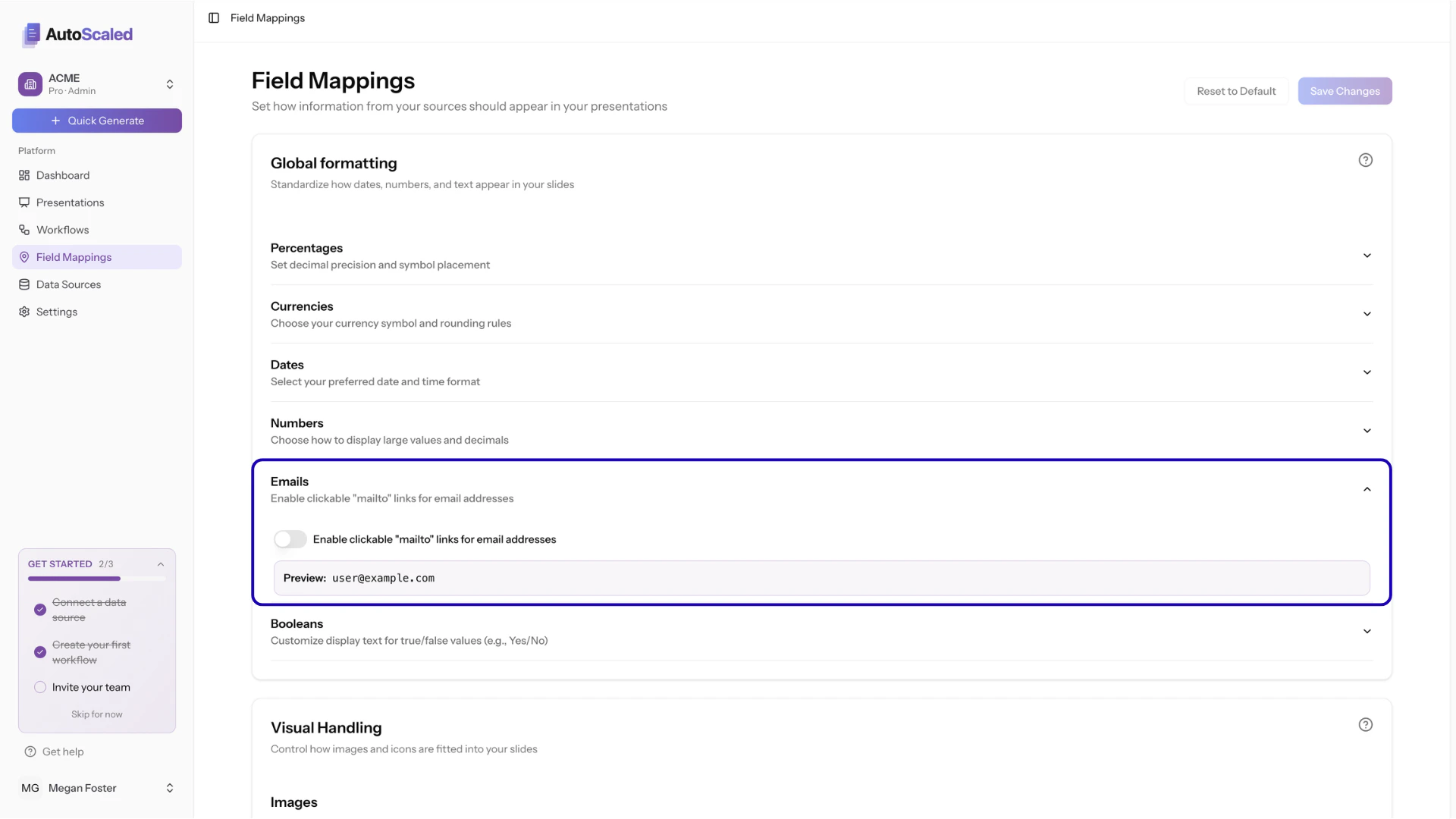
Formatting emails from your CRM in AutoScaled
Formatting booleans
Booleans are true/false values represented as “1” (true) or “0” (false). Radio buttons in CRMs and lead forms typically capture data in this format. For example, a newsletter opt-in checkbox returns “1” if the contact subscribes and “0” if they leave it unchecked. You can assign other values to booleans by selecting:- Display format: sets a specific display format such as Yes/No, True/False, On/Off and Enabled/Disabled.
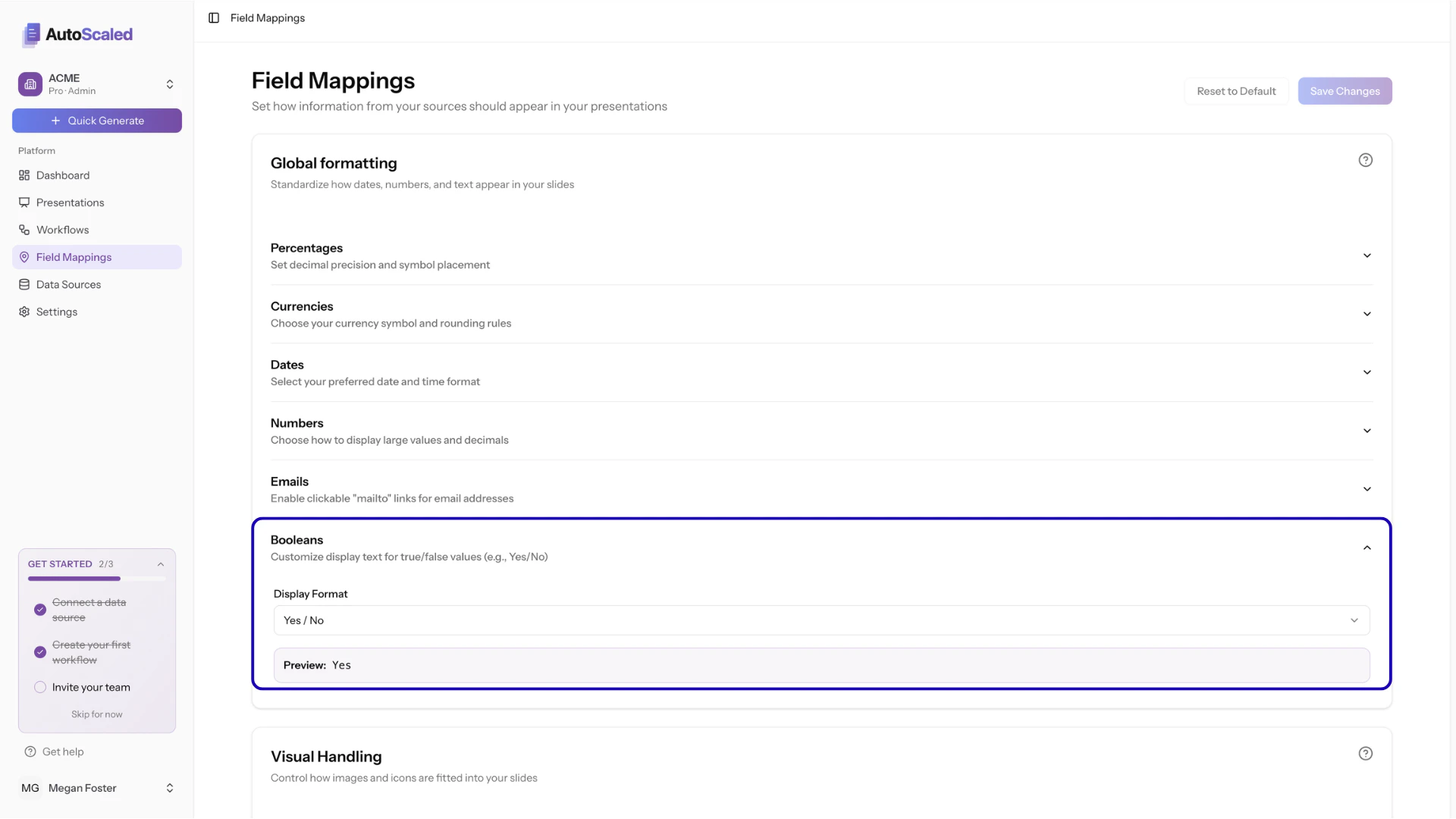
Formatting booleans from your CRM in AutoScaled
.png?fit=max&auto=format&n=DI04QPQXvOXACdEg&q=85&s=c3590e957f727c8825cdde343a2c7250)
Setting custom booleans in AutoScaled
Media Global Workspace Data Formatting
Global formatting of media can be applied to image media.Formatting images
Images can be populated dynamically in your automated decks. To do so, you provide image URLs. You can control how these images are displayed:- Contain mode: Fits the entire image within the placeholder frame. If the image is larger than the frame, it scales down to fit inside it.
- Cover mode: Fills the entire placeholder frame with the image. If the image is larger than the frame, it scales and crops to ensure no empty space is left.
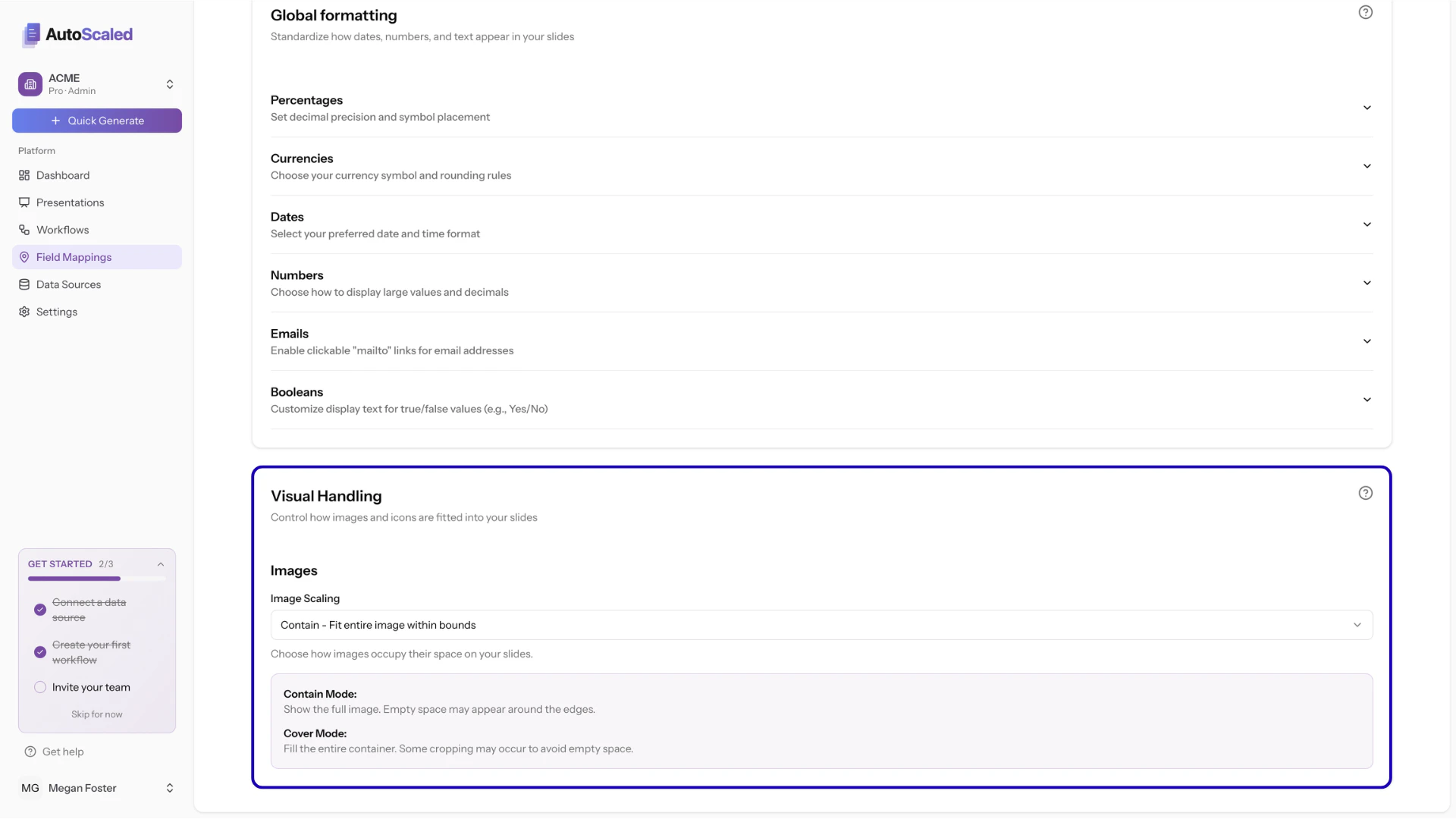
Formatting images from your CRM in AutoScaled
.png?fit=max&auto=format&n=39Y7L-v3FK8K5p-E&q=85&s=2bd661feae4390be560fc106ba44378f)
Comparison of contain and cover mode of images
How to add image placeholders
Our “Prepare Your Template” documentation contains a step-by-step guide on how to add image placeholders to your presentation template.
Specific Workflow Formatting
You can set specific formatting for a workflow to overwrite the global workspace settings. During the placeholder mapping step in the workflow setup, click on the pencil next to a specific field mapping: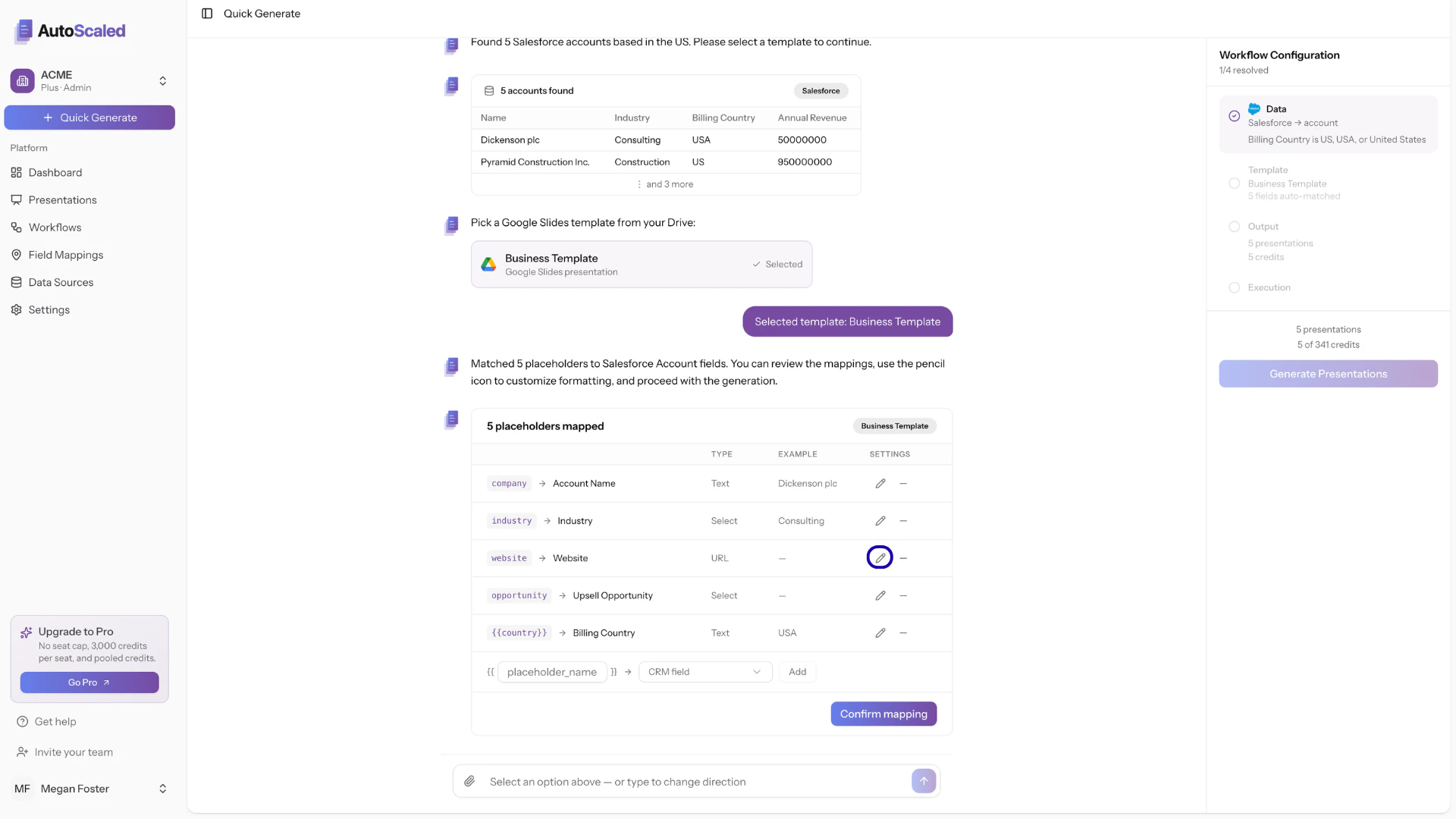
Editing formatting of data fields on a workflow level
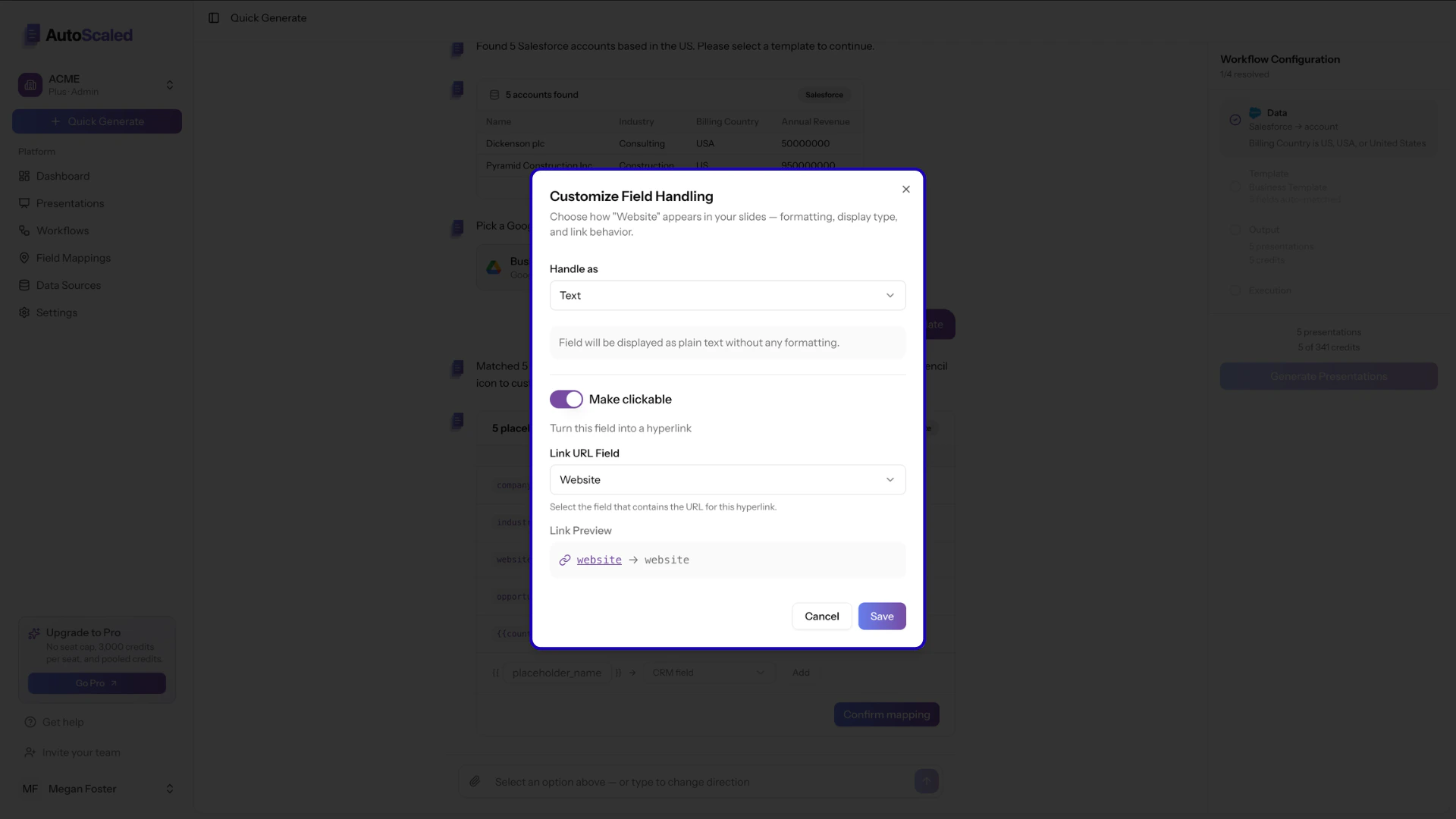
Customizing field formatting when setting up a workflow
Spreadsheet Data Formatting
When you generate sales decks from Google Sheets, Microsoft Excel, or a CSV file, the formatting of your data in the sheet is carried through to your presentation:.png?fit=max&auto=format&n=VVx_USv_67pzqEbw&q=85&s=ebe38c8e4c6300554691562f2293acec)
Formatting data from Spreadsheets in AutoScaled
Anything missing? Let us know at [email protected] and we’ll help you out!