
Opening the presentation view
AutoScaled has built-in features that let you present decks directly from the presentation management page. Click the presentation you want to present to open present mode:-1.png?fit=max&auto=format&n=XeLQ2QPB_z5zZMHD&q=85&s=98c59a444f930a0307e0c8222819cc54)
Present mode in AutoScaled
The present mode comes with a set of additional options to make it easier to present your decks during client and internal meetings:- Close: closes the presentation and returns you to the presentation management tab
- Share: shares the presentation with clients or internal stakeholders
- Actions: opens an action panel that includes downloading the presentation
- Navigation: moves between slides via arrows or numbers
- Zoom: zooms in or out of a slide to focus on certain areas
- Mode: changes the mode of the presentation
-2.png?fit=max&auto=format&n=XeLQ2QPB_z5zZMHD&q=85&s=4b3dcadc399030899d4d340d1218b695)
Closing presentation view in AutoScaled
The Close button exits presentation view: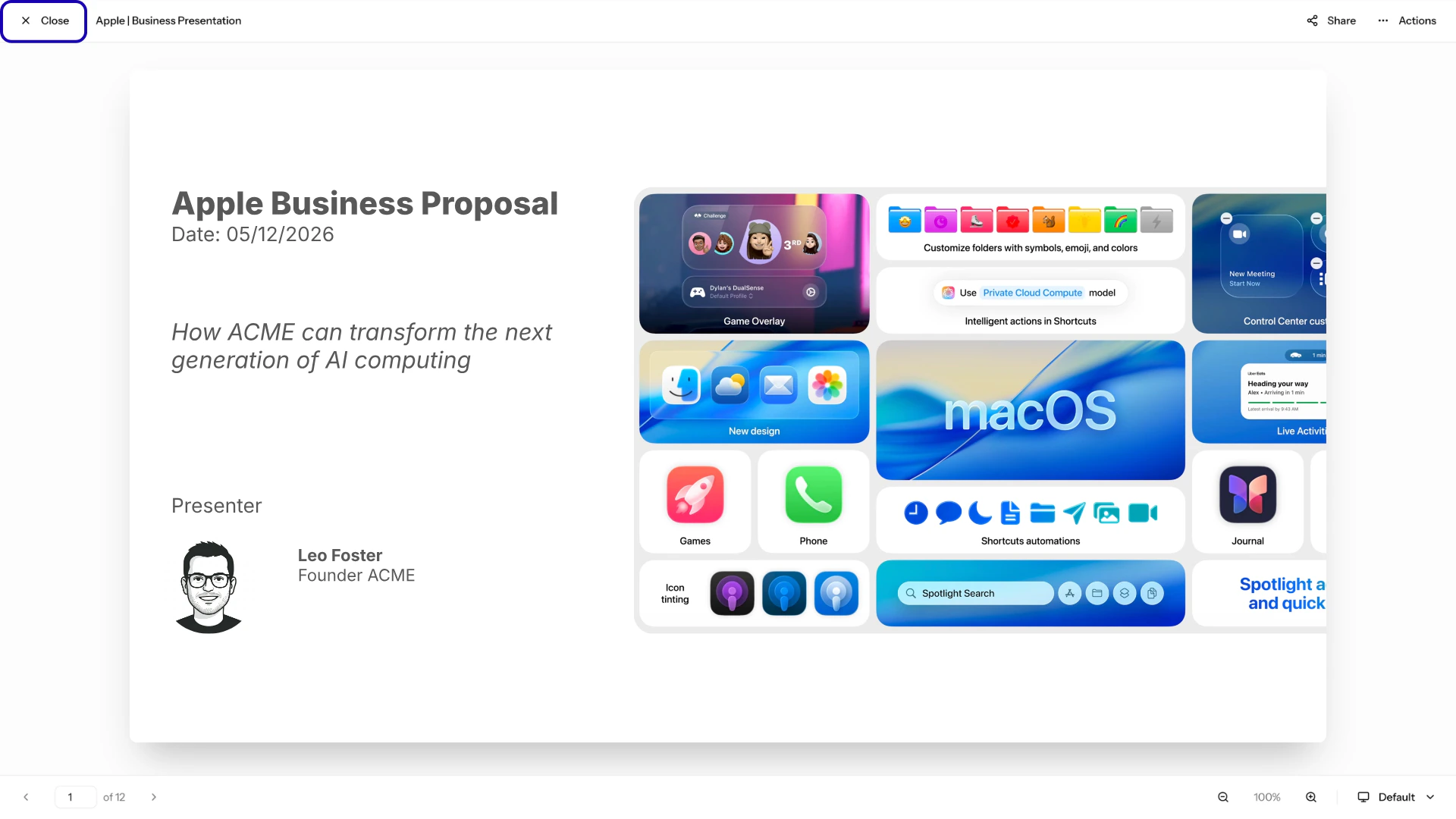
Sharing decks from the presentation view
The Share button lets you share the presentation directly with a client or internal stakeholder: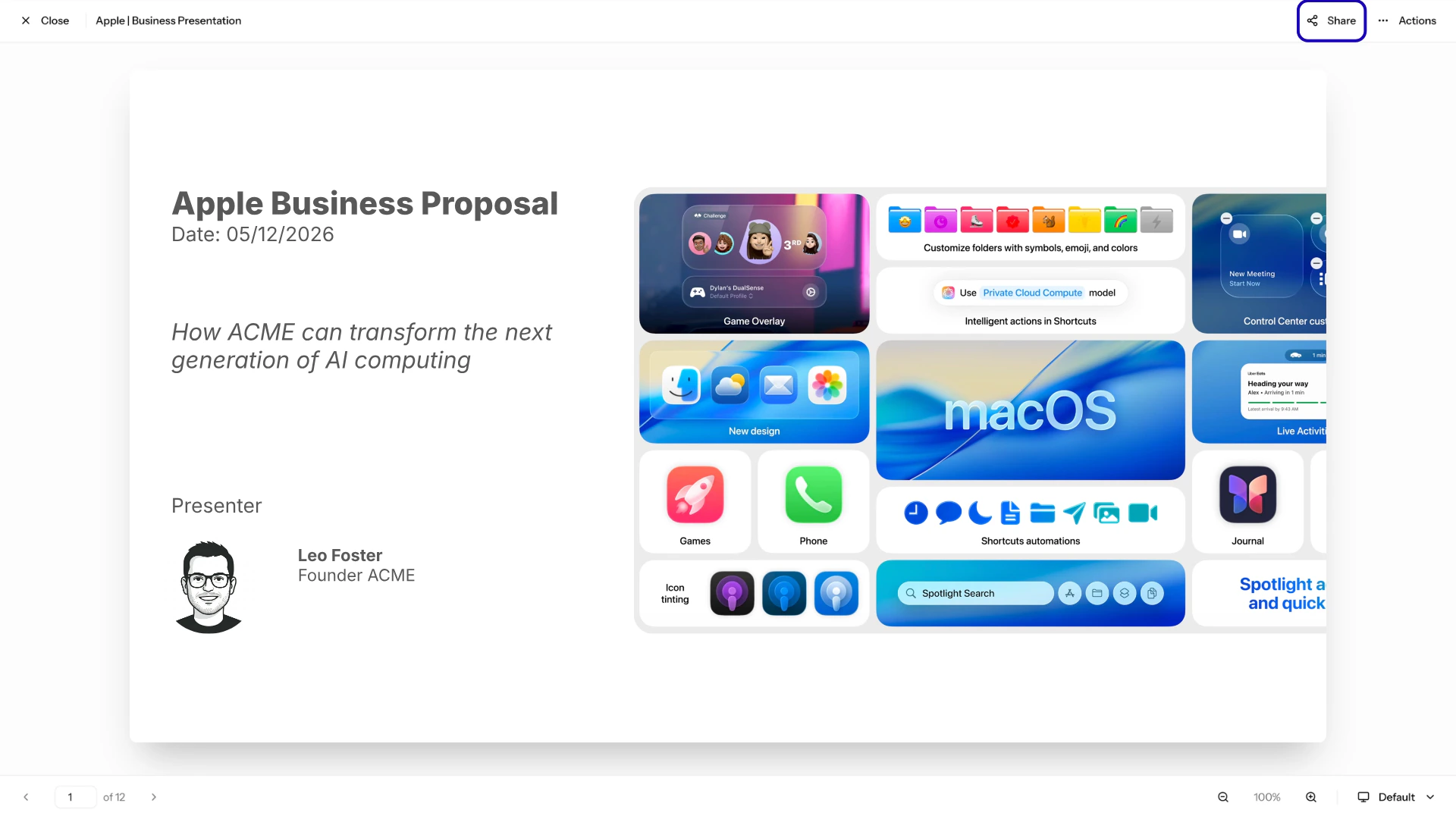
Sharing decks from AutoScaled
To learn more about sharing presentations in AutoScaled via direct links or a branded content hub, open the Share content documentation using this card.
Downloading, exporting, and removing decks in presentation view
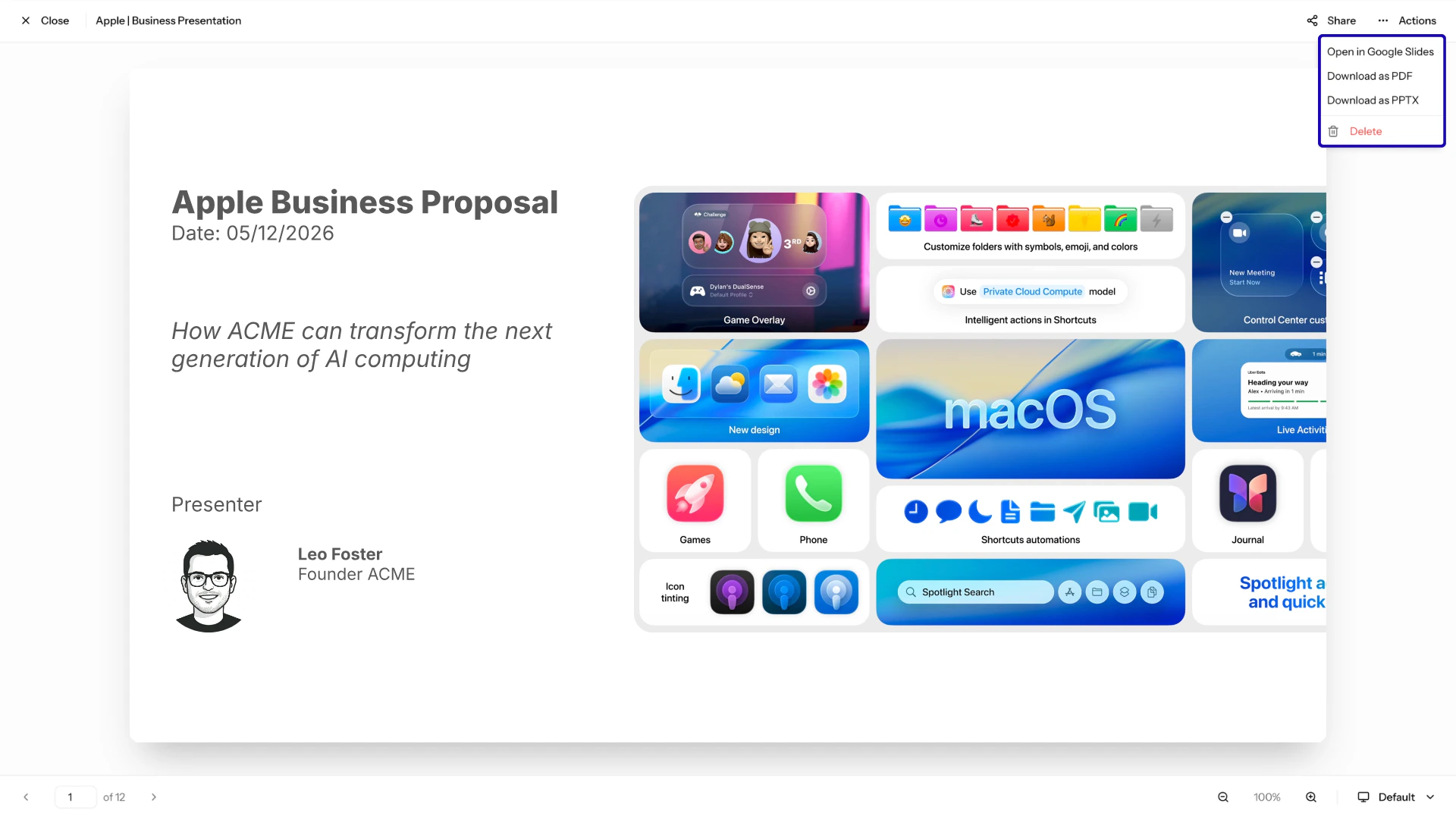
The Actions button opens the action menu for the current presentation: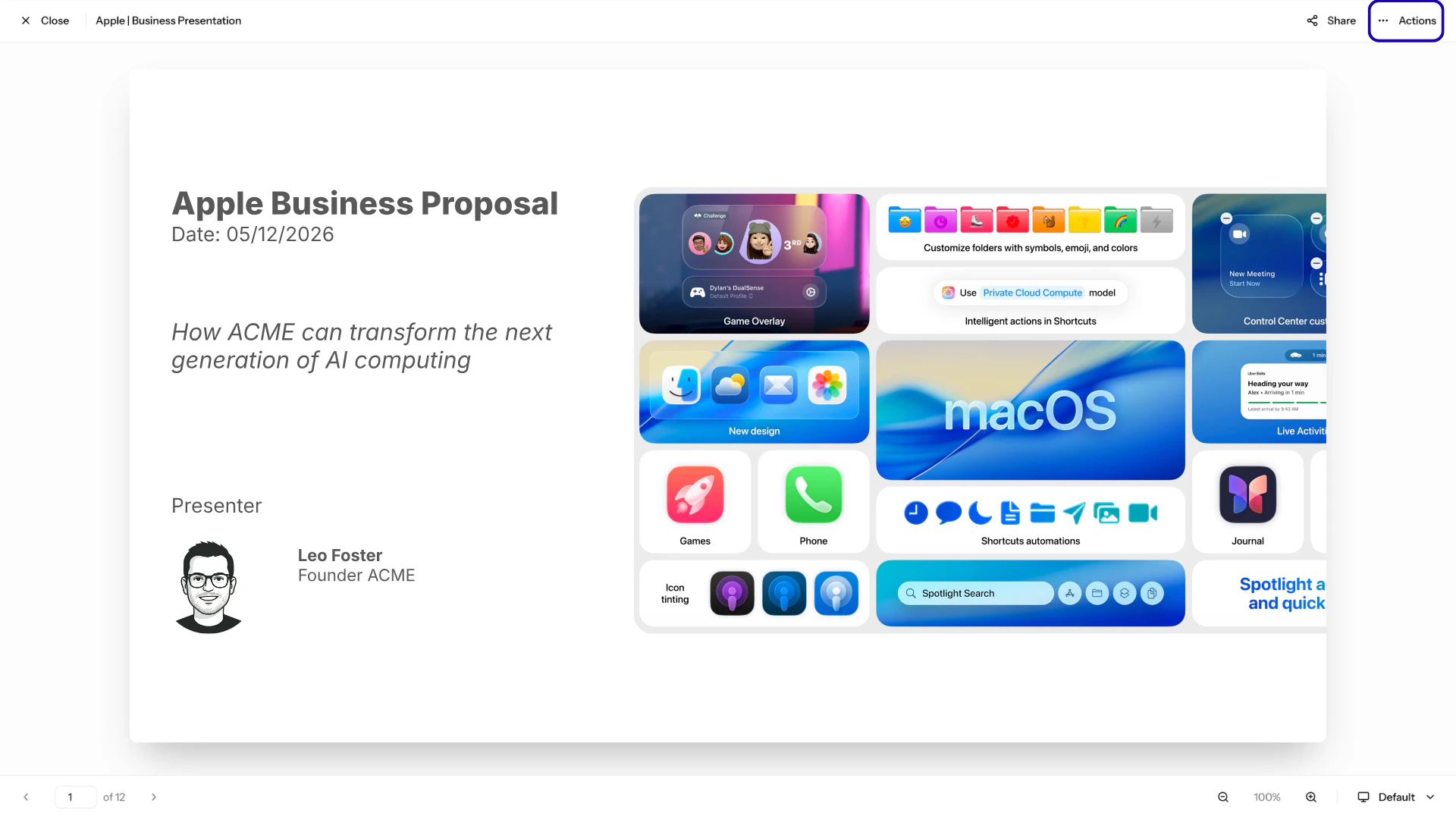
- Open in Google Slides: launches the presentation in Google Slides
- Download as PDF: downloads a PDF to your personal device
- Download as PPTX: downloads a Microsoft PowerPoint to your personal device
Navigating slides in the presentation view
The navigation buttons at the bottom of the page allow you to navigate through slides. You can also enter the slide number to go to a specific slide: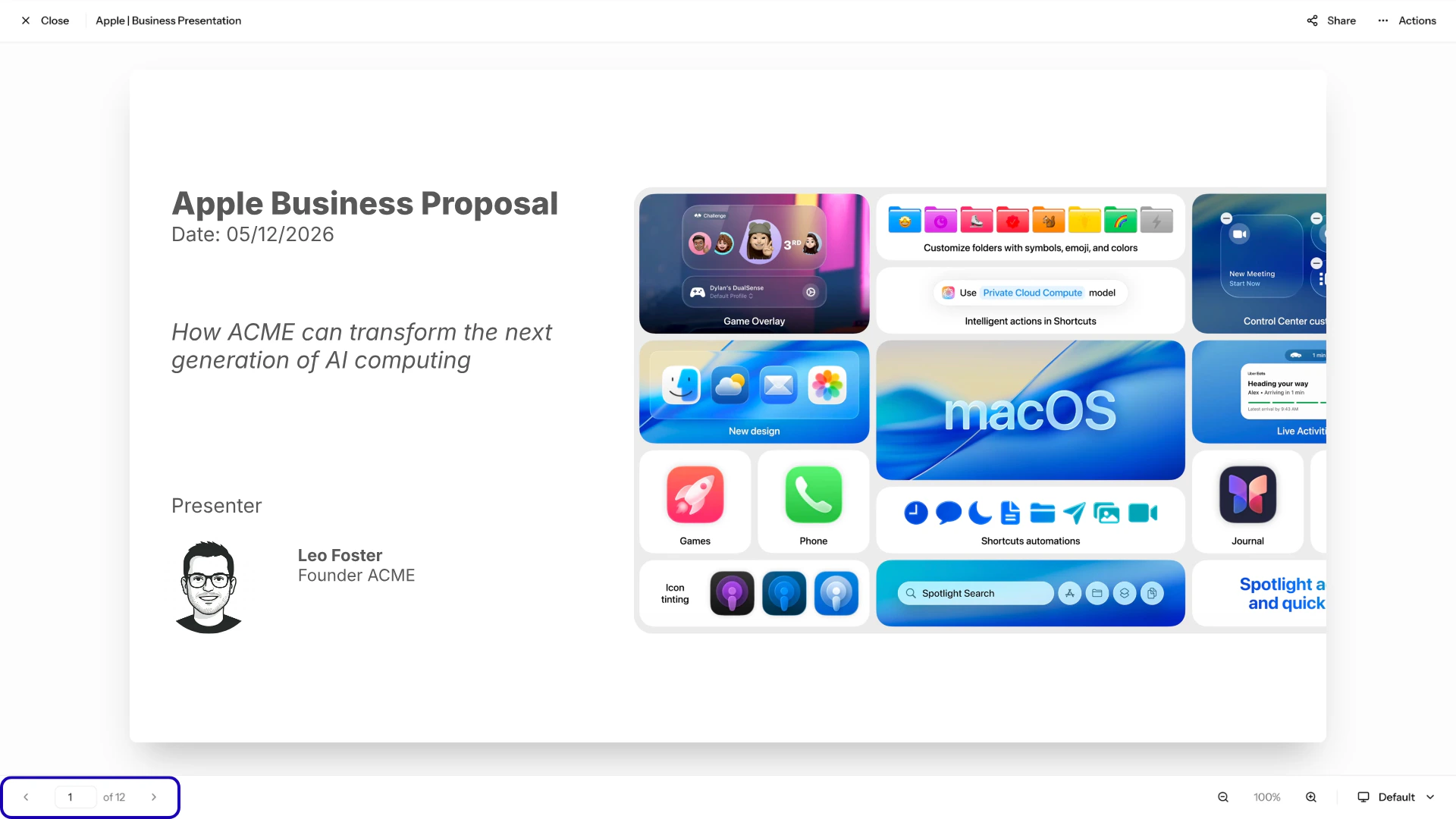
Zooming in and out in presentation view
The zoom buttons at the bottom of the page let you zoom in or out on your presentation. You can set a specific zoom level between 50% and 200%. When zoomed, reset to 100% with the reset button: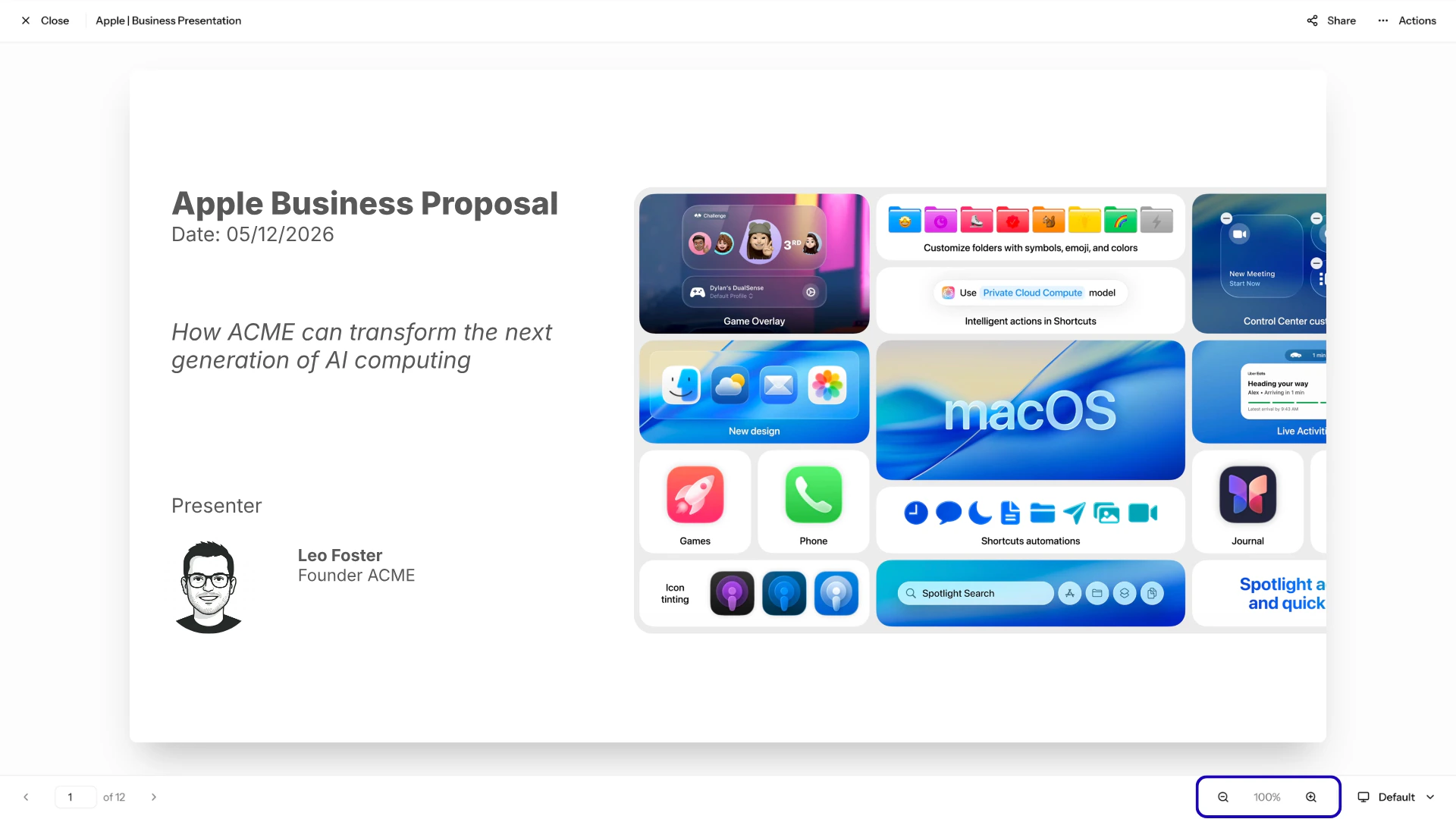
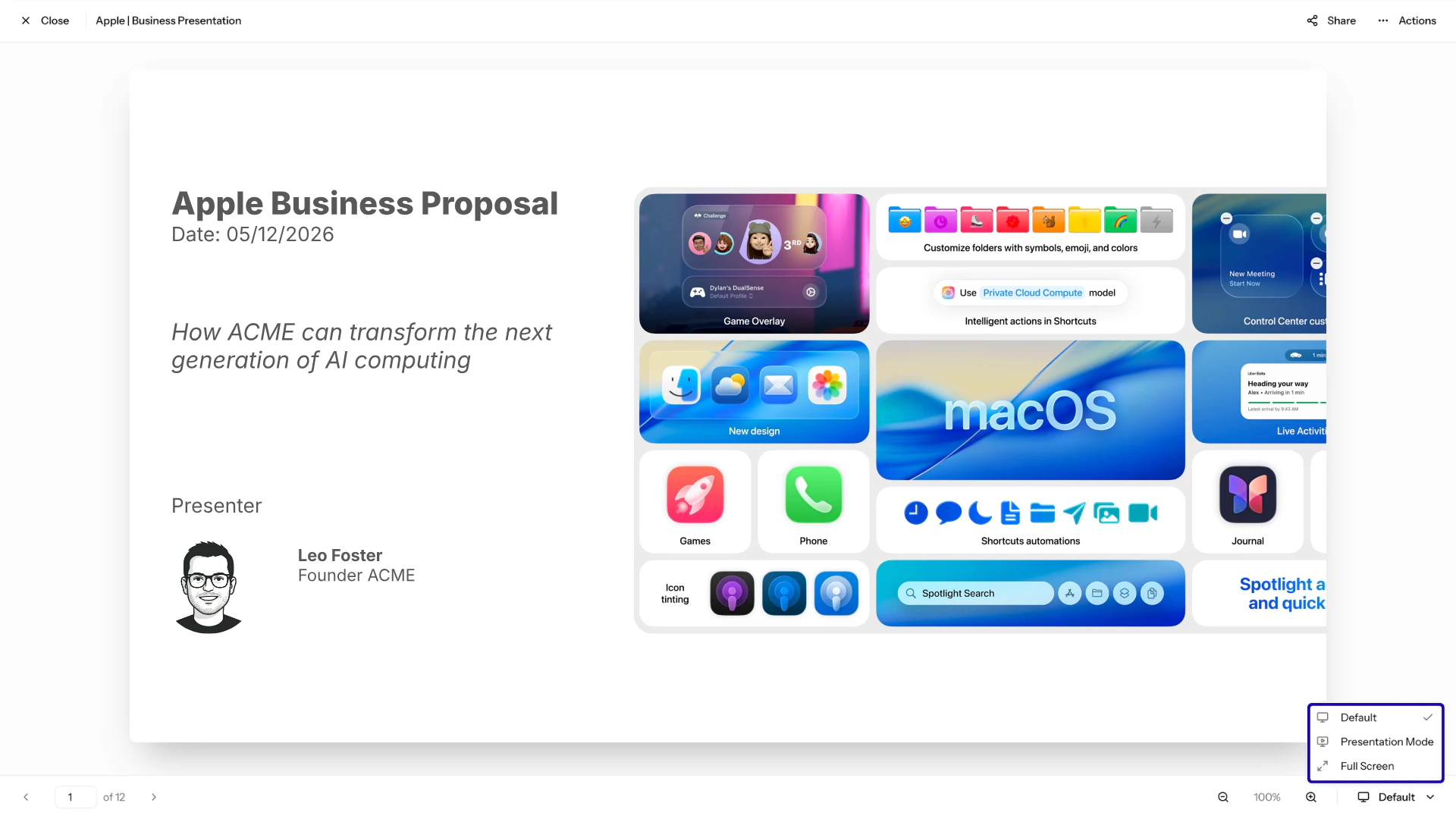
Changing the present mode of the presentation view
There are three presentation modes:- Default: showcases the presentation and all controls including sharing and actions. Default present mode is displayed in the visuals above.
- Presentation mode: shows the presentation with minimal controls focused on presenting. Sharing and actions are hidden.
- Full screen: showcases only the presentation with no controls, ideal for external presentations. All controls are hidden.
Keyboard shortcuts in presentation and full screen mode
Use the following keyboard shortcuts to navigate in presentation or full screen mode:- Arrow keys (left/right): move between slides
- Arrow keys (up/down): zoom in and out on the current slide
- Space: advance to the next slide
- Escape: exit presentation or full screen mode
Anything missing? Let us know at [email protected] and we’ll help you out!