
Get Started with AI Decks from HubSpot
3-minute full walkthrough of automating HubSpot CRM data to Decks
To use data from HubSpot, authenticate your HubSpot account in Data Sources.
Connect HubSpot
- Go to Data Sources in AutoScaled.
- Click Connect next to HubSpot.
- Sign in to HubSpot and select the account you want to connect.
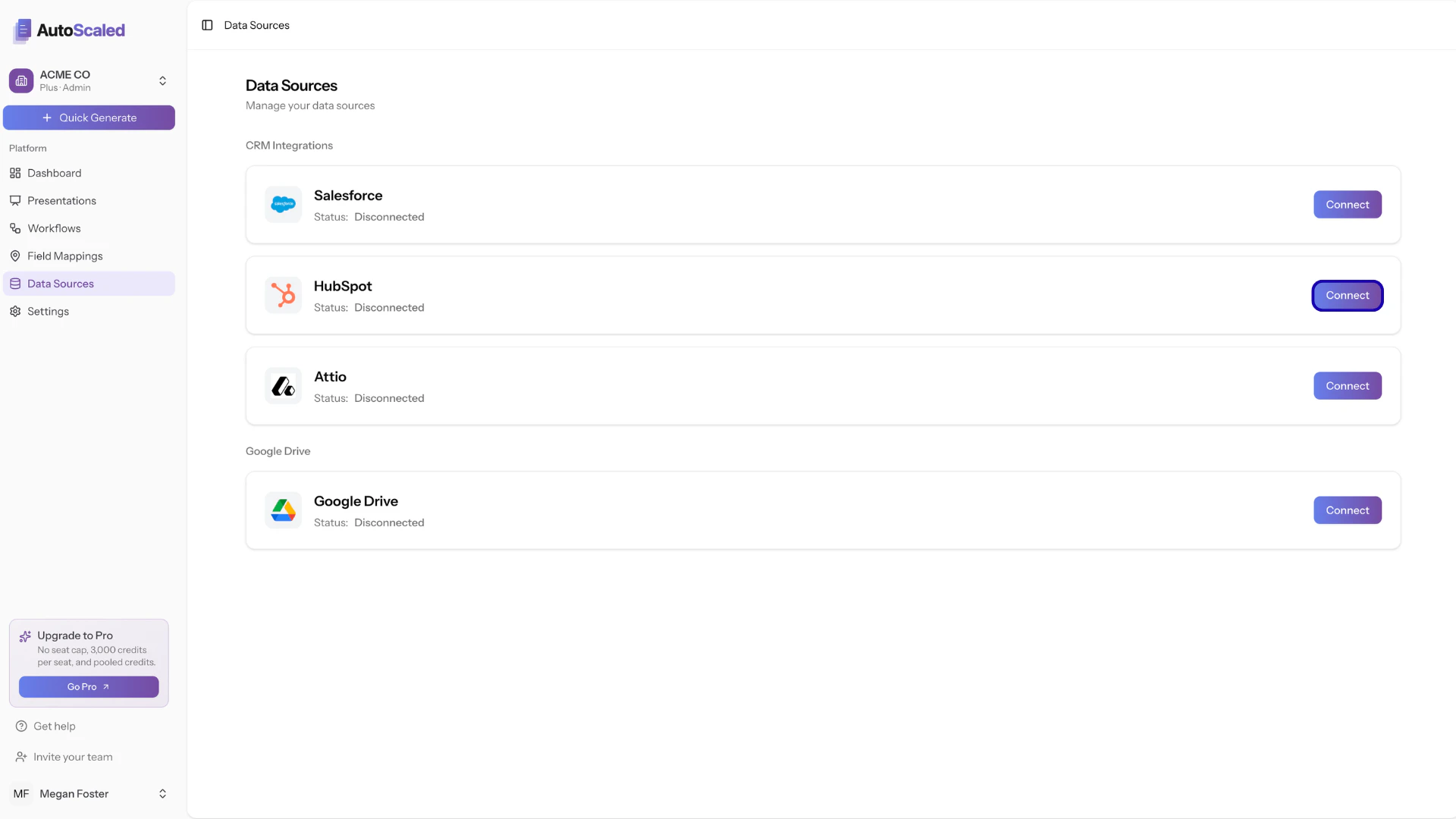
Connecting HubSpot to AutoScaled
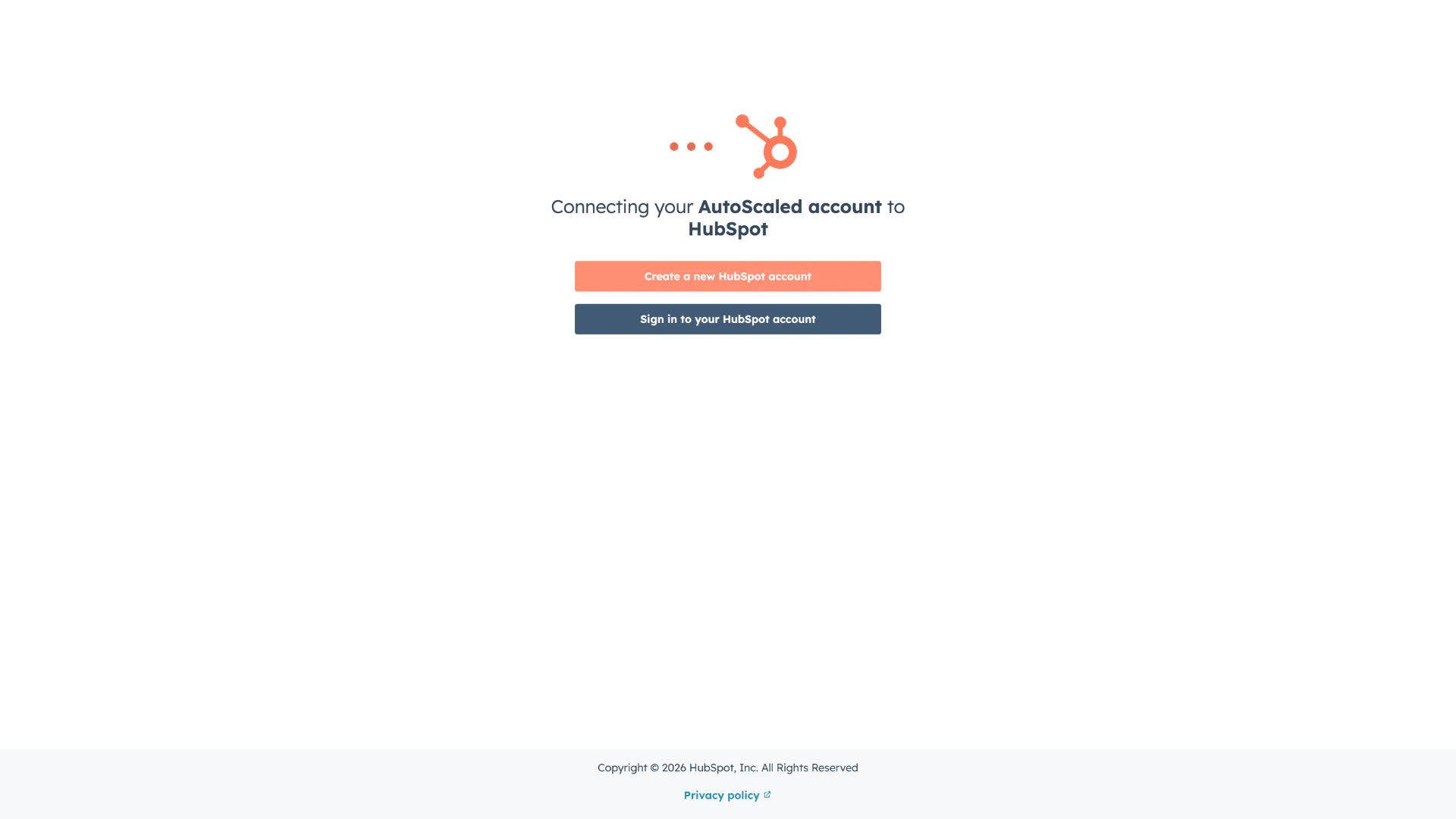
Log in to HubSpot or create an account
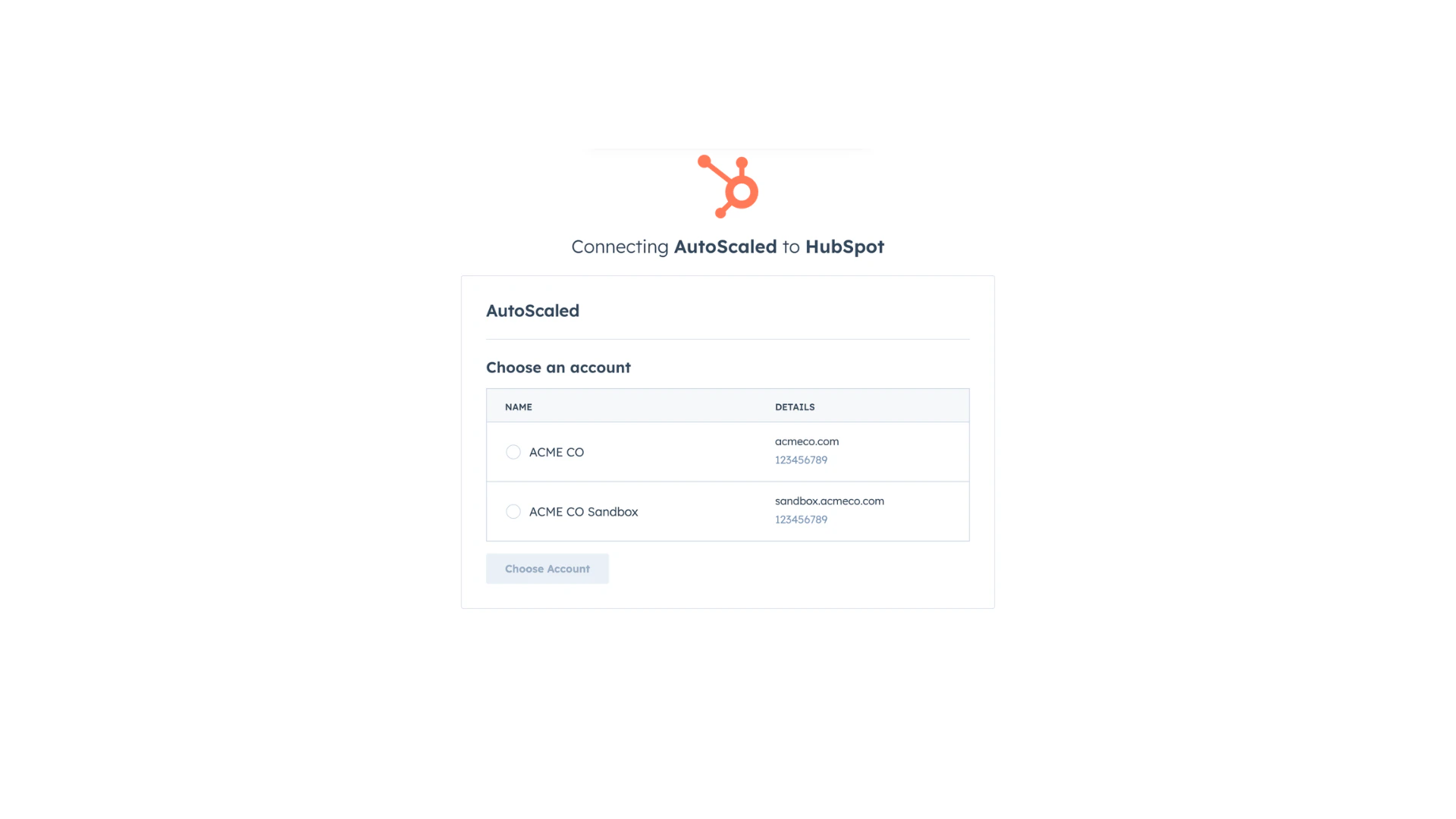
Selecting your HubSpot instance
Why connect HubSpot to AutoScaled
Connecting HubSpot helps you automate and scale presentation workflows:- Generate presentations from CRM events: Trigger deck generation when records are created or updated.
- Use live customer data: Populate templates with HubSpot deal, contact, company, and custom object data.
- Schedule recurring updates: Run scheduled workflows for weekly pipeline, account, or review meetings.
- Keep messaging consistent: Use reusable templates and mappings so teams present aligned, up-to-date information.
Required scopes and access model
AutoScaled requests scopes for:- Read-only access to default HubSpot objects (deals, contacts, companies)
- Event listening access for trigger-based automations on object changes
- Equivalent access on custom objects when workflows use them
AutoScaled follows your HubSpot permissions model. Users in AutoScaled can only access records and fields they are already allowed to access in HubSpot. AutoScaled has no write access to HubSpot and cannot edit records, objects, or fields.
Uninstall or disconnect HubSpot
To remove HubSpot access:- In AutoScaled, open Data Sources and disconnect HubSpot.
- In HubSpot, revoke AutoScaled access from your connected apps settings.
Back to Data Sources overview
View all integrations and platform-level data source guidance.
Anything missing? Let us know at [email protected] and we’ll help you out!