
Different AutoScaled Integrations
As of April 10th, 2026, there are eight integrations available on AutoScaled. Our list of integrations is continuously expanding; the most up-to-date list is on the integrations page. Current integrations are:CRM integrations
- HubSpot: OAuth API connection
- Salesforce: OAuth API connection
- Attio: OAuth API connection
HubSpot
Salesforce
Attio
Spreadsheet integrations
- Google Sheets: OAuth API connection
- Microsoft Excel: File upload
- CSV: File upload
Presentation integrations
- Google Slides: OAuth API connection
- Microsoft PowerPoint: File Export
- PDF: File Export
Connecting Your Data Sources to AutoScaled
Integrations that require an OAuth API connection can be connected from the left-hand menu under Data Sources. Click Connect next to an integration and the setup wizard will launch.Connecting Google Drive to AutoScaled
AutoScaled relies on Google Drive to generate, store and manage presentations. Google Drive is also required to generate presentations from Google Sheets. To connect Google Drive, go to Data Sources and click Connect next to Google Drive. Google’s sign-in flow will open. Select the account you want to use with AutoScaled and confirm.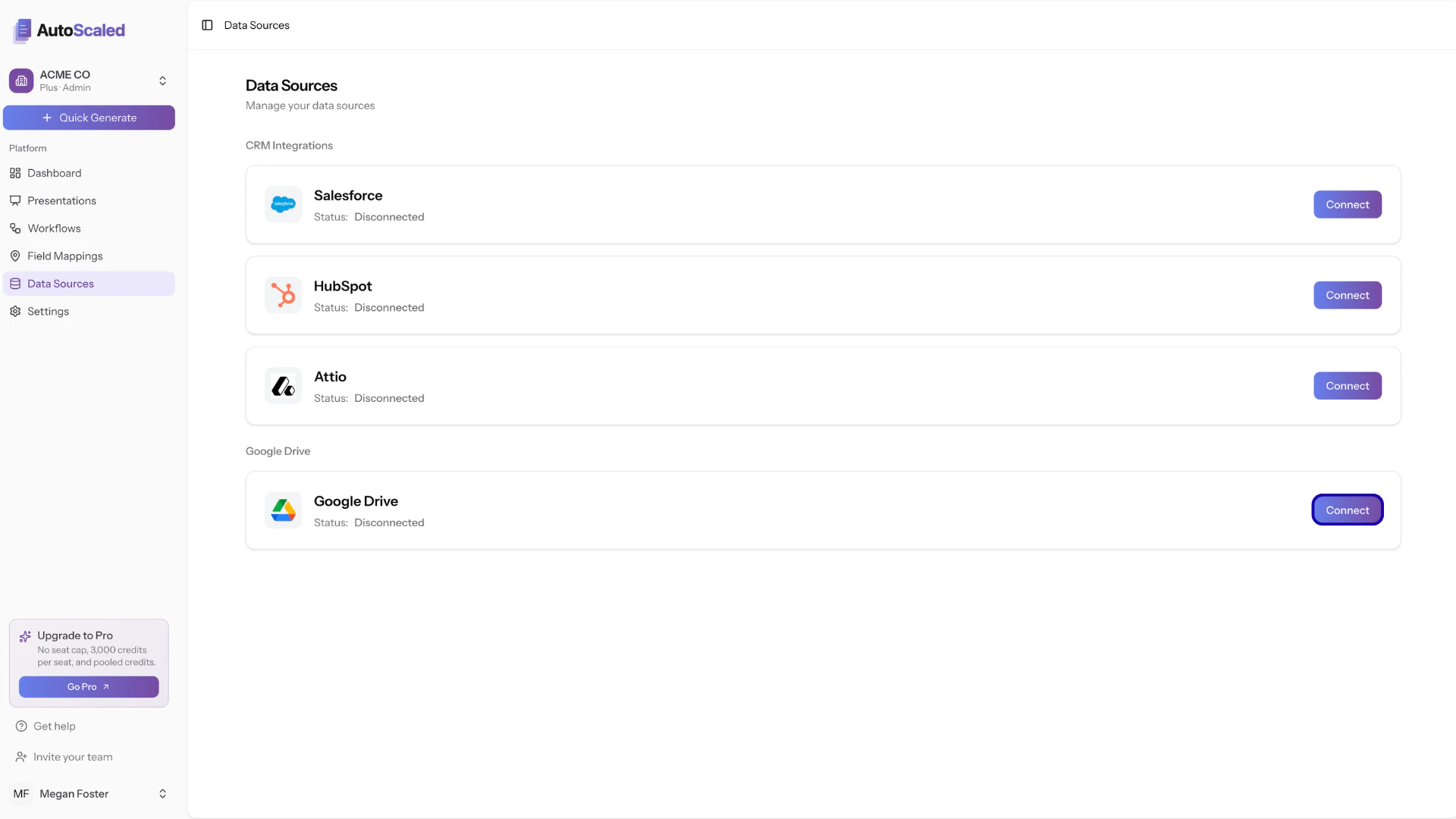
Connecting Google Drive to AutoScaled
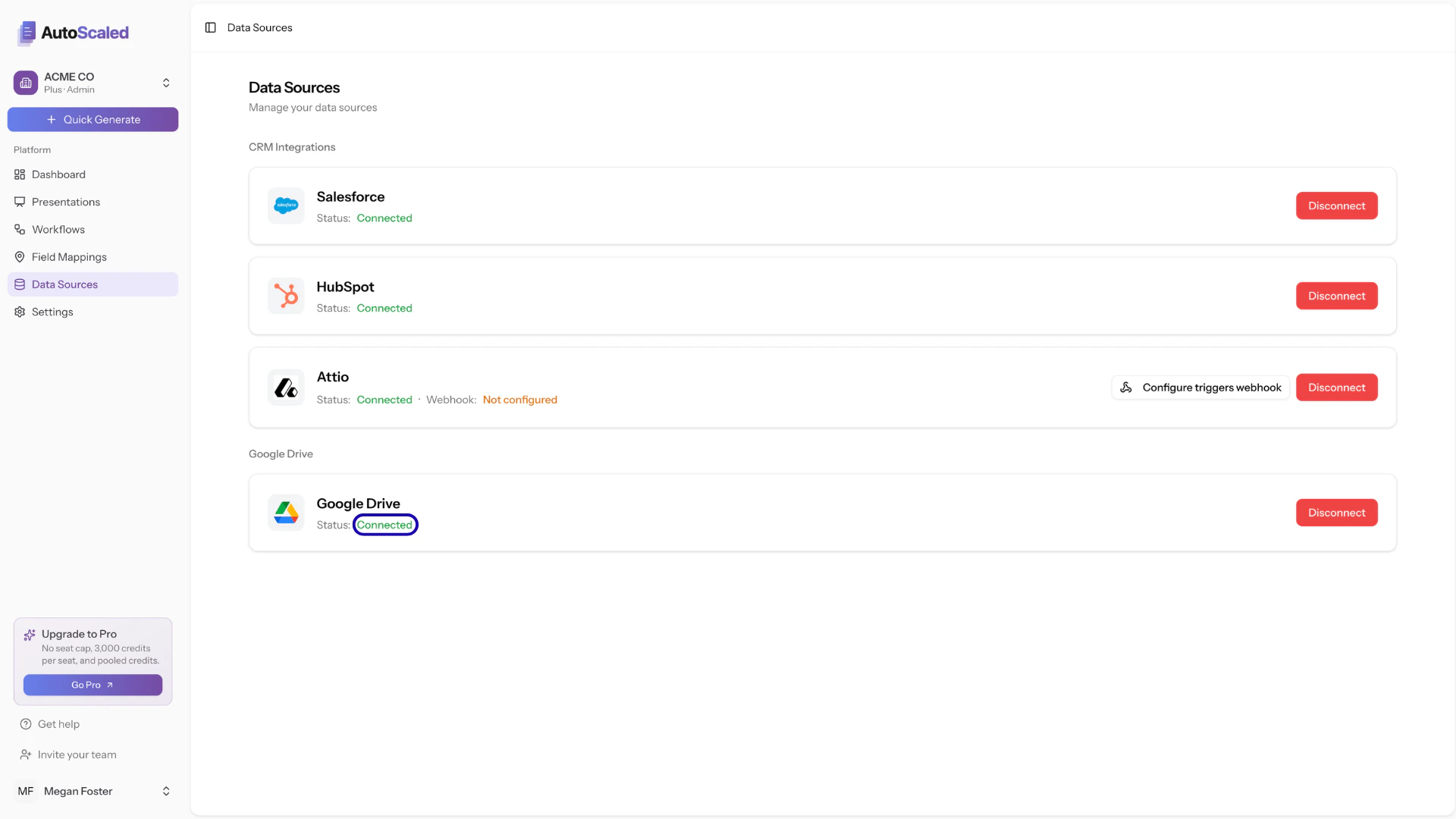
Google Drive successfully connected to AutoScaled
Connecting Salesforce to AutoScaled
To use data from Salesforce, authenticate your Salesforce instance. Go to Data Sources and click Connect next to Salesforce.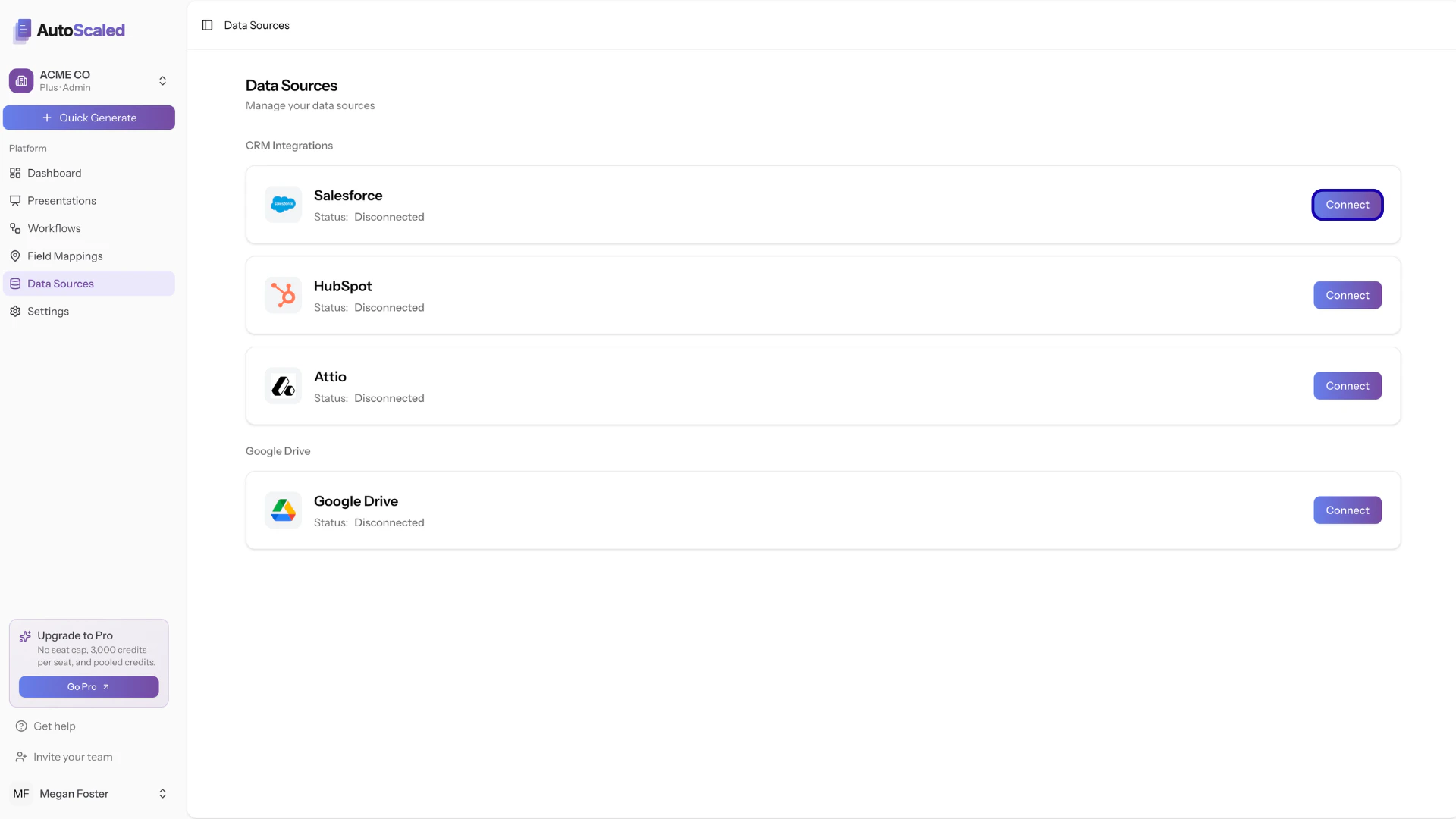
Connecting Salesforce to AutoScaled
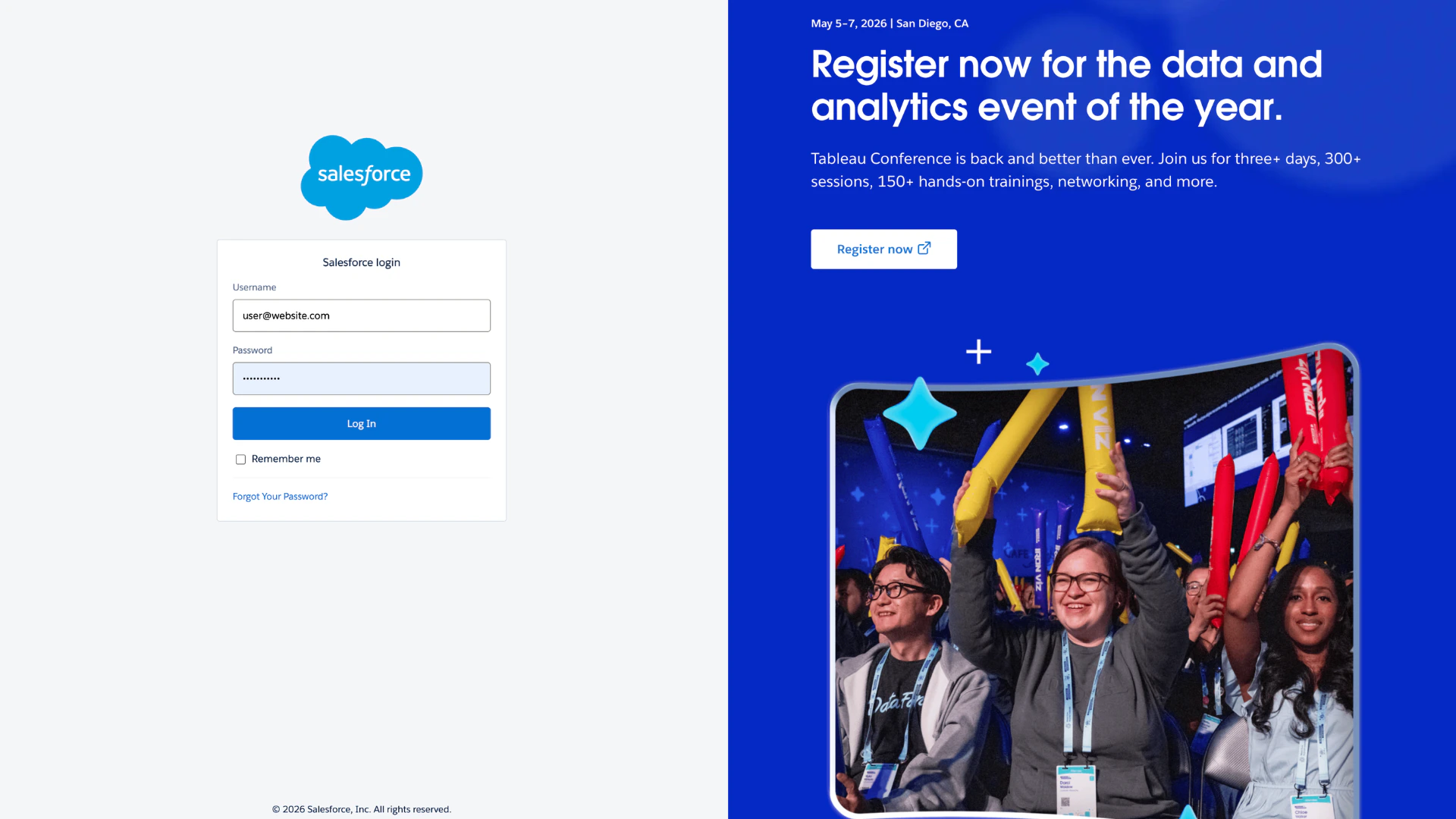
Salesforce login page
Connecting HubSpot to AutoScaled
To use data from HubSpot, authenticate your HubSpot account. Go to Data Sources and click Connect next to HubSpot.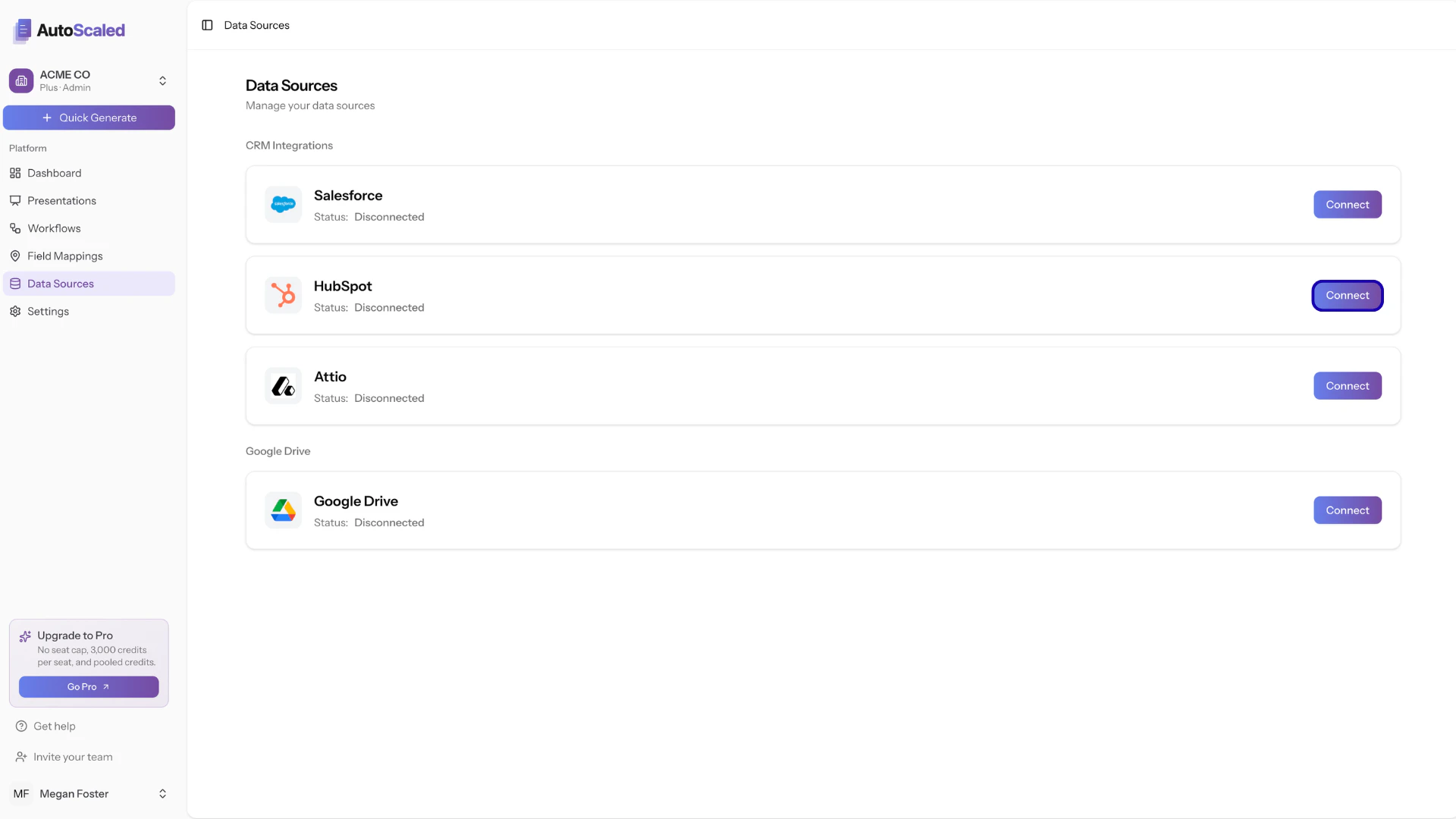
Connecting HubSpot to AutoScaled
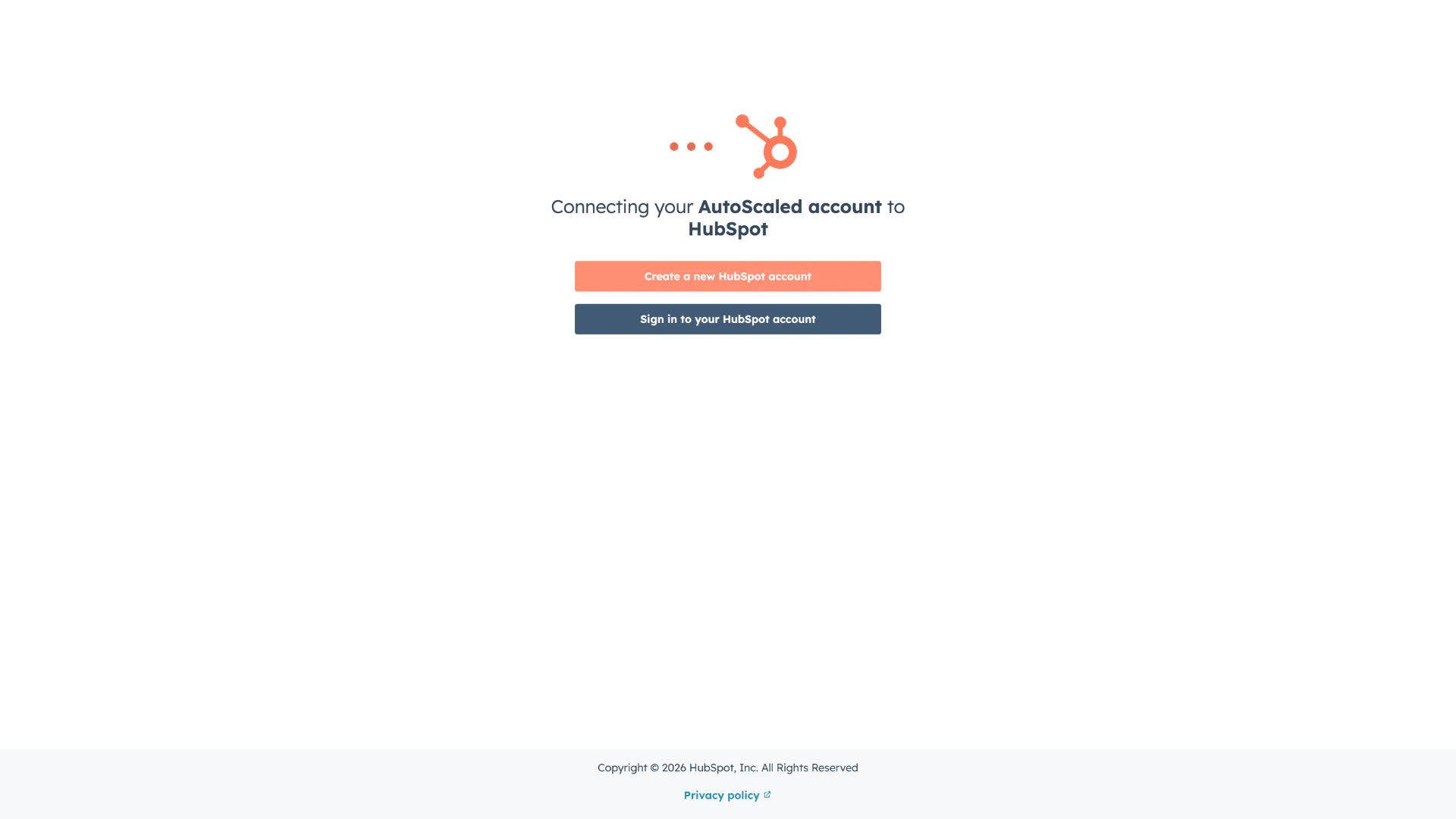
Log in to HubSpot or create an account
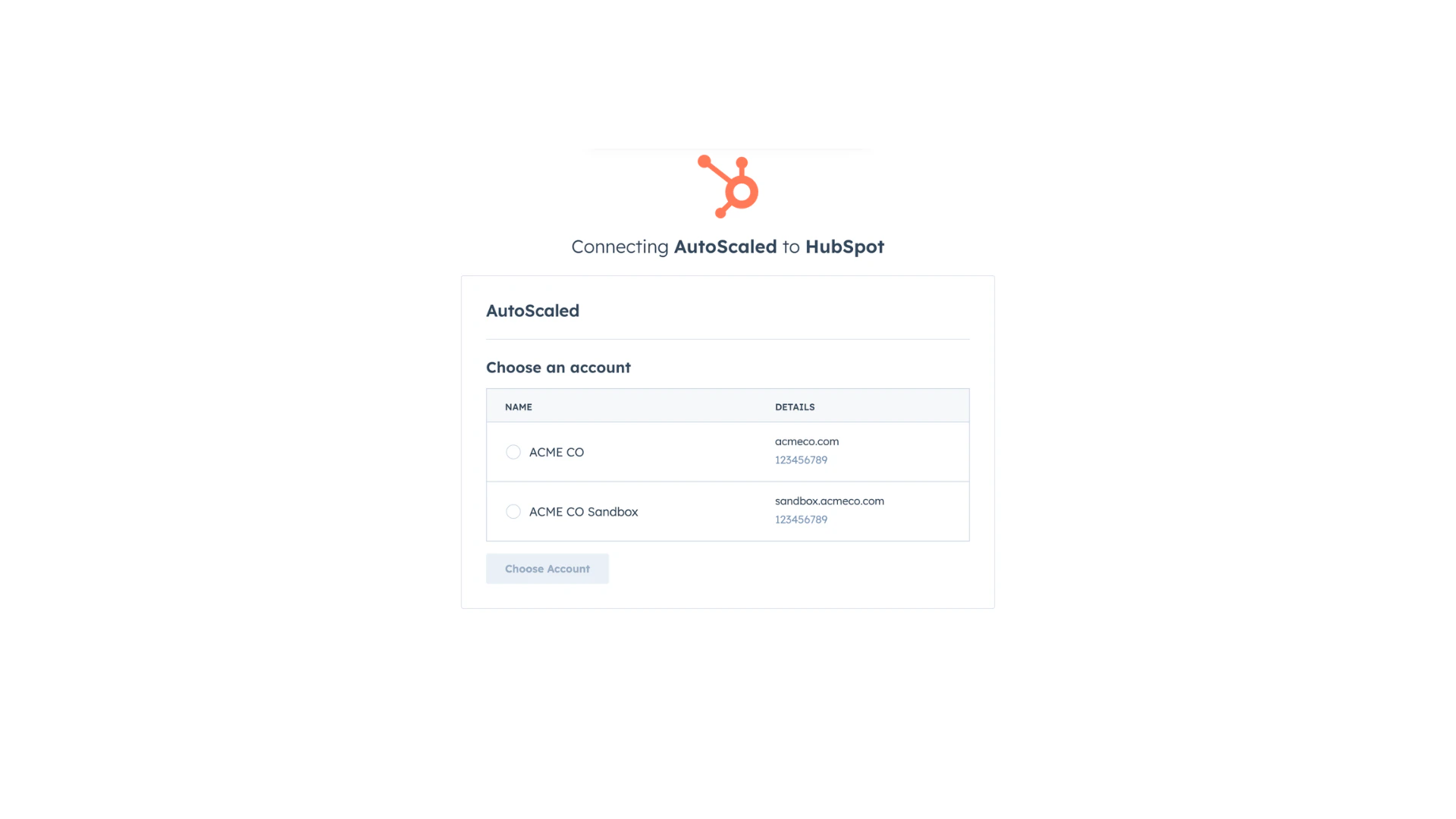
Selecting your HubSpot instance
Connecting Attio to AutoScaled
To use data from Attio, authenticate your Attio account. Go to Data Sources and click Connect next to Attio.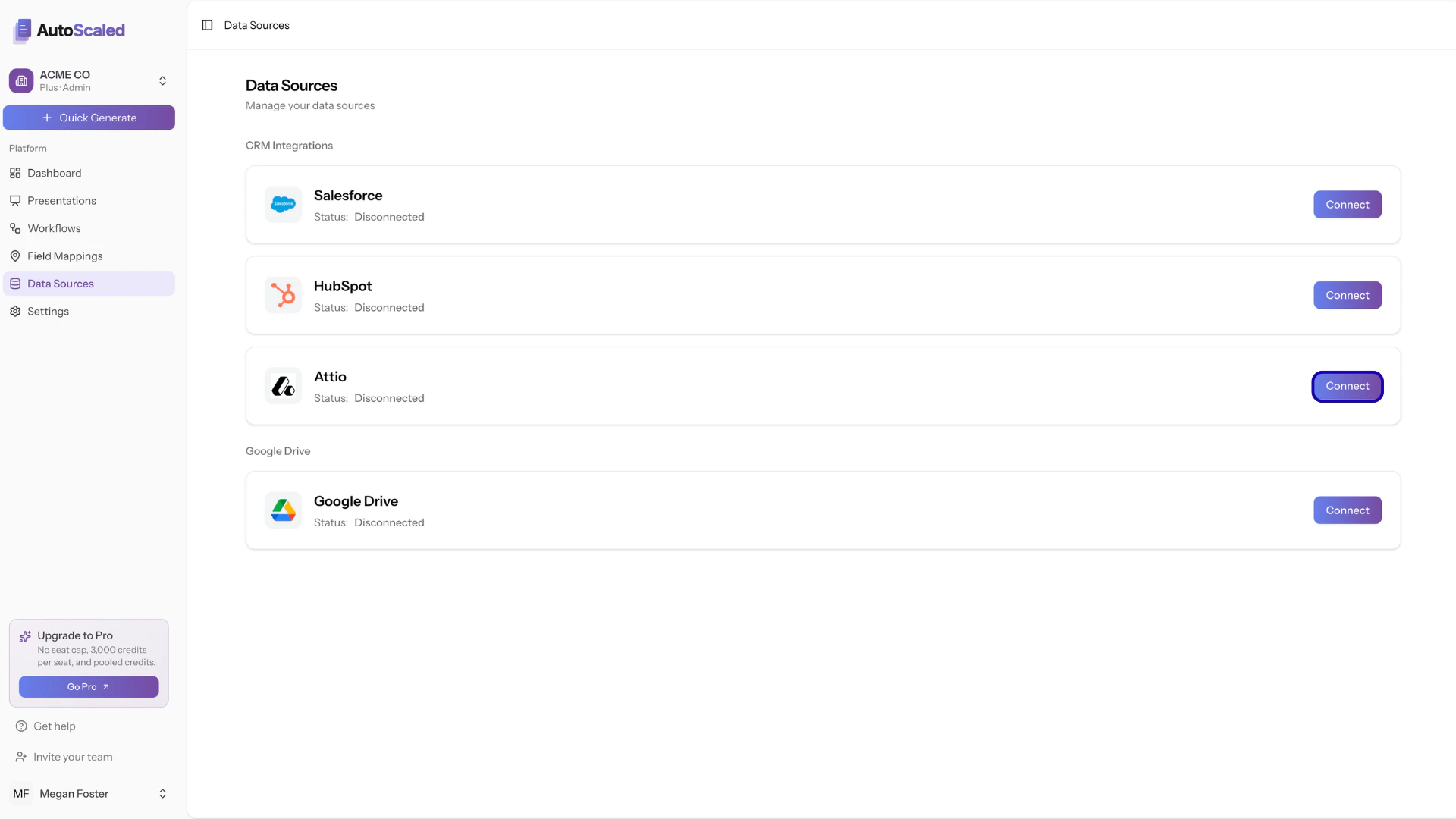
Connecting Attio to AutoScaled
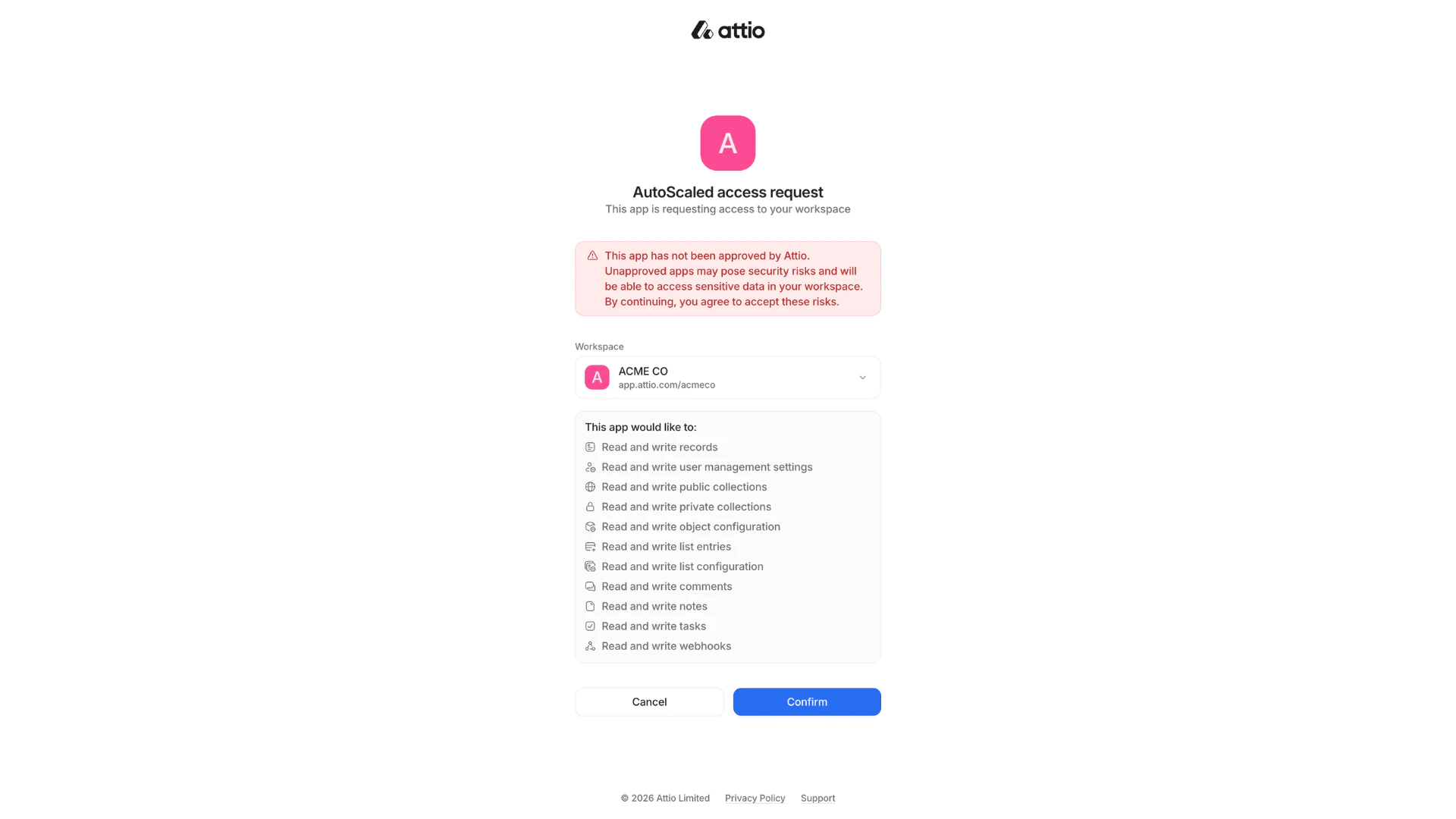
Attio sign-in or authorization
Connecting Attio Webhook for Triggers
Connecting Attio Webhook for Triggers
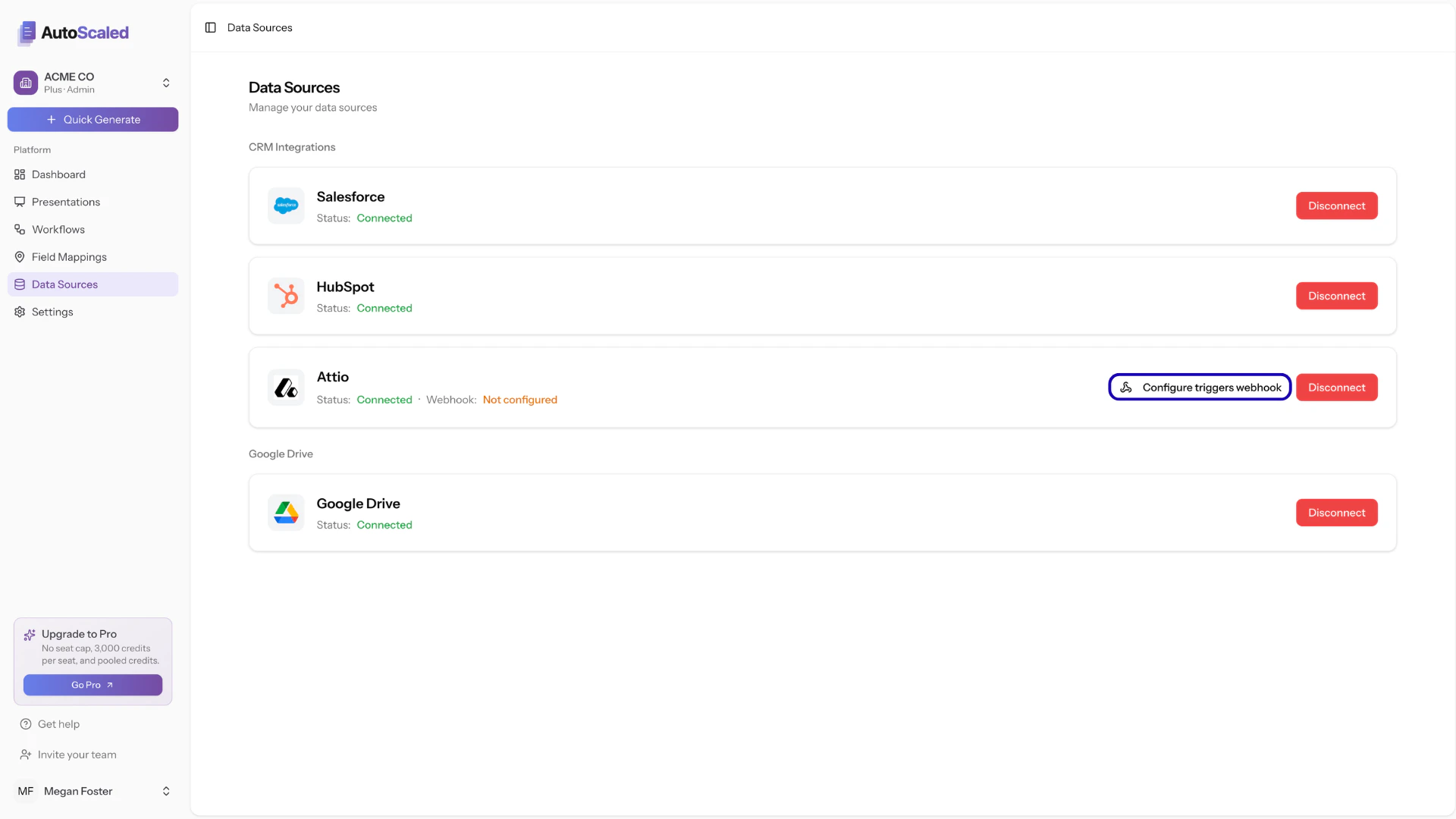
Click on 'configure triggers webhook'
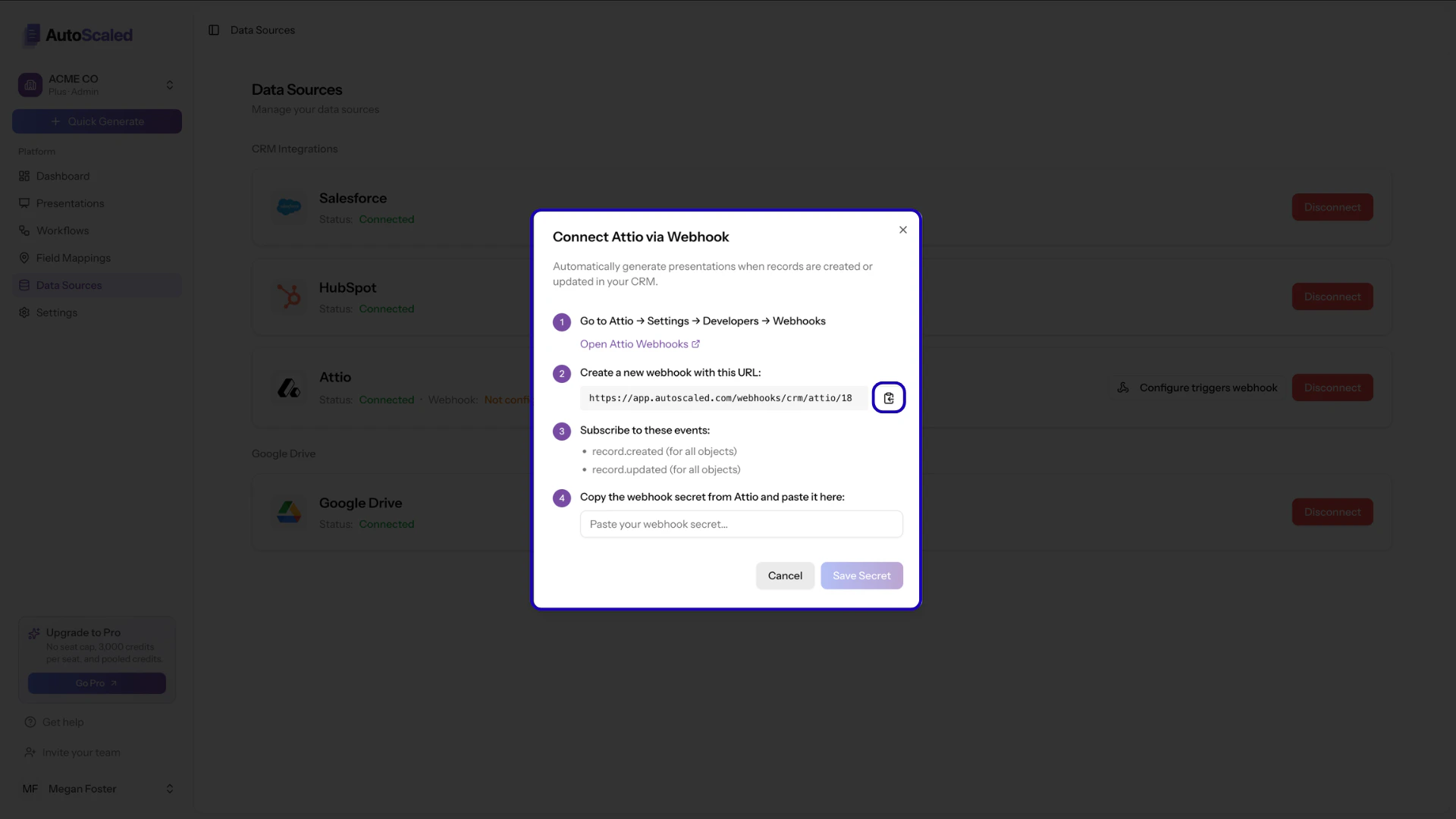
Copy the URL shown in the Attio webhook modal
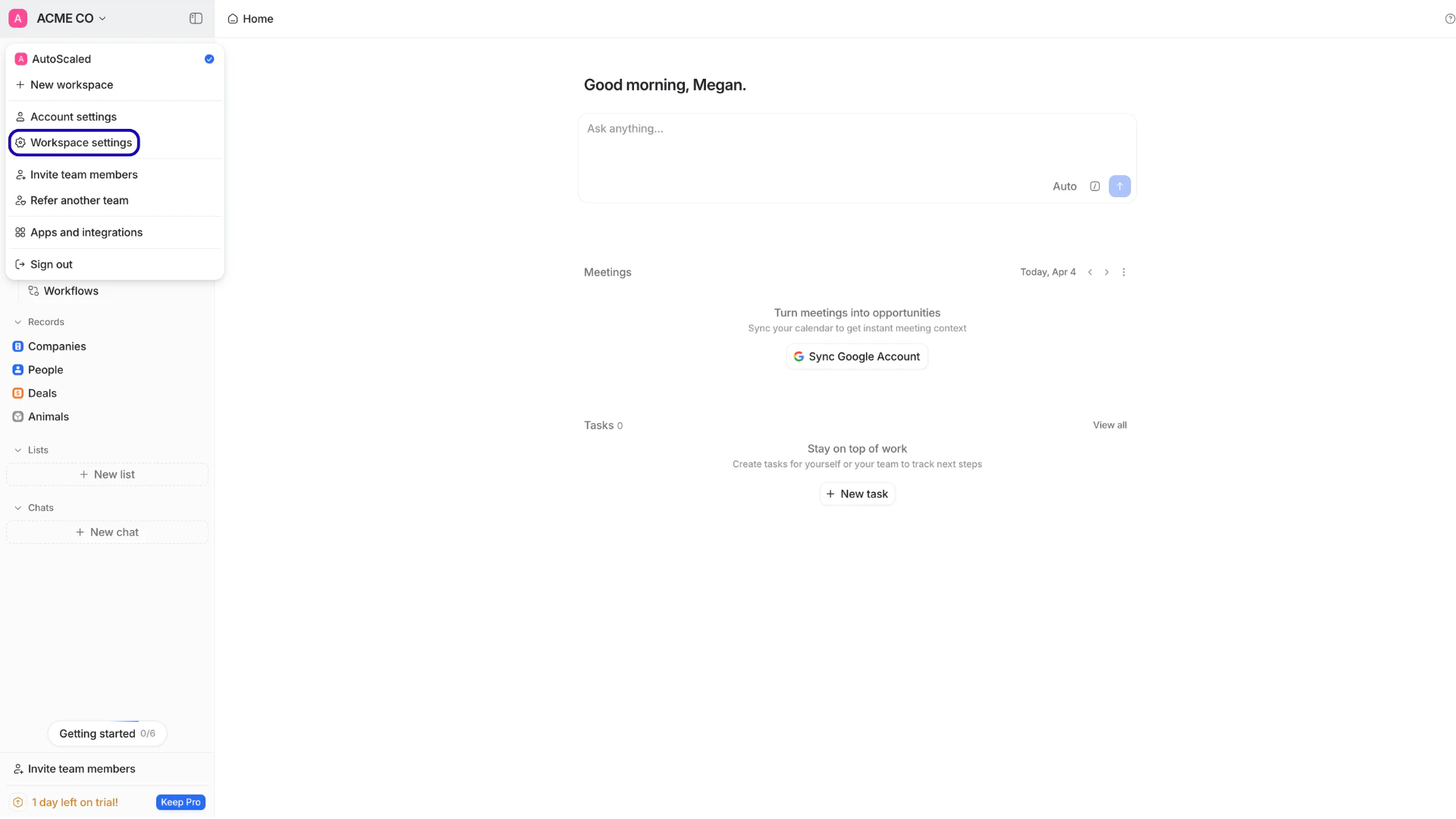
User name menu → Workspace settings
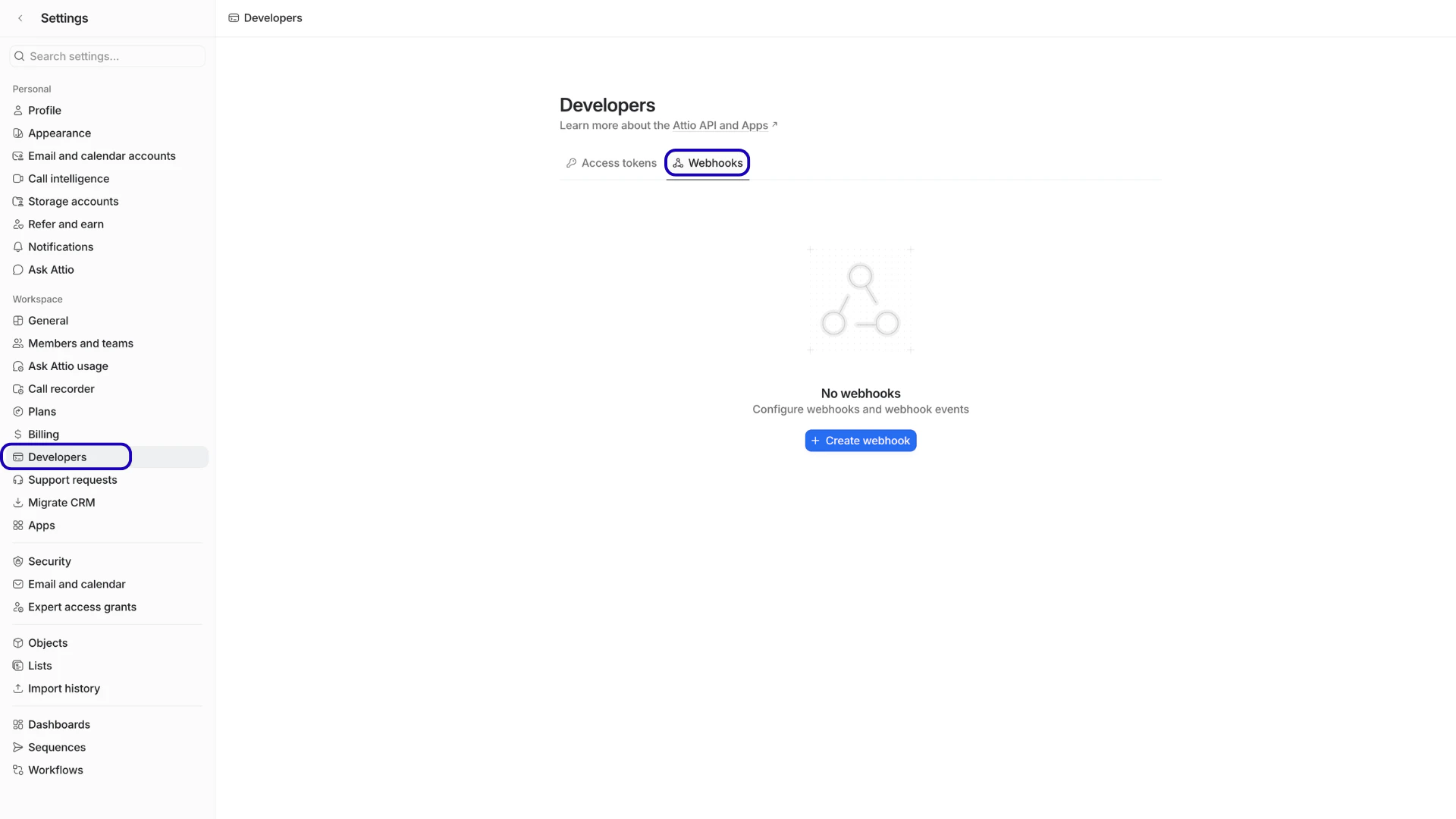
Navigating to Webhooks on the Developers page
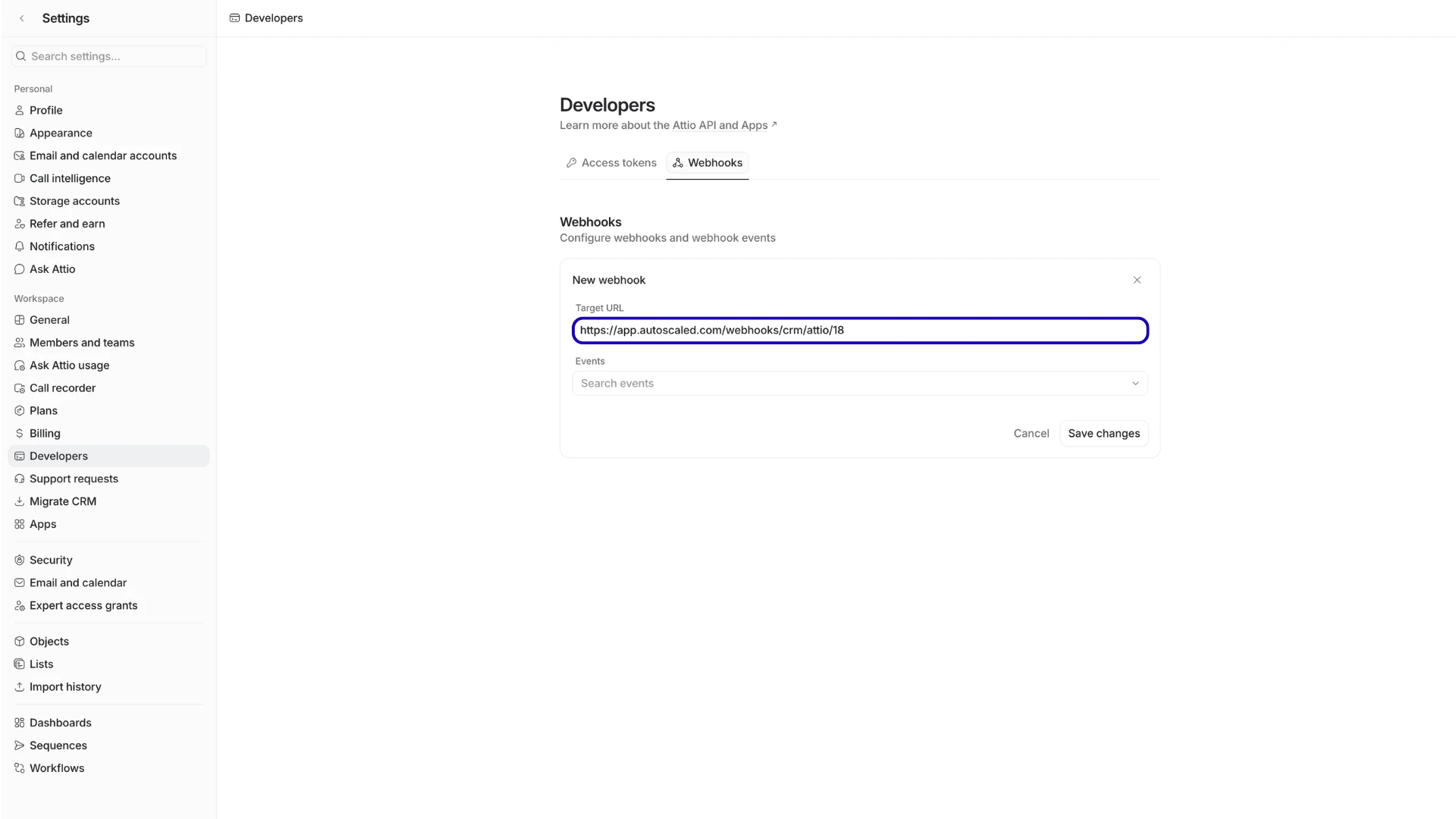
Paste the URL from step 1 as the Target URL
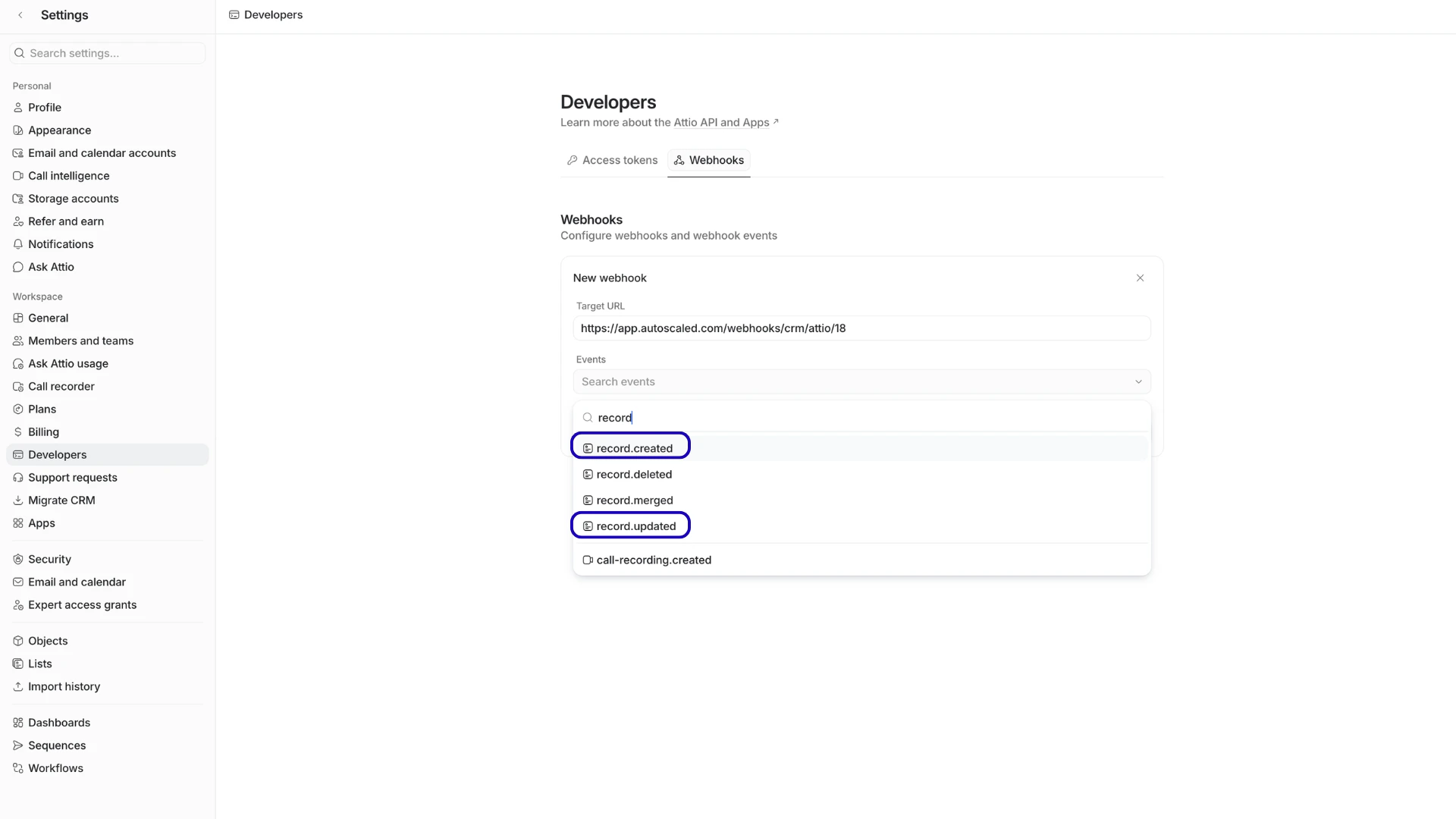
Select the record.created and record.updated events
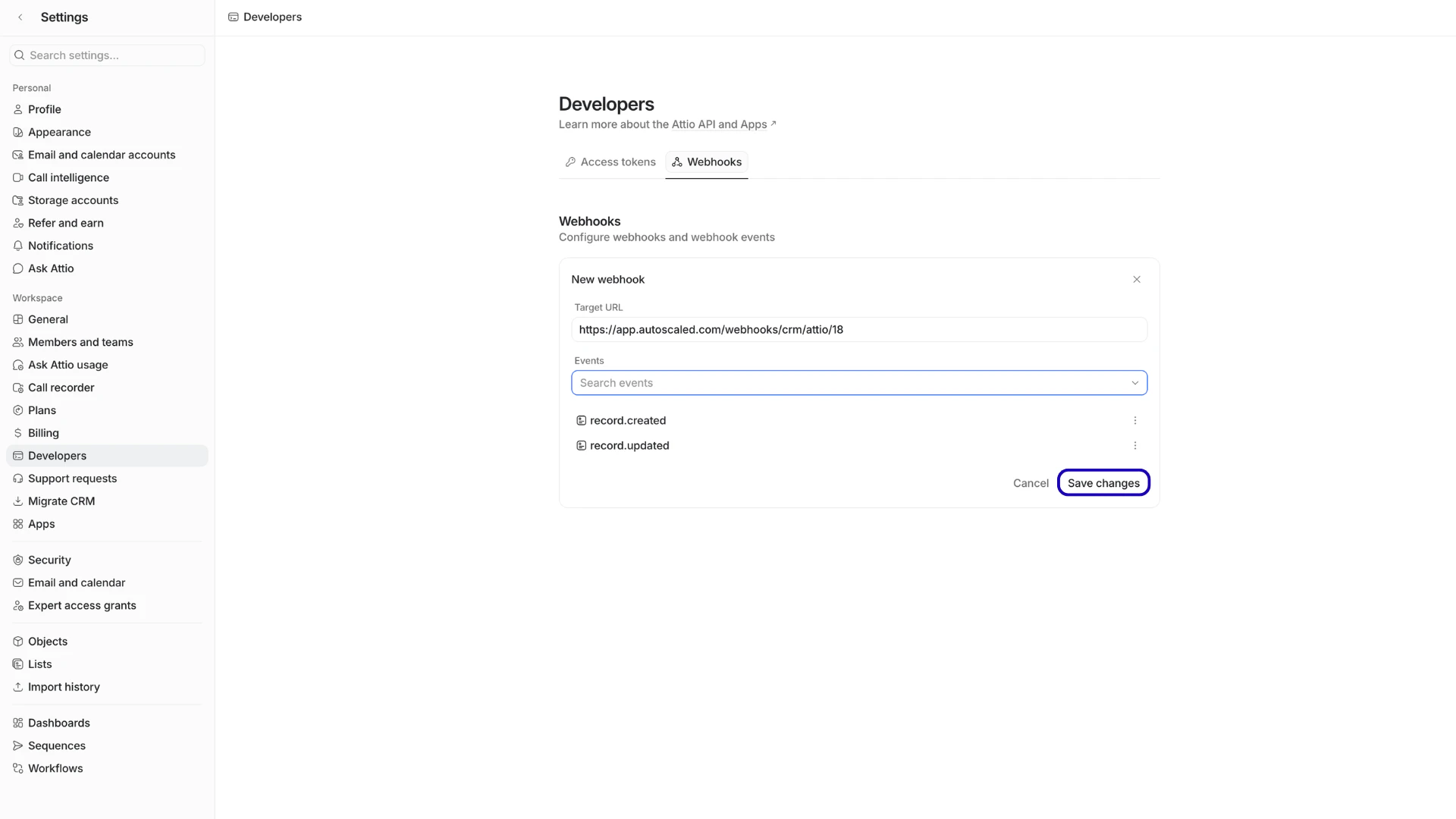
Saving the webhook in Attio
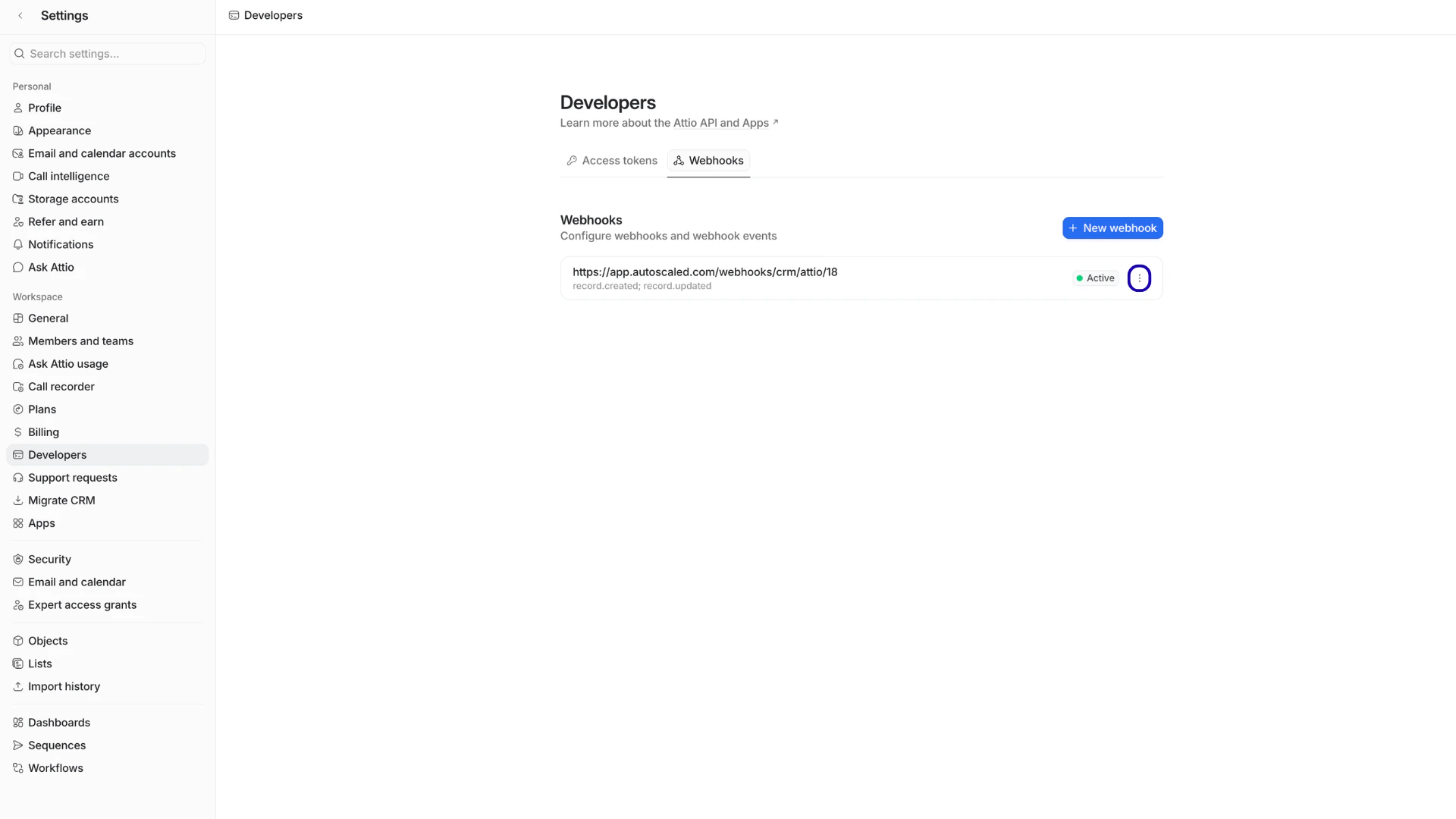
Click on the 3-dots next to the new webhook
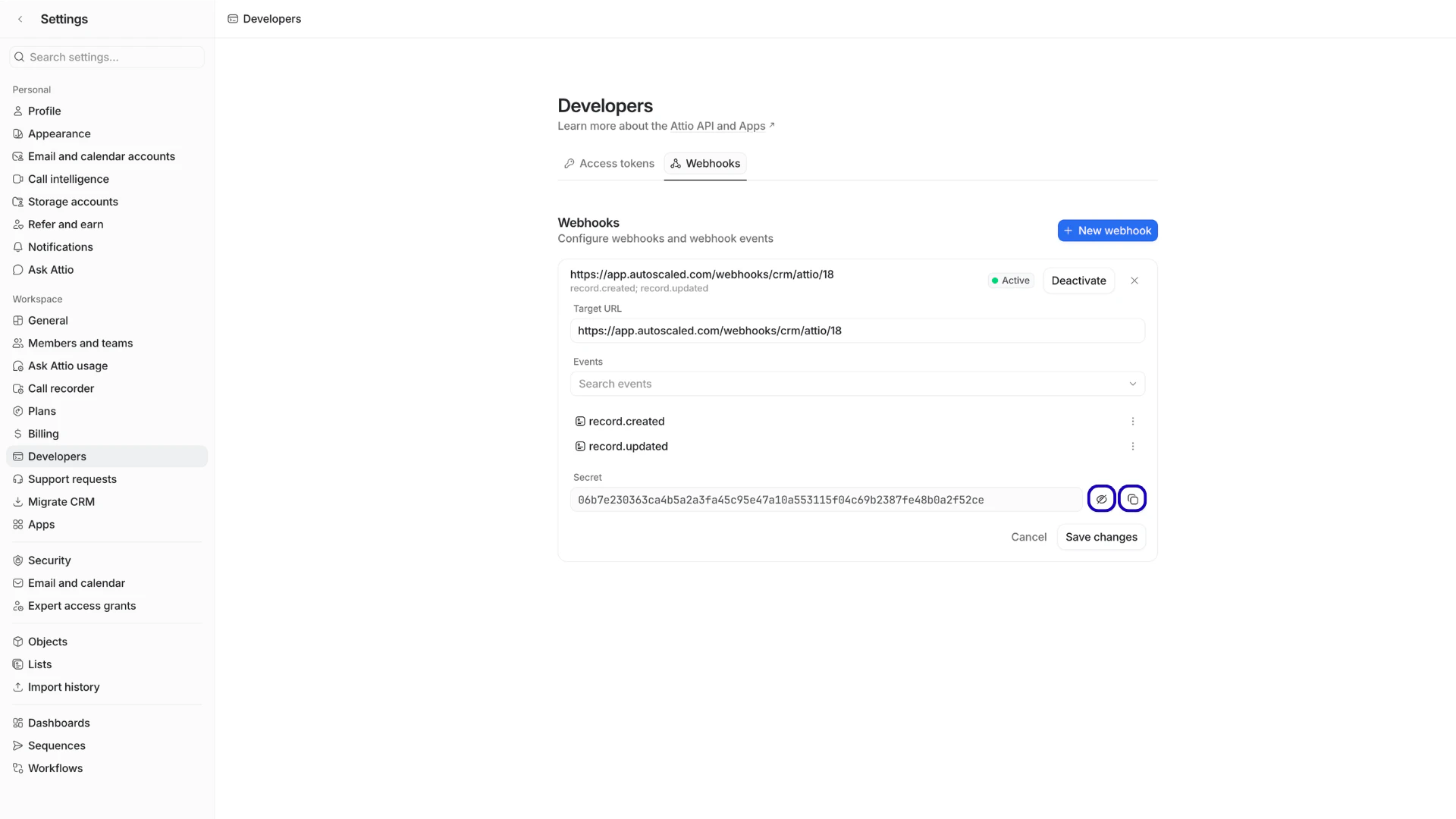
Copy the webhook secret to your clipboard
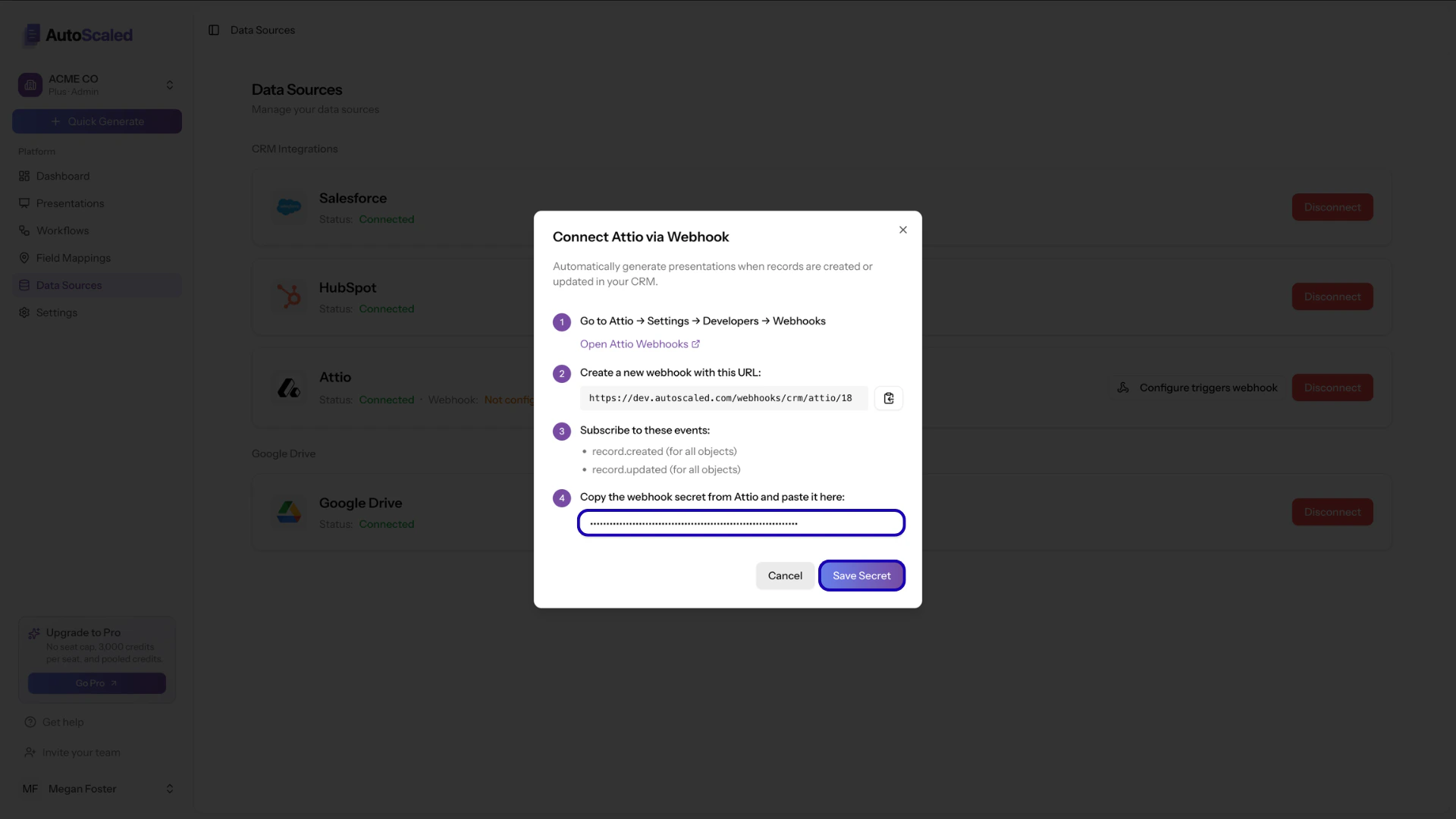
Paste the Attio webhook secret in AutoScaled
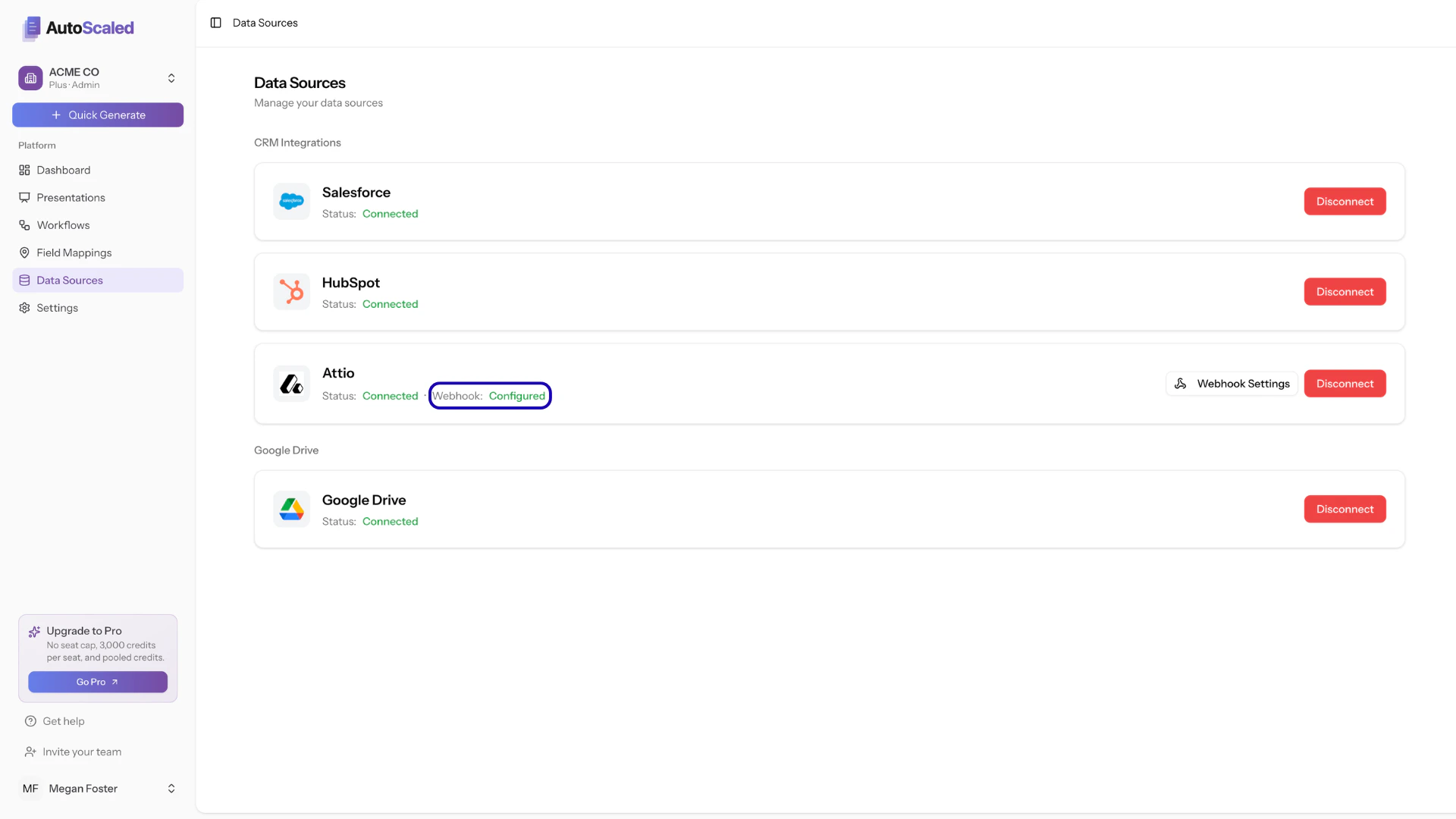
Fully configured Attio webhook in AutoScaled
Data access and permissions
Integration configurations in AutoScaled can be set up by any member of your organization, as long as they have the authorization within your CRM or Google Workspace to do so. Permissions and data access are at the user level: users only see data, records, objects, fields, spreadsheets, and templates (presentations) they can access in the underlying integration.Other spreadsheet software integrations
Microsoft Excel upload in AutoScaled
AutoScaled currently only supports upload of Microsoft Excel files. You do not need to integrate Microsoft Excel via API. Upload your Excel file with your prompt to generate presentations using that file as a data source..png?fit=max&auto=format&n=JiWNT4SnEGqZr1ya&q=85&s=db4110b4c5a73c39422e371e870e5ad1)
Upload Excel or CSV directly to AutoScaled
CSV upload in AutoScaled
AutoScaled currently only supports upload of CSV files. You do not need to integrate CSV via API. Upload your CSV file with your prompt to generate presentations using that file as a data source.Other presentation software integrations
Microsoft PowerPoint download in AutoScaled
All presentations that are generated can be downloaded as Microsoft PowerPoint. You do not need an additional API connection for this. You can read more about downloading PowerPoint presentations on the content management page. You do not require a Microsoft 365 account in order to utilize Microsoft PowerPoint in AutoScaled.PDF download in AutoScaled
All presentations that are generated can be downloaded as PDF. You do not need an additional API connection for this. You can read more about downloading PDFs on the content management page.Anything missing? Let us know at [email protected] and we’ll help you out!