Set up Attio to Generate Sales Decks Automatically
Attio integration setup for AutoScaled: connect your account, configure scopes, and auto-generate sales decks from live CRM data. Start automating today.
Complete the Attio sign-in and authorization flow.
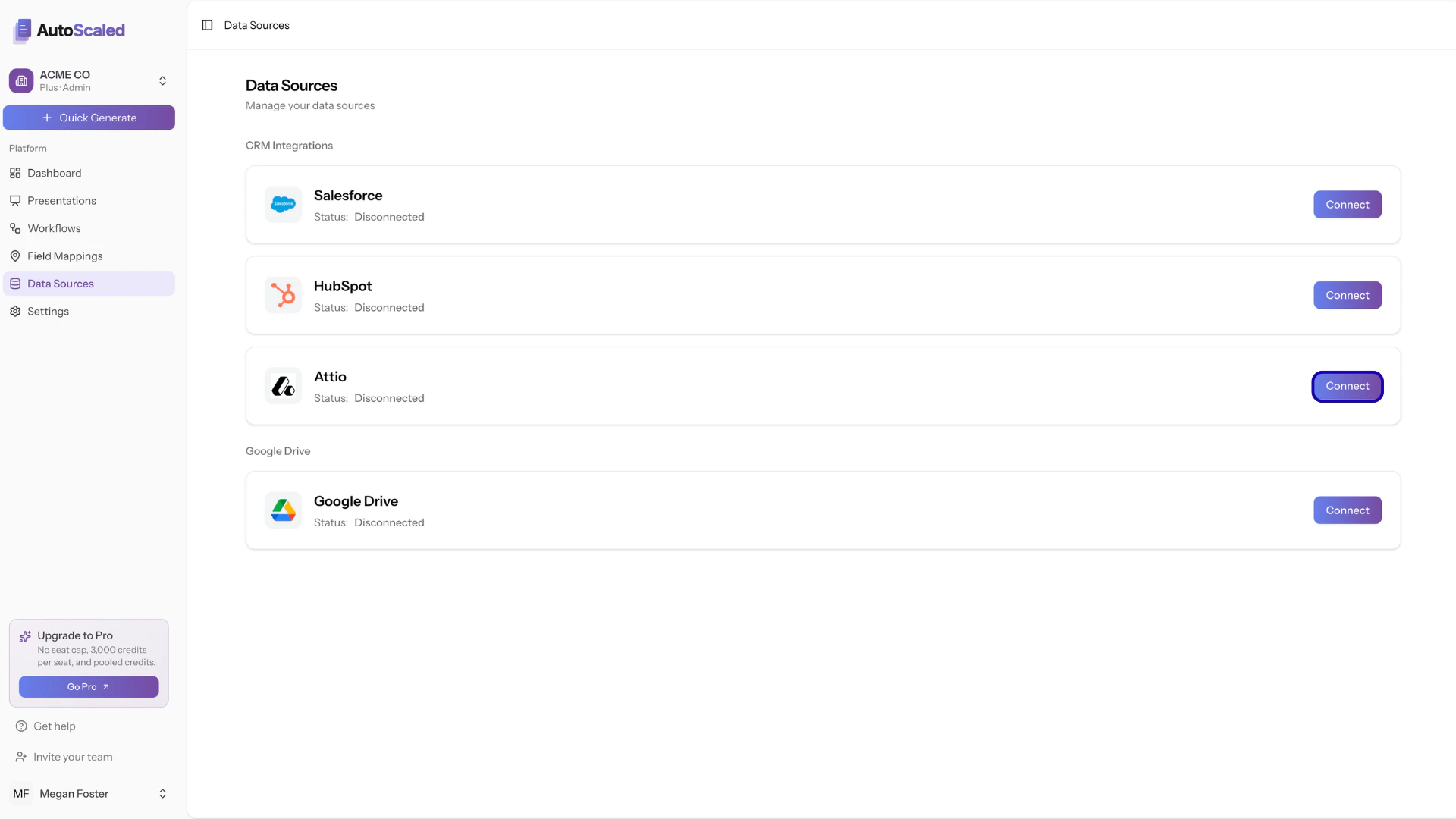
Connecting Attio to AutoScaled
This will open an Attio dialog so you can sign in to your account:
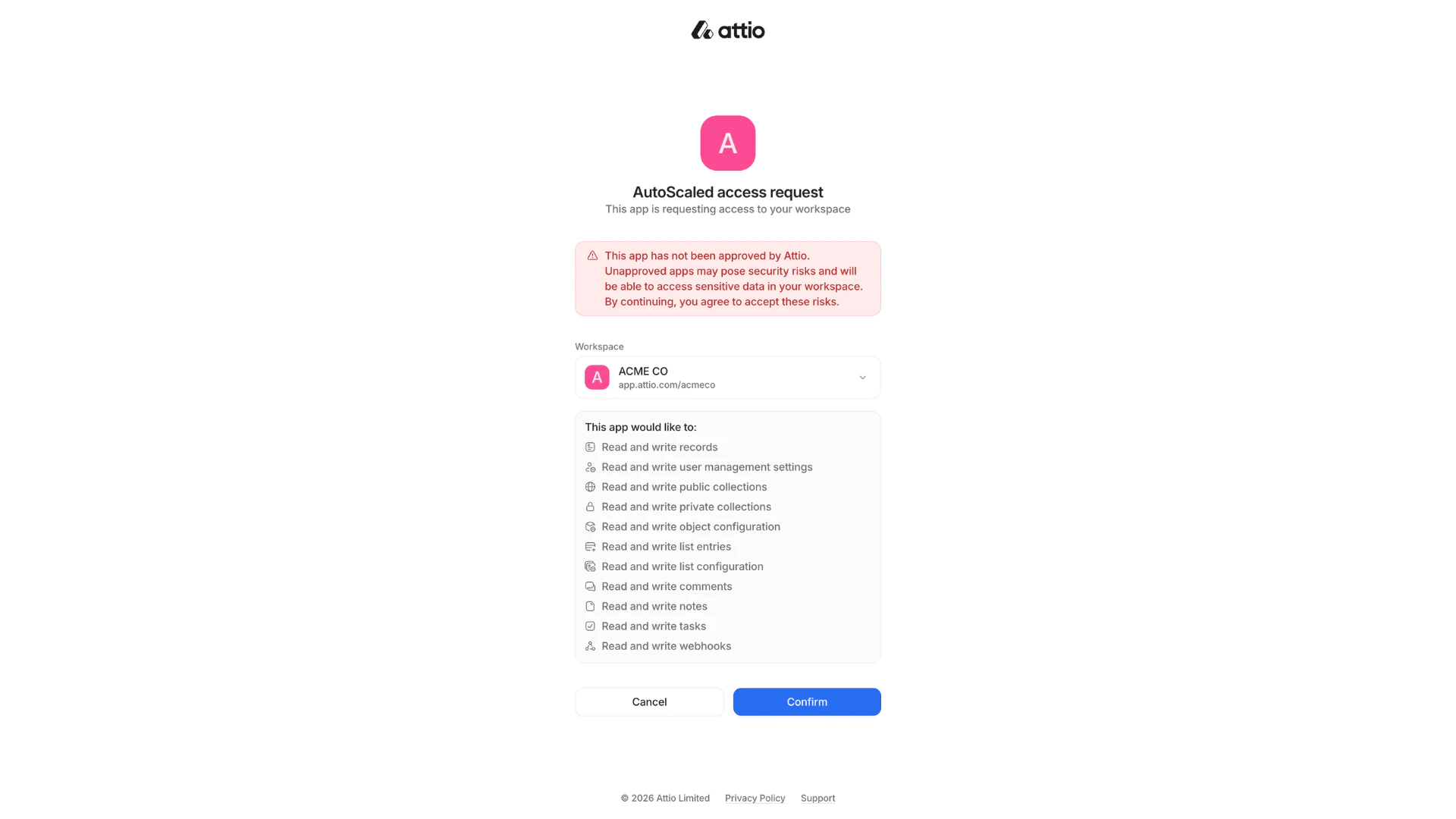
Attio sign-in or authorization
Attio might show a warning as you’re connecting a third-party tool to Attio. This is standard and default behavior. You can continue connecting AutoScaled and revoke access at any time.
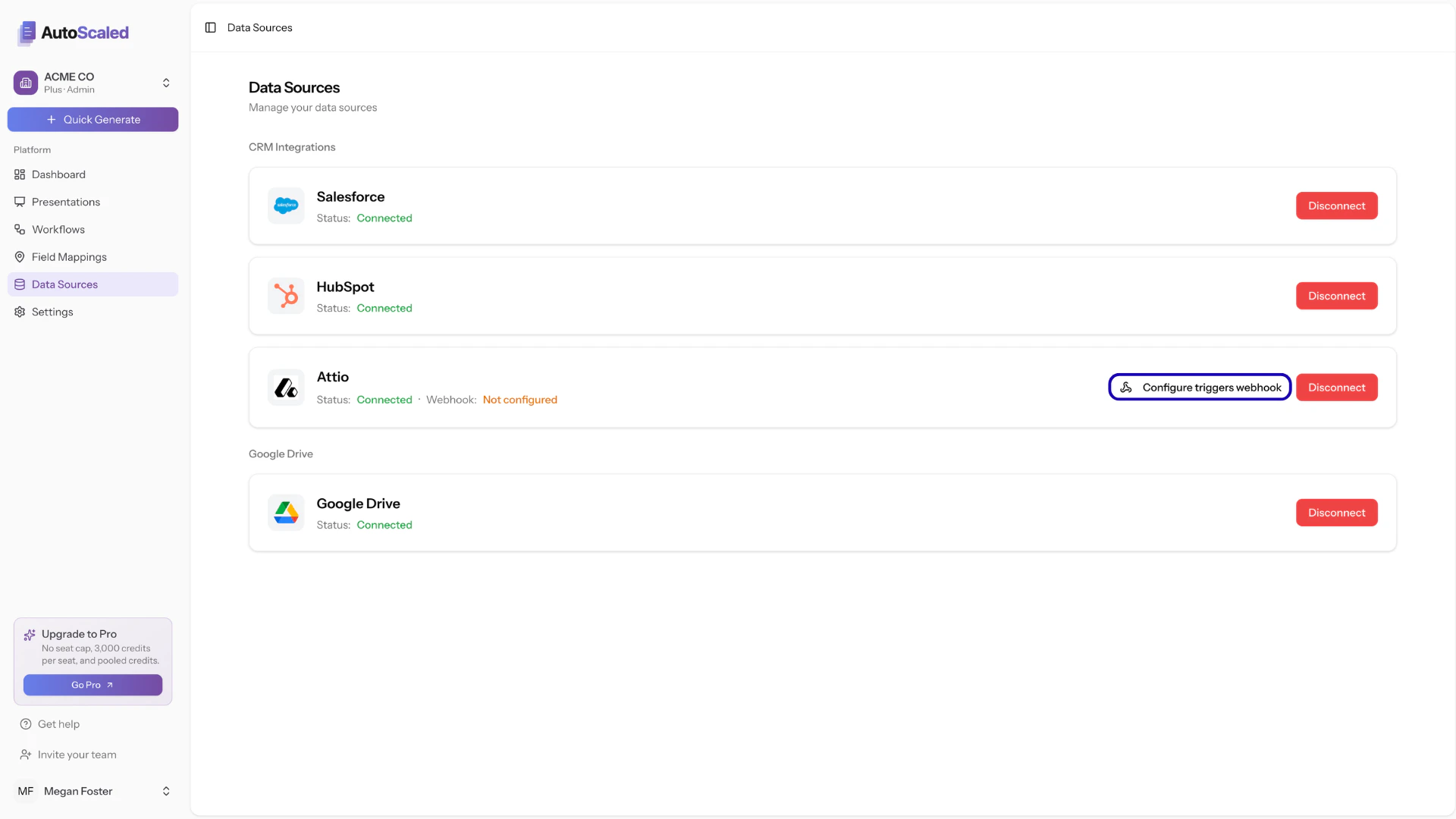
Once connected, you will see the status update to Connected. You can use Attio for running manual presentation generation and content scheduling.
If you want Attio-based trigger automations, configure the Attio webhook from Data Sources using Configure Triggers Webhook and complete the setup in Attio.To use triggers in Attio, you need to configure a webhook. The steps below walk through the full setup (four parts).
Connecting Attio Webhook for Triggers
To use triggers (e.g. generate a presentation when a deal gets updated in Attio or send a sales deck when a new lead signs up in Attio) you will need to configure a webhook in Attio. The process is simple and straightforward.Step 1: In AutoScaled, open Data Sources and click Configure Triggers Webhook.
Click on 'configure triggers webhook'
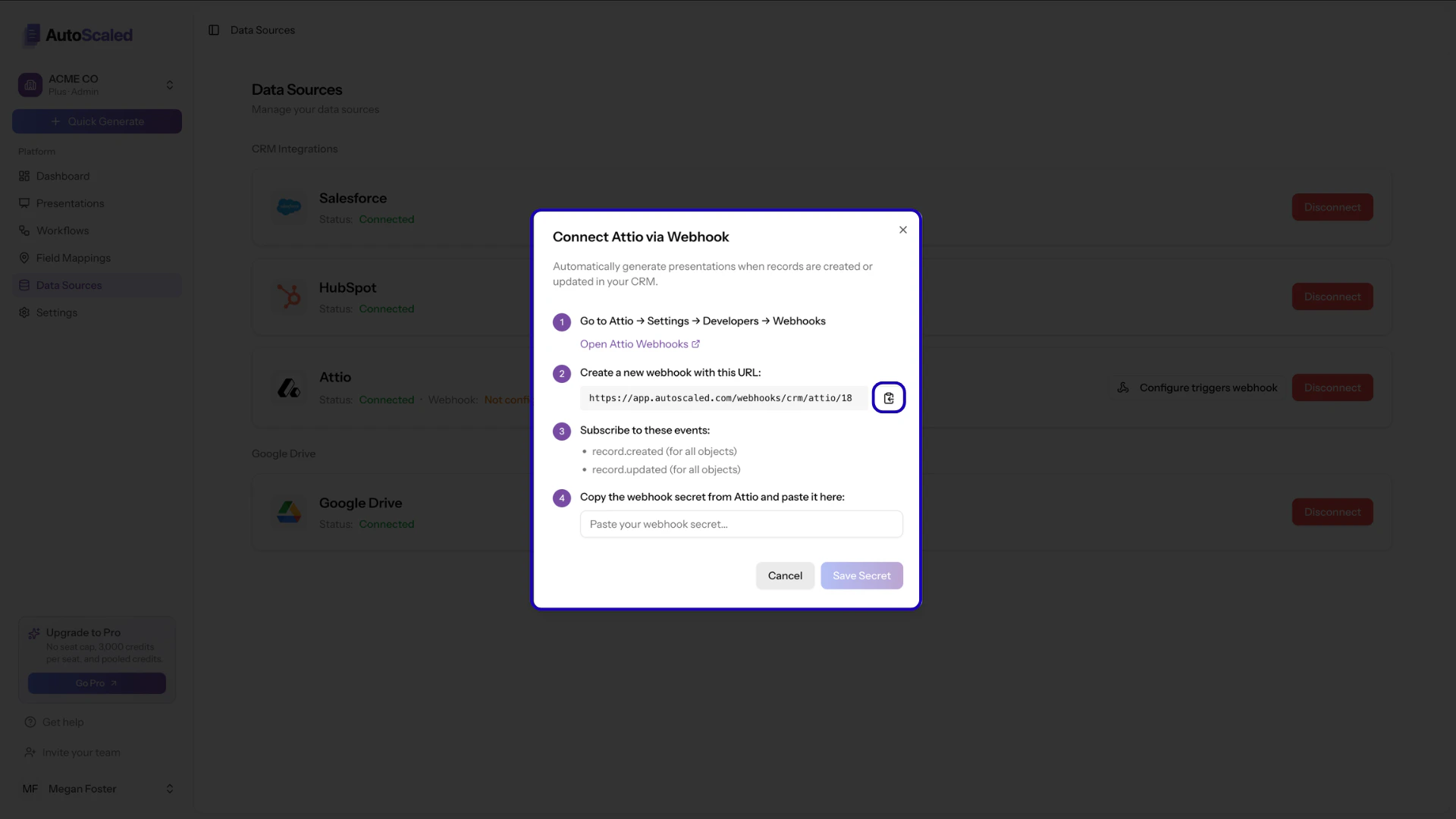
A modal will open with instructions. Copy the webhook URL.
Copy the URL shown in the Attio webhook modal
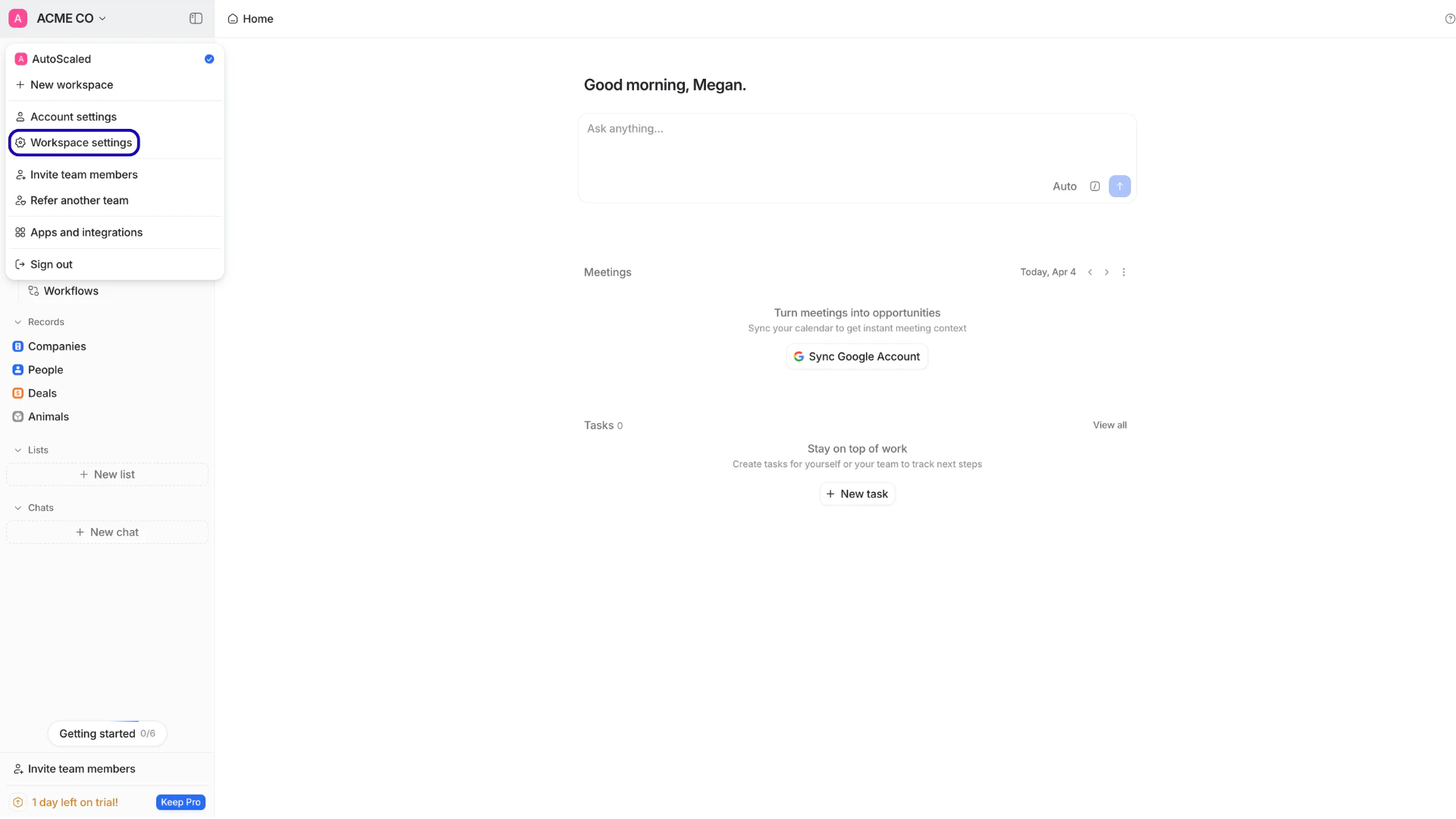
Step 2: Open Attio workspace settingsIn your Attio account, open the menu in the top left, click your user name, and select Workspace settings.
User name menu -> Workspace settings
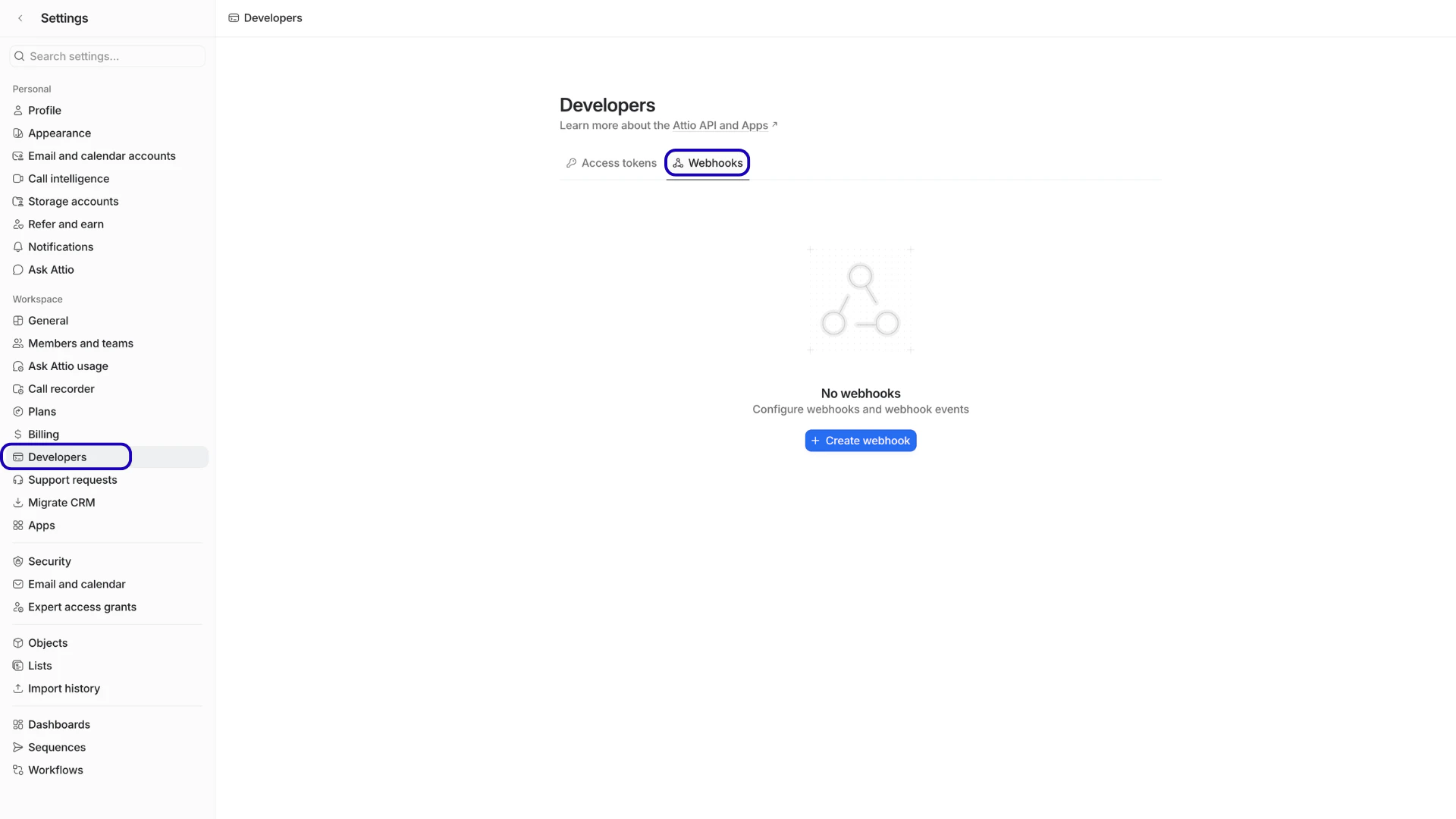
In the left-hand menu, select Developers, then Webhooks.
Navigating to Webhooks on the Developers page
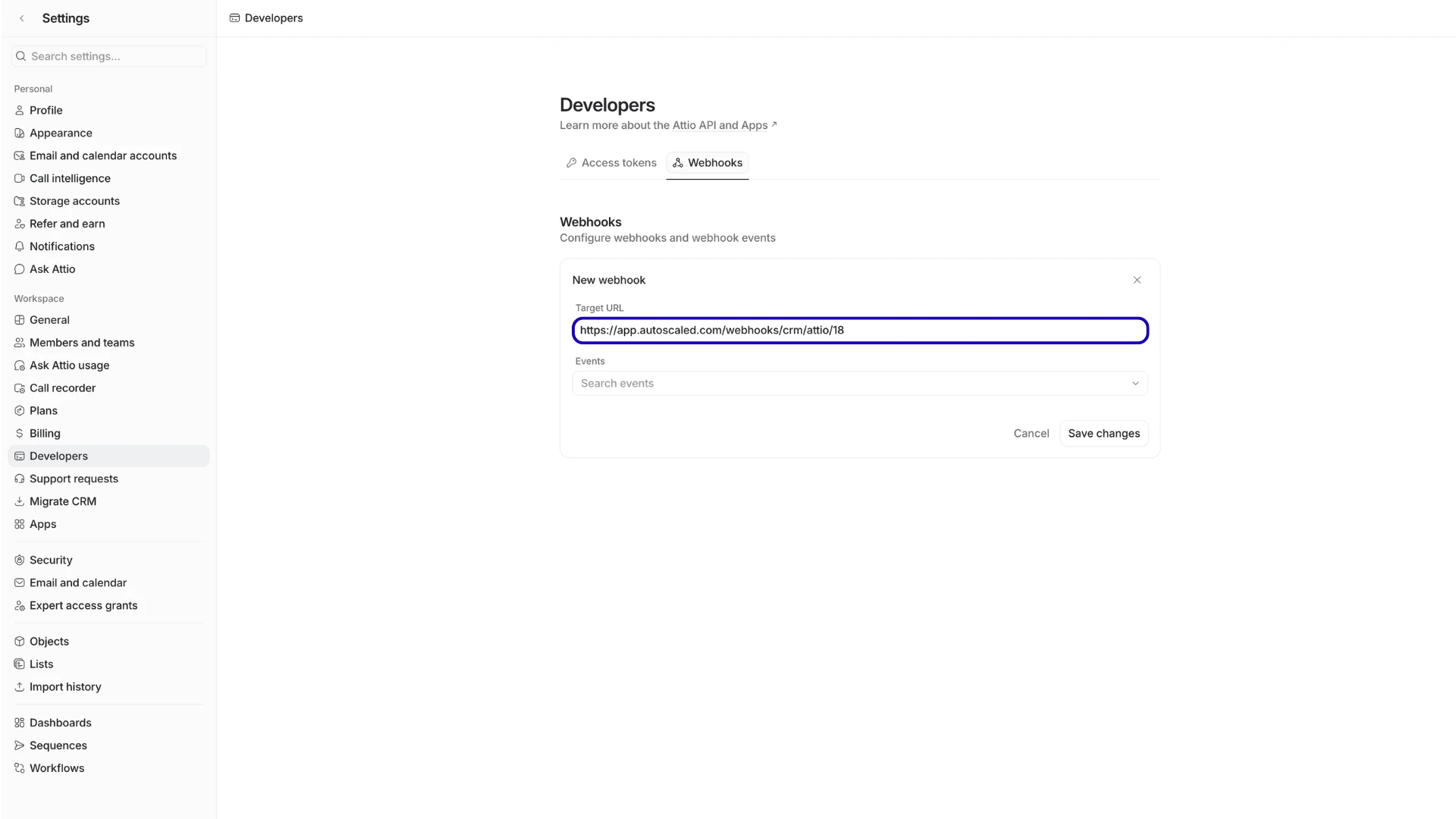
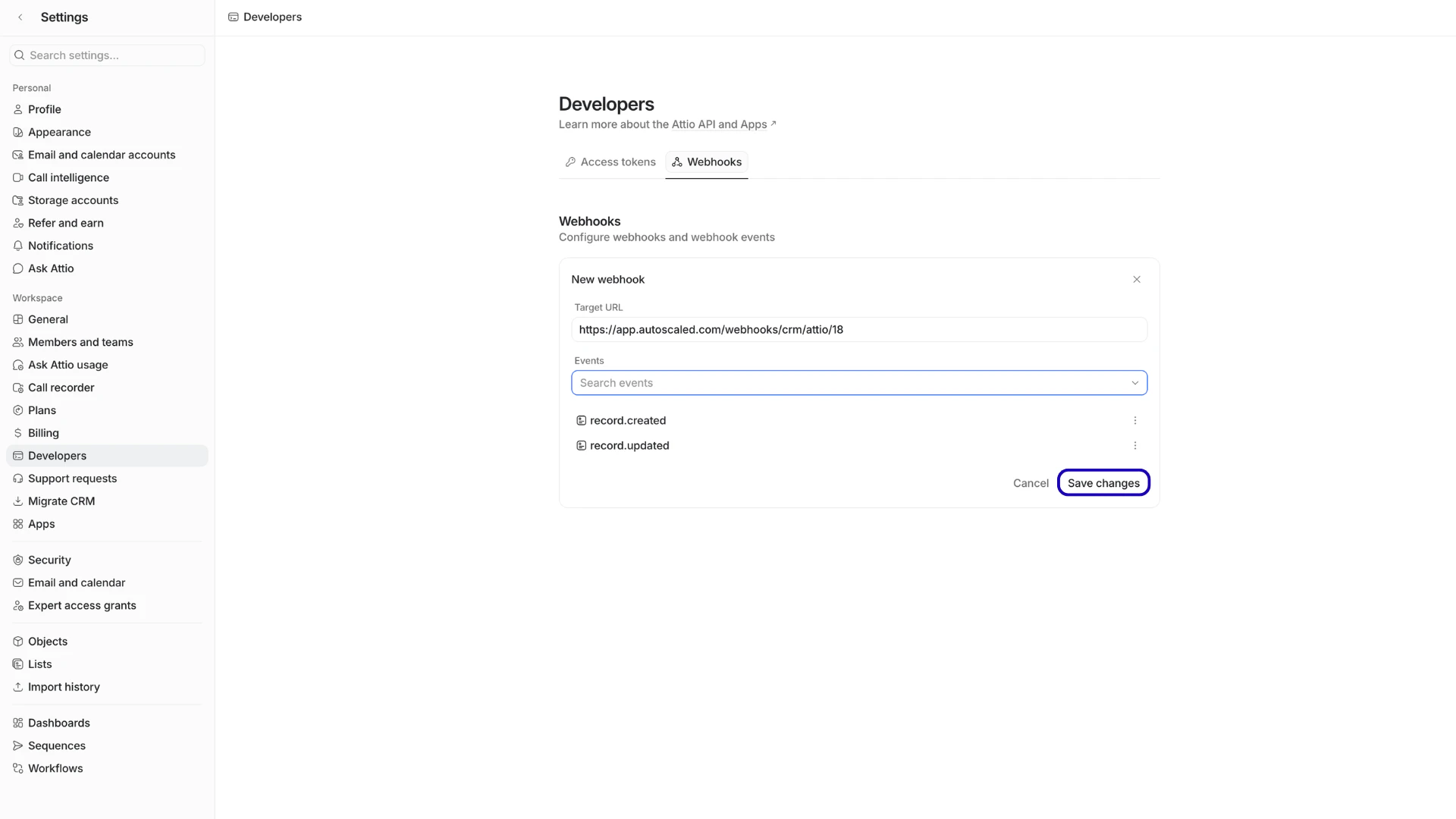
Step 3: Create a webhook and paste the URLClick Create Webhook. When the modal opens, paste the URL you copied in step 1 into the Target URL field.
Paste the URL from step 1 as the Target URL
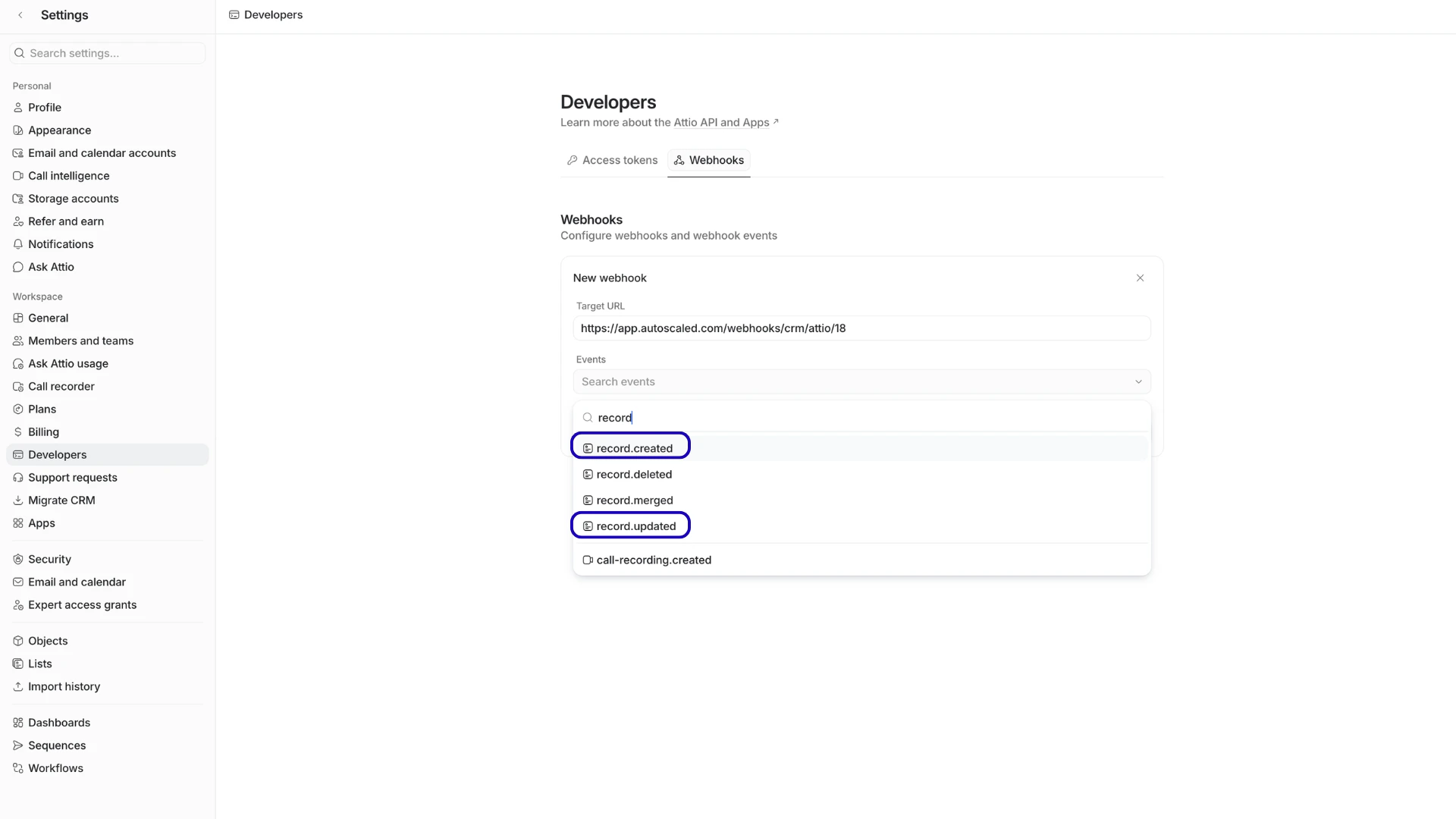
After pasting the target URL, search for the following two events:
record.createdrecord.updated
These events notify AutoScaled when a new record is created or when an object field is updated:
Select the record.created and record.updated events
Now save the webhook in Attio:
Saving the webhook in Attio
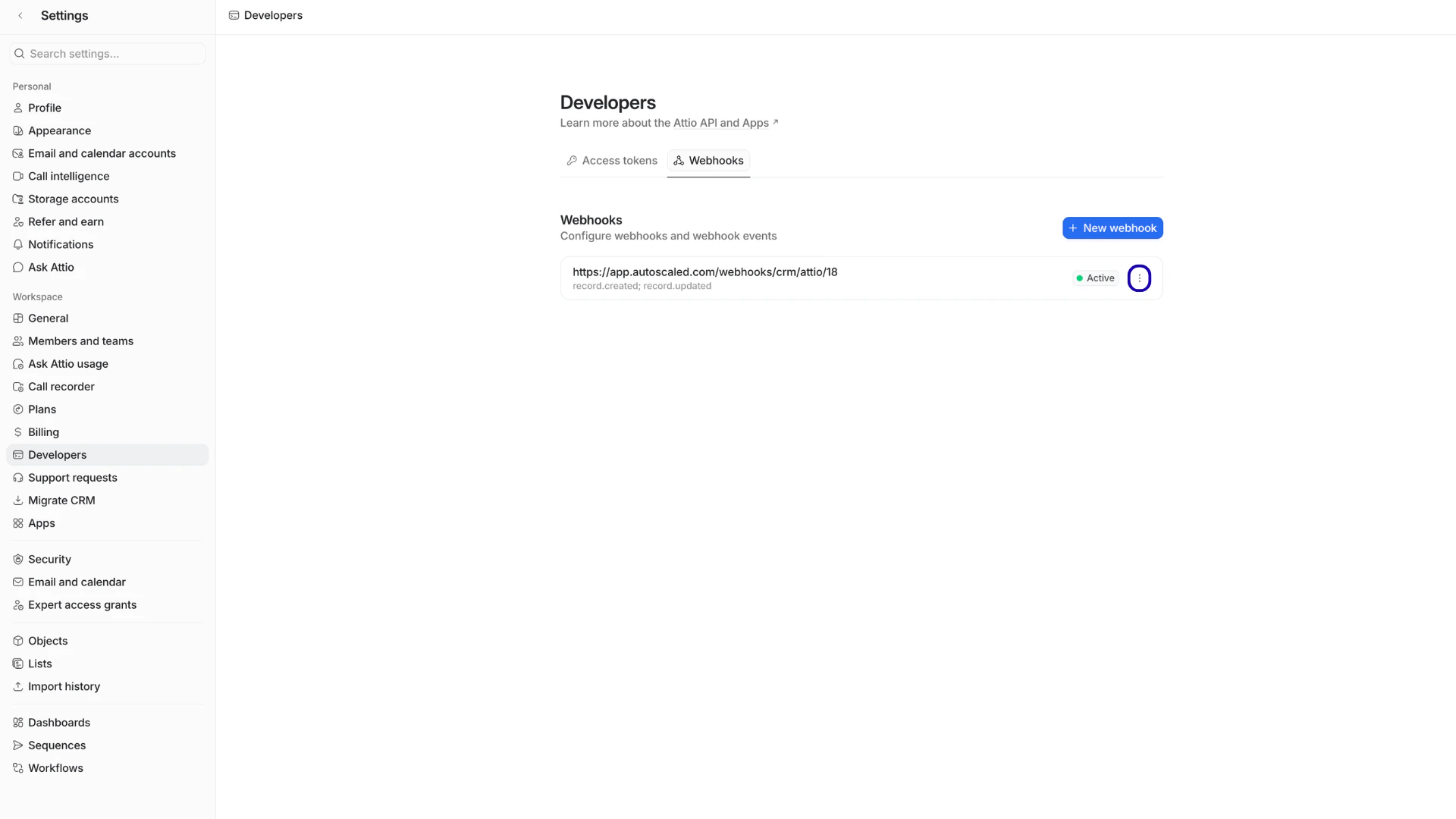
Step 4: Adding the webhook secret to AutoScaledYour webhook is now set up in Attio. Follow these steps to add the webhook details to AutoScaled.In the webhook overview in Attio, click on the 3-dots next to the newly created webhook:
Click on the 3-dots next to the new webhook
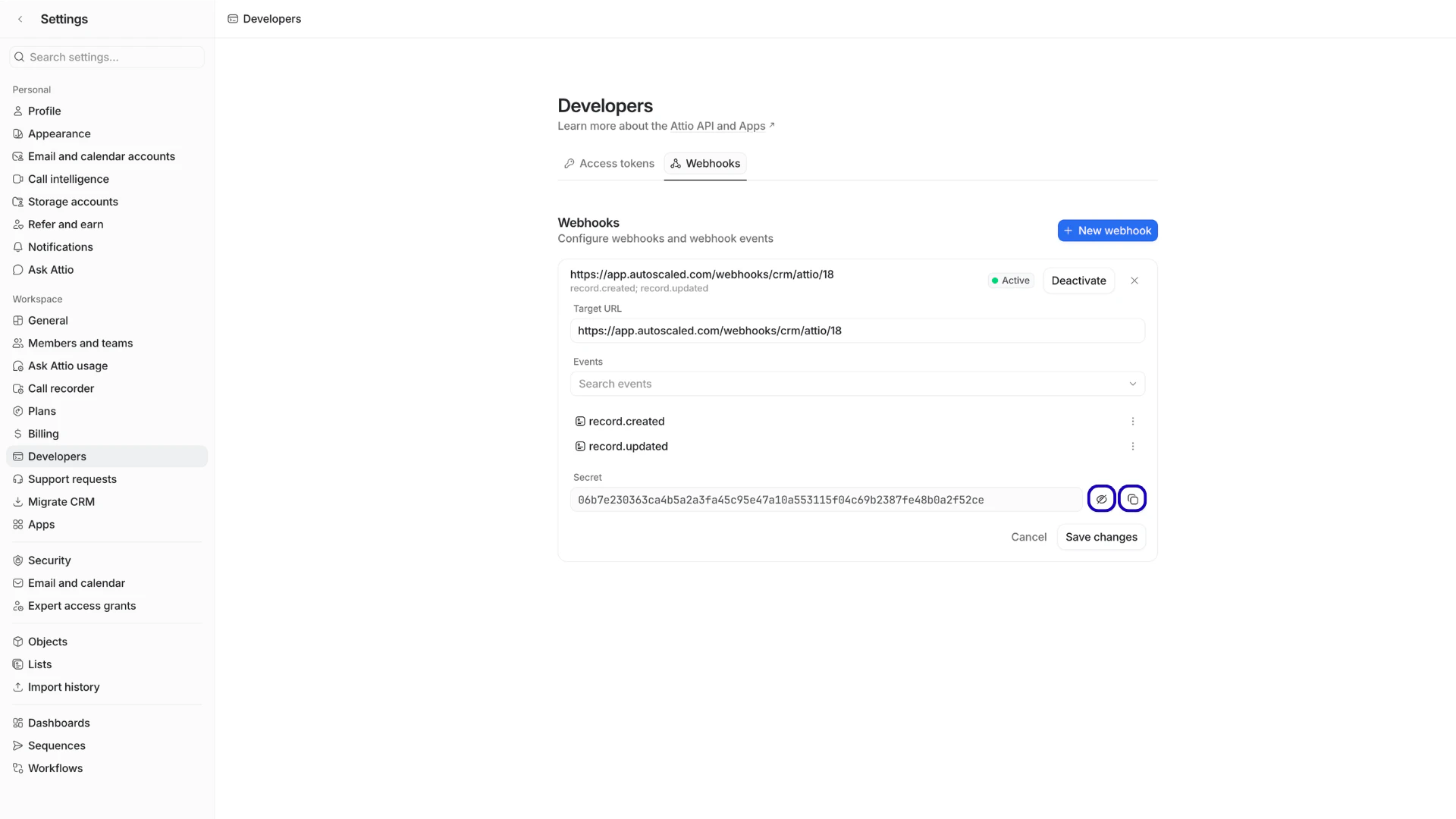
The modal reopens with the latest information about your webhook. Find Secret and copy the value to your clipboard.
Copy the webhook secret to your clipboard
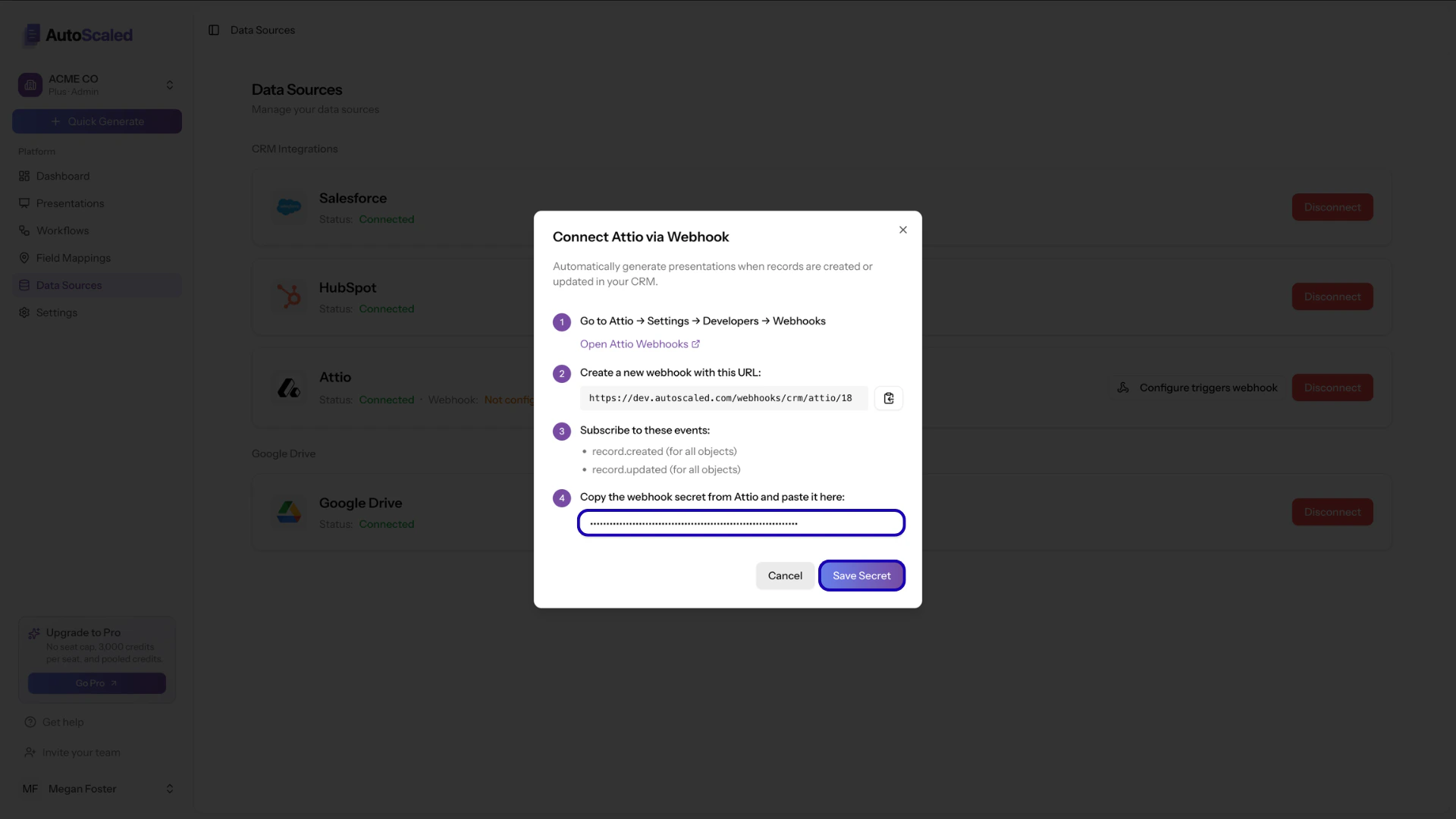
Finally, return to the Configure Triggers Webhook modal in AutoScaled and paste the secret into the webhook secret field.
Paste the Attio webhook secret in AutoScaled
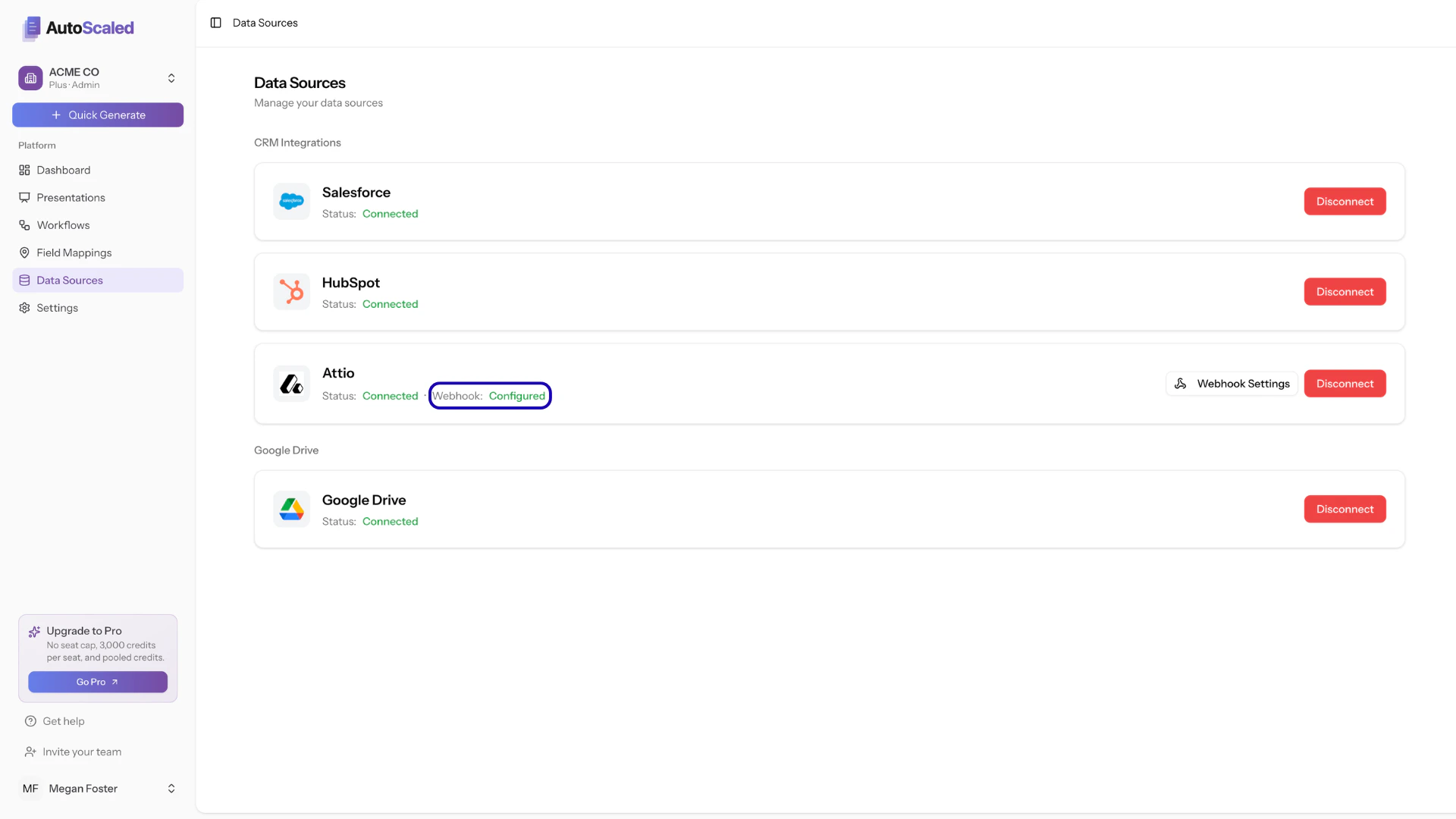
Now save the secret. All steps are now done and you will see the webhook is configured.
Read-only access to default Attio records (deal-equivalent, contact-equivalent, company-equivalent objects)
Event listening access for CRM change triggers (for example record.created and record.updated)
Equivalent access on custom objects included in your automations
AutoScaled respects your Attio permissions model and only exposes data already available to the authorized Attio user. AutoScaled has no write access to Attio and cannot edit records, objects, or fields.