
Chat Interface
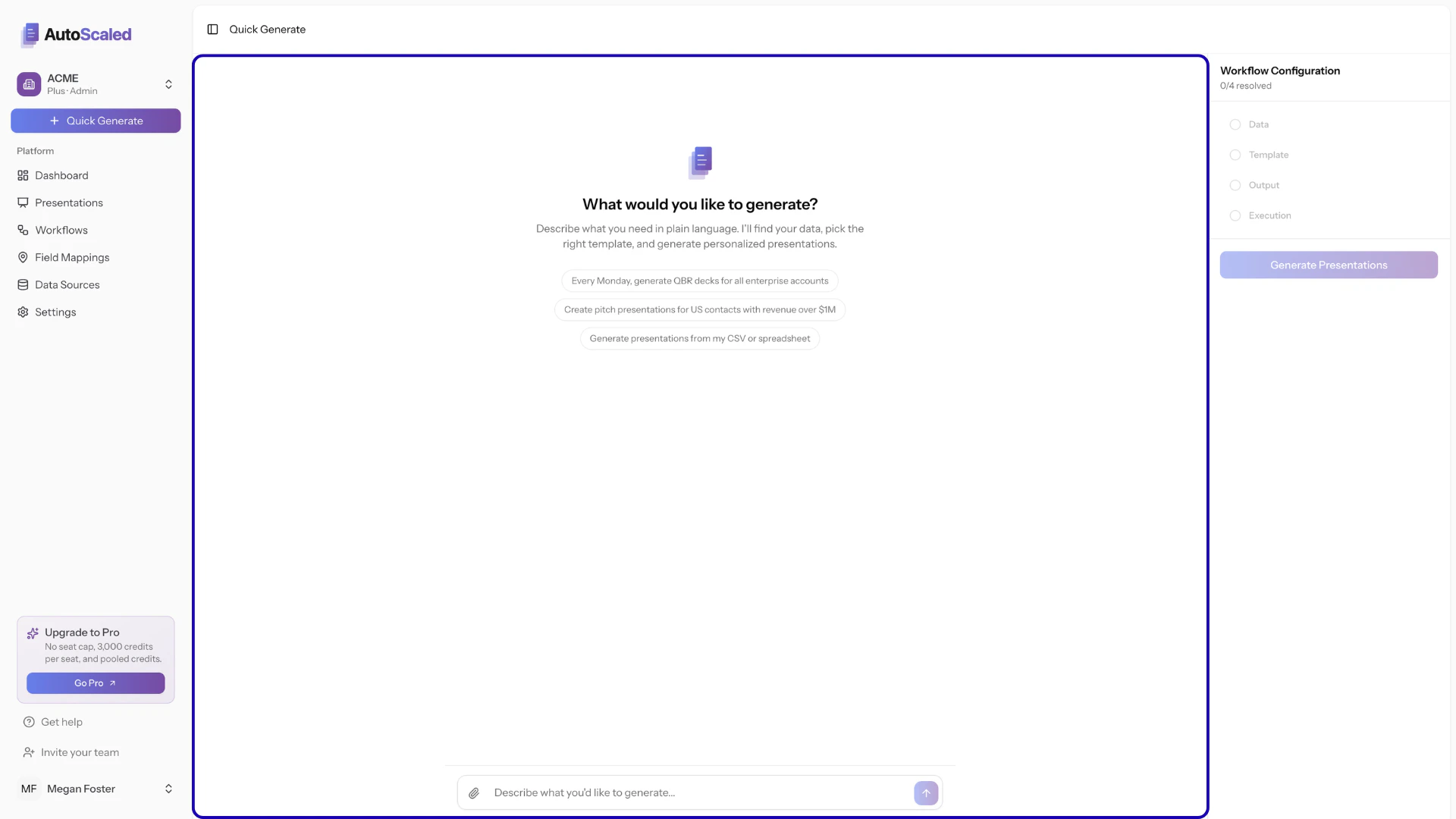
The screen is split into two panels:- Chat Panel (left): An interactive conversation where you describe what you want to generate, answer questions, and make selections. The AI guides you through data source selection, filtering, template picking, and field mapping.
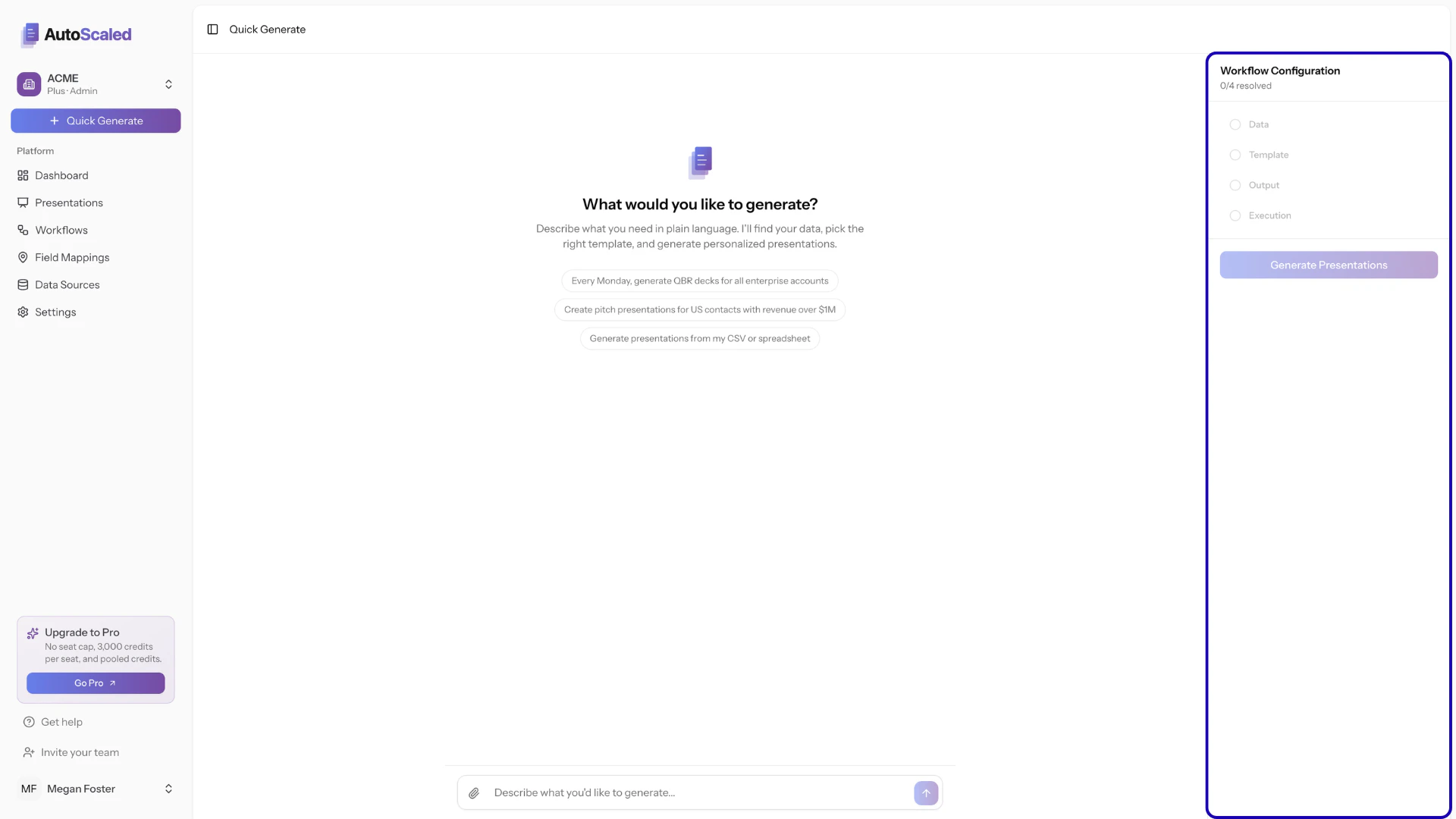
- Configuration sidebar (right): Shows the current state of your workflow as you build it. Each step is marked as complete or pending.
Chat Interface Start Prompt
To kick off the chat interface, you need to provide a prompt. Use natural human language in the prompt input box: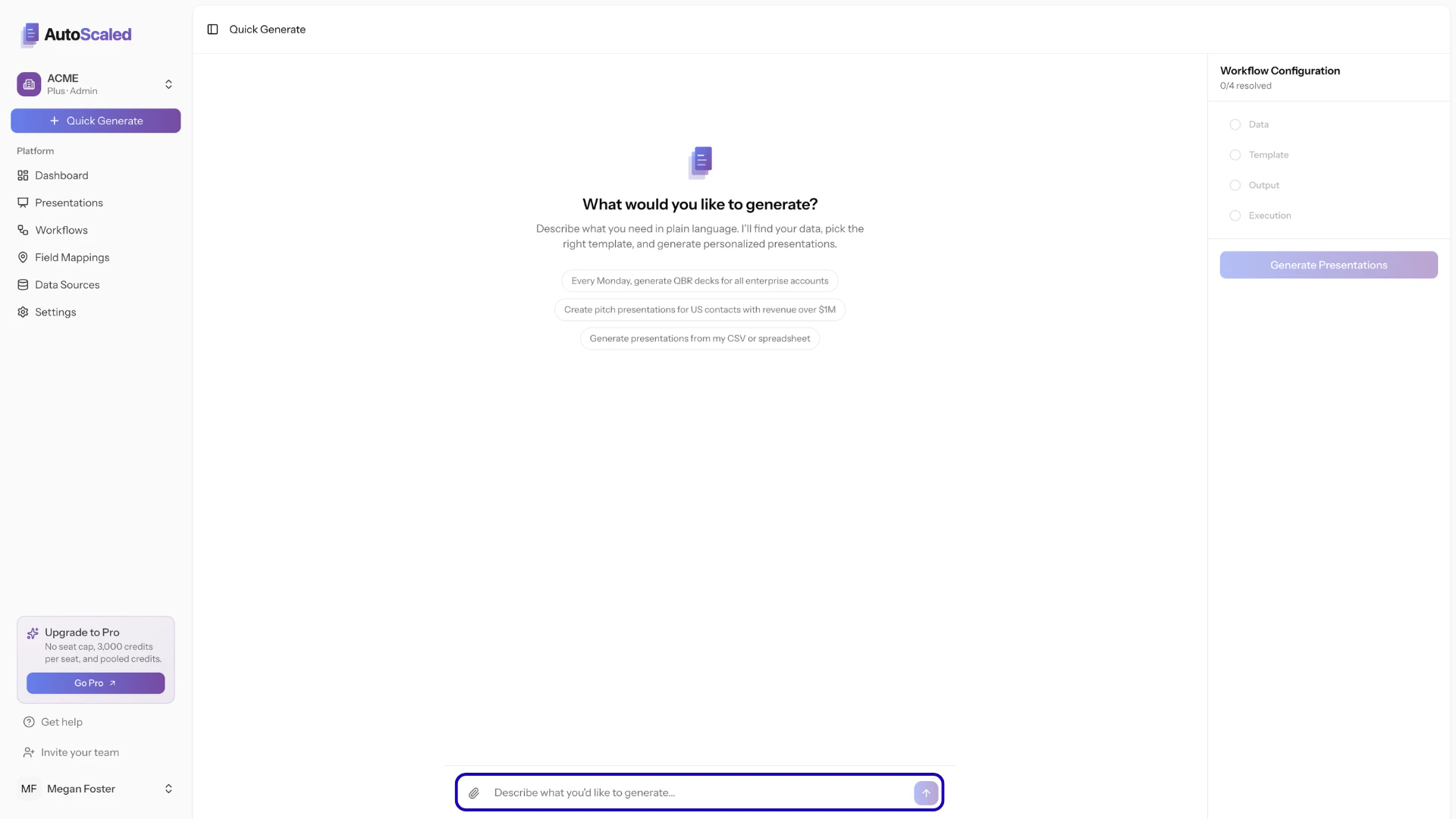
Example prompt: manual bulk presentation generation
For all US company records in Salesforce that have more than >$1 million in annual revenue and an opportunity in the Pitched stage, create a follow-up deck using the “Opportunity Pitched” deck
See an overview of prompt elements
See an overview of prompt elements
This prompt contains all information our agent needs to generate now:Data Source: Salesforce
Record Type: Company
Filters:
1. Location = “US”
2. Annual Revenue >1,000,000
3. Associated opportunity = “Pitched”
Template: Opportunity Pitched Deck
Output mode: Not provided (default: “New Presentation”)
Run mode: Not provided (default: “Run Now”)
Record Type: Company
Filters:
1. Location = “US”
2. Annual Revenue >1,000,000
3. Associated opportunity = “Pitched”
Template: Opportunity Pitched Deck
Output mode: Not provided (default: “New Presentation”)
Run mode: Not provided (default: “Run Now”)
Example prompt: generating recurring or scheduled content
Every Monday at 9AM, generate a deck that contains information about our users in Attio including how many calls they did in the last 7 days, the number of leads they worked and how many opportunities they have won. Ensure to append the presentation to the existing “Weekly Business Review” deck.
See an overview of prompt elements
See an overview of prompt elements
This prompt contains all information our agent needs for scheduling presentations:Data Source: Attio
Record Type: User
Filters: None provided (default: “All”)
Template: Weekly Business Review
Output mode: Append
Run mode: Scheduled (Weekly - Monday - 9 AM)
Record Type: User
Filters: None provided (default: “All”)
Template: Weekly Business Review
Output mode: Append
Run mode: Scheduled (Weekly - Monday - 9 AM)
Example prompt: generating presentations from triggers
Generate a personalized pitch deck using the “English Lead Template” when a new lead located in the USA, CA or UK submits a lead form in HubSpot. Instantly create the content when the lead submits the form.
See an overview of prompt elements
See an overview of prompt elements
This prompt contains all information our agent needs:Data Source: HubSpot
Record Type: Lead
Filters:
Location = “USA”, “CA” or “UK”
Lead Status = “New”
Template: English Lead Template
Output mode: Not provided (default: “New Presentation”)
Run mode: Trigger (once a record meets the criteria)
Record Type: Lead
Filters:
Location = “USA”, “CA” or “UK”
Lead Status = “New”
Template: English Lead Template
Output mode: Not provided (default: “New Presentation”)
Run mode: Trigger (once a record meets the criteria)
Anything missing? Let us know at [email protected] and we’ll help you out!