
Preparing your template
AutoScaled doesn’t generate generic slides. Every presentation is built from a template you provide. You can use your existing branded deck, complete with your fonts, colors, layouts, and logo placements. AutoScaled automates in your presentation software, maintaining your designs. Templates use placeholders like{{company}} or {{deal amount}} that get replaced with your CRM data during generation. There is a dedicated product page on how to prepare your template.
Learn more about preparing your template
Turn existing PowerPoint and Google Slides into templates. See best practices for building your own templates.
.png?fit=max&auto=format&n=5rOpVvmHsRqoifKF&q=85&s=6bc1017bf5447b2d36e13ae556a5b2a8)
Mapping your data to your template
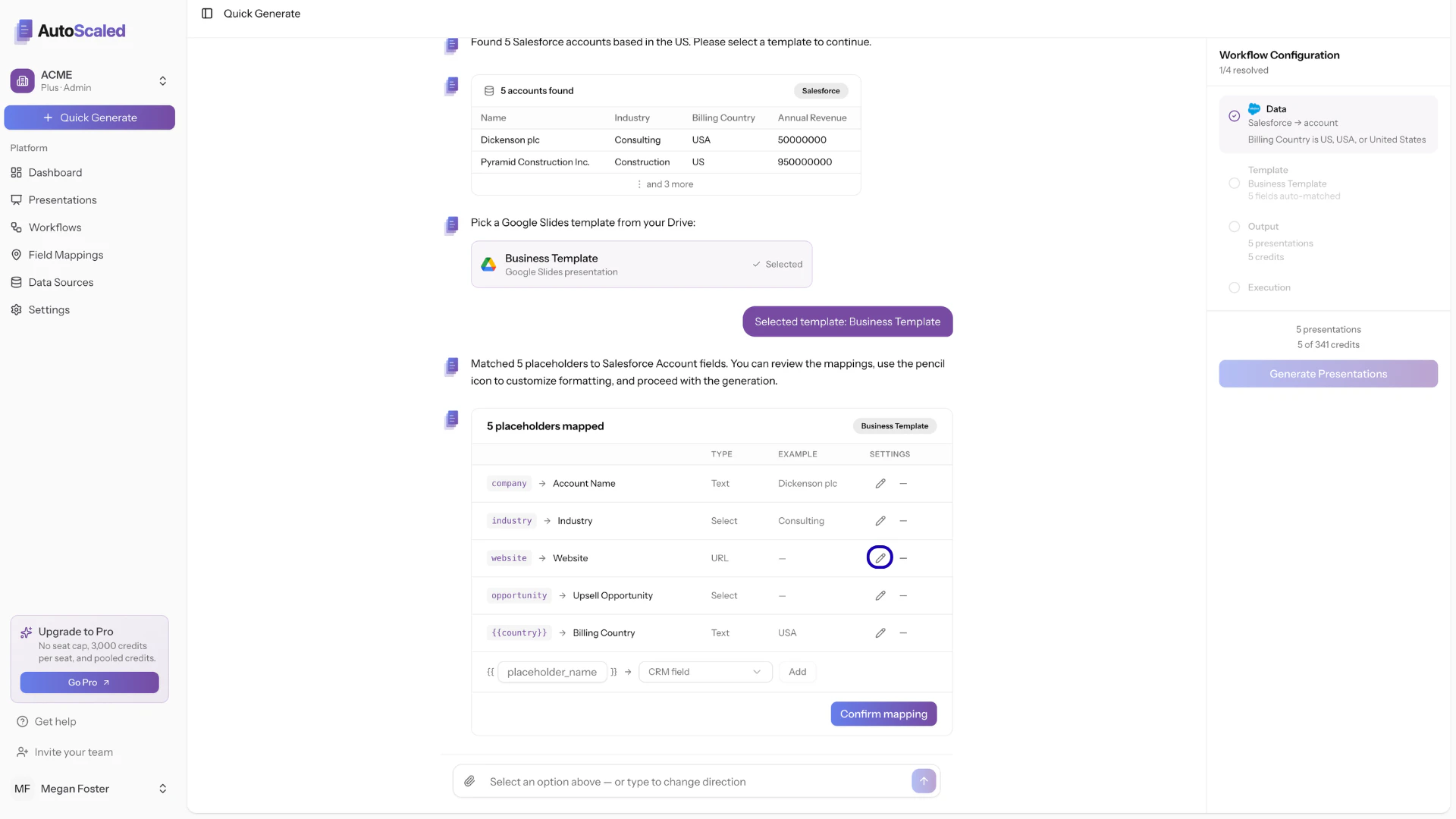
This is where you connect your data to your template. The assistant:- Scans your template for all
{{placeholder}}tags across text elements, tables, image alt descriptions, themes, etc. - Lists each CRM or Spreadsheet field mapped to the placeholder
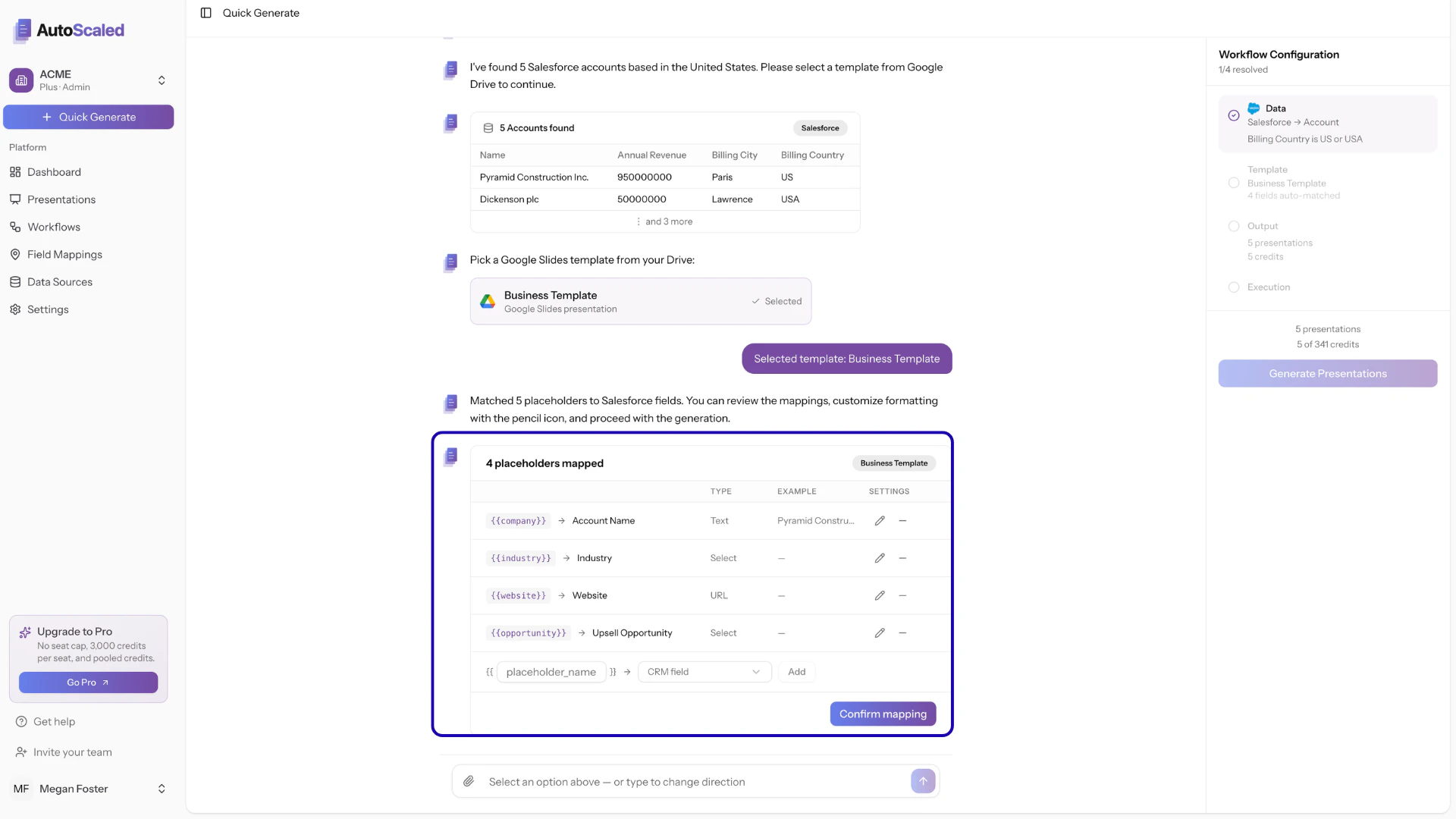
Removing mappings between your data and template
AutoScaled uses artificial intelligence to map CRM and spreadsheet fields to your template placeholders. Mappings may not always align perfectly with your intent. For example, a placeholder like{{country}} could match multiple CRM fields such as “Billing Country” or “Company Country”. Review auto-mapped fields carefully and adjust where needed.
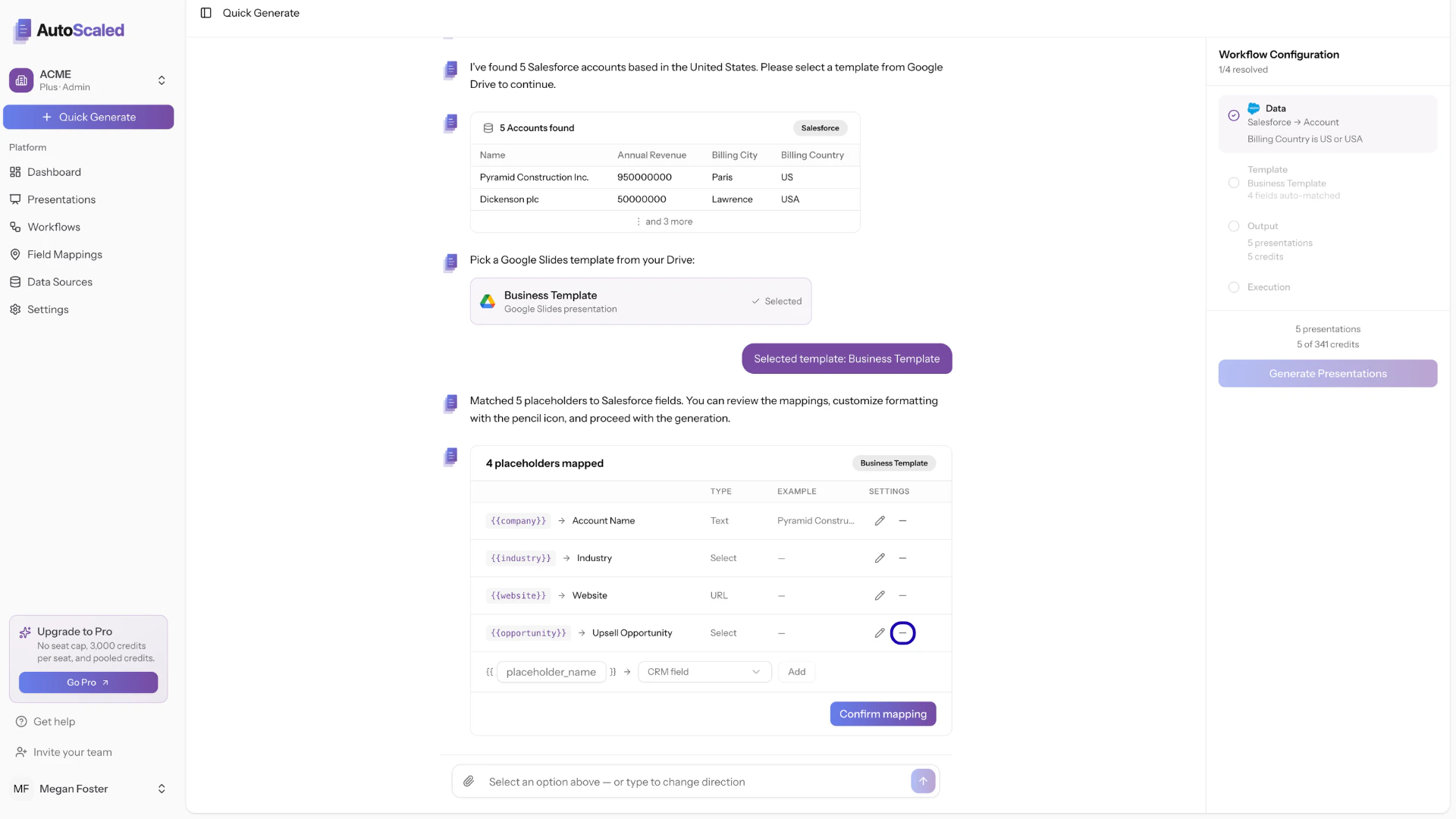
Adding additional mappings between your data and template
If you want to add additional mappings, provide the placeholder name and select the CRM or spreadsheet field (column) from the dropdown.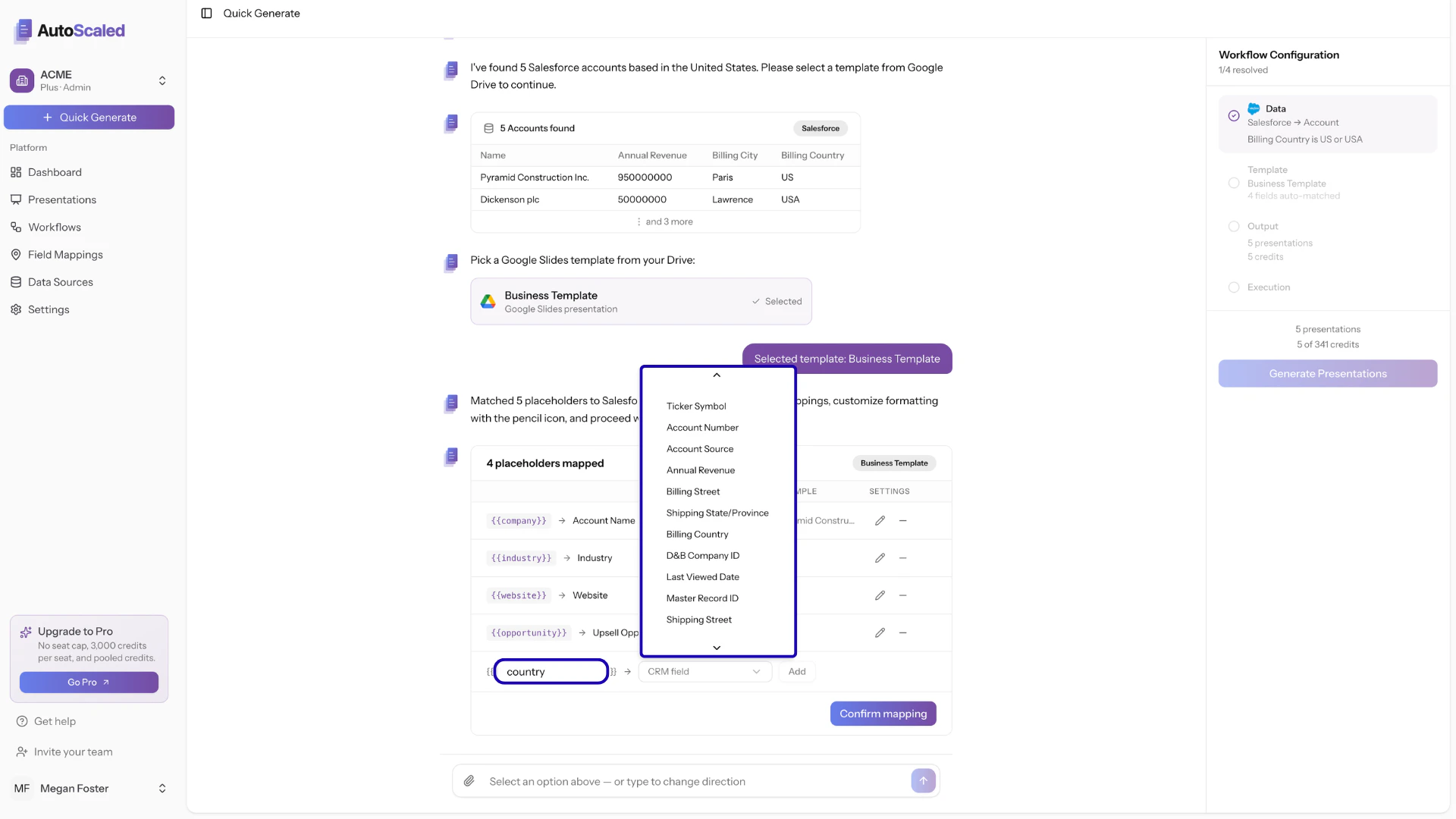
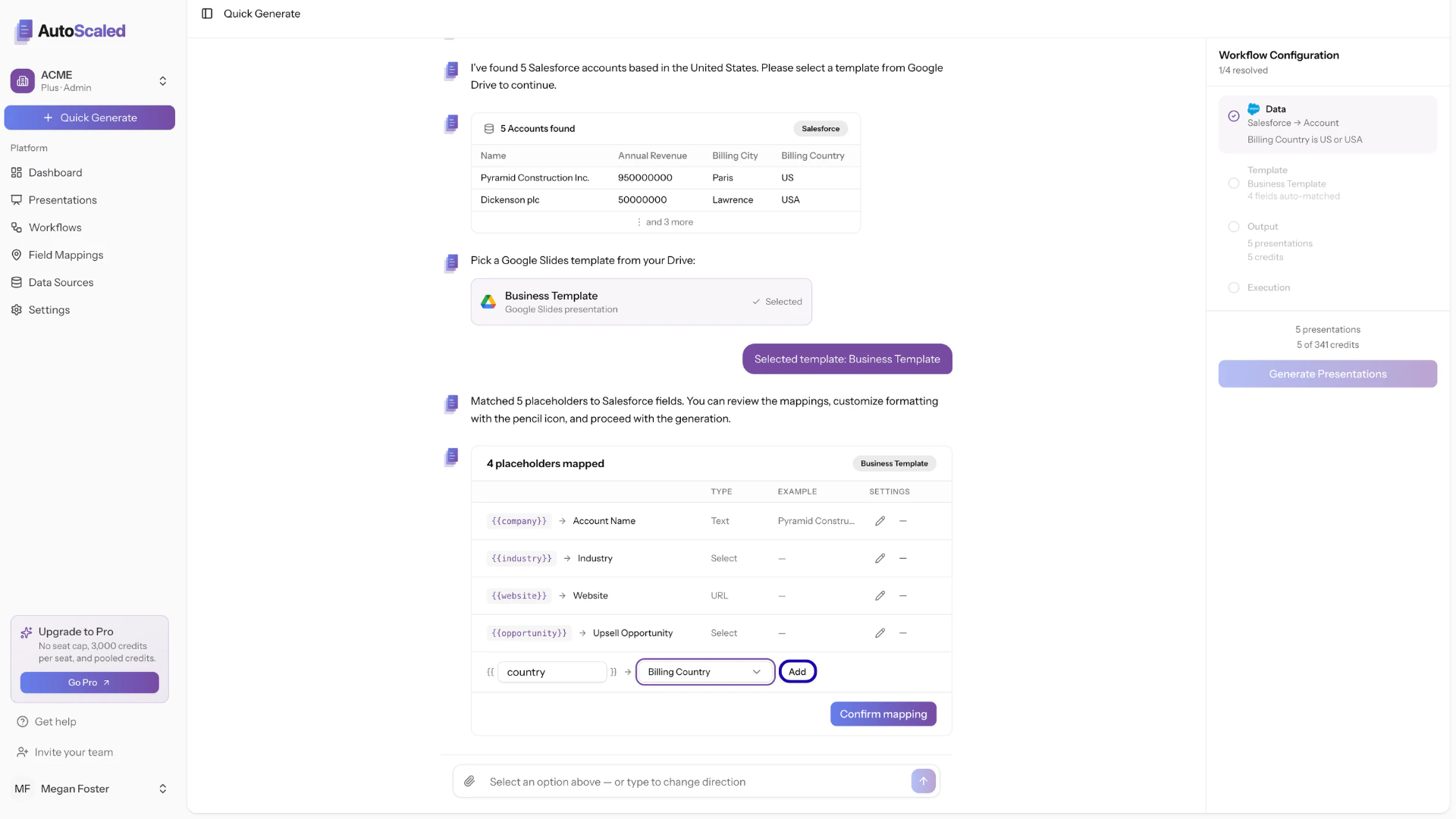
Editing mappings between your data and template
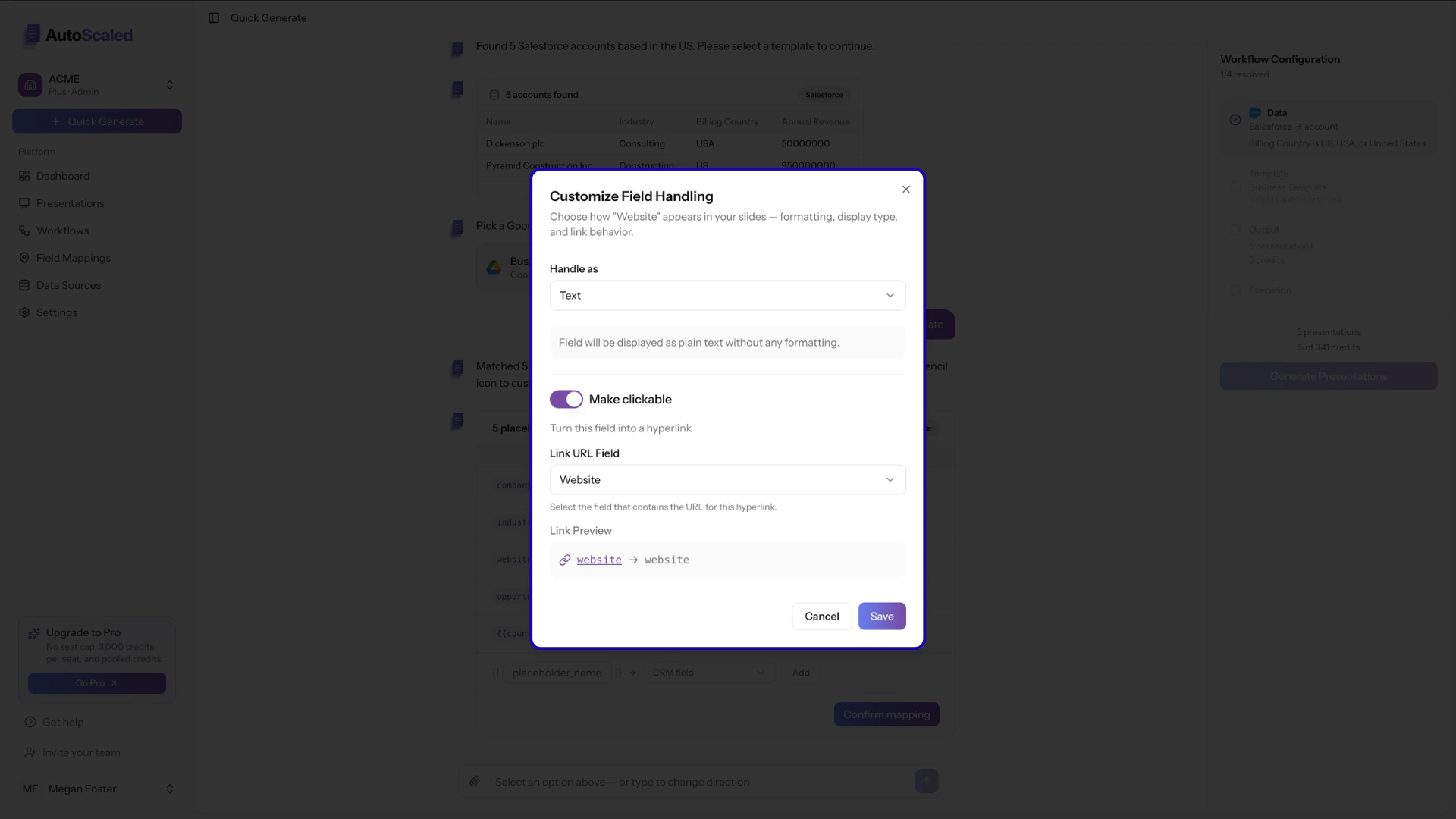
AutoScaled offers organization-wide default formatting of data which can be set in the “Field Mappings”. Users can customize formatting for each individual workflow. This will overwrite default settings. Formatting is different across CRMs and Spreadsheets:- CRMs: formatting adheres to organization-wide default or custom overwrites directly in AutoScaled
- Spreadsheets: formatting adheres to how data is formatted in your CSV, Google Sheet or Microsoft Excel document
- Data Types: how to handle percentages, currencies, dates, booleans, numbers etc.
- Media: how to handle images such as contain and cover
- Links: how to handle links and their targets
Additional note on data handling and formatting
Additional note on data handling and formatting
Different CRMs and integrations store data in different formats. For example: a currency in Salesforce might be displayed as “$100,000 USD” while the actual field stored is “100000”.To ensure you have maximum flexibility, we highly recommend setting up organization-wide data handling. This setup takes less than 5 minutes.
For a full list of all possible placeholders, mappings, and default data handling, refer to the “Field Mappings” page in the product documentation.
Learn more about field mappings and handling
Discover how placeholders are dynamically replaced with your CRM or spreadsheet data, for example, swapping
{{first_name}} for “Sarah” or {{value}} for “$12,500”. See how to configure default data handling for common formats such as dates (e.g. April 5, 2026 vs 05/04/26) and currencies (e.g. USD, SGD, or EUR)Confirming mappings between your data and template
Once all is set up according to your preferences, confirm the mappings: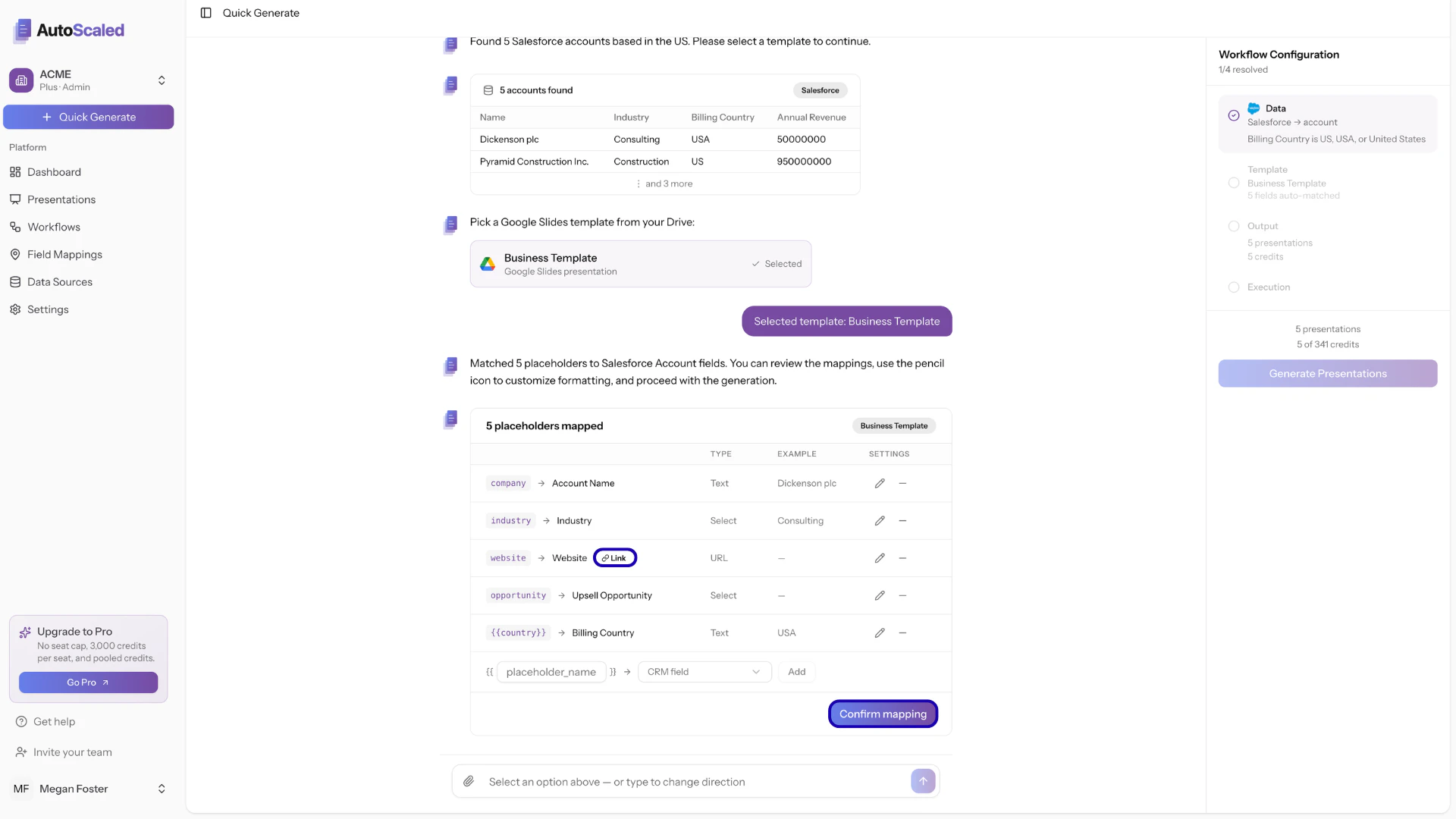
Anything missing? Let us know at support@autoscaled.com and we’ll help you out!