
Choosing Your Data Source
If you provide a prompt without a data source, the assistant asks which data source to use. You can select from your connected CRMs (HubSpot, Salesforce, Attio) or upload a file (CSV, Excel, Google Sheets)..png?fit=max&auto=format&n=dFA11SPxwk5AAFjz&q=85&s=c6615024a79815d5d196eb0cef91897f)
AI Assistant asking which data source to use
.png?fit=max&auto=format&n=dFA11SPxwk5AAFjz&q=85&s=fe2a9db9829eb11200bf185756d31c6a)
User wants to use Excel; AI provides upload input box
Uploading a Spreadsheet
If you’re not pulling from a CRM, you can upload data directly:- CSV: Drag and drop or browse for a
.csvfile - Excel: Upload
.xlsxor.xlsfiles. You’ll be asked to confirm the sheet and header row. - Google Sheets: Paste a Google Sheets URL. Select the sheet and confirm the data range.
Selecting an Object Type
Selecting an object type is only necessary for CRMs. For Spreadsheets, AutoScaled processes every row as a standalone record.
- Standard objects: Contacts, Companies, Deals (or Opportunities in Salesforce)
- Custom objects: Custom objects defined in your CRM are discovered automatically
.png?fit=max&auto=format&n=3WRqbvvSUS_DomBg&q=85&s=62ce3058482687fdb533966dedc753c8 "Auto Scaled Product Documents 1920x1080 (5)")
Selecting the right object type in AutoScaled
Filtering Records
Use natural language to apply filters to target the right records. The filter system is field-type-aware and automatically applies different operators:- Text fields: equals, contains, starts with, ends with, is empty
- Number fields: equals, greater than, less than, between
- Date fields: before, after, between, relative (last 7 days, this month, etc.)
- Select/Enum fields: is, is not, is any of
- Boolean fields: is true, is false
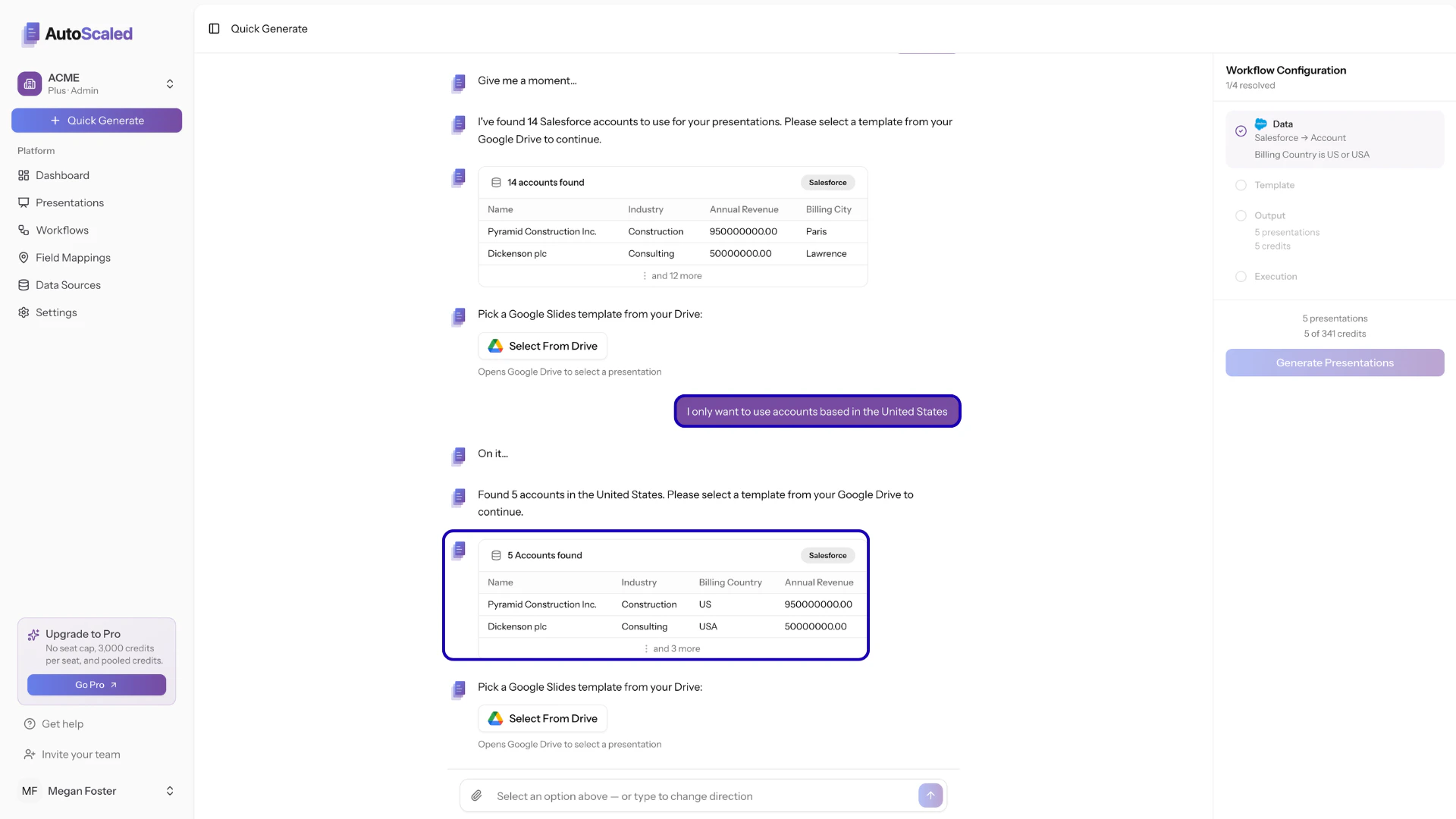
Filter records based on any criteria
Previewing Records
Before proceeding, you see a paginated table of the records that match your filters. This lets you verify you’re targeting the right data. The preview shows the fields you’ve selected, with proper formatting.Anything missing? Let us know at [email protected] and we’ll help you out!