
Connect Salesforce
- Go to Data Sources in AutoScaled.
- Click Connect next to Salesforce.
- Complete the Salesforce login and authorization flow.
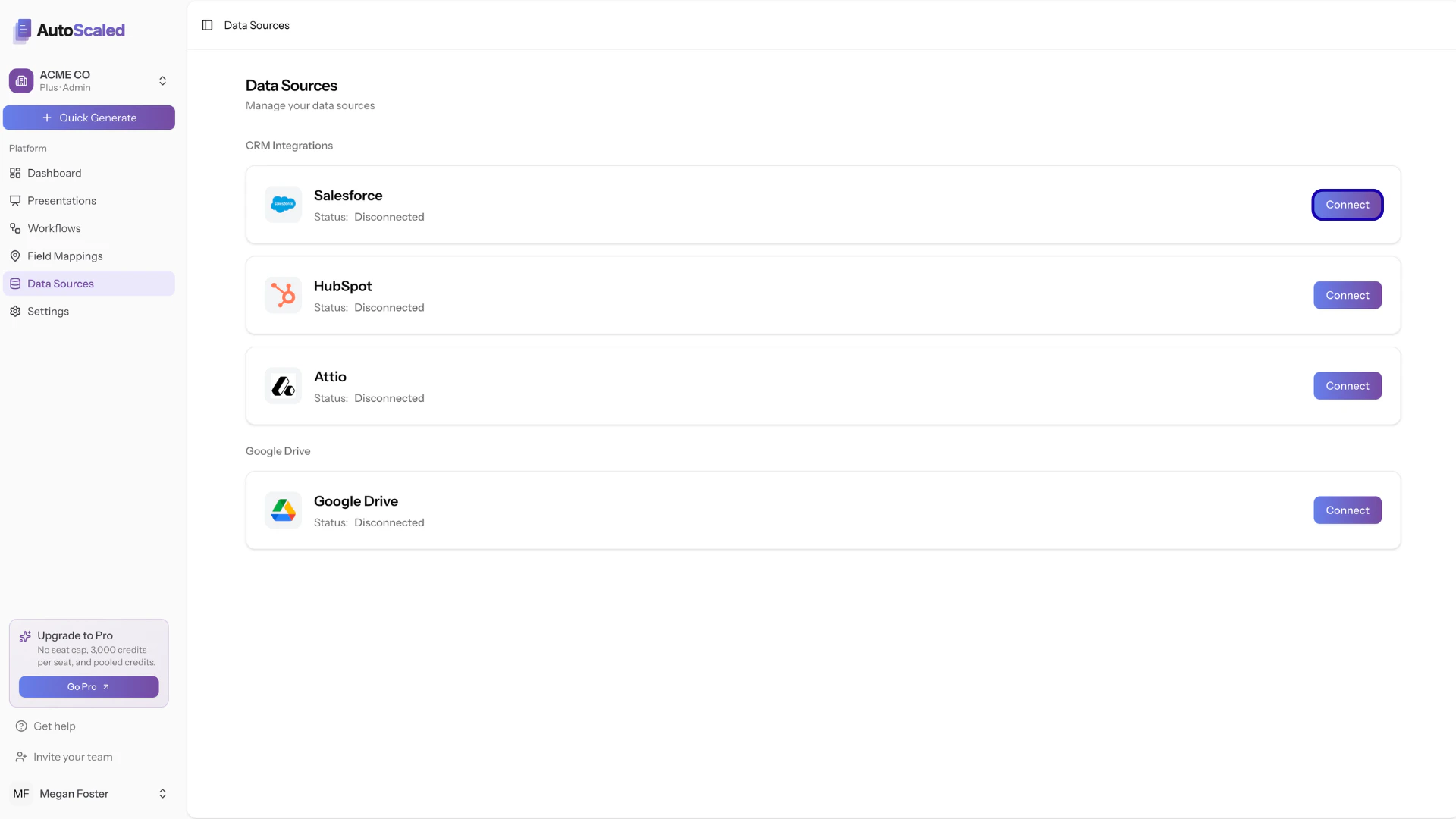
Connecting Salesforce to AutoScaled
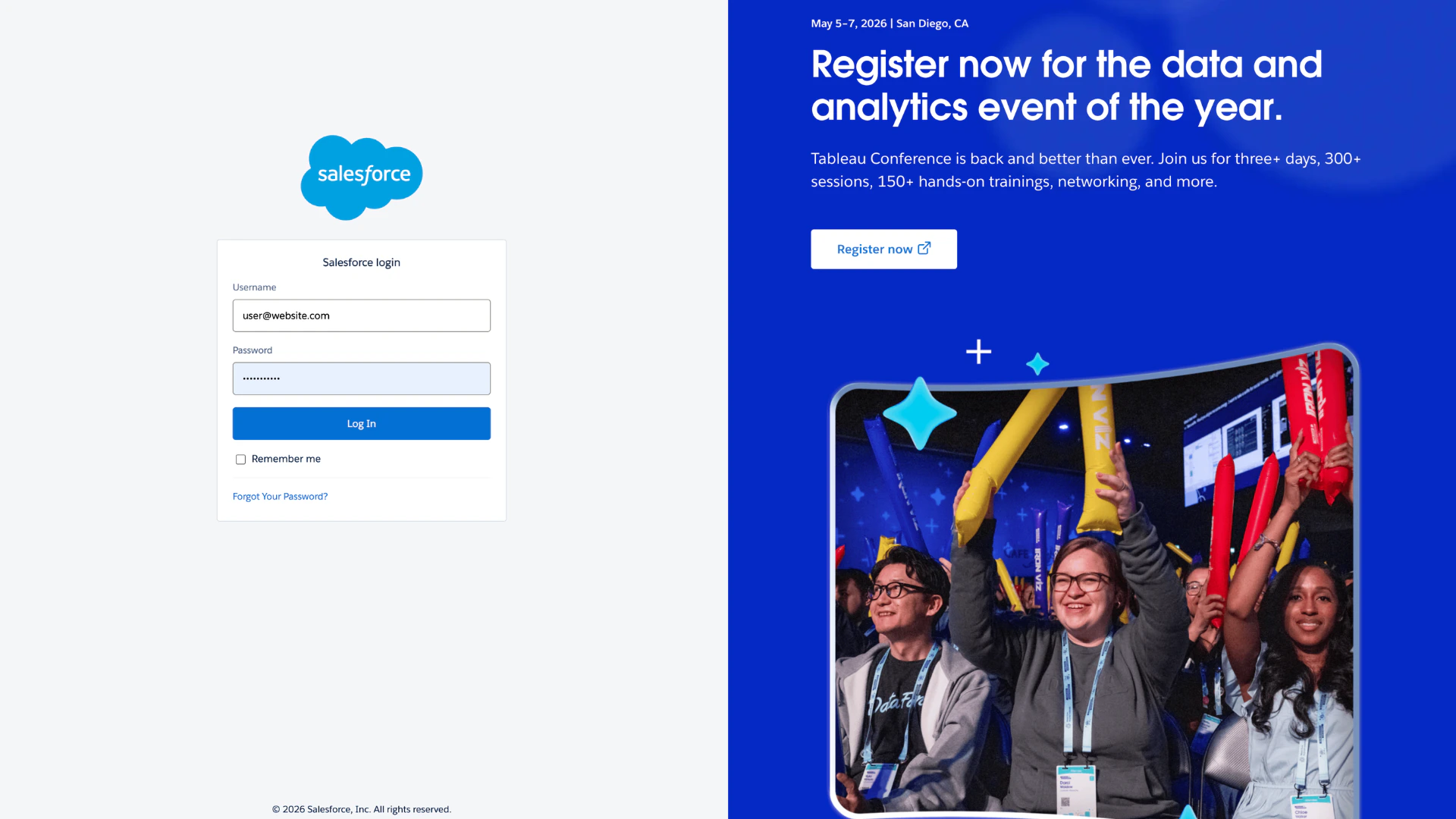
Salesforce login page
Salesforce might show a warning as you’re connecting a third-party tool to Salesforce. This is standard and default behavior. You can continue connecting AutoScaled and revoke access at any time.
Why connect Salesforce to AutoScaled
Connecting Salesforce helps you automate and scale presentation workflows:- Generate presentations from CRM events: Trigger deck generation when records are created or updated.
- Use live customer data: Populate templates with Salesforce opportunity, contact, account, and custom object data.
- Schedule recurring updates: Run scheduled workflows for forecast, deal, and account review meetings.
- Keep messaging consistent: Use reusable templates and mappings so teams present aligned, up-to-date information.
Required scopes and access model
AutoScaled requests scopes for:- Read-only access to default Salesforce objects (opportunities/deals, contacts, accounts/companies)
- Event listening access for trigger-based CRM change events
- Equivalent access on custom objects used in your workflows
AutoScaled does not expand your Salesforce permissions. It respects object and field visibility already configured in your Salesforce org. AutoScaled has no write access to Salesforce and cannot edit records, objects, or fields.
Uninstall or disconnect Salesforce
To remove Salesforce access:- In AutoScaled, open Data Sources and disconnect Salesforce.
- In Salesforce, revoke AutoScaled from connected apps.
Back to Data Sources overview
View all integrations and platform-level data source guidance.
Anything missing? Let us know at [email protected] and we’ll help you out!